Setup & site building · Guide
How to Find WordPress Pages in Folder (Step by Step)
Short answer
WordPress pages are not saved as files in a folder. Page content lives in the wp_posts table in the database, the layout comes from theme template files in wp-content/themes, and images sit in wp-content/uploads. Use phpMyAdmin to find content and your file manager for templates.
Key takeaways
- Page content is stored in the wp_posts database table, not as files.
- Theme template files in wp-content/themes control how pages look.
- Block theme edits made in the Site Editor are saved in the database.
- Uploaded images sit in wp-content/uploads by year and month.
- Find a page's ID in its edit link to locate it in the database.
Where are WordPress pages stored in the folders?
WordPress pages are not stored as files in a folder. Their content lives in the database, in the wp_posts table, while the folders hold the theme templates that display them.
This surprises many people who open their hosting file manager expecting an about.html or contact.php file. You will not find one, because WordPress builds each page on request.
When a visitor opens a page, WordPress reads the content from the database, picks a template file from the active theme, and combines the two into HTML.
So the answer to where a page is depends on what you want to change. The text is in the database, the layout is in the theme, and the images are in the uploads folder.
| What you are looking for | Where it lives | How to reach it |
|---|---|---|
| Page text and blocks | wp_posts table in the database | Page editor or phpMyAdmin |
| Page settings and custom fields | wp_postmeta table | Editor sidebar or phpMyAdmin |
| Page layout (classic theme) | PHP template files in the theme folder | File manager or SFTP |
| Page layout (block theme) | HTML templates in the theme, or saved edits in the database | Site Editor |
| Images and files on the page | wp-content/uploads | Media Library or file manager |
| Site settings | wp_options table and wp-config.php | Dashboard or file manager |
What does the WordPress folder structure look like?
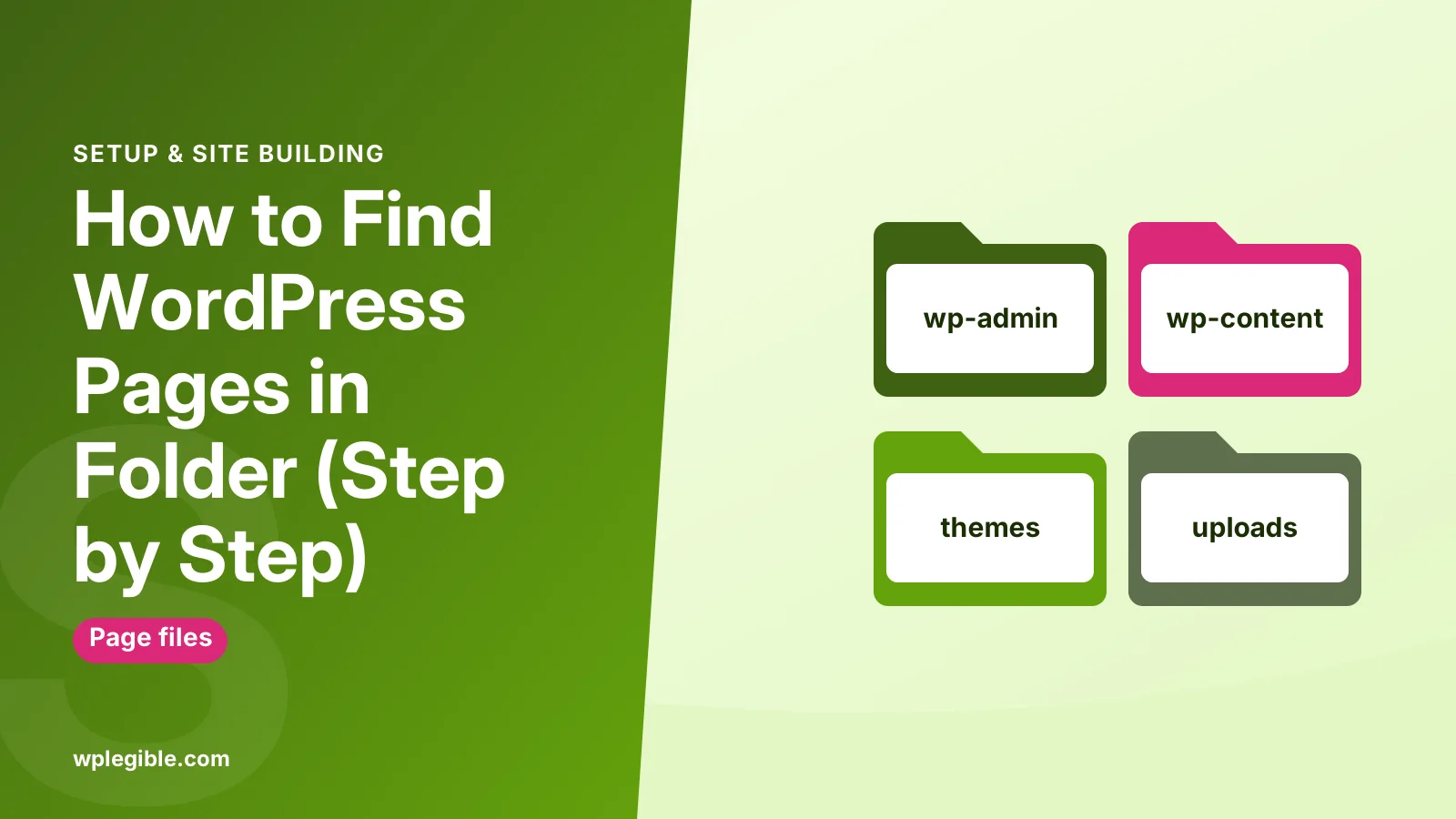
A WordPress install has three main folders, wp-admin, wp-includes and wp-content, plus core files such as wp-config.php in the root.
The wp-admin and wp-includes folders contain WordPress core. You should not edit them, because updates replace them.
The wp-content folder holds everything that belongs to your site. Inside it you will find themes, plugins and uploads, and sometimes extra folders created by plugins.
The root folder is usually called public_html, www or htdocs, depending on your host. Our guide on where to find wp-config.php shows how to locate it.
Some hosts put WordPress in a subfolder, such as public_html/blog or public_html/wp. If you cannot see wp-content in the root, check the subfolders or look at the WordPress Address setting under Settings, General.
If you run several sites on one account, each usually has its own folder, often named after the domain. Open the folder that matches the site you are working on.
How do you find a page's content in the database?
Open phpMyAdmin from your hosting panel, select the WordPress database and browse the wp_posts table, filtering by post_type equal to page.
Each row is one post, page, revision or other item. The post_content column holds the page's text and block markup, and post_title holds the title.
Revisions can be confusing. Every time you save a page, WordPress may store an older copy as a separate row with post_type set to revision, so you may see several rows with the same title.
The live version is the one with post_type page and post_status publish. Drafts show a status of draft, and trashed pages show trash.
- Log in to your hosting control panel.
- Open phpMyAdmin from the databases section.
- Select the database used by your site.
- Open the wp_posts table, which may have a different prefix.
- Use Search to filter where post_type is page.
- Find your page by its title or ID.
The table prefix may not be wp_. Check the $table_prefix line in wp-config.php to see the one your site uses.
The WordPress database description lists every core table and column. The phpMyAdmin documentation explains how to browse and search tables.
Be careful here. Editing post_content directly can break block markup, so take a backup first. Our guide on backing up the WordPress database covers the steps.
How do you find a page's ID?
The page ID is the number after post= in the edit link, which you can see by hovering over the page title in Pages, All Pages.
Open a page in the editor and look at the browser address bar. You will see something like post.php?post=42&action=edit, where 42 is the ID.
The ID is the quickest way to find the page in the database. It is also what CSS classes such as page-id-42 and many plugin settings use.
Which theme files display your pages?
In a classic theme, PHP files such as page.php, singular.php or a custom page template decide how pages look, and WordPress picks one using the template hierarchy.
Go to wp-content, then themes, then your active theme's folder. You will see files like page.php, header.php, footer.php and functions.php.
WordPress chooses the template in a set order. It looks for a custom template assigned to the page, then page-slug.php, then page-id.php, then page.php, then singular.php, and finally index.php.
The template hierarchy documentation shows this order in full. If you want a layout just for one page, our guide on creating a custom page template shows how.
Where are block theme templates stored?
Block themes keep their default templates as HTML files in a templates folder, but any changes you make in the Site Editor are saved to the database instead.
Inside a block theme you will find a templates folder with files such as page.html and single.html, and a parts folder with header.html and footer.html.
When you customize a template in the Site Editor, WordPress saves your version in the database as a separate item. From then on, that saved version overrides the file in the theme.
This is why editing page.html in the file manager may seem to do nothing. Reset the template in the Site Editor to go back to the file version. Our explainer on what a block theme is covers this in more detail.
How do you access the WordPress folders?
You can reach the WordPress folders through your host's file manager, an SFTP client such as FileZilla, or SSH if your host allows it.
Most hosting dashboards include a file manager. In cPanel it is called File Manager, and it opens in your browser with no extra software.
For larger jobs, an SFTP client is easier. FileZilla is a free option, and your host provides the login details.
Developers with SSH access can use WP-CLI. The command wp post list --post_type=page lists every page with its ID, and the WP-CLI post list documentation covers more options.
Check file permissions if you cannot open or save files. Our guide on setting correct file permissions explains safe values.
Where are images and files from a page stored?
Images and files you add to a page are stored in wp-content/uploads, usually in year and month subfolders based on when you uploaded them.
For example, an image uploaded in November 2026 would normally sit in wp-content/uploads/2026/11. Resized copies sit next to the original with the dimensions added to the file name.
This year-and-month setting can be turned off under Settings, Media. If it is off, all uploads go straight into the uploads folder.
Plugins sometimes create their own folders inside uploads, for example for form attachments, backups or cache files.
Page builders can add to this. Elementor, for example, stores generated CSS for pages in its own folder inside uploads, which is rebuilt when you clear its cache.
How do you get a page as a file?
If you need a page as a file, export it through Tools, Export, save it from the browser, or use a static site plugin, because WordPress does not keep page files.
Tools, Export creates an XML file with your pages, which you can import into another WordPress site. It does not include theme files or images.
To keep a visual copy, save the page from your browser or print it to PDF. To create a full static copy of the site, use a static site generator plugin.
Our guide on how to add HTML in WordPress helps if you want to bring an existing HTML page into WordPress instead.
Frequently asked questions
Why can't I find my WordPress pages in the file manager?
Because WordPress does not save pages as files. The text and settings are stored in the database, and WordPress builds the page on request using your theme's templates. Look in the wp_posts table with phpMyAdmin, or edit the page in the dashboard.
Which folder contains the WordPress homepage?
No folder contains the homepage as a file. The homepage is either your latest posts or a page you choose under Settings, Reading. Its layout comes from templates such as front-page or home in your theme folder.
Can I edit a WordPress page through the files?
You can edit the theme templates that control the layout, but not the page content itself, which is in the database. Editing content in phpMyAdmin is possible but risky, so the page editor is the safer place to change text.
Where is the HTML for a WordPress page?
There is no stored HTML file. WordPress generates the HTML each time a page loads, unless a caching plugin saves a copy. Cached copies are usually kept in a cache folder inside wp-content, but they are temporary and get replaced.
How do I find which template a page uses?
Check the Template option in the page settings sidebar. For classic themes, a plugin such as Query Monitor shows the template file used on the front end, which helps when the theme relies on the template hierarchy.
Sources
- Database Description WordPress Codex
- Template Hierarchy WordPress Developer Resources
- wp post list WordPress Developer Resources
- phpMyAdmin documentation phpMyAdmin
- FileZilla FileZilla Project
Is your product missing, or something out of date?
Tell us what to add or correct. We read every note and reply when we need a source. A message does not buy a ranking.
Thanks — we review requests within 3 business days.
Related guides



About the editors
Researched from the primary sources listed above and checked against our editorial rules before publishing.