Developer · Guide
How to Debug Contact Form 7 (Step by Step)
Short answer
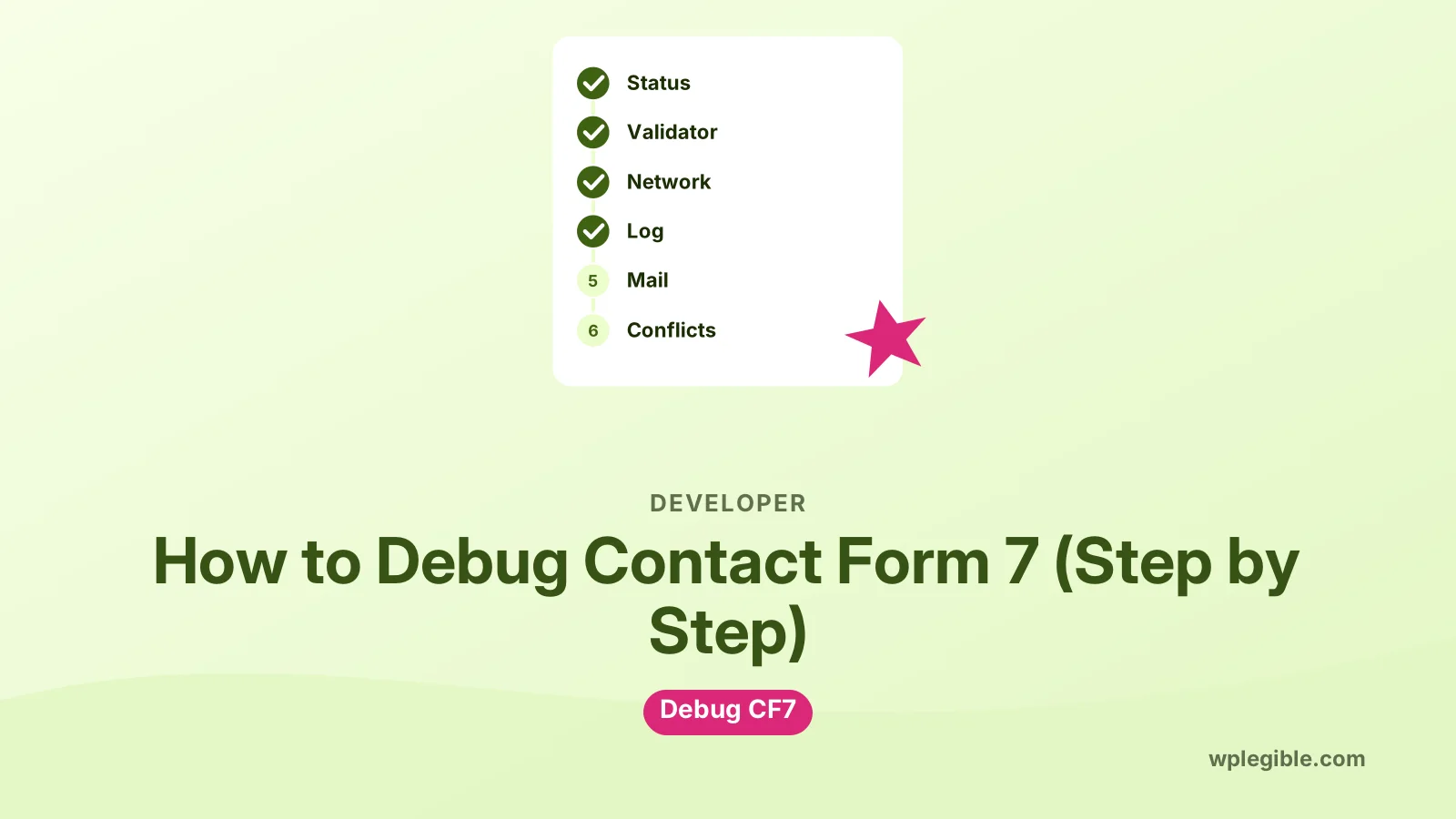
Start with the message the form shows after submitting, then fix any warnings from the configuration validator. Next, inspect the feedback request in the browser Network tab, turn on WordPress debug logging, and test email delivery with an SMTP plugin log before checking plugin and cache conflicts.
Key takeaways
- The response status tells you whether validation, spam checks or mail sending failed.
- The configuration validator flags From address and header problems in the Mail tab.
- The Network tab shows the REST API response for every submission.
- Flamingo saves submissions so you can tell form problems from mail problems.
- An SMTP plugin email log shows whether WordPress mail itself is failing.
How do you debug Contact Form 7?
To debug Contact Form 7, read the response message, check the configuration validator, inspect the form's REST request in the browser's Network tab, then test mail delivery and plugin conflicts one step at a time.
Contact Form 7 does not have a single debug screen. Instead, it gives you clues in several places. The trick is to check them in a sensible order, so you know whether the problem is the form, the mail setup, spam filtering or the server.
Here is the order this guide follows:
- Read the message the form shows after submitting.
- Fix any configuration errors in the form editor.
- Inspect the submission request in the browser.
- Turn on WordPress debugging and check the log.
- Test mail delivery separately from the form.
- Store submissions so nothing is lost while you test.
- Rule out plugin, theme and cache conflicts.
What does the form's response message tell you?
The message under the form after submitting tells you which stage failed: validation, spam checks, or mail sending, so it is the first clue to read.
Contact Form 7 returns a status with every submission. Each one points to a different part of the process.
| Message shown | Status | What it means |
|---|---|---|
| Thank you for your message. It has been sent. | mail_sent | Form worked and WordPress accepted the email |
| One or more fields have an error. | validation_failed | A required field or format check failed |
| There was an error trying to send your message. | mail_failed | WordPress could not hand the email to the mail system |
| There was an error trying to send your message (spam) | spam | A spam check blocked the submission |
| No message, endless spinner | none | JavaScript or REST API request failed |
The visible wording can be changed under the Messages tab, so your form may show custom text. The status underneath stays the same, and you can read it in the Network tab, as shown below.
A mail_sent result only means WordPress handed the email off. If the email still never arrives, the problem is delivery, not the form.
How do you use the configuration validator?
Open the form under Contact > Contact Forms; if Contact Form 7 finds a setup problem, it shows a warning at the top and marks the affected Mail fields.
The configuration validator checks things like an invalid sender address, a From address on a different domain than your site, missing mail tags and invalid header syntax. These problems often cause mail_failed errors or emails landing in spam.
The most common warning is a From address that does not belong to your site's domain. Use an address like [email protected] in the From field, and put the visitor's email in Additional Headers as a Reply-To line instead.
The official guide on how to resolve configuration errors explains each warning type. Our guide to Contact Form 7 mail settings walks through every field in the Mail tab.
If the validator itself throws errors, see our fix for the Contact Form 7 configuration error.
How do you inspect the submission in the browser?
Open developer tools with F12, go to the Network tab, submit the form and click the request ending in feedback to see the exact response from the server.
Contact Form 7 submits forms through the WordPress REST API. The request goes to an address like /wp-json/contact-form-7/v1/contact-forms/123/feedback, where 123 is your form ID.
Click that request and open the Response or Preview tab. You will see a JSON reply with a status field, a message and, for validation failures, a list of invalid fields.
This tells you a lot:
- A 200 response with a status shows the plugin ran normally
- A 403 or 401 response often means a security plugin or firewall blocked the REST API
- A 404 response suggests the REST API is disabled or permalinks need refreshing
- A 500 response points to a PHP error on the server
- No request at all means JavaScript stopped before submitting
Check the Console tab too. Red errors from other scripts can stop the form from submitting. Chrome's guide to inspecting network activity shows how to read requests and responses.
How do you turn on WordPress debugging?
Add WP_DEBUG and WP_DEBUG_LOG to wp-config.php, keep WP_DEBUG_DISPLAY off on live sites, submit the form, then read wp-content/debug.log for PHP errors.
A 500 error or a blank response usually means PHP hit a fatal error. Debug logging records the exact file and line.
Add these lines above the line that says to stop editing in wp-config.php:
define( 'WP_DEBUG', true );
define( 'WP_DEBUG_LOG', true );
define( 'WP_DEBUG_DISPLAY', false );
Submit the form again, then open the debug log. Look for entries mentioning contact-form-7, a custom snippet, or another plugin hooked into the submission.
The official page on debugging in WordPress explains each constant. Our guides on how to enable debug mode in WordPress and reading the log cover the details. Turn debugging off again once you finish.
How do you test whether WordPress can send email at all?
Install an SMTP plugin with an email log or test tool, send a test email, and compare the result with a form submission to see whether the problem is WordPress mail or the form.
Contact Form 7 uses the wp_mail() function, the same one WordPress uses for password resets. If wp_mail() fails, every form on the site fails.
Most hosts send PHP mail without proper authentication. Many inboxes reject or filter those messages. An SMTP plugin connects WordPress to a real mail service instead.
Useful checks:
- Send a test email from the SMTP plugin's tools screen
- Check its email log after submitting the form
- Read the error text if a send fails, such as an authentication or connection error
- Check that SPF and DKIM records exist for your sending domain
The reference for wp_mail() shows how the function works. Our guide on how to set up SMTP in WordPress walks through the setup.
How do you keep a record of submissions while debugging?
Install Flamingo, the free companion plugin from the Contact Form 7 author, so every submission is saved in the database even when the email fails.
Contact Form 7 does not store submissions by default. If mail is broken, messages are lost. Flamingo saves each submission under its own admin menu.
Flamingo also helps debugging. If a submission appears in Flamingo but no email arrives, the form works and mail delivery is the problem. If nothing appears, the submission never completed.
Flamingo also lists messages marked as spam, which helps when real messages are being blocked. Our guide on how to see Contact Form 7 submissions shows where to find them.
How do you rule out spam filtering problems?
If the status is spam, check your reCAPTCHA keys, Akismet settings, disallowed keywords and any honeypot or Turnstile add-on, because one of them flagged the submission.
Spam checks can block genuine messages. Common causes:
- Wrong or expired reCAPTCHA keys, or keys for a different domain
- A cache or script delay setting stopping the reCAPTCHA script
- Words in the WordPress Disallowed Comment Keys list, which Contact Form 7 also checks
- Akismet flagging a test message that looks like spam
Test with a short, plain message from a normal email address. If that passes, a content or keyword rule is likely to blame. The Google reCAPTCHA documentation explains how v3 scores visitors.
How do you check for plugin, theme and cache conflicts?
Run a conflict test on staging: switch to a default theme, disable other plugins, and add caching back last, testing the form after each change.
Many Contact Form 7 problems come from optimization and security plugins. Script delay or combine settings can stop the form JavaScript. Security plugins can block the REST API.
A quick checklist:
- Exclude Contact Form 7 scripts from delay and combine settings
- Exclude the contact page from page caching if forms fail for logged-out visitors
- Check firewall logs for blocked requests to /wp-json/
- Disable Cloudflare Rocket Loader for the contact page
The Health Check and Troubleshooting plugin lets you disable plugins only for your own session, which keeps the live site working for visitors.
How do you debug with code hooks?
Developers can log data from hooks such as wpcf7_before_send_mail and wpcf7_mail_failed to see the submitted values and the moment mail fails.
Add a small logging snippet through a code snippets plugin or child theme:
add_action( 'wpcf7_mail_failed', function( $form ) {
    error_log( 'CF7 mail failed for form ' . $form->id() );
} );
With WP_DEBUG_LOG on, the message is written to the debug log. You can extend this to log posted data from the submission object while testing.
Remove debugging code when you are done, and never log sensitive personal data on a live site longer than needed.
What should you do once you find the cause?
Fix the single cause you found, test the form while logged out, check the email arrives, then turn off debugging and remove any test code.
Most issues end up in one of three places: the Mail tab settings, email delivery, or a script conflict. For the common case of mail not arriving, see our guide to fix Contact Form 7 not sending.
Keep Flamingo and your SMTP email log running afterwards. They make the next problem much faster to diagnose.
Frequently asked questions
Does Contact Form 7 have a debug mode?
No dedicated debug mode exists. You debug it by reading the response status, using the configuration validator, inspecting the REST request in the browser, and enabling WordPress debug logging for PHP errors.
What does mail_failed mean in Contact Form 7?
It means WordPress could not hand the email to the mail system. The usual causes are a server that blocks PHP mail, wrong SMTP credentials, or an invalid From address. An SMTP plugin with an email log shows the exact error.
Why does my Contact Form 7 form keep spinning?
An endless spinner means the submission request did not get a valid response. Check the browser console for JavaScript errors and the Network tab for a blocked or failed REST API request.
Where are Contact Form 7 submissions saved?
They are not saved by default. Install the free Flamingo plugin to store submissions in the database, including messages flagged as spam, so you can review them even if email fails.
Is it safe to leave WP_DEBUG on?
Leaving logging on briefly is fine, but keep display turned off on a live site and switch debugging off when finished. Debug logs can grow large and may expose file paths if left publicly accessible.
Sources
- How to resolve configuration errors Contact Form 7
- wp_mail() WordPress Developer Resources
- Debugging in WordPress WordPress Developer Resources
- Inspect network activity Chrome for Developers
- Health Check and Troubleshooting WordPress.org
- reCAPTCHA v3 Google for Developers
Is your product missing, or something out of date?
Tell us what to add or correct. We read every note and reply when we need a source. A message does not buy a ranking.
Thanks — we review requests within 3 business days.
Related guides
About the editors
Researched from the primary sources listed above and checked against our editorial rules before publishing.