Setup & site building · Guide
How to Create a WordPress Website for Beginners (Step by Step)
Short answer
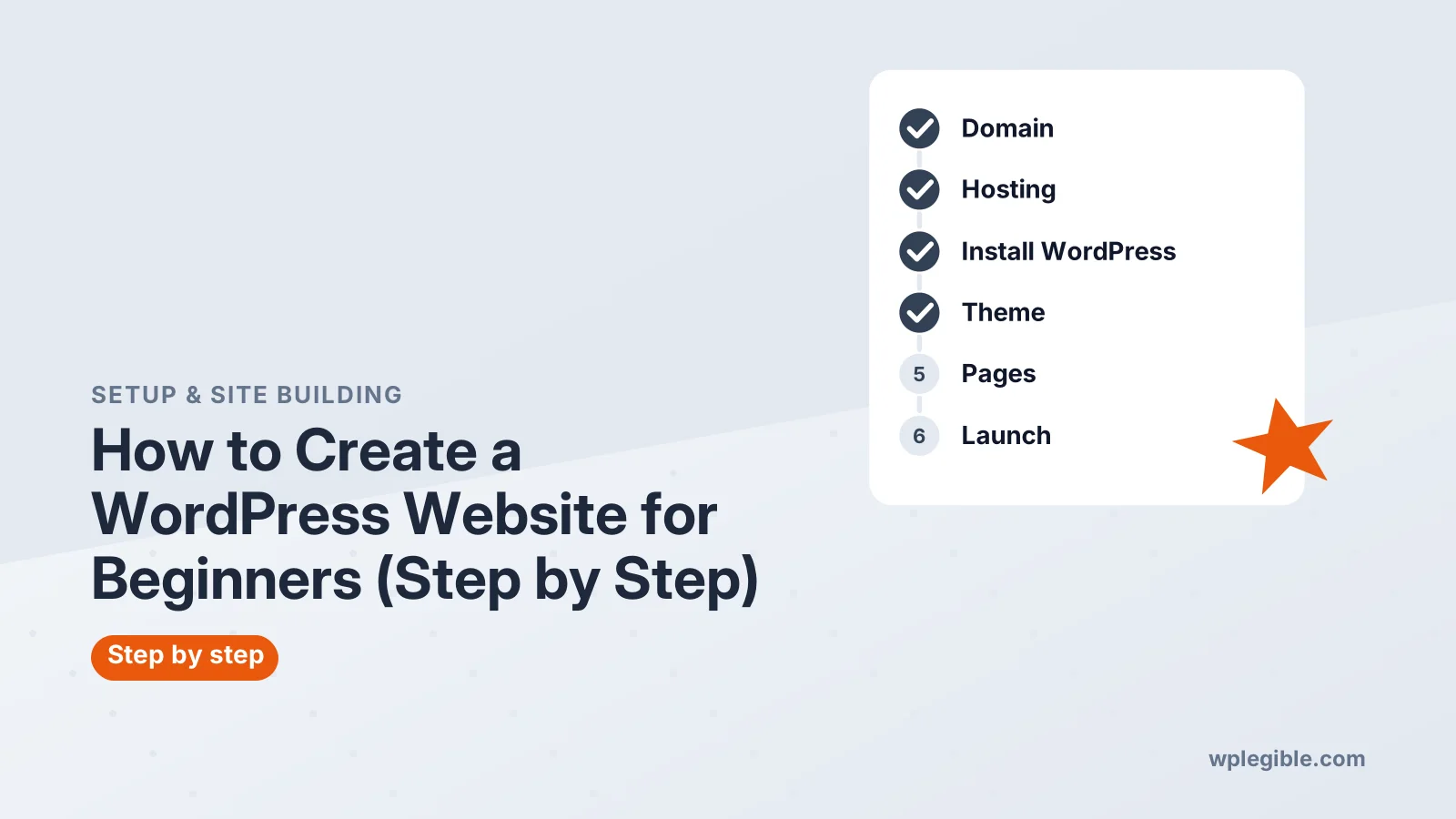
To create a WordPress website as a beginner, register a domain, buy WordPress hosting, install WordPress with your host's one-click installer, choose a theme, add your main pages, install a few essential plugins, and set up SSL, permalinks and backups before you launch. Most beginners can finish a simple site in a weekend.
Key takeaways
- You need three things to start: a domain name, web hosting and the free WordPress software.
- Most hosts install WordPress in one click, so you do not need to upload files by hand.
- Pick one well-supported theme and a handful of essential plugins instead of many.
- Set up SSL, permalinks and backups before you share the site with anyone.
- A simple five-page site is a better first launch than a large site that never goes live.
What do you need before you create a WordPress website?
You need a domain name, a hosting account that meets WordPress's requirements, and a clear idea of the pages your site needs.
WordPress itself is free software. The costs come from the domain and hosting, plus any premium theme or plugin you choose later. Our guide on whether WordPress is free breaks those costs down.
Before you buy anything, write a short plan:
- What the site is for: a blog, a business site, a portfolio or a store
- The five or six pages you need at launch
- Two or three sites you like the look of
- A rough monthly budget
This guide covers self-hosted WordPress from WordPress.org. If you would rather skip hosting entirely, WordPress.com runs the hosting for you, and our guide on creating a WordPress account explains that route.
Step 1: How do you choose a domain name?
Pick a short, easy-to-spell name that matches your brand, and register it with a well-known registrar or through your host.
Good domain names are easy to say out loud and hard to mistype. Avoid hyphens and numbers where you can, and choose a .com or your country's main extension when it is available.
Prices vary by extension and by registrar, and the renewal price is often higher than the first year. Our guide on how much a domain name costs shows what to expect.
Turn on auto-renew and domain privacy right after you register. An expired domain takes your whole site offline.
Step 2: How do you pick WordPress hosting?
Choose a host that meets WordPress's technical requirements, offers one-click WordPress installs, includes free SSL and backups, and has support you can reach easily.
WordPress recommends PHP 8.3 or newer, MySQL 8.4 or MariaDB 10.11, and HTTPS support. Any decent WordPress host meets these out of the box.
For a first site, shared or managed WordPress hosting is enough. You can move to a bigger plan when traffic grows. Our WordPress hosting reviews compare plans by speed, support and price.
If you bought the domain somewhere else, you will need to point it at your host. Our guide on pointing a domain to WordPress hosting shows the DNS records to change.
Step 3: How do you install WordPress?
Use your host's one-click WordPress installer, which creates the database and sets up the files for you in a few minutes.
In your hosting dashboard, look for a WordPress or Softaculous installer. You will choose:
- The domain to install on
- A site title, which you can change later
- An admin username that is not “admin”
- A strong, unique password
- The admin email address where WordPress sends alerts
When the installer finishes, log in at yourdomain.com/wp-admin. If your host has no installer, the official WordPress installation guide covers the manual steps.
Step 4: How do you set up the basic settings?
Set your site title, tagline, time zone and permalink structure first, because changing permalinks later can break links.
Work through these screens in the dashboard:
- Settings > General: site title, tagline, time zone and language
- Settings > Permalinks: choose “Post name” for clean URLs
- Settings > Reading: choose a static homepage if you are not running a blog
- Settings > Discussion: turn comments off if you do not want them
Delete the sample post, sample page and sample comment that come with a new install. For more on URL choices, see our guide on setting up permalinks in WordPress.
Step 5: How do you choose a WordPress theme?
Pick one fast, well-supported theme that fits your type of site, then customize its colors, fonts and logo rather than switching themes often.
Go to Appearance > Themes > Add New Theme to browse free themes. Look for recent updates, good ratings and support for the block editor.
Block themes let you edit the header, footer and templates visually in the Site Editor. Classic themes use the Customizer instead. Our guide to block themes vs classic themes explains which suits beginners.
Before you commit, open the theme's demo on your phone and run it through a speed test. A theme that feels slow or cluttered in its demo will not improve once your content is added.
You can browse tested options on our WordPress themes page if you want a shortlist.
Step 6: Which pages should you create first?
Start with a homepage, an About page, a Contact page, a privacy policy and one page for each main service or topic.
Go to Pages > Add New Page and build each page with blocks. Keep the first version simple: a clear heading, a short description, an image and one call to action.
WordPress creates a privacy policy draft under Settings > Privacy that you can edit and publish. Our guide to posts vs pages explains when to use each.
Write for your visitor, not for yourself. Each page should answer one question clearly, such as what you offer, who you are or how to reach you. Short paragraphs and clear headings make pages easier to read on a phone.
When the pages are ready, add them to your main menu in the Site Editor or under Appearance > Menus.
Step 7: Which plugins does a new WordPress site need?
Install only a few essentials at first: an SEO plugin, a contact form, a backup tool, a security plugin and caching if your host does not provide it.
To add a plugin, go to Plugins > Add New Plugin, search for it and click Install Now, then Activate. The WordPress.org plugin directory shows ratings, active installs and the last update date for each.
| Need | What to look for |
|---|---|
| SEO | Titles, meta descriptions and XML sitemaps |
| Contact form | Spam protection and email notifications |
| Backups | Off-site storage and easy restore |
| Security | Login protection and malware scanning |
| Caching | Page caching, unless your host already does it |
Our plugin reviews compare the main options in each category.
Step 8: How do you secure and back up the site?
Turn on SSL, set up automatic off-site backups, use strong passwords with two-factor login, and keep WordPress, themes and plugins updated.
Most hosts add a free SSL certificate automatically. If your site still shows “Not secure”, follow our guide on installing an SSL certificate on WordPress.
Schedule daily backups stored outside your hosting account. Then test a restore once, so you know it works before you need it.
Also change the login details you used during setup if you shared them with anyone, and give other people their own user accounts with the lowest role they need, such as Editor or Author instead of Administrator.
Step 9: How do you launch and get found on Google?
Check every page on mobile, test your contact form, make sure search engines are allowed, then connect Google Search Console and submit your sitemap.
Under Settings > Reading, make sure “Discourage search engines from indexing this site” is not ticked. Many hosts tick it during setup.
Then verify your site in Search Console and submit the sitemap your SEO plugin creates. Our guide to connecting Google Search Console to WordPress walks through it.
Step 10: What should you do after launch?
Add useful content regularly, keep everything updated, watch your speed and search data, and improve the pages people visit most.
A site is never really finished. Set a simple routine: update plugins weekly, check backups monthly, and review Search Console data every few weeks.
If you are short on time, AI tools can draft layouts and text for you. Our guide to creating a WordPress website with AI covers what they do well and where you still need to check the result.
Avoid the common beginner mistakes:
- Installing dozens of plugins to test them and never removing them
- Switching themes every week instead of finishing the content
- Skipping backups until something breaks
- Using the same password as other accounts
- Waiting for the site to be perfect before launching
The free courses on Learn WordPress are a good next step when you want to go deeper.
Frequently asked questions
How long does it take to create a WordPress website?
A simple site with five pages takes most beginners a weekend. Installing WordPress takes minutes, while choosing a theme, writing pages and setting up plugins takes most of the time. Larger sites and online stores take longer.
How much does it cost to create a WordPress website?
The WordPress software is free. You pay for a domain each year and for hosting, usually monthly or yearly. Premium themes and plugins are optional extras you can add later if you need their features.
Can I create a WordPress website without coding?
Yes. Hosting installers, themes, the block editor and plugins let you build a complete site without writing code. Code only becomes useful for custom features or detailed design changes.
Should beginners use WordPress.com or WordPress.org?
Use WordPress.com if you want the hosting and updates handled for you. Use self-hosted WordPress.org if you want full control, any plugin or theme, and the freedom to move hosts later.
Can I build my WordPress site before it goes live?
Yes. You can build on a staging site, a local install, or a live install hidden behind a coming soon page. Launch when your main pages, contact form and basic settings are ready.
Sources
- Requirements WordPress.org
- How to install WordPress WordPress Developer Resources
- Plugin Directory WordPress.org
- Learn WordPress WordPress.org
- Get started with Search Console Google Search Central
Is your product missing, or something out of date?
Tell us what to add or correct. We read every note and reply when we need a source. A message does not buy a ranking.
Thanks — we review requests within 3 business days.
Related guides

About the editors
Researched from the primary sources listed above and checked against our editorial rules before publishing.