Plugin how-tos · Guide
How to Create a Quiz in LearnDash (Step by Step)
Short answer
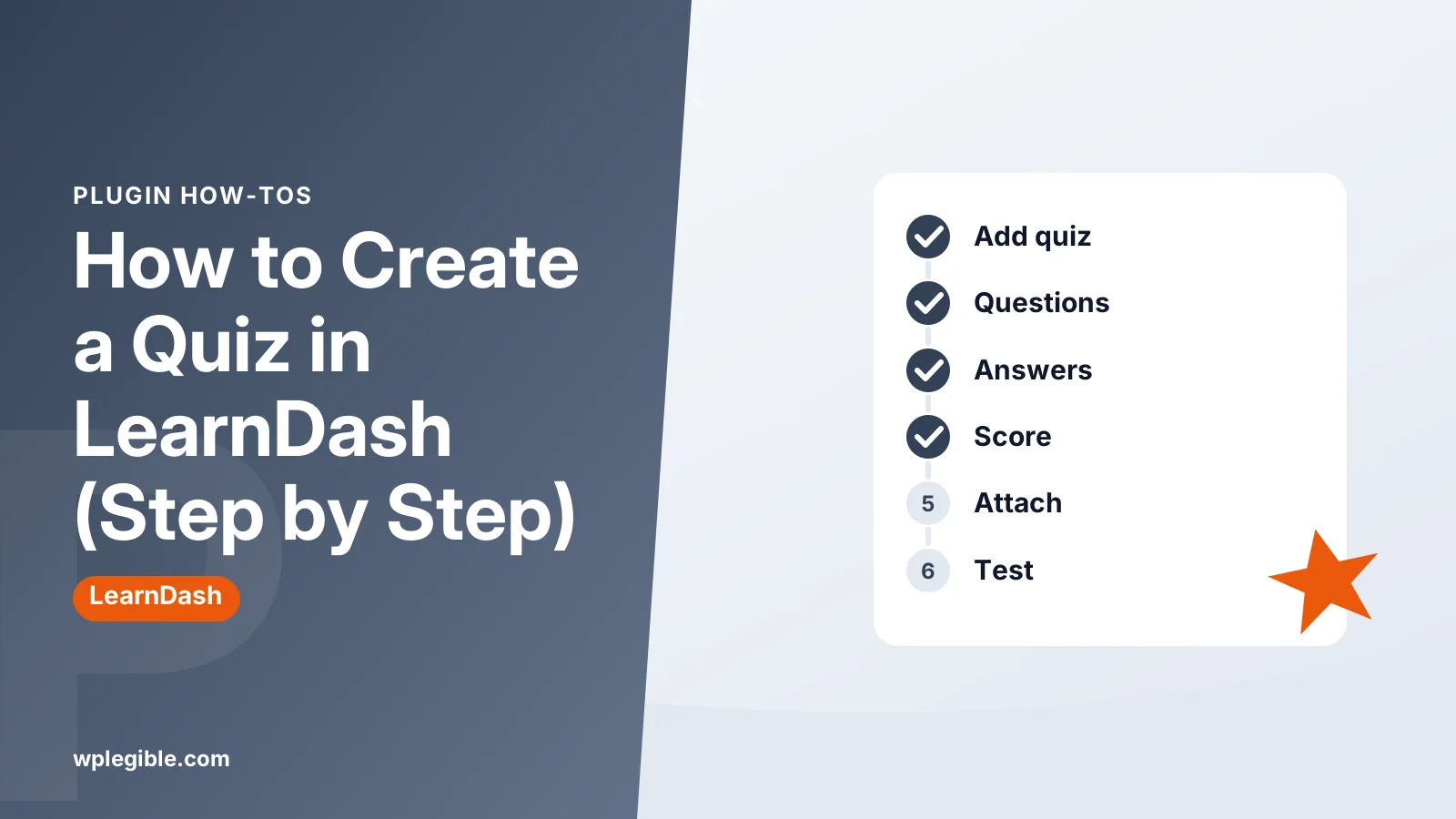
To create a quiz in LearnDash, go to LearnDash LMS > Quizzes and click Add New, then use the Builder tab to add questions and mark correct answers. Set the passing score, retake rules and display options in the Settings tab, and attach the quiz to a course, lesson or topic through the course builder.
Key takeaways
- Quizzes are their own content type and attach to courses, lessons or topics.
- LearnDash offers eight question types, and essays need manual grading.
- Set the passing score, retake limits and time limit in the quiz settings.
- Attach certificates to quizzes to reward passing students.
- Exclude quiz pages from page caching so answers save correctly.
How do you create a quiz in LearnDash?
You create a LearnDash quiz by adding a new quiz under LearnDash LMS > Quizzes, building questions in the quiz builder, setting a passing score and other options, then attaching the quiz to a course, lesson or topic.
Quizzes in LearnDash are their own content type, like courses and lessons. You build the quiz once, then place it where it belongs in the course structure.
That separation is useful. You can reuse questions, change settings without touching the course, and see quiz statistics in one place.
If LearnDash is not on your site yet, follow our guide on installing LearnDash in WordPress first, then come back here.
What should you plan before building a LearnDash quiz?
Decide what the quiz checks, how many questions it needs, the passing score, whether students can retake it, and whether passing it should award a certificate or the next lesson.
A short plan saves time in the settings screens. Answer these questions before you start:
- Is this a practice check or a graded exam?
- What score counts as a pass?
- Can students retake it, and how many times?
- Should there be a time limit?
- Does passing it award a certificate?
Practice quizzes work best short, with instant feedback. Final exams can be longer, with restricted retakes and a certificate on passing.
How do you add a new quiz?
Go to LearnDash LMS > Quizzes, click Add New, give the quiz a clear title, add an optional description, and save a draft before adding questions.
Steps:
- In the dashboard, open LearnDash LMS > Quizzes.
- Click Add New.
- Enter a title that students will recognise, such as Module 2 check.
- Add a short intro explaining what the quiz covers.
- Click Save Draft.
The intro text shows before students start. Tell them how many questions there are, whether there is a time limit and what score they need.
The LearnDash quizzes documentation shows the current screens. Layouts change between versions, so follow your own screen if it differs.
How do you add questions in the quiz builder?
Open the Builder tab on the quiz, add a new question or pick an existing one, choose its type, write the answers, mark the correct ones and set points.
The builder lets you add questions without leaving the quiz screen:
- Open the Builder tab.
- Type a question title and choose the question type.
- Add the question text and answer options.
- Mark the correct answer or answers.
- Set how many points the question is worth.
- Repeat for each question, then update the quiz.
You can drag questions to reorder them. Questions are stored separately, so you can reuse a question in more than one quiz.
Add feedback messages where they help. A short explanation after a wrong answer teaches far more than a red cross.
Which question types does LearnDash support?
LearnDash supports single choice, multiple choice, free choice, sorting, matrix sorting, fill in the blank, assessment and essay or open answer questions.
| Question type | What students do | Graded automatically |
|---|---|---|
| Single choice | Pick one correct answer | Yes |
| Multiple choice | Pick all correct answers | Yes |
| Free choice | Type a short answer | Yes, if it matches |
| Sorting choice | Put items in the right order | Yes |
| Matrix sorting | Match items to categories | Yes |
| Fill in the blank | Complete missing words | Yes |
| Assessment | Rate on a scale, often for surveys | Points only |
| Essay or open answer | Write a longer response or upload a file | No, needs manual grading |
The LearnDash quiz questions guide explains each type in more detail.
Essay questions need a human to grade them. Graded essays appear in a separate submissions area, and the quiz result may stay pending until you review them.
Free choice answers must match exactly what you list. Add common spellings and variants so students are not marked wrong for a capital letter or a plural.
How do you set the passing score and retake rules?
Open the quiz Settings tab and use the progression and restriction options to set the passing percentage, limit retakes, add a time limit and control what happens after a failed attempt.
The most important settings:
- Passing score: the percentage students need to pass.
- Restrict quiz retakes: limit the number of attempts.
- Time limit: auto-submit after a set time.
- Prerequisites: require another quiz or step first.
A passing score of 70 to 80 percent is common for checks of understanding. High-stakes exams often go higher, but set expectations clearly in the intro.
If the quiz controls course progress, a failed attempt can block the next lesson. Make sure students know they can retake it, or they may think the course is broken.
How do you control how the quiz looks and behaves?
Use the display and content options to show one question at a time or all at once, randomise questions or answers, show hints, and decide what appears on the results page.
Showing one question at a time feels less overwhelming on phones. Showing all questions suits short quizzes where students want to review before submitting.
Randomising questions and answers makes it harder to share answer keys. It works well when you have a larger question bank.
The results page can show the score, correct answers and custom messages based on the score. Use different messages for pass and fail, so students know what to do next.
How do you attach the quiz to a course?
Open the course builder on your course and drag the quiz into place, or set the associated course and lesson in the quiz settings, then update both.
Quizzes can sit at three levels:
- Course level: a final exam after all lessons.
- Lesson level: a check at the end of a lesson.
- Topic level: a quick check inside a lesson.
The course builder shows the whole structure at once, which makes it easier to see where each quiz sits.
After attaching it, view the course as a test student in a private window. Make sure the quiz appears in the right place and opens correctly.
How do you award a certificate for passing a quiz?
Create a certificate under LearnDash's certificates section, then select it in the quiz settings so students who reach the passing score can download it.
Certificates can be attached to quizzes or to whole courses. A quiz certificate rewards one milestone, while a course certificate rewards finishing everything.
Test the certificate as a student. Check that names, dates and the course title fill in correctly and that the PDF opens on a phone.
How do you check quiz results and statistics?
Turn on quiz statistics in the quiz settings, then review attempts, scores and per-question results in the statistics view or the student's profile.
Statistics show which questions most students get wrong. That often reveals a confusing question or a lesson that needs more explanation.
You can also set email notifications for quiz completions. Make sure your site sends email reliably, and read our guide on fixing WordPress not sending emails if notifications fail.
For larger course sites, quiz data grows quickly. Keep regular backups, as explained in our guide on what a WordPress backup plugin is.
What problems come up with LearnDash quizzes?
Common problems include quizzes not showing in the course, students stuck after failing, essay results stuck on pending, and caching breaking quiz submissions.
Quick fixes:
- Quiz not showing: check that it is published and attached in the course builder.
- Student stuck: check retake limits and whether the quiz blocks progress.
- Pending results: grade the essay submissions.
- Answers not saving: exclude course and quiz pages from page caching.
If none of these help, the free Health Check & Troubleshooting plugin lets you test for plugin conflicts without affecting students.
Caching is a frequent cause on course sites, because quiz pages must be unique to each student. Our guide on page cache vs object cache explains which caching is safe for logged-in users.
For accessible quiz design, the W3C guidance on forms explains labels and instructions that help every student. You can also check the WordPress accessibility handbook for wider site checks.
Frequently asked questions
Can I reuse questions in different LearnDash quizzes?
Yes. LearnDash stores questions separately from quizzes, so you can add an existing question to more than one quiz through the quiz builder. Editing a shared question changes it in every quiz that uses it.
How do I let students retake a LearnDash quiz?
Retakes are allowed unless you restrict them. In the quiz settings, you can limit the number of attempts or leave retakes unlimited. Tell students in the quiz intro how many tries they have.
Why is my LearnDash quiz result pending?
A pending result usually means the quiz contains an essay or open answer question that needs manual grading. Review the submission, assign points and approve it, and the quiz result will update.
Can I add a time limit to a LearnDash quiz?
Yes. The quiz settings include a time limit option. When time runs out, the quiz submits automatically. Mention the limit in the intro so students are not surprised partway through.
Can a LearnDash quiz block the next lesson?
Yes. When a quiz is part of the course structure and progression is linear, students usually need to pass it before moving on. Check your course progression settings if students report being stuck.
Sources
- Quizzes LearnDash Support
- Quiz Questions LearnDash Support
- Forms Tutorial W3C Web Accessibility Initiative
- Accessibility Handbook Make WordPress Accessible
Is your product missing, or something out of date?
Tell us what to add or correct. We read every note and reply when we need a source. A message does not buy a ranking.
Thanks — we review requests within 3 business days.
Related guides


About the editors
Researched from the primary sources listed above and checked against our editorial rules before publishing.