Developer · Guide
How to Code a WordPress Theme (Step by Step)
Short answer
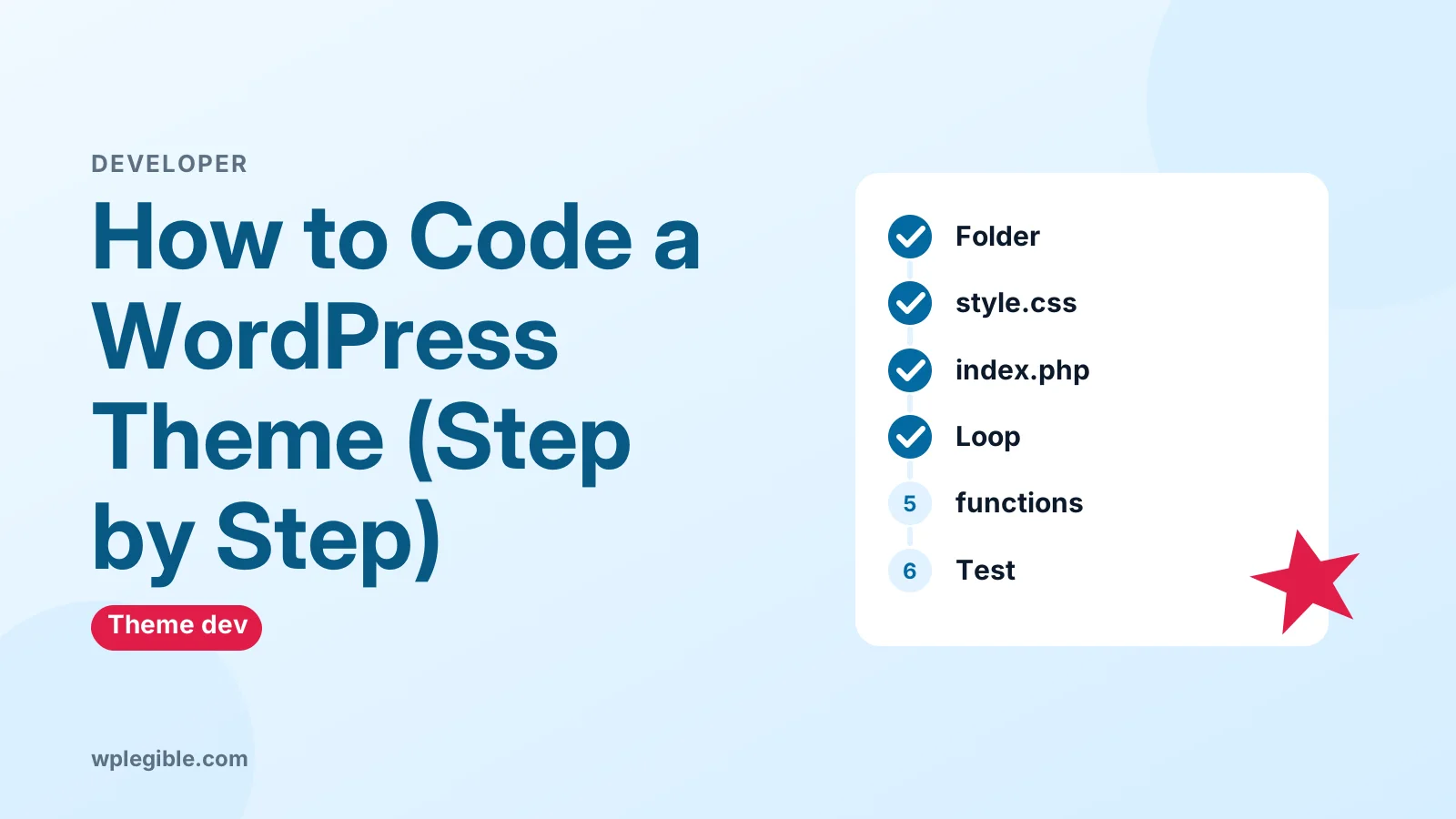
Create a folder in wp-content/themes with a style.css header and an index.php file, then add the WordPress Loop to show posts. Split out header and footer templates, set up functions.php to load styles and register menus, add templates for posts, pages and archives, and test with sample content.
Key takeaways
- A classic theme needs only style.css and index.php to work.
- The Loop displays posts in every template.
- Load CSS and JavaScript with wp_enqueue_style and wp_enqueue_script.
- The template hierarchy decides which file WordPress uses.
- Escape output and test with theme test data and Theme Check.
How do you code a WordPress theme?
You code a WordPress theme by creating a folder in wp-content/themes with a style.css header and an index.php file, then adding template files, a functions.php file and the WordPress Loop to display content.
This guide walks through building a simple classic theme with PHP templates. It is the best way to learn how WordPress themes work under the hood. By the end you will have:
- A theme WordPress recognizes and can activate.
- Shared header and footer templates.
- Templates for posts, pages, archives and 404 errors.
- A menu location, widget area and properly loaded CSS.
WordPress also supports block themes, which use HTML templates and a theme.json file instead of PHP templates. If you want that approach, read how to create a block theme from scratch.
Our comparison of block themes vs classic themes helps you choose.
What do you need before you start?
You need a local WordPress install, a code editor, and basic knowledge of HTML, CSS and PHP.
Set up these tools first:
- A local WordPress site. Never build a theme on a live site. Our guide on installing WordPress with Local is a quick way to start.
- A code editor. Any editor with PHP syntax highlighting works.
- Debug mode on. Add WP_DEBUG to wp-config.php so you see errors as you code.
- Test content. Import sample posts so every template has something to show.
The WordPress team keeps theme test data on GitHub with posts, pages and edge cases such as long titles and nested comments.
The official Theme Handbook is the reference you will return to most. Bookmark it.
Step 1: How do you create the theme folder and style.css?
Create a new folder in wp-content/themes, add a style.css file with a comment header containing the theme name, and WordPress will list it under Appearance > Themes.
- Go to wp-content/themes in your local site.
- Create a folder, for example mytheme. Use lowercase letters and hyphens only.
- Create a file named style.css inside it.
- Add this header at the top:
/*
Theme Name: My Theme
Author: Your Name
Description: A simple custom theme.
Version: 1.0
Requires at least: 6.0
Requires PHP: 7.4
License: GNU General Public License v2 or later
Text Domain: mytheme
*/
Only Theme Name is strictly required, but the other fields help WordPress and users. The Text Domain should match the folder name, because translation functions rely on it.
Step 2: How do you create index.php?
Create index.php in the theme folder, because it is the one template file every classic theme must have and WordPress falls back to it when no more specific template exists.
Start with a basic HTML page that uses WordPress functions:
<!DOCTYPE html>
<html <?php language_attributes(); ?>>
<head>
    <meta charset="<?php bloginfo( 'charset' ); ?>">
    <meta name="viewport" content="width=device-width, initial-scale=1">
    <?php wp_head(); ?>
</head>
<body <?php body_class(); ?>>
<?php wp_body_open(); ?>
<h1><a href="<?php echo esc_url( home_url( '/' ) ); ?>"><?php bloginfo( 'name' ); ?></a></h1>

<?php if ( have_posts() ) : while ( have_posts() ) : the_post(); ?>
    <article <?php post_class(); ?>>
        <h2><a href="<?php the_permalink(); ?>"><?php the_title(); ?></a></h2>
        <?php the_excerpt(); ?>
    </article>
<?php endwhile; else : ?>
    <p>No posts found.</p>
<?php endif; ?>

<?php wp_footer(); ?>
</body>
</html>
Now go to Appearance > Themes and activate your theme. Your posts should appear as a plain list.
Two function calls are essential. wp_head() and wp_footer() let WordPress and plugins add scripts, styles and meta tags. Leave them out and many plugins break.
Step 3: What is the Loop and how does it work?
The Loop is the PHP code that checks for posts with have_posts() and sets up each one with the_post(), so template tags like the_title() show the right content.
Every template that displays posts uses the Loop. WordPress has already run the main query before your template loads. The Loop simply walks through the results.
Inside the Loop, you can use template tags such as:
- the_title() for the title.
- the_content() for the full content.
- the_excerpt() for a summary.
- the_permalink() for the link.
- the_post_thumbnail() for the featured image.
The handbook page on the Loop explains it in depth, including how to run custom queries without breaking the main one.
Step 4: How do you split the header and footer into their own files?
Move the top of index.php into header.php and the bottom into footer.php, then load them with get_header() and get_footer() so every template shares them.
- Create header.php and move everything from the doctype down to the site title into it.
- Create footer.php and move wp_footer() and the closing body and html tags into it.
- In index.php, replace those parts with get_header() and get_footer().
Your index.php now looks much shorter:
<?php get_header(); ?>
<main>
    <?php if ( have_posts() ) : while ( have_posts() ) : the_post(); ?>
        <article <?php post_class(); ?>>
            <h2><a href="<?php the_permalink(); ?>"><?php the_title(); ?></a></h2>
            <?php the_excerpt(); ?>
        </article>
    <?php endwhile; the_posts_pagination(); endif; ?>
</main>
<?php get_footer(); ?>
You can also add sidebar.php and load it with get_sidebar(). Change the header once and every page updates.
Step 5: How do you set up functions.php?
Create functions.php to add theme features, register menus and widget areas, and load your CSS and JavaScript the WordPress way.
This file runs on every page load. Add the basics:
<?php
function mytheme_setup() {
    add_theme_support( 'title-tag' );
    add_theme_support( 'post-thumbnails' );
    add_theme_support( 'html5', array( 'search-form', 'gallery', 'caption' ) );
    register_nav_menus( array( 'primary' => __( 'Primary Menu', 'mytheme' ) ) );
}
add_action( 'after_setup_theme', 'mytheme_setup' );

function mytheme_assets() {
    wp_enqueue_style( 'mytheme-style', get_stylesheet_uri(), array(), '1.0' );
}
add_action( 'wp_enqueue_scripts', 'mytheme_assets' );
What each part does:
- title-tag lets WordPress manage the page title.
- post-thumbnails turns on featured images.
- register_nav_menus creates a menu location under Appearance > Menus.
- wp_enqueue_style loads style.css properly.
Never hard-code link tags for your CSS in the header. Our guide on how to enqueue scripts and styles explains why.
For more feature flags, see how to add theme support in WordPress.
Display the menu in header.php with wp_nav_menu( array( 'theme_location' => 'primary' ) ).
Step 6: Which other template files should you add?
Add single.php, page.php, archive.php, search.php and 404.php so each type of content gets its own layout, following the WordPress template hierarchy.
WordPress picks the most specific template that exists. If it is missing, it moves down the list until it reaches index.php.
| File | Used for |
|---|---|
| single.php | Single blog posts |
| page.php | Static pages |
| archive.php | Category, tag, date and author archives |
| search.php | Search results |
| 404.php | Page not found |
| front-page.php | The site's front page |
| comments.php | The comments section |
In single.php and page.php, use the_content() instead of the_excerpt(), and add comments_template() where you want comments.
The template hierarchy diagram shows the full order. Our guide on what the WordPress template hierarchy is explains it in plain English.
Step 7: How do you style the theme?
Write your CSS in style.css below the header comment, starting with a simple layout, readable typography and styles for core block content.
Start small:
- Set a max width for the main content area and center it.
- Choose a readable font size and line height.
- Style headings, links, lists and images.
- Add styles for core block classes, such as wp-block-image and alignwide.
Use modern CSS layout tools such as flexbox and grid. MDN's CSS layout guide is a good refresher.
Test on a phone-sized screen early. Adding responsive styles at the end is much harder.
Step 8: How do you make the theme safe and translatable?
Escape every piece of output with functions like esc_html() and esc_url(), and wrap visible text in translation functions with your text domain.
Security basics:
- Use esc_html() for plain text output.
- Use esc_url() for links.
- Use esc_attr() for HTML attributes.
- Never echo user input without escaping it.
For translation, wrap strings like this: esc_html_e( 'Read more', 'mytheme' ). This lets people translate your theme without editing code.
The handbook covers both topics under theme security.
Step 9: How do you test the theme?
Test with the theme test data, turn on debug mode, check each template type, and run the Theme Check plugin to catch common problems.
A good test pass includes:
- Import the theme test data.
- Visit a post, a page, an archive, a search result and a missing page.
- Check that menus, widgets and featured images work.
- Fix any notices or warnings from debug mode.
- Install the Theme Check plugin and run it.
Theme Check tests your theme against WordPress.org guidelines. It is useful even if you never plan to publish the theme.
Finally, add a screenshot.png file (1200 by 900 pixels is the usual size) so your theme has a preview in Appearance > Themes.
What should you learn next?
Once your basic theme works, learn template parts, the Customizer or theme.json, and hooks so you can build more flexible themes.
Good next steps:
- Use get_template_part() to reuse chunks of markup.
- Add a theme.json file to control editor colors and fonts.
- Learn WordPress hooks, actions and filters to extend features cleanly.
- Study a well-built default theme to see how the core team structures files.
If you only want to change an existing theme, a child theme is often a better choice than starting from scratch.
Frequently asked questions
What files does a WordPress theme need?
A classic theme needs only style.css with a Theme Name header and an index.php file. Most themes also include functions.php, header.php, footer.php and templates such as single.php and page.php. Block themes use templates in HTML and a theme.json file instead.
Do I need to know PHP to code a WordPress theme?
For a classic theme, yes, at least the basics. You need PHP to run the Loop and call template tags. Block themes rely more on HTML, block markup and theme.json, so they need less PHP, but some knowledge still helps.
Should I build a classic theme or a block theme?
Block themes are the direction WordPress is heading and work with the Site Editor. Classic themes are still fully supported and are a great way to learn how WordPress works. Choose based on your project and how much editing control users need.
How long does it take to code a WordPress theme?
A basic theme that shows posts and pages can take a few hours for someone who knows HTML, CSS and some PHP. A polished, responsive theme with many templates and features can take weeks, especially with thorough testing.
Can I sell a theme I code myself?
Yes. WordPress themes are typically released under the GPL, which allows selling them. Many developers sell premium themes and support. If you want a free listing on WordPress.org, your theme must pass their review guidelines first.
Sources
- Theme Handbook WordPress Developer Resources
- The Loop WordPress Developer Resources
- Template Hierarchy WordPress Developer Resources
- Theme Check WordPress.org
- Theme Test Data GitHub
- CSS layout MDN Web Docs
Is your product missing, or something out of date?
Tell us what to add or correct. We read every note and reply when we need a source. A message does not buy a ranking.
Thanks — we review requests within 3 business days.
Related guides
About the editors
Researched from the primary sources listed above and checked against our editorial rules before publishing.