Setup & site building · Explainer
What Is WordPress Template Hierarchy? Explained
Short answer
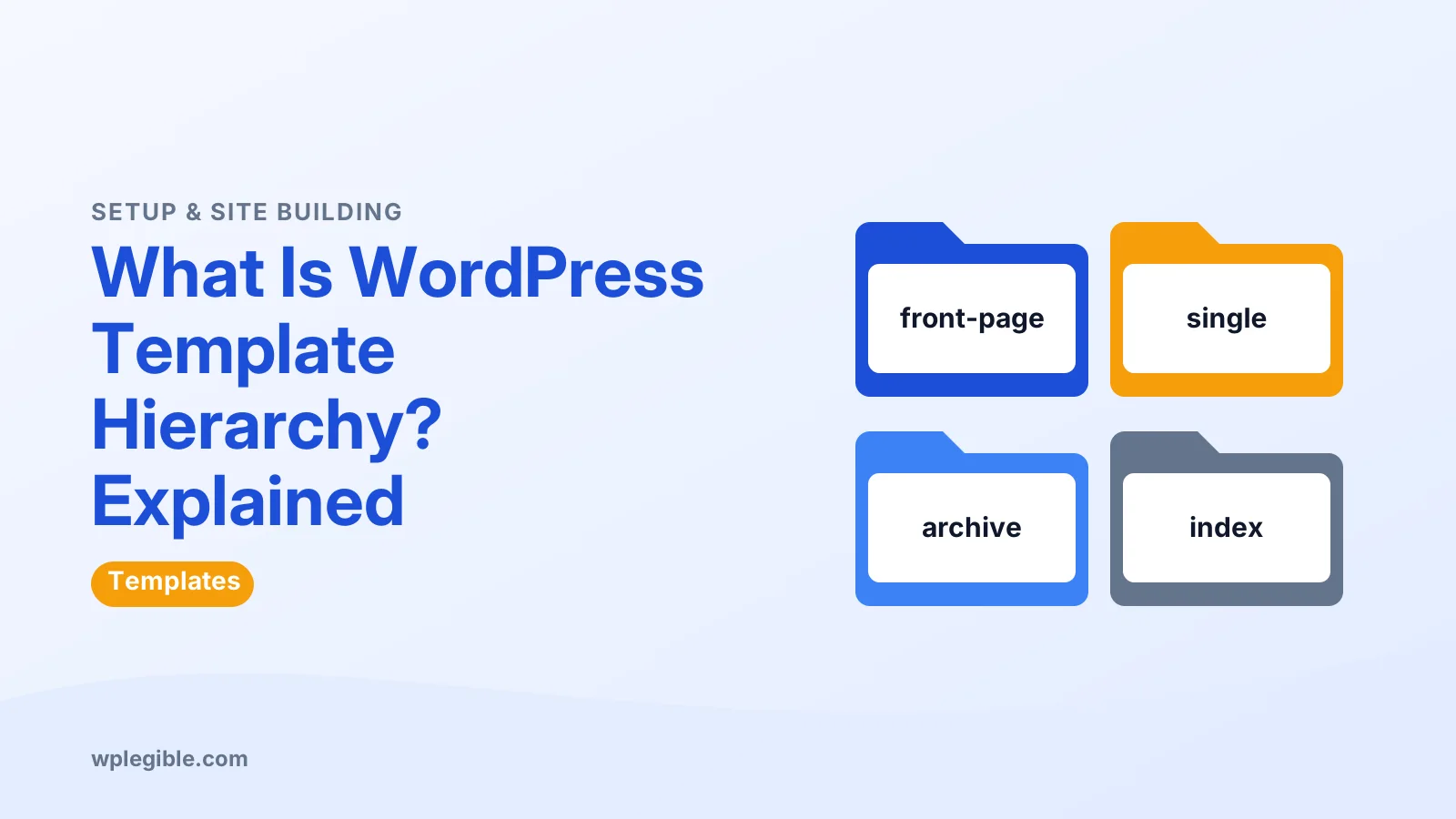
The template hierarchy is the set of rules WordPress uses to pick which theme template displays a page. It checks a list of file names from most specific to most general and uses the first one it finds. Index is always the final fallback.
Key takeaways
- The template hierarchy decides which theme template shows each page.
- WordPress checks templates from most specific to most general.
- Every theme needs an index template as the final fallback.
- A front page template overrides your homepage design choice.
- Block themes follow the same rules with HTML templates in the Site Editor.
- Add custom templates in a child theme so updates do not erase them.
What is the WordPress template hierarchy?
The template hierarchy is the set of rules WordPress uses to choose which theme template file displays a page, checking from the most specific template to the most general until it finds one.
Every theme is a collection of templates. When a visitor opens a URL, WordPress has to decide which one to use. It does this by working down a list of possible file names for that type of page.
For example, for a category called News, WordPress looks for these files in order:
- category-news.php
- category-5.php (using the category ID)
- category.php
- archive.php
- index.php
It uses the first one that exists in the theme. Because index.php is always last, every theme must have it as a fallback.
The official template hierarchy page in the Theme Handbook shows the full chart.
Why does the template hierarchy matter?
It lets themes use one general template for most pages while giving special designs to specific pages, categories or post types, without any extra code to choose between them.
For site owners, it explains why a page looks different from what you expected. If a theme has a front-page template, your homepage uses it even if you designed the page carefully in the editor.
For developers, it is how you customize output. Want a different layout for one category? Create a template named after it, and WordPress picks it up automatically.
It also matters for child themes. A child theme can add a more specific template, and WordPress uses it before the parent's general one. Our explainer on what a child theme is covers how that works.
How does WordPress pick a template step by step?
WordPress first works out what type of page was requested from the URL, then builds a list of candidate template names for that type, and loads the first one that exists.
The flow behind each page view:
- Parse the URL. WordPress runs the main query and sets flags such as is_single or is_category.
- Identify the page type. Single post, page, archive, search, 404 and so on.
- Build the candidate list. For a page with the slug about, the list includes page-about.php, page-12.php, page.php, singular.php and index.php.
- Check the child theme, then the parent theme. The first match wins.
- Load the template.
This logic lives in a core file called template-loader.php, which you can read in the WordPress source on GitHub. Our explainer on what a query is in WordPress covers the first step in more depth.
What templates are checked for common page types?
Each page type has its own chain, but they all end at index.php; the table below shows the order for the most common types.
| Page type | Templates checked in order |
|---|---|
| Front page | front-page.php, then home.php or page templates, then index.php |
| Blog posts index | home.php, index.php |
| Single post | single-{post-type}-{slug}.php, single-{post-type}.php, single.php, singular.php, index.php |
| Static page | custom template, page-{slug}.php, page-{id}.php, page.php, singular.php, index.php |
| Category archive | category-{slug}.php, category-{id}.php, category.php, archive.php, index.php |
| Tag archive | tag-{slug}.php, tag-{id}.php, tag.php, archive.php, index.php |
| Author archive | author-{nicename}.php, author-{id}.php, author.php, archive.php, index.php |
| Custom post type archive | archive-{post-type}.php, archive.php, index.php |
| Search results | search.php, index.php |
| 404 error | 404.php, index.php |
| Attachment | MIME type templates, attachment.php, single.php, index.php |
The front page is a special case. If front-page.php exists, WordPress uses it for the homepage regardless of the Settings > Reading choice. If not, it uses home.php for a blog homepage or the page template for a static homepage.
That front page rule trips up many people. Our guide on is_home not working explains the related conditional tags.
How does the template hierarchy work in block themes?
Block themes use the same hierarchy, but templates are HTML files in a templates folder, such as single.html and archive.html, and you can edit them in the Site Editor.
The naming rules stay the same. Only the file type and location change:
| Classic theme | Block theme |
|---|---|
| single.php | templates/single.html |
| page.php | templates/page.html |
| archive.php | templates/archive.html |
| front-page.php | templates/front-page.html |
| index.php | templates/index.html |
In the Site Editor, under Appearance > Editor > Templates, you can see which templates your theme provides. You can also add new ones, such as a template for one category, using the Add New Template button. WordPress offers choices that follow the hierarchy.
Templates you edit in the Site Editor are saved to the database. They then override the theme's files.
The WordPress guide to the Site Editor covers editing templates. Our explainer on what a block theme is gives the wider picture.
What are custom page templates?
Custom page templates are templates you can pick for individual pages from the editor's Template setting, and they sit at the top of the page hierarchy when chosen.
In a classic theme, you create one by adding a PHP file with a special comment at the top:
<?php
/*
 * Template Name: Full Width
 */
The template then appears in the page's Template dropdown. Choosing it overrides page-{slug}.php and page.php for that page.
In block themes, you create custom templates in the Site Editor or register them in theme.json.
Our guide on creating a custom page template walks through both methods.
What are template parts and how do they fit in?
Template parts are reusable pieces like headers and footers that templates include; they are not part of the hierarchy itself, but every chosen template usually loads them.
In classic themes, get_header and get_footer load header.php and footer.php. The get_template_part function loads other partial files, such as content-single.php.
In block themes, template parts live in a parts folder and appear as blocks inside templates. Editing the header template part changes it everywhere it is used.
Keep this difference in mind. The hierarchy picks the template, and the template then pulls in parts. If your header looks wrong on one page, the template part or the template itself may be the cause.
How can you see which template a page uses?
Use a debugging plugin that shows the current template, check the Template setting in the editor, or look at the template name in the Site Editor for block themes.
Easy ways to check:
- Query Monitor shows the template file and the full list of candidates WordPress considered. See our guide on using Query Monitor.
- The body class often includes the template type, such as page-template-default or single-post. View the page source to see it.
- The Site Editor shows which template applies when you open a page in it.
The community site wphierarchy.com also offers an interactive version of the chart, which some developers find easier to read than the official diagram.
How can you use the hierarchy to customize your site?
Create a more specific template than the one currently used, such as a template for one category or post type, and WordPress will pick it up without any extra code.
Common uses:
- A custom layout for a Reviews category with category-reviews.php or category-reviews.html.
- A distinct design for a custom post type with single-product.php.
- A special landing page using page-landing.php.
- A friendly 404 page with 404.php.
Always add these to a child theme or your own theme. Changes to a third-party theme's files are lost when it updates. If you are new to templates, start with our explainer on what a WordPress template is.
What are common template hierarchy mistakes?
The most common mistakes are forgetting that front-page templates override settings, misnaming template files, and editing parent theme files that updates overwrite.
| Mistake | Result | Fix |
|---|---|---|
| front-page template exists | Homepage ignores your chosen page design | Edit or remove the front page template |
| Wrong slug in file name | Template never used | Match the exact slug, such as category-news.php |
| Editing parent theme | Changes lost on update | Use a child theme |
| Missing index file | Theme will not activate | Always include index.php or index.html |
| Site Editor override | File changes do not show | Reset the template in the Site Editor |
When a template change does not appear, check for a saved Site Editor version first. Database templates win over theme files until you reset them.
Frequently asked questions
What is the last template in the WordPress hierarchy?
The index template is always the final fallback. In classic themes it is index.php and in block themes it is templates/index.html. If WordPress finds no more specific template, it uses this one, which is why every theme must include it.
Does the template hierarchy apply to block themes?
Yes. Block themes follow the same naming rules, but their templates are HTML files in a templates folder instead of PHP files. You can view and edit them in the Site Editor, and WordPress still picks the most specific one available.
Why is my front page not using the page template I chose?
Your theme probably has a front page template. WordPress uses that template for the homepage before checking any page template, so your chosen design is ignored. Edit or remove the front page template, or change the design inside it.
How do I find which template file a page uses?
Install a debugging plugin such as Query Monitor, which shows the template file in use and the candidates WordPress checked. You can also look at the body classes in the page source or open the page in the Site Editor.
Can a plugin change the template hierarchy?
Yes. Plugins can filter template choices with hooks such as template_include, and many plugins, including WooCommerce, load their own templates this way. That is why some pages may not follow the theme files you expect.
Sources
- Template hierarchy WordPress Developer Resources
- template-loader.php WordPress on GitHub
- Site Editor WordPress.org
- WordPress template hierarchy chart WPHierarchy
Is your product missing, or something out of date?
Tell us what to add or correct. We read every note and reply when we need a source. A message does not buy a ranking.
Thanks — we review requests within 3 business days.
Related guides



About the editors
Researched from the primary sources listed above and checked against our editorial rules before publishing.