Speed & performance · Guide
How to Clear Cloudflare Cache in WordPress (Step by Step)
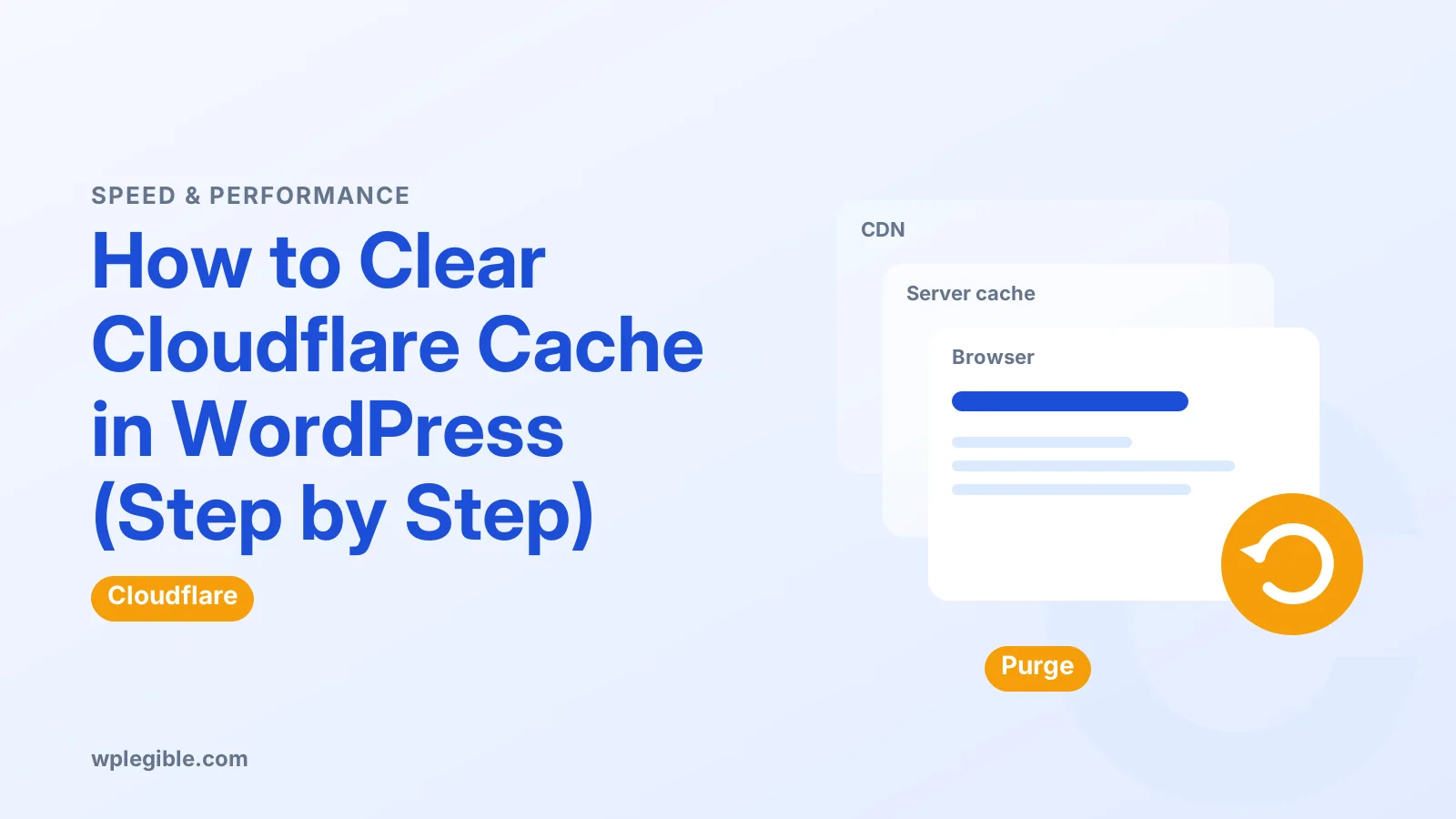
Short answer
Clear your WordPress caching plugin first, then log in to Cloudflare, select your domain and open Caching, then Configuration. Click Purge Everything, or use Custom Purge for specific URLs. The official Cloudflare plugin can also purge the cache from inside your WordPress dashboard.
Key takeaways
- Clear WordPress and host caches before purging Cloudflare.
- Purge Everything sits under Caching and then Configuration.
- Custom Purge removes only the URLs you list.
- The Cloudflare plugin and some caching plugins can purge for you.
- Development Mode bypasses the cache temporarily during design work.
- Check the cf-cache-status header to confirm the result.
How do you clear Cloudflare cache in WordPress?
Clear your WordPress caching plugin first, then purge Cloudflare from the dashboard under Caching > Configuration, or click the purge button in the Cloudflare WordPress plugin.
Cloudflare stores copies of your files on its edge servers around the world. When you change a stylesheet, image or page, visitors may keep seeing the old copy until Cloudflare's cache expires or you purge it.
Order matters. If you purge Cloudflare while your WordPress cache still holds an old page, Cloudflare simply fetches that old page again.
The sections below cover every method: the Cloudflare dashboard, the official plugin, caching plugin integrations, Development Mode and the API.
Why should you clear the WordPress cache first?
Clear the WordPress cache first because Cloudflare refills its cache from your server, and an old server-side copy would be cached again straight away.
Most WordPress sites have at least one cache layer before Cloudflare. That might be a caching plugin such as WP Rocket or LiteSpeed Cache, or server caching from your host.
Purge those first. Our guide on how to clear cache in WordPress shows where each common cache lives.
On LiteSpeed servers, see how to purge LiteSpeed Cache.
Then purge Cloudflare. Now any request that reaches your server gets the fresh version, and Cloudflare caches that.
If you manage the site from the command line, WP-CLI's cache flush command clears the WordPress object cache. Page caching plugins usually provide their own commands or buttons for page cache.
How do you purge everything from the Cloudflare dashboard?
Log in to Cloudflare, select your domain, open Caching > Configuration, click Purge Everything, and confirm.
This removes every cached file for that domain from Cloudflare's edge. Cloudflare's guide to purging everything explains what happens next.
Use it after big changes such as a theme switch, a redesign or a migration. It is the simplest option and works on every plan.
Expect a short slowdown afterwards. Your server has to answer more requests until Cloudflare's cache fills up again, so avoid purging everything during traffic peaks if your hosting is small.
What does Cloudflare cache on a WordPress site by default?
By default, Cloudflare caches static files such as images, CSS and JavaScript, but not regular HTML pages, unless you add cache rules or use Automatic Platform Optimization.
This explains a common confusion. If you edit a blog post and the text does not update, Cloudflare is often not the cause, because HTML pages are normally passed through to your server.
When a stylesheet change does not appear, Cloudflare is a much more likely suspect. Static files can stay cached at the edge for hours or longer, depending on your settings.
If you have turned on HTML caching through cache rules or APO, page content is cached too. In that case, purging after content changes matters much more. Our review of whether Cloudflare APO is worth it explains how APO handles this automatically.
How do you purge a single page or file?
Choose Custom Purge on the same Caching screen and enter the full URLs you want removed, one per line, then confirm the purge.
Purging by URL is gentler than purging everything. Only the files you name are removed, so the rest of the site stays cached.
Enter exact URLs, including https and any query strings. For example, purge the page URL after editing a post, or the stylesheet URL after a CSS change.
Cloudflare also supports purging by hostname, tag and prefix. Which of these options appear depends on your plan and account, so check the Cloudflare purge cache docs for current details.
How do you clear Cloudflare cache with the WordPress plugin?
Install the official Cloudflare plugin, connect it with your account details, then use the Purge Cache option on the plugin's settings page.
The Cloudflare plugin on WordPress.org adds a settings screen to your dashboard. After you connect it, you can purge the cache without logging in to the Cloudflare website.
The plugin can also purge cache automatically when you update content, as part of its automatic cache management. That is especially useful with Automatic Platform Optimization, which caches HTML pages at the edge.
If the plugin will not connect or purge, see our guide on the Cloudflare WordPress plugin not working.
Can your caching plugin purge Cloudflare for you?
Yes; several caching plugins connect to Cloudflare and purge its cache whenever they clear their own, so you only click once.
WP Rocket, for example, has a Cloudflare add-on that purges Cloudflare when you clear WP Rocket's cache. Other caching and Cloudflare-focused plugins offer similar options.
Check your caching plugin's settings for a Cloudflare or CDN section. Connecting them keeps both caches in step and avoids the stale-page problem.
Use one integration only. Two plugins trying to manage Cloudflare at once can cause confusing results.
When should you use Development Mode?
Turn on Development Mode while you make lots of changes, because it bypasses Cloudflare's cache temporarily so you see updates straight away.
You find it in the Cloudflare dashboard, usually on the Caching screen. Cloudflare's Development Mode reference explains that it switches off automatically after a set period.
Development Mode is handy during a redesign or when debugging CSS. It is not a replacement for purging, because cached files can still be served after it ends.
When you finish, turn it off and purge the files you changed.
How do you purge Cloudflare cache with the API?
Create an API token with cache purge permission for your zone, then send a purge request to Cloudflare's API from a script or deploy tool.
The API is useful when you deploy theme changes from Git or run builds automatically. Your deploy script can purge exactly the files it changed, with no manual clicks.
Give the token the smallest permission it needs. A token limited to purging cache for one zone is much safer than a global API key if it ever leaks.
Store the token in an environment variable or your deploy tool's secrets, never in a theme file or a public repository.
How do you check whether the Cloudflare cache cleared?
Open your browser's network tools, reload the page, and look at the cf-cache-status response header to see whether Cloudflare served a cached copy.
A value of HIT means the response came from Cloudflare's cache. MISS means Cloudflare fetched it from your server. DYNAMIC means Cloudflare did not cache it at all.
Right after a purge, the first request usually shows MISS, and later requests show HIT. Cloudflare lists every value in its guide to cache responses.
Also clear your browser cache or use a private window. Browsers keep their own copies based on headers like Cache-Control.
Which purge method should you use?
Pick the narrowest method that fixes the problem, and keep purge everything for large changes.
| Method | Best for | Where |
|---|---|---|
| Purge Everything | Redesigns, migrations, theme changes | Cloudflare dashboard, Caching |
| Custom Purge by URL | One page, image or stylesheet | Cloudflare dashboard, Caching |
| Cloudflare plugin | Purging from inside WordPress | Settings in the WordPress dashboard |
| Caching plugin integration | Clearing both caches at once | Caching plugin's CDN or Cloudflare settings |
| Development Mode | Active design work | Cloudflare dashboard |
| API | Automation and deploy scripts | Cloudflare API with a scoped token |
What if changes still do not show after purging?
Check every other cache layer, confirm the file URL you purged is the one the page loads, and review Cloudflare cache rules that may cache HTML.
Common causes include a host cache you missed, an optimisation plugin serving combined files with different URLs, or the browser cache.
Custom cache rules can also change what Cloudflare stores. If you cache full HTML pages, read our guide to Cloudflare cache rules for WordPress to make sure logged-in users and admin pages are bypassed.
If you are still setting things up, start with how to set up Cloudflare for WordPress.
Frequently asked questions
Does purging Cloudflare cache slow down my site?
Briefly, yes. After a full purge, Cloudflare has to fetch files from your server again until its cache refills, so your server handles more requests for a while. Purging single URLs has much less impact.
How often should I clear Cloudflare cache?
Only when visitors need to see changes, such as after editing CSS, updating images or redesigning pages. Routine content changes can often be handled automatically by the Cloudflare plugin or a caching plugin integration.
Is purging Cloudflare cache the same as clearing my WordPress cache?
No. Cloudflare's cache lives on its edge servers, while WordPress caches live on your hosting server. Clear the WordPress cache first, then Cloudflare, so the fresh version is what gets stored at the edge.
Can I clear Cloudflare cache without logging in to Cloudflare?
Yes. Connect the official Cloudflare plugin or a caching plugin that supports Cloudflare, then purge from your WordPress dashboard. Both need account details or an API token once during setup.
Why do I still see the old version after purging Cloudflare?
Your browser cache, a host cache or a caching plugin may still hold the old copy. Clear those, test in a private window, and check the response headers to see whether Cloudflare served a fresh file.
Sources
- Purge everything Cloudflare Docs
- Purge cache Cloudflare Docs
- Development Mode Cloudflare Docs
- Cloudflare cache responses Cloudflare Docs
- Cloudflare plugin WordPress.org Plugin Directory
- Cache-Control MDN Web Docs
Is your product missing, or something out of date?
Tell us what to add or correct. We read every note and reply when we need a source. A message does not buy a ranking.
Thanks — we review requests within 3 business days.
Related guides



About the editors
Researched from the primary sources listed above and checked against our editorial rules before publishing.