Blogging & content · Guide
How to Change Author in WordPress (Step by Step)
Short answer
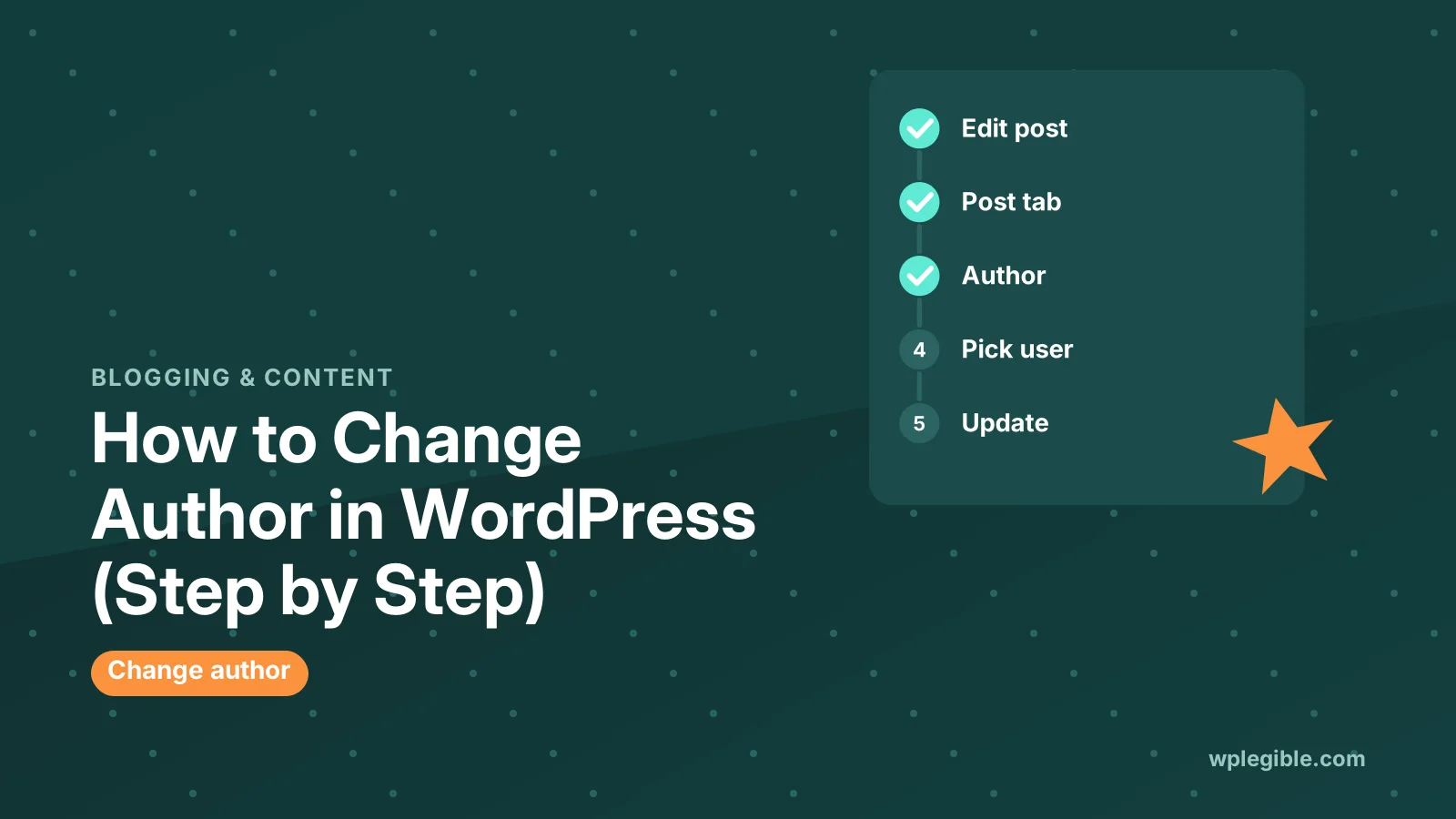
Open the post, select the Post tab in the right sidebar, click the current name next to Author, choose a new user and click Update. For many posts, use Bulk Edit on the posts screen. The new author must have the Contributor role or higher.
Key takeaways
- Change one post's author in the block editor sidebar.
- Use Quick Edit or Bulk Edit from the posts list for speed.
- Reassign all content when deleting a user who leaves.
- Subscribers never appear in the author dropdown.
- Change the public name in the user profile, not the post.
How do you change the author of a post in WordPress?
Open the post in the block editor, find the Author field in the Post settings sidebar, pick a different user from the dropdown, and click Update to save the new author.
That is the quickest method for a single post. WordPress also lets you change authors in bulk, through Quick Edit, by reassigning posts when you delete a user, or with WP-CLI.
One rule applies to every method. The new author must already exist as a user on your site with a role that can write posts, such as Author, Editor or Administrator.
If the person does not have an account yet, add them first. Our guide on how to add an author in WordPress covers that step.
What do you need before changing a post author?
You need an Administrator or Editor account to change authors on other people's posts, and the person you want to assign must have a user account with at least the Contributor role.
The roles and capabilities documentation explains what each role can do. In short:
- Administrators and Editors can change the author of any post.
- Authors can only manage their own posts and cannot reassign them.
- Contributors can be chosen as authors, but cannot publish.
- Subscribers do not appear in the author dropdown at all.
If someone is missing from the dropdown, their role is usually the reason. See how to change user roles in WordPress to upgrade them.
How do you change the author in the block editor?
In the block editor, open the post, make sure the Post tab is selected in the right sidebar, click the current author name next to Author, choose the new user and click Update.
- Go to Posts > All Posts and click the post title to edit it.
- If the right sidebar is hidden, click the Settings icon at the top right.
- Select the Post tab, not the Block tab.
- Find the Author row in the summary panel.
- Click the current author name to open the dropdown.
- Search for or select the new author.
- Click Update (or Save draft for unpublished posts).
On sites with many users, the dropdown turns into a search box. Start typing the name to find the person.
The same steps work for pages. Open the page, find Author in the Page tab, and choose a new user.
How do you change the author with Quick Edit?
Quick Edit lets you change the author from the posts list without opening the editor: hover over a post, click Quick Edit, choose a new author from the dropdown and click Update.
- Go to Posts > All Posts.
- Hover over the post you want to change.
- Click Quick Edit under the title.
- Find the Author dropdown on the right of the panel.
- Pick the new author.
- Click Update.
This is often faster than opening the full editor, especially for older posts that load slowly in the block editor.
How do you change the author of many posts at once?
Use Bulk Edit on the posts screen: tick the posts you want, choose Edit from the Bulk actions menu, click Apply, select the new author and click Update.
- Go to Posts > All Posts.
- Filter the list if needed, for example by category or by the current author.
- Tick the checkbox next to each post, or the top checkbox to select the whole page.
- Choose Edit from the Bulk actions dropdown and click Apply.
- In the Bulk Edit panel, select the new author from the Author dropdown.
- Click Update.
To see more posts per page, open Screen Options at the top right and raise the number of items. That lets you bulk edit larger batches at once.
Bulk Edit only changes the fields you set. Other fields stay as they were if you leave them on No Change.
How do you move all posts from one author to another?
To move every post from one user to another, delete the old user and choose Attribute all content to another user, or filter posts by that author and bulk edit them.
The delete method is useful when someone leaves your team:
- Go to Users > All Users.
- Hover over the user and click Delete.
- On the confirmation screen, choose Attribute all content to.
- Select the user who should take over the posts.
- Click Confirm Deletion.
Be careful here. If you choose Delete all content instead, every post by that user is removed.
If you want to keep the old account, use Bulk Edit instead. Click the author's name in the Author column of the posts list to filter by that author first.
How do you change the author in the Classic Editor?
In the Classic Editor, the Author box sits below the content area; if you cannot see it, open Screen Options at the top and tick Author, then pick a user and click Update.
The Author box is hidden by default on many sites. Ticking it in Screen Options makes it appear for every post you edit afterwards.
Some page builders also hide the author field. If you build pages with Elementor, use Quick Edit from the posts or pages list instead.
How do you change the author with WP-CLI?
With WP-CLI, run wp post update followed by the post ID and the post_author flag with the new user ID, which is useful for scripting changes across many posts.
For example, to set post 123 to user ID 5:
wp post update 123 --post_author=5The wp post update command reference lists every available option.
You can find user IDs with wp user list. Always run a backup first, because WP-CLI changes take effect immediately.
Developers can do the same in PHP with wp_update_post(), passing the post ID and the new post_author value.
How do you change the author name shown on posts?
To change the name shown on posts without changing the author, edit the user profile, set a nickname or first and last name, then choose it in Display name publicly as and click Update Profile.
- Go to Users > Profile for your own account, or Users > All Users and click Edit for someone else.
- Fill in First Name, Last Name or Nickname.
- Choose the new name from Display name publicly as.
- Click Update Profile.
The username itself cannot be changed from the dashboard. Only the public display name changes.
This is the right fix if you simply want posts to show a full name instead of a login name like admin.
Can a WordPress post have more than one author?
Core WordPress allows only one author per post, but plugins such as Co-Authors Plus let you assign several authors and guest authors who do not have login accounts.
Co-Authors Plus adds a box in the editor where you can add more than one byline.
Your theme must support the plugin to show every name. Many themes only print the main author, so check the front end after setting it up.
| Method | Best for | Changes many posts? |
|---|---|---|
| Block editor sidebar | One post you are already editing | No |
| Quick Edit | One post from the list | No |
| Bulk Edit | A selection of posts | Yes |
| Delete user and reassign | Someone leaving the site | Yes, all their posts |
| WP-CLI | Scripted or very large changes | Yes |
| Co-Authors Plus | Multiple bylines per post | Per post |
Why can you not change the author in WordPress?
You usually cannot change the author because the user lacks the Contributor role or higher, your own role is too low, the author field is hidden, or a plugin or custom post type removes author support.
Check these causes:
- Missing user: Subscribers do not appear in the list. Change their role.
- Your role: Authors and Contributors cannot reassign posts. Ask an Editor or Administrator.
- Hidden field: In the Classic Editor, enable Author under Screen Options.
- Custom post type: The post type may not register author support.
- Plugin conflict: Membership or editorial plugins sometimes control authors.
If none of these apply, try a plugin conflict test on a staging site.
Does changing the author affect SEO?
Changing the author does not hurt rankings by itself, but it changes the author archive URL, the byline and author structured data, so make sure the new author has a complete profile.
Google uses author information as one signal of who wrote a page. Its article structured data guide recommends clear author names and links to author pages.
Give each author a bio, a photo and links to their other work. Our guide on adding author pages for E-E-A-T shows how to build them.
Most SEO plugins output this as the schema.org author property, pulling the name and URL from the WordPress user profile.
If you delete an old author, their archive URL will return a 404. Redirect it to the new author page or to your blog page.
Frequently asked questions
Why is a user missing from the WordPress author dropdown?
The author dropdown only lists users who can edit posts, so Subscribers and some custom roles are left out. Change the user's role to Contributor, Author, Editor or Administrator under Users, then reload the post editor.
Can an Author change the author of their own post?
No. Users with the Author role can only edit their own posts and cannot reassign them to someone else. An Editor or Administrator needs to change the author for them.
Does changing the author change the post date?
No. Changing the author only updates the author field. The publish date, URL and content stay the same unless you edit them separately in the same session.
How do I change the author on pages in WordPress?
Pages work the same way as posts. Open the page in the editor, select the Page tab in the sidebar and change the Author field, or use Quick Edit and Bulk Edit from the Pages list.
Will deleting a user delete their posts?
Only if you choose to. When you delete a user, WordPress asks whether to delete all their content or attribute it to another user. Choose to attribute it to keep every post and page.
Sources
- Roles and Capabilities WordPress.org
- wp post update WordPress Developer Resources
- wp_update_post() WordPress Developer Resources
- Co-Authors Plus WordPress.org
- Article structured data Google Search Central
Is your product missing, or something out of date?
Tell us what to add or correct. We read every note and reply when we need a source. A message does not buy a ranking.
Thanks — we review requests within 3 business days.
Related guides



About the editors
Researched from the primary sources listed above and checked against our editorial rules before publishing.