Blogging & content · Guide
How to Add Author in WordPress (Step by Step)
Short answer
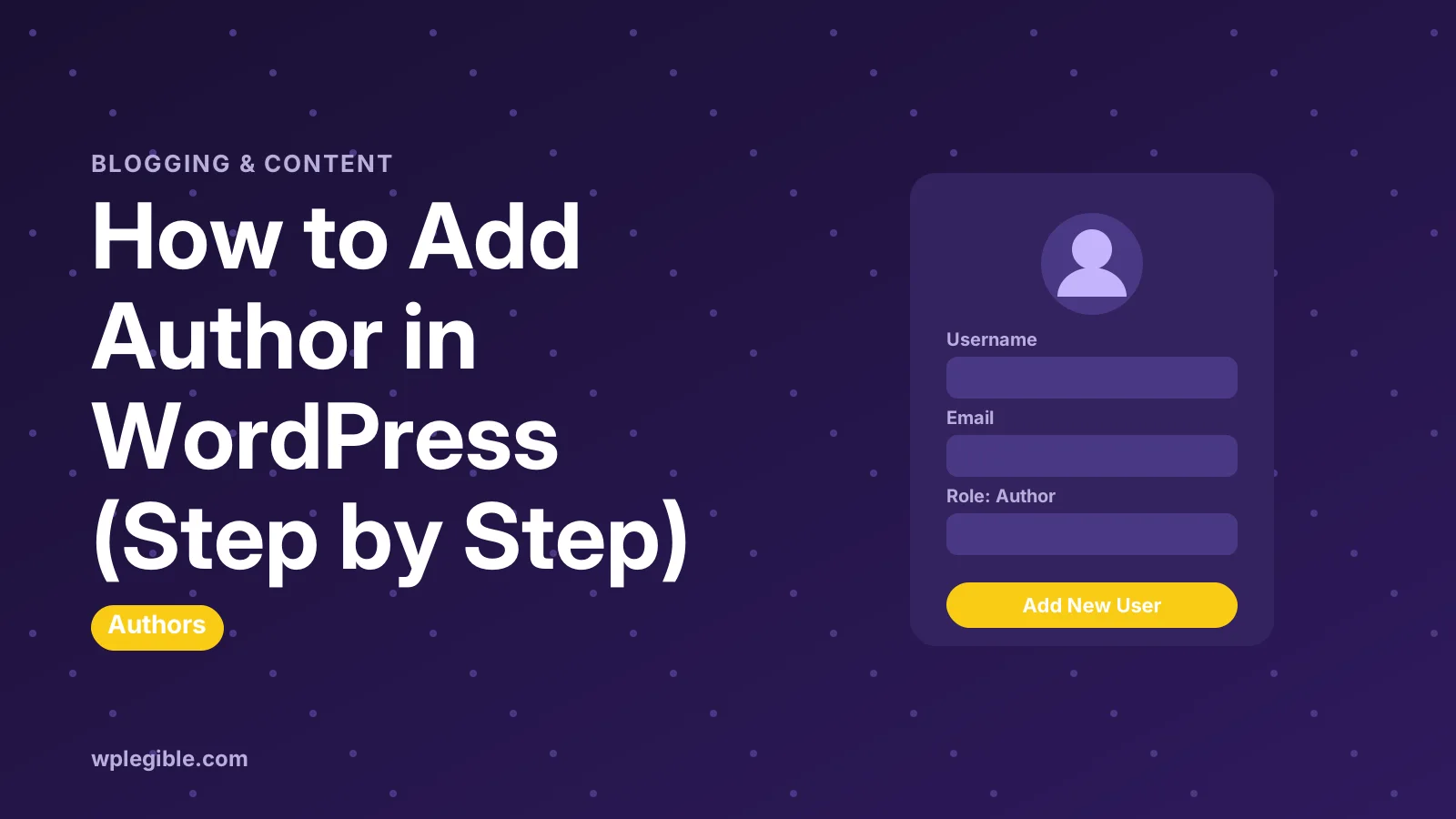
To add an author in WordPress, go to Users > Add New User, enter a username and email, choose Author in the Role dropdown and click Add New User. To credit an existing user on a post, open the post and change the Author field in the post settings sidebar, then update.
Key takeaways
- Create author accounts under Users > Add New User with the Author role.
- Authors can publish their own posts but cannot edit other people's.
- Change a post's author from the Author field in the post sidebar.
- Set a public display name so the login name is not shown.
- Multiple or guest authors need a plugin such as Co-Authors Plus.
How do you add an author in WordPress?
Go to Users > Add New User, fill in a username and email, set the Role to Author, and click Add New User to create the account.
That gives the person their own login, so they can write and publish posts under their own name. Each post then shows them as the author, with an author archive page listing their work.
People also use add author to mean other tasks, such as changing who is credited on a post or showing an author box. This guide covers each of them:
| Goal | Where to do it | Plugin needed |
|---|---|---|
| Create a new author account | Users > Add New User | No |
| Change a post's author | Post sidebar, Author field | No |
| Let people register as authors | Settings > General | No |
| Show author name and bio | Profile plus theme or blocks | Usually no |
| Credit several authors on one post | Posts | Yes |
| Credit a guest without an account | Posts | Yes |
How do you create a new author account?
Open Users > Add New User, enter the person's details, choose Author in the Role dropdown and save, and WordPress can email them a link to set a password.
Follow these steps:
- Log in as an administrator.
- Go to Users > Add New User.
- Enter a Username. It cannot be changed later, so pick it carefully.
- Enter the person's Email.
- Add a first name, last name and website if you like.
- Set a password, or leave the generated strong one in place.
- Tick Send User Notification so they get a login email.
- Choose Author in the Role dropdown.
- Click Add New User.
The new author can now log in at your wp-admin address. They will see a reduced dashboard with only the tools their role allows.
If the welcome email never arrives, check the spam folder first. Many hosts send WordPress email unreliably, so an SMTP plugin connected to a proper mail service often fixes missing login emails.
You can also share the login address and a temporary password privately, then ask the author to change it on first login.
If you add many authors, a developer can create accounts from the command line with the WP-CLI user create command. It accepts the same fields, including the role.
What can the Author role do?
An Author can write, edit, publish and delete their own posts and upload media, but cannot edit other people's posts, manage pages, or change site settings.
The role sits between Contributor and Editor. The difference matters, so pick the right one:
- Contributor: writes posts but cannot publish them or upload files.
- Author: writes and publishes their own posts and uploads images.
- Editor: manages all posts and pages, including other people's.
- Administrator: controls everything, including plugins, themes and users.
WordPress lists the exact abilities of each role in its Roles and Capabilities documentation. Our explainer on WordPress user roles covers the same ground in plain terms.
If you do not want a writer to publish without review, choose Contributor instead. An editor or admin can then approve each post.
How do you change the author of an existing post?
Open the post, find the Author field in the post settings sidebar, pick the new author from the list and click Update.
The steps in the block editor:
- Go to Posts and open the post.
- In the right sidebar, select the Post tab.
- Find Author and open the dropdown.
- Choose the user you want credited.
- Click Update.
Only users who can write posts appear in the list. Subscribers are not shown, so give the person at least the Contributor or Author role first.
To change the author on many posts at once, go to Posts > All Posts, tick the posts, choose Edit from Bulk actions, set the author and click Update.
How do you let people sign up as authors themselves?
Turn on Anyone can register in Settings > General and set New User Default Role, but avoid Author as the default role on an open site.
Open registration lets anyone create an account. If the default role is Author, strangers could publish posts on your site immediately.
A safer setup is Subscriber or Contributor as the default, then promote trusted people by hand. Our guide on changing user roles in WordPress shows how to promote a user.
Open registration also attracts spam signups. Our guide on stopping fake user registrations covers CAPTCHA, email checks and other protections.
How do you set the author's display name and bio?
Each author sets their public name and bio under Users > Profile, using the Display name publicly as option and the Biographical Info box.
By default WordPress may show the username as the author name. That looks odd and also reveals a login name, so change it.
- Ask the author to go to Users > Profile, or edit their user as an admin.
- Fill in First Name, Last Name and Nickname.
- Choose a name in Display name publicly as.
- Write a short bio in Biographical Info.
- Click Update Profile.
Profile pictures come from Gravatar, a free service linked to the author's email address. Once they add a photo there, WordPress shows it next to their name in themes that support avatars.
How do you show the author on posts?
Most themes show the author name automatically, and block themes can add Post Author, Post Author Name and Post Author Biography blocks to the single post template.
If your theme hides the author, check its Customizer or theme settings for a post meta option. Many themes let you toggle author, date and categories.
In a block theme, go to Appearance > Editor, open the Single Posts template, and add an author block where you want it. Saving the template applies it to every post.
Author pages matter for trust. Our guide on adding author pages for E-E-A-T explains how a strong author profile supports credibility with readers and search engines.
How do you add more than one author to a post?
WordPress only allows one author per post by default, so crediting several authors needs a plugin such as Co-Authors Plus.
Co-Authors Plus adds an authors box to the editor where you can attach several users to one post. It also supports guest authors, who are credited without needing a login.
Your theme needs to display multiple authors for the credit to appear on the front end. Check the plugin documentation for the template functions or blocks it provides.
Guest authors are useful for one-off contributions. You credit the writer properly without giving them access to the dashboard.
How do you keep author accounts secure?
Give each author the lowest role that lets them do their job, require strong passwords, and remove accounts for people who no longer write for you.
Every login is a possible way into your site. A few habits keep risk low:
- Never share one login between several writers.
- Use Author or Contributor, not Editor or Administrator, for writers.
- Turn on two-factor authentication with a security plugin.
- Delete or downgrade accounts when contributors leave, and reassign their posts.
When you delete a user, WordPress asks what to do with their content. Choose Attribute all content to another user so their posts stay published.
To see who changed what, our guide on auditing user activity in WordPress covers activity log plugins. For more background on users and roles, the Learn WordPress user management lesson is a good free course.
What if you need an administrator instead?
If the person needs to manage plugins, themes or users rather than only write posts, create the account with the Administrator role instead.
Give out administrator access sparingly, because it controls the whole site. Our guide on adding an admin in the WordPress dashboard covers that process and its precautions.
If none of the default roles fits, you can build your own. Our guide on adding custom user roles shows how to create a role with exactly the abilities you want.
Frequently asked questions
What is the difference between an Author and a Contributor?
An Author can publish their own posts and upload images. A Contributor can write and save drafts but cannot publish or upload files, so an editor or administrator must review and publish their work.
Why is a user missing from the post Author dropdown?
The dropdown only lists users who can write posts. Subscribers do not appear. Change the user's role to Contributor, Author, Editor or Administrator, then reload the post editor and the name will show.
Can an Author edit pages in WordPress?
No. The Author role works with posts only. Authors cannot create or edit pages. Give the person the Editor role if they need to manage pages, or create a custom role with page editing abilities.
How do I stop showing the username as the author name?
Edit the user's profile, fill in a first name, last name or nickname, then pick a different option in Display name publicly as and update the profile. Themes then show that public name instead of the login name.
What happens to posts when I delete an author?
WordPress asks whether to delete their content or attribute it to another user. Choose to attribute it to another user so the posts stay published. Deleting the content removes their posts permanently.
Sources
- Roles and Capabilities WordPress.org
- User management lesson Learn WordPress
- wp user create WordPress Developer Resources
- Co-Authors Plus plugin WordPress.org
- Gravatar Gravatar
Is your product missing, or something out of date?
Tell us what to add or correct. We read every note and reply when we need a source. A message does not buy a ranking.
Thanks — we review requests within 3 business days.
Related guides



About the editors
Researched from the primary sources listed above and checked against our editorial rules before publishing.