Hosting · Guide
How to Add Your Domain to WordPress (Step by Step)
Short answer
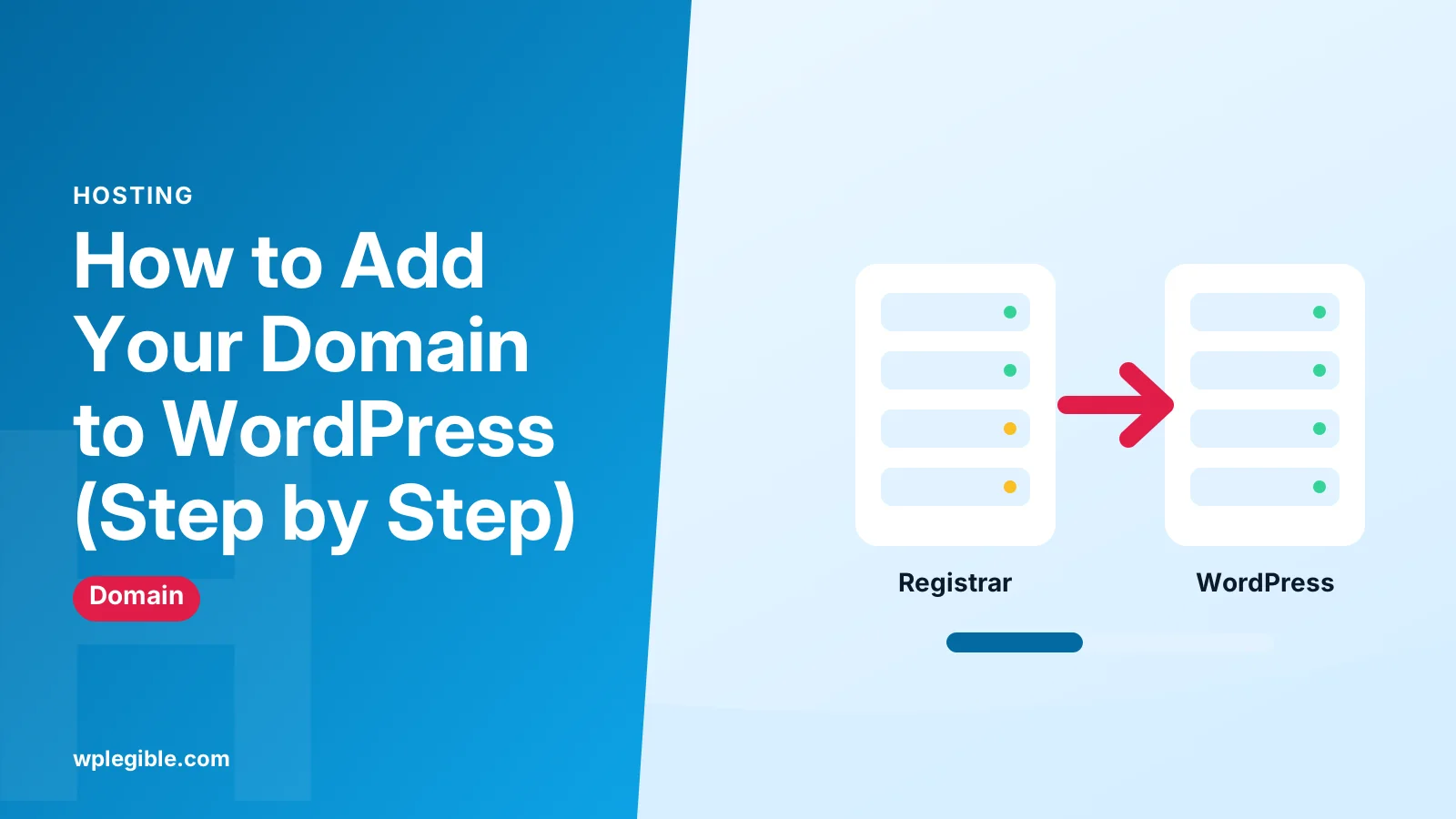
Add the domain where your site is hosted, then point its DNS there. On WordPress com, open Domains, choose to use a domain you own, and connect it with name servers or DNS records. On self-hosted WordPress, add it in your hosting panel, point DNS at the server and update the site address.
Key takeaways
- WordPress.com custom domains need a paid plan.
- Connecting keeps the domain at your registrar; transferring moves it.
- Self-hosted sites need an A record pointing to the server IP.
- DNS changes can take up to 48 hours to spread.
- Set the new domain as the site address and add SSL.
How do you add your own domain to WordPress?
You add a domain to WordPress by connecting it where your site is hosted, then pointing the domain's DNS to that host and setting it as the site's main address.
The exact steps depend on which kind of WordPress you use. There are two very different setups:
- WordPress.com, where Automattic hosts the site and you connect the domain inside your WordPress.com dashboard.
- Self-hosted WordPress, where you pay a web host and point the domain at that host's server.
Work out which one you have before you start. If your dashboard URL ends in wordpress.com and you never bought hosting, you are on WordPress.com. If you log in at yourdomain.com/wp-admin and pay a separate host, you are self-hosted.
Below, we cover both. Skip to the section that fits your site.
What do you need before you start?
You need a registered domain, login access to the registrar where you bought it, and either a paid WordPress.com plan or a web hosting account.
Gather these before you change anything:
- Registrar login. This is the company where you bought the domain, such as Namecheap, GoDaddy or Porkbun.
- Hosting details. For self-hosted sites, your host's name servers or server IP address. For WordPress.com, the values shown in your domain settings.
- Email records. If you use email on the domain, write down the current MX records so you do not break your inbox.
- A backup. If the site already has content, take a backup first.
Not sure who your registrar is? Run your domain through the ICANN lookup tool. It shows the registrar and current name servers.
How do you add a domain on WordPress.com?
On WordPress.com you open your site's domain settings, choose to use a domain you already own, and then connect it by changing name servers or DNS records at your registrar.
Custom domains need a paid WordPress.com plan. Free sites stay on a wordpress.com subdomain. Paid annual plans often include a free domain for the first year, which is covered in our guide to getting a free domain in WordPress.
Follow these steps:
- Log in to WordPress.com and select your site.
- Open the Domains section. Depending on your dashboard view, it is under Upgrades or in your account's domain list.
- Click to add a domain and choose the option to use a domain you own.
- Type your domain name and continue.
- Pick Connect to keep the domain at your current registrar, or Transfer to move registration to WordPress.com.
- Follow the on-screen instructions to update DNS at your registrar.
WordPress.com keeps its own instructions up to date on the WordPress.com domains support page. Menu names change from time to time, so use it if a label looks different.
Should you connect or transfer the domain to WordPress.com?
Connect the domain if you want to keep it at your current registrar, and transfer it if you want WordPress.com to manage both the site and the domain in one place.
Connecting is faster. You only change DNS settings, and the domain stays where it is. You keep renewing it with your registrar.
Transferring moves the registration itself. It takes longer, often several days, and needs the domain to be released from its transfer lock plus an authorization code from your current registrar. Domains registered or transferred in the last 60 days usually cannot move again yet under ICANN transfer rules.
| Option | Where the domain lives | Speed | Best for |
|---|---|---|---|
| Connect with name servers | Current registrar | Hours to a day or two | Simple setups, no custom email DNS |
| Connect with DNS records | Current registrar | Hours to a day or two | Keeping email or other services working |
| Transfer | WordPress.com | Several days | One bill and one dashboard |
How do you connect a domain to WordPress.com with name servers?
Log in to your registrar, find the name server settings for your domain, and replace the existing name servers with the WordPress.com ones shown in your domain settings.
WordPress.com name servers usually look like ns1.wordpress.com, ns2.wordpress.com and ns3.wordpress.com. Copy the exact values from your dashboard rather than typing them from memory.
Changing name servers moves all DNS control to WordPress.com. If you had email set up at your registrar, re-create the MX records inside WordPress.com's DNS settings, or email will stop working.
If you prefer to keep DNS at your registrar, use the DNS records method instead. WordPress.com shows the A records and CNAME you need in the same setup screen.
How do you add a domain to a self-hosted WordPress site?
Add the domain to your hosting account, point the domain's DNS at your host, install or move WordPress to that domain, then add SSL and update the site address.
Here is the full process:
- Add the domain in your hosting panel. In cPanel this is usually under Domains. Other panels have a similar Add website or Add domain option.
- Point DNS at the host. Either change the domain's name servers to your host's, or add an A record for the root domain and a CNAME or A record for www.
- Install WordPress on the domain with your host's installer, or move an existing site to it.
- Turn on SSL. Most hosts offer free certificates from Let's Encrypt.
- Set the site address in WordPress to the new domain with https.
Our detailed guide on pointing a domain to WordPress hosting covers the DNS part step by step.
Which DNS records do you need?
A self-hosted site normally needs an A record for the root domain pointing to the server's IP address and a www record pointing to the same place.
| Record | Name | Points to |
|---|---|---|
| A | @ (root) | Your server's IPv4 address |
| AAAA | @ (root) | Server IPv6 address, if your host gives one |
| CNAME | www | Your root domain |
| MX | @ | Your email provider (leave as is) |
Your host's welcome email or dashboard lists the right IP address. Cloudflare's explainer on DNS A records is a good primer if these terms are new.
Delete any old A records that point elsewhere. Two conflicting A records make the site load from the wrong server some of the time.
How long does it take for the domain to work?
DNS changes usually show up within a few hours, though they can take up to 48 hours to reach every network around the world.
During that window, some visitors see the new site and some see the old one or an error. That is normal.
You can watch progress with a checker such as whatsmydns.net, which queries DNS servers in many countries. Our guide on how long DNS propagation takes explains what affects the delay.
If the domain still shows an error after two days, see our fix for DNS_PROBE_FINISHED_NXDOMAIN.
How do you set the new domain as your site address?
In self-hosted WordPress, go to Settings, then General, and set both the WordPress Address and Site Address to the new domain, starting with https.
Save the change. WordPress logs you out and you log back in on the new domain.
If you cannot reach the dashboard, define the address in wp-config instead. Add WP_HOME and WP_SITEURL lines with your full https address, as described in the wp-config documentation.
On WordPress.com, open the domain list and mark the new domain as primary. Visitors to the old wordpress.com address are then redirected to it.
What if your site already has content on another address?
If the site already lives on an old domain, update links in the database and add 301 redirects so visitors and search engines move to the new address.
Changing the site address does not rewrite links already saved inside posts. Run a search and replace for the old domain, using a plugin like Better Search Replace, and take a backup first.
Then redirect the old domain to the new one, page for page. Our full guide to changing the domain of a WordPress site covers redirects, Search Console and common mistakes.
How do you check everything works?
Open the site in a private window on both the www and non-www versions, confirm the padlock appears, log in, and test a few internal links and forms.
Run through this short checklist:
- Both example.com and www.example.com load the same site.
- The browser shows a valid certificate with no mixed content warnings.
- You can log in to wp-admin on the new domain.
- Email still sends and arrives.
- Contact forms submit without errors.
If you see certificate warnings, our guide to installing an SSL certificate on WordPress walks through the fix.
Frequently asked questions
Can I add a custom domain to a free WordPress.com site?
No. Free WordPress.com sites use a wordpress.com subdomain. To use your own domain you need a paid plan. Many annual paid plans include a free domain registration for the first year, after which it renews at the normal price.
Will adding my domain to WordPress break my email?
It can if you change name servers without copying your MX records. Write down your current email records first, then re-create them at the new DNS provider, or connect with A records only so email settings stay untouched.
Do I have to buy my domain from my WordPress host?
No. You can keep the domain at any registrar and point it to your host or to WordPress.com. Buying through the host is simpler to manage, while keeping it separate makes it easier to switch hosts later.
Why does my domain still show the old site?
DNS changes take time to spread, and your browser or computer may cache old records. Wait a few hours, clear your browser cache, try mobile data instead of Wi-Fi, and check that no old A records still point to the previous server.
Do I need www or non-www?
Either works for search engines. Pick one as your main address, set it in WordPress, and make sure the other version redirects to it. Most hosts and WordPress.com handle that redirect automatically once both are set up.
Sources
- Domains support WordPress.com
- ICANN registration data lookup ICANN
- Transfer policy ICANN
- What is a DNS A record? Cloudflare
- wp-config.php WordPress Developer Resources
- Let's Encrypt Let's Encrypt
Is your product missing, or something out of date?
Tell us what to add or correct. We read every note and reply when we need a source. A message does not buy a ranking.
Thanks — we review requests within 3 business days.
Related guides


About the editors
Researched from the primary sources listed above and checked against our editorial rules before publishing.