Blogging & content · Guide
How to Add Categories in WordPress (and Organize Them Well)
Short answer
To add a category in WordPress, go to Posts > Categories, enter a name, an optional slug, parent and description, and click Add New Category. You can also create one while writing: open the post settings sidebar, find Categories and click Add New Category. Then tick the category for each post and click Update.
Key takeaways
- Categories group posts by broad topic; tags describe smaller details.
- Create categories under Posts > Categories or directly from the post editor.
- Every post needs at least one category; WordPress uses Uncategorized if you pick none.
- Subcategories use the Parent setting to build a simple hierarchy.
- Plan a small set of clear categories before you have many posts to reorganize.
What are categories in WordPress?
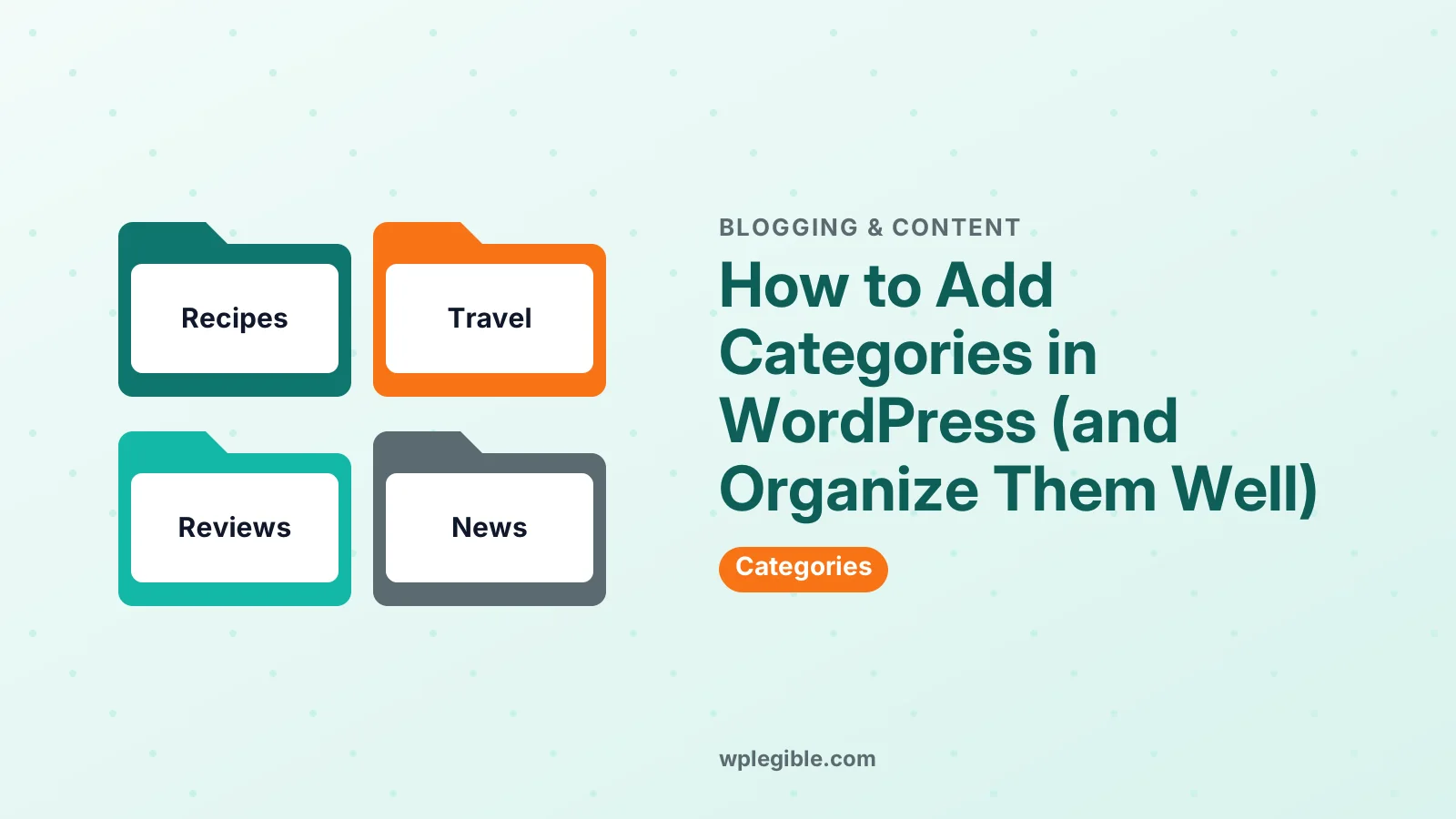
Categories are broad groups that organize your posts by topic, such as Recipes, Travel or Reviews, and each category gets its own archive page listing its posts.
They help readers browse related content, keep your blog organized as it grows, and help search engines understand how your site is structured. Each category archive has its own URL, such as yourdomain.com/category/recipes.
Categories only apply to posts by default, not pages. Pages are organized with parent pages instead. Our guide to posts vs pages explains the difference.
The Categories screen documentation describes every field and option on the main category screen.
How do you add a category from the Categories screen?
Go to Posts > Categories, fill in the name and optional slug, parent and description, then click Add New Category.
Step by step:
- Go to Posts > Categories in the dashboard
- Enter a Name, such as Healthy Recipes
- Optionally set a Slug, the URL-friendly version, such as healthy-recipes
- Choose a Parent Category if this should be a subcategory
- Add a short Description, which some themes show on the archive page
- Click Add New Category
The new category appears in the list on the right. Hover over it to edit, quick edit, delete or view its archive.
How do you add a category while writing a post?
Open the post settings sidebar, find the Categories panel, click Add New Category, type the name and press Enter; the new category is created and ticked for that post.
This is handy when a new topic comes up while you write. You can also choose a parent category in the same panel before adding it.
Tick every category that truly fits, then click Save draft or Update. Most posts only need one or two categories, and choosing fewer keeps each archive focused on posts that really belong there.
How do you assign or change categories on existing posts?
Open a post and tick or untick categories in the sidebar, or use Quick Edit and Bulk Edit on the Posts screen to change several posts at once.
For one post, Quick Edit on the Posts list lets you change categories without opening the editor.
For many posts, tick them on the Posts screen, choose Edit from Bulk actions, click Apply and tick the categories to add. Bulk Edit adds categories but does not remove existing ones, so remove unwanted ones afterwards with Quick Edit.
The Uncategorized category is the default. Rename it to something useful in Posts > Categories, or set a different default under Settings > Writing.
How do you create subcategories?
Create a category and choose an existing category as its Parent, which places it underneath and adds the parent's slug to its URL.
For example, a Recipes parent could have Breakfast, Lunch and Dinner as children. The child archive URL becomes /category/recipes/breakfast/.
Keep the hierarchy shallow and the names short. One level of subcategories is usually enough. Deep trees make menus and URLs long and confuse readers.
When you assign a subcategory, you do not need to tick the parent too, unless you want the post listed directly in the parent archive as well.
What is the difference between categories and tags?
Categories are broad, hierarchical topics that every post must have, while tags are optional, flat labels for specific details mentioned in a post.
A simple way to think about it: categories are a book's chapters, and tags are its index. A post in the Travel category might have tags like Lisbon, budget and trains.
Use a small, stable set of categories and a moderate number of tags that you actually reuse across several posts. Avoid creating tags that duplicate category names, which produces two archive pages with the same posts.
How do you show categories in your menu or sidebar?
Add category links to your Navigation block or classic menu, or use the Categories List block to show all categories in a sidebar, footer or page.
In a block theme, open Appearance > Editor > Navigation, add a link and search for the category name. In a classic theme, open Appearance > Menus, expand the Categories box, tick categories and click Add to Menu.
The Categories List block displays every category as a list or dropdown, with optional post counts. It suits sidebars and footers on blog-heavy sites.
How should you plan categories for SEO and readers?
Choose a handful of clear, distinct categories that match how readers think about your topics, give each archive a short description, and avoid categories with only one or two posts.
Each category archive is a page that search engines can index. Thin archives with very few posts add little value. Merge small categories into broader ones until they grow.
Write a short introduction for each category in its description field, if your theme displays it. That turns the archive into a useful landing page rather than a bare list.
Breadcrumbs that include the category help readers and search engines understand where a post sits. Google's guide to breadcrumb structured data explains how this is marked up, and most SEO plugins add it for you. Our overview of WordPress SEO covers related settings.
How do you design category archive pages?
In a block theme, create a Category template in the Site Editor to control how every category archive looks, or a template for one category, such as category-recipes, to give it a unique design.
Go to Appearance > Editor > Templates, add a new template and choose Category. Use a Query Title block to show the category name, a Term Description block for its introduction, and a Query Loop to list the posts.
To design one category differently, choose the option for a specific category when you add the template. WordPress then uses it only for that archive, following the template hierarchy.
In classic themes, the archive layout comes from the theme's archive or category template files. A child theme can override them if the theme has no setting for it.
How do you reorganize categories on an existing blog?
Plan the new structure first, then move posts in batches, merge thin categories, and add redirects for any category URLs you remove or rename.
Over time, many blogs end up with overlapping categories, such as Tips, Guides and How To. Readers then cannot tell where to look.
A practical clean-up:
- List every category with its post count
- Decide the new set of categories and which old ones map to each
- Use Bulk Edit to add posts to their new categories
- Remove the old categories from those posts with Quick Edit
- Delete the empty old categories
- Redirect each old category URL to its new home
Do the work in a quiet period, take a backup first, and check your most visited posts afterwards to make sure their categories and links still make sense.
How do you change or delete a category safely?
Edit the name freely, but add a redirect if you change a category's slug, and when you delete a category its posts move to the default category rather than being deleted.
Changing a slug changes the archive URL. If the old URL had traffic or links, add a 301 redirect from it to the new one.
Deleting a category does not delete its posts. Posts that had only that category are moved to the default category, so check them afterwards and assign better categories.
Can you add categories to pages or custom post types?
Not by default for pages, but developers can register categories or custom taxonomies for pages and custom post types with register_taxonomy or register_taxonomy_for_object_type.
The register_taxonomy reference explains how to create a new taxonomy, such as Genres for books. Plugins can do the same without code.
Our guide to creating a custom post type shows how custom content types and taxonomies work together.
Frequently asked questions
How do I add a new category in WordPress?
Go to Posts > Categories, enter a name and optional slug, parent and description, then click Add New Category. You can also add one from the Categories panel in the post editor.
How many categories should a WordPress blog have?
There is no fixed number, but most blogs work best with a small set of clear categories, often between five and ten. Each should have enough posts to make its archive useful.
Can a post be in more than one category?
Yes. Tick as many categories as truly apply. Keeping it to one or two per post makes your archives clearer and avoids the same post appearing everywhere.
What happens to posts when I delete a category?
The posts are not deleted. Posts that only belonged to that category are moved to the default category, usually Uncategorized, so reassign them afterwards.
How do I remove Uncategorized in WordPress?
Rename the Uncategorized category to something useful, or create a new category and set it as the default under Settings > Writing. The default category itself cannot be deleted.
Sources
- Posts Categories Screen WordPress.org Documentation
- register_taxonomy() WordPress Code Reference
- Breadcrumb structured data Google Search Central
- Learn WordPress WordPress.org
Is your product missing, or something out of date?
Tell us what to add or correct. We read every note and reply when we need a source. A message does not buy a ranking.
Thanks — we review requests within 3 business days.
Related guides
About the editors
Researched from the primary sources listed above and checked against our editorial rules before publishing.