SEO & AI search · Info
Yoast SEO Sitemap Settings Explained: What Each Option Does
Short answer
Yoast SEO turns XML sitemaps on or off in Settings, Site features. What appears in the sitemap follows your search visibility choices for each content type, category, tag, author archive and media page. Excluding a single post is done in its Advanced Yoast settings.
Key takeaways
- The main sitemap toggle is in Yoast SEO, Settings, Site features.
- Hiding a content type from search also removes it from the sitemap.
- Author archives and media pages are controlled under Advanced settings.
- Each child sitemap holds up to 1,000 entries by default.
- Submit sitemap_index.xml in Google Search Console.
Where are the Yoast SEO sitemap settings?
Yoast SEO's sitemap switch is under Yoast SEO > Settings > Site features, while what goes into the sitemap is controlled by the content type, taxonomy and advanced settings in the same Settings area.
Yoast does not have one big sitemap page full of checkboxes. Instead, the sitemap follows your search appearance choices.
If you tell Yoast a content type should appear in search results, it goes in the sitemap. If not, it is left out.
This page explains each option that affects your sitemap, what it does, and when to change it. If you need a refresher on sitemaps themselves, start with our guide to what an XML sitemap is.
How do you turn Yoast XML sitemaps on or off?
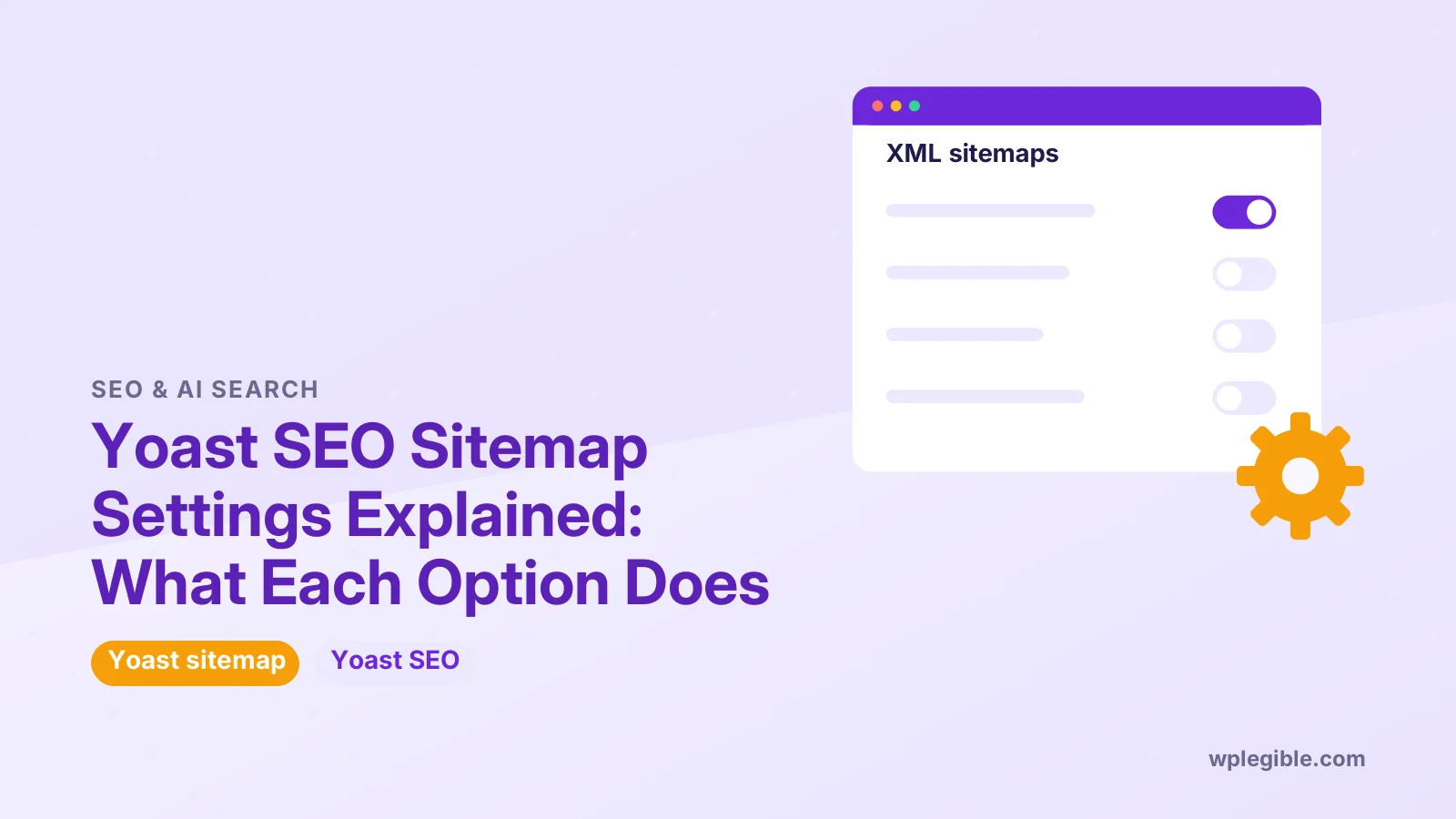
Go to Yoast SEO > Settings > Site features, find the XML sitemaps card under the APIs section, and use its toggle to turn sitemaps on or off.
Sitemaps are on by default. The same card has a link to view your sitemap, which normally lives at yourdomain.com/sitemap_index.xml.
When Yoast sitemaps are on, Yoast replaces the basic sitemap WordPress core creates at /wp-sitemap.xml, so you do not end up with two competing sitemaps.
Turn the feature off only if you use another tool for sitemaps, such as a different SEO plugin or a dedicated sitemap plugin. Yoast's XML sitemaps help article and the Site features documentation describe the current screens.
What does the sitemap index contain?
The index is a list of smaller sitemaps, one for each included post type and taxonomy, such as post-sitemap.xml, page-sitemap.xml and category-sitemap.xml.
Each child sitemap lists URLs with their last modified date. Large sites get several numbered files for the same type, such as post-sitemap2.xml.
| Sitemap file | What it lists | Controlled by |
|---|---|---|
| post-sitemap.xml | Blog posts | Content types > Posts |
| page-sitemap.xml | Pages | Content types > Pages |
| product-sitemap.xml | Store products, if any | Content types > Products |
| category-sitemap.xml | Category archives | Categories & tags > Categories |
| post_tag-sitemap.xml | Tag archives | Categories & tags > Tags |
| author-sitemap.xml | Author archives | Advanced > Author archives |
Search engines read the index, then follow each child sitemap. The format follows the standard sitemaps protocol.
How do content type settings affect the sitemap?
Under Settings > Content types, the Show [type] in search results toggle decides whether that post type is included in the sitemap.
For each content type, such as Posts, Pages or a custom type from another plugin, you will see a toggle like Show posts in search results.
- On: the content type is indexable and included in the sitemap.
- Off: the content type gets a noindex tag and is removed from the sitemap.
Turn this off for content that should not appear in Google, such as internal templates, thin custom post types or items a plugin creates for its own use. Leave it on for posts, pages and products.
Custom post types only show here if they are public. If a type is missing from your sitemap, check that it is public and that this toggle is on.
How do category and tag settings affect the sitemap?
Under Settings > Categories & tags, each taxonomy has a Show in search results toggle that also adds or removes its sitemap.
Category archives are often useful pages. Tag archives are frequently thin, especially if each tag only has one or two posts.
Many site owners keep categories in the sitemap and turn tags off. There is no single correct choice.
If your tag pages have unique introductions and plenty of posts, they can stay. If they are thin duplicates of each other, leaving them out is usually tidier.
Post format archives, if your theme uses them, have their own setting in the same area. Most sites can leave them out.
How do author archives and media pages affect the sitemap?
Author archives and media attachment pages are controlled under Settings > Advanced, and they only appear in the sitemap when enabled and set to show in search results.
Author archives:
- On single-author blogs, the author archive is usually a copy of the main blog. Turning off author archives, or hiding them from search, removes the author sitemap.
- On multi-author sites, author pages can be valuable. Keep them on.
- Yoast also has an option about showing archives for authors without any posts. Leave that off so empty pages stay out.
Media pages:
- WordPress creates a separate page for every uploaded file. Yoast keeps these disabled by default and redirects them to the file itself.
- Leave this off unless you have a specific reason. Enabling it can add many thin pages to your sitemap.
How do you exclude a single post or page from the sitemap?
Open the post in the editor, go to the Yoast SEO panel, open the Advanced section and set Allow search engines to show this content in search results? to No.
That adds a noindex tag and removes the URL from the sitemap. Use it for thank-you pages, private landing pages, login pages and similar content.
Do not use this for pages you just want to rank lower. Noindex removes them from search completely.
Developers can also exclude posts by ID, or exclude whole post types and taxonomies, with filters documented in the Yoast XML sitemaps API. That is handy when you need to keep many URLs out without editing each post.
How many URLs does each Yoast sitemap hold?
Each Yoast child sitemap holds up to 1,000 entries by default, and a developer filter lets you lower that number if large sitemaps load slowly.
Sitemaps are built on the fly from your database. On big sites or slow hosting, a sitemap with 1,000 entries can time out. Lowering the limit makes each file smaller and faster to generate.
You would add a small snippet with the wpseo_sitemap_entries_per_page filter to your theme's functions.php or a code snippets plugin. Only change this if you see timeouts or errors when opening a sitemap.
Does Yoast include images in the sitemap?
Yes, Yoast lists images found in each post alongside that post's URL in the sitemap, so you do not need a separate image sitemap setting.
There is no toggle for this in the settings. Images uploaded to and used in the post content are detected automatically. Developers can change which images are included with filters described in Yoast's developer documentation.
For news sites and video sites, Yoast sells add-ons that create news and video sitemaps. Check the Yoast website for current options and pricing.
How do you submit the Yoast sitemap to Google?
Copy your sitemap index URL and add it in Google Search Console under Sitemaps, then check that Google reports it as successful.
Steps:
- Open your sitemap from the Site features card to confirm it loads.
- Copy the URL, usually ending in sitemap_index.xml.
- In Google Search Console, open Sitemaps and paste the URL.
- Check back later for the status and number of discovered pages.
Google explains the process in its sitemaps documentation. Our guide on connecting Google Search Console to WordPress covers verification if you have not set it up yet.
You can also add a sitemap line to your robots.txt file so other search engines can find it. See our guide to editing robots.txt in WordPress.
What if the Yoast sitemap shows a 404 or old content?
A 404 usually means permalinks need refreshing or the server is not passing the sitemap URL to WordPress, and old content usually points to caching.
Quick fixes:
- Go to Settings > Permalinks and click Save Changes without changing anything.
- Toggle the XML sitemaps feature off, save, then on again.
- Exclude sitemap URLs from your caching plugin or CDN.
- On Nginx servers, make sure the rewrite rules for Yoast sitemaps are in place.
Our step-by-step guide on fixing a Yoast sitemap 404 covers each cause in more depth.
Which Yoast sitemap settings should most sites use?
For most sites, keep sitemaps on, include posts, pages, products and categories, leave media pages off, and decide on tags and author archives based on how useful those pages are.
A sensible starting point:
- XML sitemaps: On.
- Posts, pages, products: Show in search results.
- Categories: Show, if they have real content.
- Tags: Often off on small blogs.
- Author archives: Off on single-author sites.
- Media pages: Off.
After making changes, open your sitemap index to confirm only the sections you want are listed. If you are comparing plugins, our guide to Rank Math sitemap settings shows how the same choices work there.
Frequently asked questions
What is the Yoast sitemap URL?
Yoast creates a sitemap index, normally at your domain followed by sitemap_index.xml. You can open it from the XML sitemaps card in the Site features settings. The index links to child sitemaps for posts, pages, categories and any other content types you include.
Why is a custom post type missing from my Yoast sitemap?
The post type may not be public, or its Show in search results toggle may be off in the Content types settings. Check both. If the plugin that registers the type marks it as non-public, Yoast will not list it, and you would need the plugin author to change that.
Should I include tags in my sitemap?
Only if your tag pages are useful on their own. On many small blogs, tags hold just one or two posts and create thin pages. In that case, hiding tags from search results keeps the sitemap focused on your best content. Categories are usually worth keeping.
Do I need another sitemap plugin with Yoast?
No. Yoast handles XML sitemaps for posts, pages, taxonomies and images. Running a second sitemap plugin can create duplicate or conflicting sitemaps. If you prefer another tool, turn off Yoast's XML sitemaps feature first so only one sitemap is active.
How often does Yoast update the sitemap?
Yoast builds sitemaps from your database when they are requested, so new or updated posts appear right away. If you see old content, a caching plugin or CDN is probably serving an old copy. Exclude sitemap URLs from caching to fix this.
Sources
- XML sitemaps in the Yoast SEO plugin Yoast
- Yoast SEO settings: Site features Yoast
- XML sitemaps API Yoast Developer Portal
- Sitemaps XML format sitemaps.org
- Build and submit a sitemap Google Search Central
Is your product missing, or something out of date?
Tell us what to add or correct. We read every note and reply when we need a source. A message does not buy a ranking.
Thanks — we review requests within 3 business days.
Related guides

About the editors
Researched from the primary sources listed above and checked against our editorial rules before publishing.