Speed & performance · Info
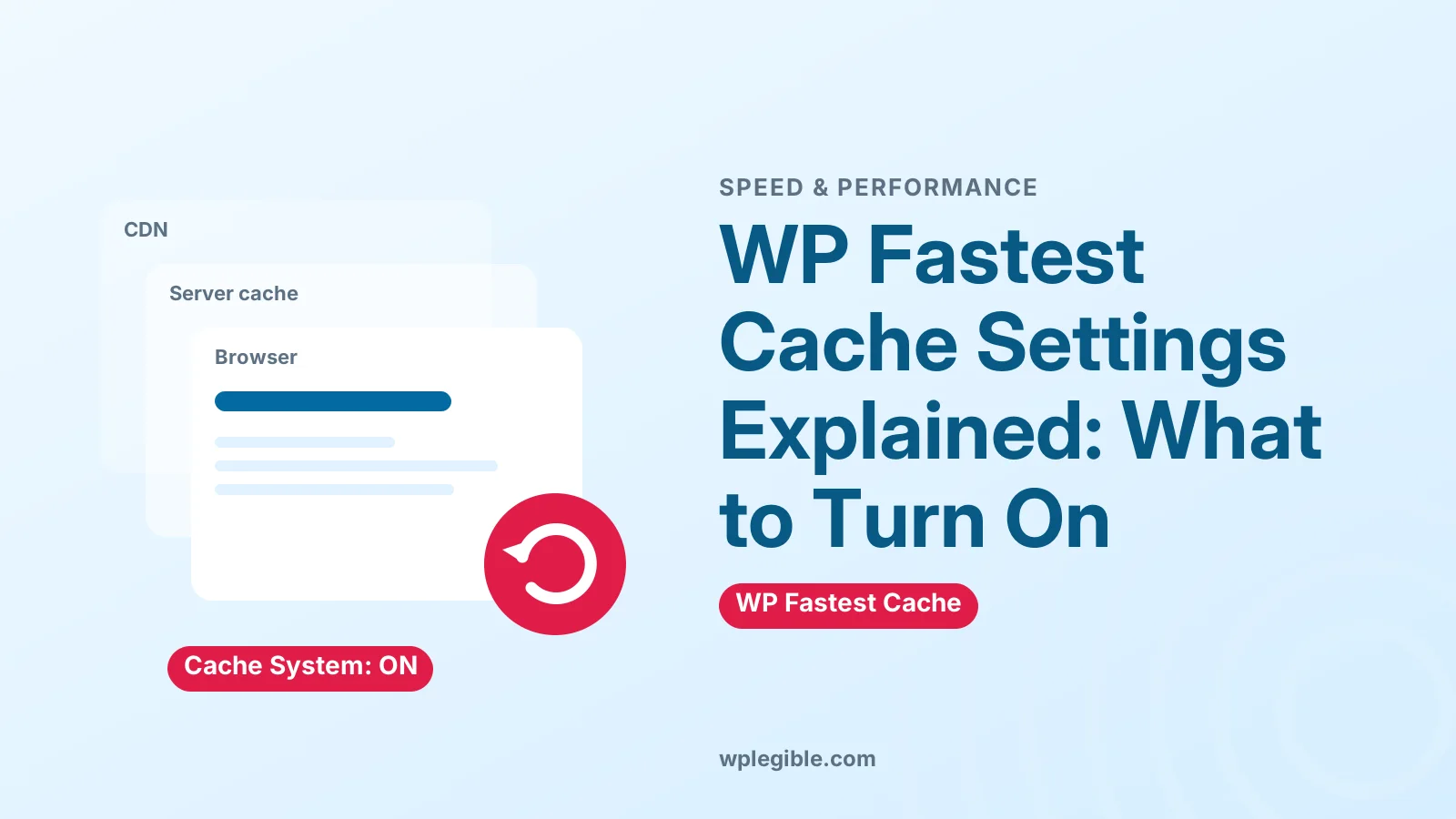
WP Fastest Cache Settings Explained: What to Turn On
Short answer
For most sites, turn on Cache System, Preload, New Post and Update Post, Minify HTML, Minify CSS, Gzip and Browser Caching in WP Fastest Cache, then test your site. Enable Combine CSS, Combine JS and Disable Emojis one at a time, checking pages after each. Leave Logged-in Users unticked, and exclude cart, checkout and account pages on stores.
Key takeaways
- WP Fastest Cache is a free page caching plugin with over 1 million active installations.
- Cache System, Preload, Gzip and Browser Caching are safe starting settings for most sites.
- Minify and combine options save bytes but can break layouts, so enable them one by one.
- JavaScript minify, image optimisation, lazy load and database cleanup are Premium features.
- On Nginx, Gzip and browser caching must be set up on the server instead of in .htaccess.
What does WP Fastest Cache do?
WP Fastest Cache creates static HTML copies of your pages and serves them to visitors, so WordPress does not have to run PHP and database queries for every request, which makes pages load faster.
The WP Fastest Cache plugin page lists more than 1 million active installations. The free version covers page caching, preloading, minification of HTML and CSS, Gzip, browser caching and CDN integration.
Caching is one of the biggest speed wins for WordPress. Our guide on why a WordPress website is slow explains where caching fits among other fixes.
What should you check before you start?
Make sure no other page caching plugin is active, check whether your host already caches pages, and take a backup, because two caching layers can conflict and cause stale or broken pages.
The plugin page specifically warns against running it alongside other caching plugins such as LiteSpeed Cache. Choose one page cache and remove the rest.
Many managed hosts include server-level caching. Our comparison of WP Rocket vs host caching explains how plugin and server caches interact, and the same logic applies to WP Fastest Cache.
Which main settings should you enable?
Tick Cache System, Preload, New Post and Update Post to clear and rebuild the cache automatically, then enable Gzip and Browser Caching for smaller, re-usable files.
| Setting | Recommended | What it does |
|---|---|---|
| Cache System | On | Turns page caching on |
| Preload | On | Builds cached pages in advance |
| Logged-in Users | Off | Avoids serving cached admin views |
| Mobile | On if theme is responsive | Controls mobile caching |
| New Post / Update Post | On | Clears cache when content changes |
| Minify HTML / CSS | On, then test | Removes extra characters |
| Combine CSS / JS | Test one at a time | Merges files into fewer requests |
| Gzip | On | Compresses files sent to browsers |
| Browser Caching | On | Lets browsers reuse static files |
| Disable Emojis | On | Stops loading the emoji script |
Click Submit after changing settings, then open your site in a private browser window. The first visit builds the cache, and later visits should load faster.
How does Preload work?
Preload visits your pages in the background and builds cached copies before real visitors arrive, so the first visitor after a cache clear does not get a slow, uncached page.
When you tick Preload, you can choose which content types to include, such as the homepage, posts, pages and categories, and how many pages to build per minute.
Keep the pages-per-minute number modest on shared hosting. A high rate can use a lot of server resources, especially on large sites.
Should you cache pages for logged-in users?
No. Leave Logged-in Users unticked on most sites, because cached pages can show the admin bar, account details or the wrong content to someone else.
Logged-in visitors usually see personalised content, such as their name or cart. Serving them a shared cached copy causes confusing results.
If your site has many logged-in members, such as a community or course site, look at the plugin's exclude rules and your host's caching options instead.
Are minify and combine settings safe?
Minify HTML and Minify CSS are usually safe, but Combine CSS and Combine JS change how files load and can break layouts or scripts, so turn them on one at a time and test after each change.
Minifying removes spaces and comments from code. Combining merges several files into one, which reduced requests on older HTTP versions but matters less today, since HTTP/2 handles many small files well.
Google's guidance on minifying CSS explains the benefit. If a combine setting breaks something, untick it, clear the cache and the site returns to normal.
How do you set up exclusions?
Open the Exclude tab and add rules for pages that must never be cached, such as cart, checkout and account pages, plus any user agents or cookies you want to skip.
WooCommerce stores need these exclusions. Caching the cart or checkout can show one customer another customer's cart, or stop orders from working.
The plugin detects many WooCommerce pages automatically, but always check the exclusion list after setup. Add any custom login, booking or form confirmation pages too.
What do the Cache Timeout rules do?
Cache Timeout rules delete cached pages after a set time, such as every day, so content that changes without a post update, like a news ticker or stock widget, stays current.
Most blogs do not need a timeout, because New Post and Update Post already clear the cache when content changes. Use timeouts for pages that pull in outside data.
You can set different timeouts for specific pages. That keeps the rest of the site cached for longer.
How do you connect a CDN?
Open the CDN tab, choose your provider, such as Cloudflare or another CDN, and enter the CDN URL or API details so static files like images, CSS and JavaScript are served from the CDN.
A content delivery network stores copies of your files on servers around the world, so visitors download them from a nearby location. Our explainer on what a CDN is covers the basics.
If you use Cloudflare, connecting it in WP Fastest Cache lets the plugin clear Cloudflare's cache when you clear its own, which prevents outdated pages from lingering.
What does WP Fastest Cache Premium add?
Premium adds JavaScript minify and defer, delay JS, image optimisation and WebP conversion, lazy load, mobile and widget cache, Google Fonts async loading and database cleanup.
These features overlap with what many sites already handle with other plugins or their host. Check what you already have before buying, so you do not run two tools doing the same job.
If you need advanced script delays and Core Web Vitals tuning, compare the cost and features with other caching plugins before deciding.
Does WP Fastest Cache work on Nginx and LiteSpeed?
It works on Apache through .htaccess rules and on Nginx too, but on Nginx you must enable Gzip and browser caching in the server configuration yourself; on LiteSpeed servers, LiteSpeed Cache is usually the better fit.
On Apache, the .htaccess file needs to be writable, normally with 644 permissions, so the plugin can add its rules. If settings do not save, file permissions are a common cause.
If your host runs LiteSpeed, its own cache plugin talks directly to the server. Our guide to LiteSpeed Cache settings explains that setup.
How do you check that caching works?
Open your site in a private window, view the page source and look for the WP Fastest Cache comment near the bottom, then test speed with PageSpeed Insights before and after.
The comment shows when the cached file was created. If it is missing, you may be logged in, the page may be excluded, or another layer may be interfering.
Run PageSpeed Insights on a few key pages. Focus on real-user data where available, since lab scores vary between runs.
Frequently asked questions
Is WP Fastest Cache free?
Yes. The core plugin is free and includes page caching, preload, HTML and CSS minify, Gzip, browser caching and CDN support. A Premium version adds JavaScript optimisation, image optimisation, lazy load and database cleanup.
Can I use WP Fastest Cache with another caching plugin?
No. Running two page caching plugins at once often causes conflicts, stale pages or errors. Pick one page cache and deactivate the others, including LiteSpeed Cache if it is installed.
Why is my site broken after enabling WP Fastest Cache?
Combine CSS, Combine JS or minify options are the usual cause. Untick them one at a time, clear the cache after each change and reload the page to find the setting responsible.
Does WP Fastest Cache work with WooCommerce?
Yes, but cart, checkout and account pages must not be cached. Check the Exclude tab after setup and add any store pages that show personal information.
How do I clear the WP Fastest Cache cache?
Use the Delete Cache tab in the plugin settings, or the clear cache option in the admin bar. The cache also clears automatically when you publish or update content if those settings are enabled.
Sources
- WP Fastest Cache plugin WordPress.org Plugins
- Minify CSS Chrome for Developers
- PageSpeed Insights Google
- HTTP caching MDN Web Docs
Is your product missing, or something out of date?
Tell us what to add or correct. We read every note and reply when we need a source. A message does not buy a ranking.
Thanks — we review requests within 3 business days.
Related guides
About the editors
Researched from the primary sources listed above and checked against our editorial rules before publishing.