Troubleshooting
WordPress Export Error Fix: Empty Files, Timeouts and Broken XML
Short answer
Most WordPress export errors come from large sites hitting PHP memory or time limits, PHP warnings or stray spaces breaking the XML file, or plugin conflicts during Tools > Export. Fix them by exporting smaller parts by post type or date, raising PHP limits, hiding PHP errors from output, or running the export with WP-CLI instead.
Key takeaways
- Tools > Export creates an XML file of content, not a full site backup.
- Big sites often hit memory or time limits; export in smaller parts.
- PHP warnings or blank lines before the XML make the file invalid.
- WP-CLI's wp export avoids browser timeouts on large sites.
- Media files are not inside the export; they are downloaded during import.
Why does the WordPress export fail?
The export usually fails because the site is too large for the server's PHP memory or time limits, because extra output breaks the XML file, or because a plugin interferes with the export process.
Tools > Export builds a WordPress eXtended RSS file, an XML file listing your posts, pages, comments, terms and authors.
The WordPress documentation for the Export screen explains what the tool includes and the filters you can use.
| Symptom | Likely cause | First fix |
|---|---|---|
| Download never starts or times out | Time or memory limit | Export in parts or use WP-CLI |
| File is empty or 0 KB | Fatal error during export | Check the error log |
| Import says file is invalid | Broken XML from stray output | Turn off error display, find extra whitespace |
| Images missing after import | Media not included in file | Import media from the old site |
| Plugin content missing | Plugin stores data elsewhere | Use the plugin's own export |
What does the WordPress export include?
The export includes posts, pages, custom post types, comments, categories, tags, custom fields, menus and author details, but not media files, theme files, plugin settings or most plugin tables.
Media appears as links to the original site. The importer downloads files from those links later.
That is why an export is not a backup. For full copies, use a backup or migration plugin.
Our guide on migrating a site with UpdraftPlus covers moving files, database and settings together.
How do you fix timeouts and memory errors?
Raise the PHP memory limit and maximum execution time, or reduce the export size by choosing one post type, author or date range at a time.
A large export builds the whole file in one request. Busy shared hosting often stops it before it finishes.
Our guide on increasing the PHP memory limit shows where to change it safely.
The PHP manual explains the max_execution_time setting, which controls how long a script may run.
If you see an allowed memory size exhausted message, our guide on fixing memory exhausted errors explains the cause and fixes.
How do you export a large site in parts?
Choose Posts or Pages instead of All content, then filter by category, author or date range so each file stays small enough to finish.
Export pages, then posts year by year, then each custom post type. Name the files clearly.
Import the files in the same order. Pages and terms first, then posts, keeps parent and category links intact.
Splitting also makes problems easier to find. If one date range fails, a post inside it is usually the cause.
How do you export with WP-CLI?
Run wp export from your WordPress folder over SSH; it writes the export files on the server without a browser timeout and can split output into several files.
cd /path/to/wordpress
wp export --dir=exports --max_file_size=15
The wp export command reference lists filters for post type, dates, authors and file size.
Download the files with SFTP or your host's file manager once the command finishes.
Command-line runs often have higher limits than web requests, which is why large exports succeed there.
Why is the exported XML file invalid?
The file is invalid when anything other than XML appears in it, such as PHP warnings, notices, blank lines before the opening tag, or a byte-order mark added by a text editor.
Open the file in a text editor. The very first characters must be the XML declaration, with nothing before it.
MDN's introduction to XML explains why one stray character can make a whole file unreadable.
If you see PHP warnings at the top, turn off on-screen error display and log errors instead.
How do you find the source of stray output?
Check functions.php and custom plugin files for spaces or blank lines outside the PHP tags, and for closing PHP tags at the end of files followed by whitespace.
Switching to a default theme for one export quickly shows whether the theme is responsible.
Omitting the closing PHP tag at the end of code files prevents this problem from coming back.
Can one broken post stop the whole export?
Yes. A post with corrupted data, invalid characters or a huge block of content can make the export fail at the same point every time.
Narrow it down with date ranges. When one small range fails, export that range by author or category until you find the post, then fix or remove it.
How do you use the debug log to find the error?
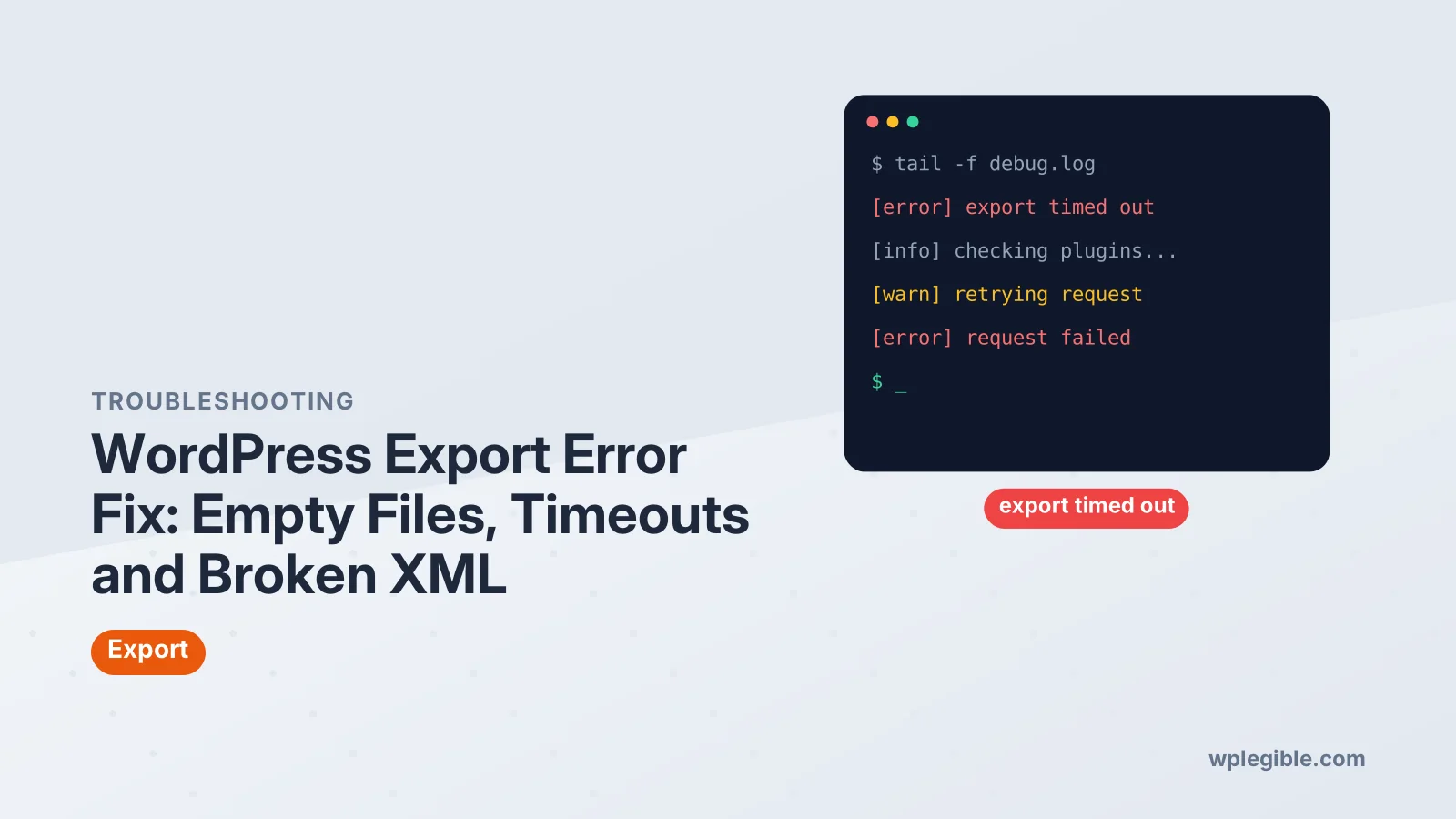
Turn on WordPress debugging with logging enabled and display disabled, run the export again, then read the newest entries in the debug log.
The log names the file and line that caused the problem. That usually points to a plugin, theme or specific post.
Our guide on reading the WordPress debug log explains how to interpret the entries.
Remember to turn debugging off again afterwards. Log files can grow quickly.
Can plugins break the export?
Yes. Plugins that add custom fields, modify queries, filter content or output extra text can slow down or break the export, especially on sites with many posts.
Test with plugins disabled on a staging copy. Re-enable them one at a time until the export fails.
Our guide on fixing plugin conflicts shows a safe testing order.
Security plugins and firewalls may also block large downloads. Check their logs if the download stops abruptly.
Why are images missing after importing an export?
The export file only links to images, so the importer must download them from the old site; if that site is offline, blocked or slow, attachments fail to import.
Tick the option to download and import file attachments during import, and keep the old site online until the import finishes.
If images still fail, copy the uploads folder by SFTP instead. Then regenerate thumbnails on the new site.
Hotlink protection or a firewall on the old site can block the importer. Turn it off temporarily.
Why is plugin or store data missing?
Many plugins store data in their own database tables or options, which the standard export does not include, so use each plugin's own export tool or migrate the whole database.
WooCommerce products are exported as posts, but orders on newer stores live in separate tables.
Our guide on exporting WooCommerce orders to CSV covers order data separately.
Form entries, SEO settings and page builder templates often need their own exports as well.
What if the server returns a 500 or 504 error?
A 500 error means PHP crashed during the export, while a 504 means a proxy or server gave up waiting; check the error log for 500s and use smaller exports or WP-CLI for 504s.
Our guide on fixing 504 gateway timeouts explains server and proxy time limits.
If you use a CDN, its timeout may be shorter than your server's. Exporting directly on the server avoids it.
How do you avoid export problems in future?
Keep PHP errors out of page output, keep the site's plugins lean, export in parts on large sites, and use WP-CLI or a migration plugin when moving whole sites.
Test an export now and then on important sites. It is a quick way to confirm your content can be moved.
Keep regular full backups as well, since an export alone cannot rebuild a site.
Frequently asked questions
Why is my WordPress export file empty?
A fatal error, memory limit or timeout stopped the export before content was written. Check the debug log, raise PHP limits or export smaller parts of the site.
How do I export a large WordPress site?
Export by post type, author or date range in Tools, then Export, or run the wp export command with WP-CLI, which avoids browser timeouts.
Does WordPress export include images?
No. The export file only links to media. The importer downloads images from the old site, which must stay online during the import.
Why does the importer say my XML file is invalid?
Extra output such as PHP warnings, blank lines or a byte-order mark appeared before or inside the XML. Turn off error display and remove stray whitespace.
Is a WordPress export the same as a backup?
No. An export covers content only. A full backup also includes media files, themes, plugins, settings and the complete database, so keep both on important sites.
Sources
- Tools Export Screen WordPress.org Documentation
- wp export WP-CLI Command Reference
- Runtime configuration PHP Manual
- XML introduction MDN Web Docs
Is your product missing, or something out of date?
Tell us what to add or correct. We read every note and reply when we need a source. A message does not buy a ranking.
Thanks — we review requests within 3 business days.
Related guides

About the editors
Researched from the primary sources listed above and checked against our editorial rules before publishing.