Explainers · Explainer
What Is WordPress Recovery Mode? Explained
Short answer
Recovery mode is a WordPress safety feature added in version 5.2. When a plugin or theme causes a fatal error, WordPress emails the admin a special link. Logging in through it pauses the broken extension for that admin only, so they can reach the dashboard and fix it.
Key takeaways
- Recovery mode was added in WordPress 5.2 as part of fatal error protection.
- WordPress emails the admin a time-limited link when a plugin or theme crashes the site.
- The broken extension is paused only for your session, not for visitors.
- You must deactivate, update or replace the faulty extension to fix the site.
- If no email arrives, rename the plugin folder over FTP instead.
- Recovery mode does not handle database, core file or server errors.
What is WordPress recovery mode?
Recovery mode is a built-in WordPress safety feature that lets an admin log in and fix a site after a plugin or theme causes a fatal error, by pausing the faulty code for that admin only.
Before WordPress 5.2, a fatal PHP error often left visitors and admins with a blank white screen. Fixing it meant connecting by FTP and renaming folders.
WordPress 5.2 added fatal error protection. Now, when a plugin or theme crashes the site, WordPress:
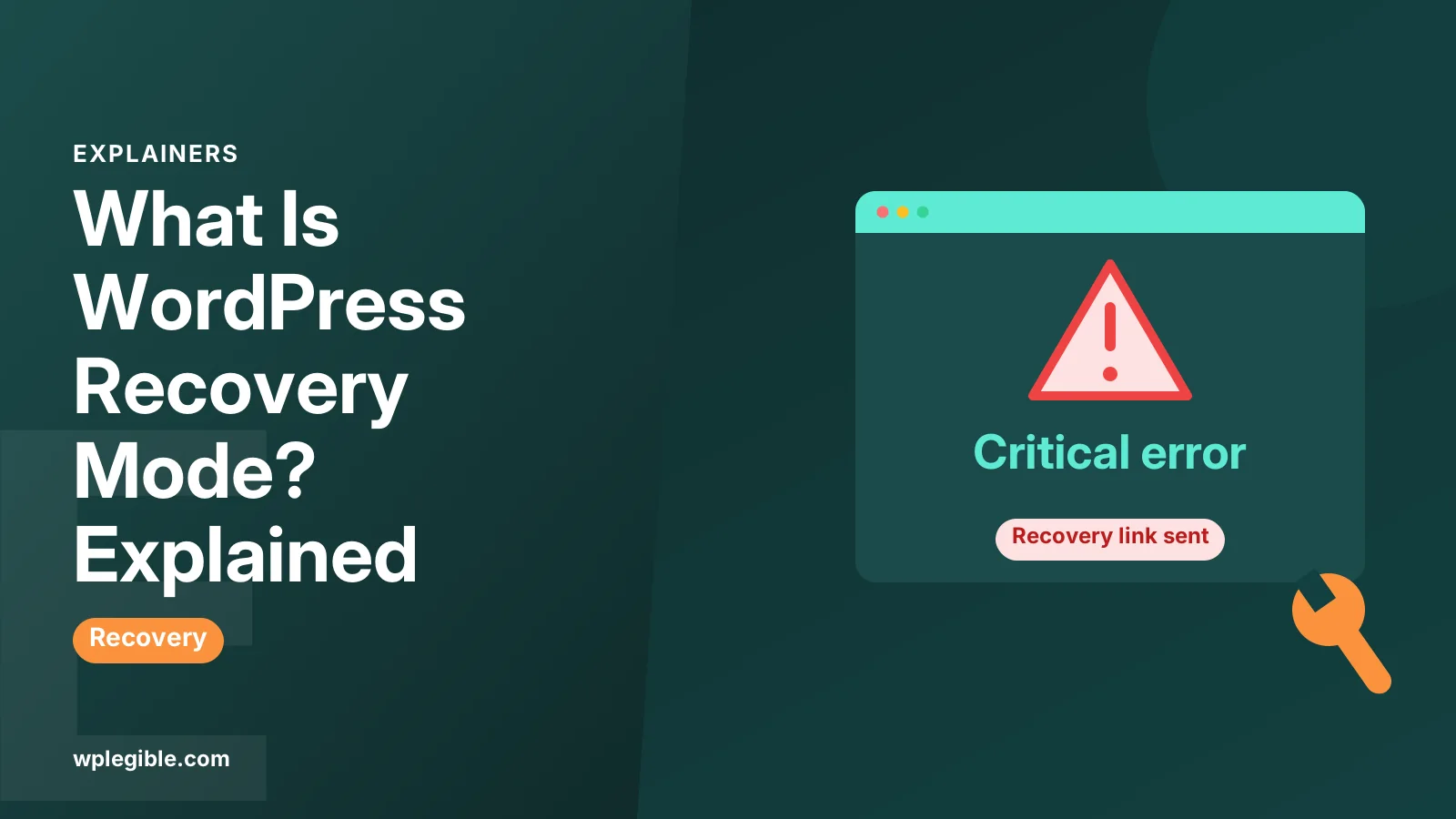
- Shows visitors a message such as There has been a critical error on this website.
- Emails the site's admin address with details and a special login link.
- Lets the admin use that link to enter recovery mode.
The WordPress core team announced the feature in a post on fatal error recovery mode. It is now standard in every modern WordPress install.
Recovery mode exists because of PHP fatal errors, which the PHP manual documents as part of the language's error handling.
How does recovery mode work?
WordPress catches the fatal error, notes which plugin or theme caused it, and sends a time-limited link; logging in through that link loads the dashboard with the broken extension paused.
The process step by step:
- A fatal error happens. For example, a plugin calls a function that does not exist after an update.
- WordPress's error handler catches it before PHP shows a blank page.
- WordPress identifies the source. It works out whether the error came from a plugin or a theme.
- An email goes to the admin. It names the extension and includes the recovery link.
- The admin clicks the link and logs in.
- The faulty extension is paused for that admin session, so the dashboard loads.
The link works for a limited time. If it expires, a new error can trigger a fresh email, though WordPress limits how often it sends them.
Recovery mode uses a cookie to mark your session. That is why you need to use the link in the browser where you want to work.
What happens to visitors while you are in recovery mode?
Visitors still see the critical error message, because recovery mode only pauses the broken plugin or theme for your admin session, not for the whole site.
This is the most important thing to understand. Entering recovery mode does not fix the site. It gives you a working dashboard so you can fix it.
| Admin in recovery mode | Regular visitors | |
|---|---|---|
| Broken plugin or theme | Paused | Still active |
| Site front end | Loads without it | Shows critical error |
| Dashboard | Available | Not applicable |
| Fix needed? | You apply it | They wait for your fix |
To fix the site for everyone, deactivate the plugin, switch the theme or update the faulty extension while in recovery mode.
What do you see when you enter recovery mode?
You see a banner saying you are in recovery mode, a notice naming the extension that failed, and an Exit Recovery Mode button in the admin toolbar.
The Plugins screen marks the paused plugin and shows the error details. These usually include the file and line where the error happened.
Typical actions from here:
- Deactivate the plugin that caused the crash.
- Update it if a fixed version is available.
- Switch to a default theme if the theme is at fault.
- Read the error message to understand what broke.
Our guide on how to use WordPress recovery mode walks through each of these steps in detail.
When you are done, click Exit Recovery Mode. Then load the site in a private window to check that visitors no longer see the error.
What does the recovery mode email contain?
The email names the plugin or theme that caused the error, gives the error type and file location, and includes a link that starts recovery mode.
The message goes to the email address under Settings > General. Its subject usually mentions that your site is experiencing a technical issue.
Contents typically include:
- The name of the plugin or theme at fault.
- The PHP error message, such as an uncaught error.
- The file path and line number.
- The recovery mode link.
- Your WordPress and PHP versions.
The error details are useful even if you do not use the link. Copy them before contacting a developer or the plugin's support team.
You can send these emails to a different address. Define the RECOVERY_MODE_EMAIL constant in wp-config.php with the email you prefer. The wp-config documentation explains how to add constants.
Why did you not get a recovery mode email?
The email often fails because the site cannot send mail reliably, the admin address is outdated, or the message landed in spam.
Many hosts block or limit the PHP mail function, so WordPress emails never arrive. Common causes:
- No SMTP setup. The site has no reliable email sending.
- Old admin email. Settings > General points to an address no one checks.
- Spam filters. The message is treated as junk.
- Rate limiting. WordPress does not send a new email for every error.
If no email arrives, fix the site manually.
Connect with an FTP client such as FileZilla, open wp-content/plugins and rename the folder of the plugin that broke. That deactivates it. Our guide on deactivating all plugins without admin access shows each method.
For the long term, set up SMTP so recovery emails and other notices actually arrive.
What errors does recovery mode not handle?
Recovery mode covers fatal errors in plugins and themes, but it does not catch every problem, such as broken core files, database connection errors, or memory limits hit before plugins load.
Situations where recovery mode will not help:
| Problem | Why recovery mode cannot help | What to do instead |
|---|---|---|
| Error establishing a database connection | WordPress cannot load at all | Check database details in wp-config.php |
| Syntax error in wp-config.php | Happens before the error handler | Fix the file by FTP |
| Corrupted core files | Not a plugin or theme | Reinstall WordPress core files |
| Server error 500 from .htaccess | Happens at the web server level | Restore the .htaccess file |
| Slow or stuck site | Not a fatal error | Check hosting resources |
For the general critical error message, our guide on fixing the critical error on this website covers the full set of fixes.
If you see a blank screen instead, see fixing the white screen of death.
Can you turn off recovery mode?
Yes, defining the WP_DISABLE_FATAL_ERROR_HANDLER constant as true in wp-config.php turns off fatal error protection, but most sites should leave it on.
Developers sometimes turn it off on local or staging sites. They prefer to see raw PHP errors straight away while they work.
On a live site, keep it on. Without it, a fatal error can show a blank page to everyone, and you lose the easy way back into the dashboard.
For debugging, a better approach is to turn on the debug log. Our guide on enabling debug mode in WordPress explains how to log errors without showing them to visitors. The PHP manual's page on errors explains what fatal errors are at the language level.
How can you avoid needing recovery mode?
Update plugins and themes carefully, test updates on staging first, keep backups, and remove extensions you no longer use.
Most fatal errors come from updates, PHP version changes and plugin conflicts. A few habits prevent most of them:
- Test updates on staging before applying them to the live site.
- Check PHP compatibility before upgrading PHP.
- Back up before every big change.
- Remove unused plugins. Fewer plugins mean fewer chances of conflict.
- Avoid nulled plugins, which often contain broken or malicious code.
Our guide on finding which plugin is causing a problem helps when errors are not obvious.
Frequently asked questions
Does recovery mode fix my site automatically?
No. It only pauses the broken plugin or theme for your own admin session so you can reach the dashboard. Visitors still see the critical error until you deactivate, update or replace the faulty extension and then exit recovery mode.
How long does the recovery mode link last?
The link is time-limited and expires after a short period, so use it soon after the email arrives. If it has expired, the error may trigger a new email later, or you can fix the site manually by renaming the plugin folder over FTP.
Where does WordPress send the recovery mode email?
WordPress sends it to the administration email address set under Settings > General. You can send it elsewhere by defining the RECOVERY_MODE_EMAIL constant in wp-config. Make sure the address is current and that your site can send email reliably.
How do I exit recovery mode?
Click the Exit Recovery Mode button in the admin toolbar at the top of the dashboard. Your session returns to normal and paused extensions load again. Fix the problem first, or the error will return as soon as you leave recovery mode.
Is recovery mode the same as maintenance mode?
No. Maintenance mode shows a brief unavailable message while WordPress installs updates. Recovery mode is for fixing a site that crashed with a fatal error. They solve different problems, and you may see both at different times.
Sources
- Fatal error recovery mode in 5.2 Make WordPress Core
- Editing wp-config.php WordPress Developer Resources
- Debugging in WordPress WordPress Developer Resources
Is your product missing, or something out of date?
Tell us what to add or correct. We read every note and reply when we need a source. A message does not buy a ranking.
Thanks — we review requests within 3 business days.
Related guides
About the editors
Researched from the primary sources listed above and checked against our editorial rules before publishing.