Explainers · Explainer
What Is the WordPress Root Directory? Explained
Short answer
The WordPress root directory is the main folder where WordPress is installed. It contains wp-config.php, index.php and the wp-admin, wp-includes and wp-content folders. On most hosts it is called public_html, www or htdocs.
Key takeaways
- The root directory is the folder that contains wp-config.php and wp-admin.
- It is often public_html on cPanel hosts and /var/www/html on Linux servers.
- Site Health shows the exact path under Directories and Sizes.
- Only wp-config.php and .htaccess are meant to be edited in the root.
- The WordPress root can differ from the web server's document root.
What is the WordPress root directory?
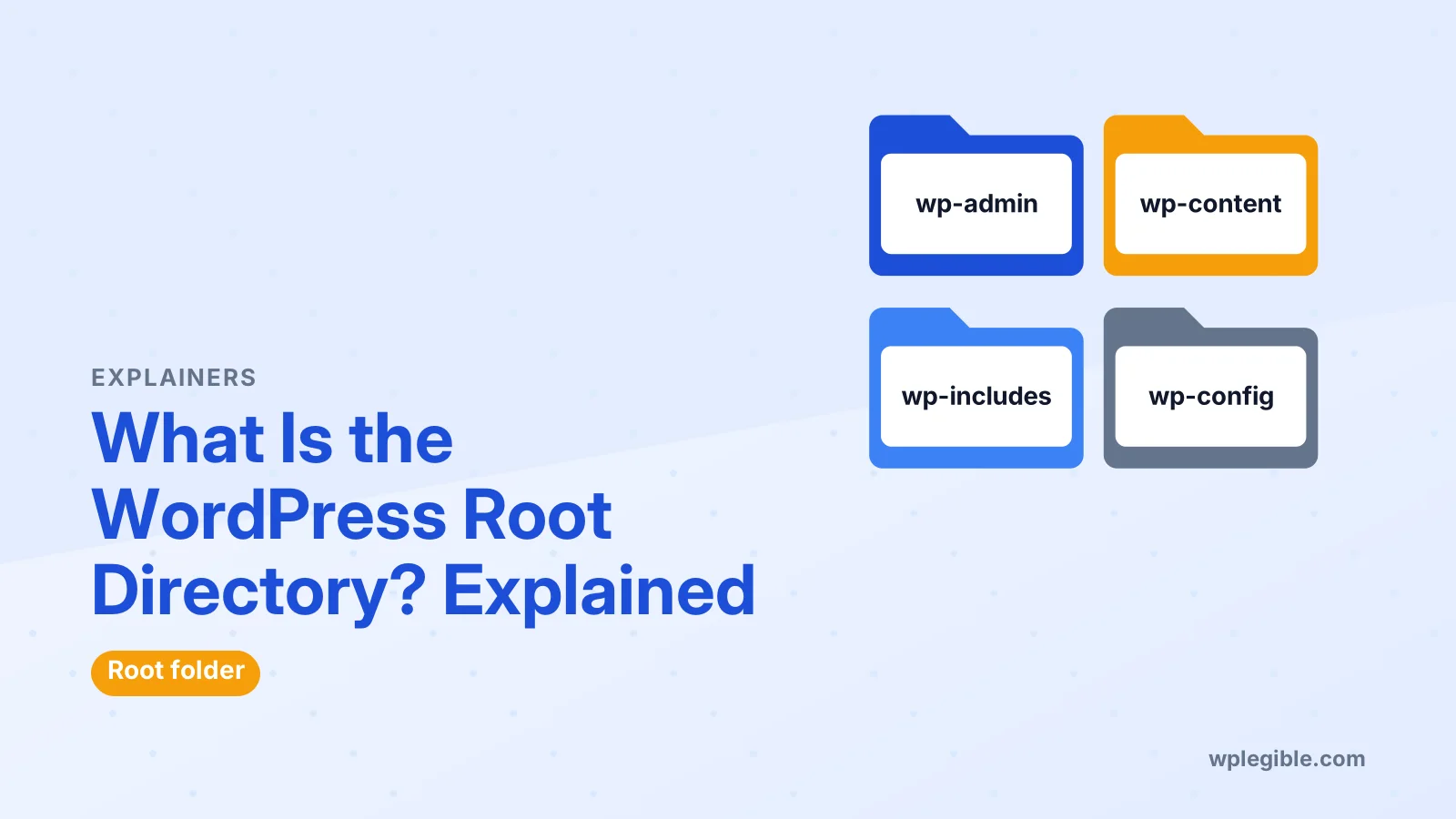
The WordPress root directory is the main folder on your server where WordPress is installed, the one that holds wp-config.php, index.php and the wp-admin, wp-includes and wp-content folders.
When guides say upload this to your root directory or edit the file in your site root, this is the folder they mean.
It is the top level of your WordPress install. Everything WordPress needs to run starts from here.
On most hosts the folder is called public_html, www, htdocs or something similar. The exact name depends on the host and server setup.
What files and folders are in the WordPress root directory?
The root directory holds three core folders, the main configuration file and a set of PHP files that load WordPress, plus server files such as .htaccess.
| Item | What it does |
|---|---|
| wp-admin | Files for the admin dashboard |
| wp-includes | Core WordPress code and libraries |
| wp-content | Your themes, plugins and uploads |
| wp-config.php | Database details, keys and settings |
| index.php | Entry point that loads WordPress |
| .htaccess | Apache rules, including permalinks |
| wp-login.php | The login page |
| xmlrpc.php, wp-cron.php and others | Core features and scheduled tasks |
You should only edit wp-config.php and .htaccess in the root. Leave the other core files alone, since updates replace them.
Your own content lives inside wp-content. That is the folder that matters most for backups, along with the database.
Where is the root directory on common hosts?
On shared hosting with cPanel the root is usually public_html, on many Linux servers it is /var/www/html, and on local tools it is a folder such as htdocs or app/public.
Common locations include:
- cPanel hosts: /home/username/public_html
- Plesk hosts: httpdocs inside your domain folder
- Ubuntu or Debian servers: /var/www/html or /var/www/yourdomain
- XAMPP: the htdocs folder inside the XAMPP install
- Local WP: app/public inside each site's folder
Addon domains and subdomains often have their own folders. On cPanel, a second domain might live in a separate folder inside your home directory rather than in public_html.
Managed WordPress hosts may hide the full path. Their file manager or SFTP login usually opens directly in the WordPress root.
How is the WordPress root different from the website document root?
The document root is the folder the web server serves for your domain, while the WordPress root is where WordPress itself is installed; they are usually the same, but not always.
The web server, such as Apache or Nginx, has a setting that points a domain at a folder. Apache calls it DocumentRoot, and Nginx uses the root directive.
If WordPress is installed straight into that folder, both roots match. Your site runs at example.com.
If WordPress sits in a subfolder, such as /blog, the WordPress root is that subfolder. The site then runs at example.com/blog unless you set it up to serve from the main domain.
Some setups give WordPress its own directory on purpose while keeping the site at the main address. In that case, the root contains index.php and .htaccess, and the core files sit in a subfolder.
How do I find my WordPress root directory?
Look for the folder that contains wp-config.php and wp-admin using your host's file manager or an FTP client, or check Tools > Site Health > Info > Directories and Sizes for the WordPress directory location.
Three easy methods:
- Site Health: open the Info tab and expand Directories and Sizes. It shows the full server path of the WordPress directory.
- File manager: open your host's file manager and browse until you see wp-config.php next to wp-admin and wp-content.
- FTP or SFTP: connect with an app such as FileZilla and browse the same way.
Our guide on how to get FTP access to WordPress explains where to find your login details.
In code, WordPress stores this path in the ABSPATH constant. Developers use it to build file paths reliably.
What is ABSPATH in WordPress?
ABSPATH is a PHP constant that holds the absolute server path to the WordPress root directory, with a trailing slash, and core and plugins use it to locate files.
WordPress defines ABSPATH early in the load process, inside wp-config.php or wp-load.php.
Plugins often check it at the top of their files to stop direct access. If ABSPATH is not defined, the file exits instead of running on its own.
You rarely need to change ABSPATH. Editing it wrongly can stop WordPress from finding its own files.
Why would I need to access the root directory?
You need the root directory to edit wp-config.php, fix .htaccess, upload verification files, or recover a site when the dashboard is not working.
Common reasons include:
- Turning on debug mode or raising the memory limit in wp-config.php
- Resetting permalink rules in .htaccess
- Uploading a Google or Bing verification file
- Adding an ads.txt or robots.txt file
- Renaming a broken plugin folder inside wp-content
- Uploading a fresh copy of core files to repair a damaged install
For the .htaccess side, see our guide on how to edit the .htaccess file in WordPress.
For debug settings, our guide on enabling debug mode shows the exact lines.
Is it safe to change files in the root directory?
It is safe if you back up first and only edit the files meant to be edited, but deleting or changing core files can break the whole site.
A missing semicolon in wp-config.php can cause a fatal error on every page. A bad .htaccess rule can trigger a 500 error.
Follow a few rules:
- Download a copy of any file before you edit it
- Edit one thing at a time and test the site after each change
- Never delete wp-admin or wp-includes
- Keep correct file permissions, typically 644 for files and 755 for folders
WordPress explains safe values in its file permissions documentation. Some hosts set stricter values for wp-config.php.
Can I move WordPress to a different root directory?
Yes, you can move WordPress to another folder, but you must update the site URLs and server settings, and replace old paths in the database, or links and images will break.
Moving from a subfolder to the main folder is a common change. The steps involve moving files, updating the WordPress address settings and running a search and replace on the database.
Plan the move carefully and take a full backup first. Our guide on changing the domain of a WordPress site covers URL updates that apply here too.
After any move, check for broken links and images. The fixing broken links after migration guide shows how to catch what was missed.
What does the root directory look like on WordPress.com?
On WordPress.com plans without file access you cannot see the root directory, but plans that allow plugins also give SFTP access to the site's files.
WordPress.com manages the server for you. Lower plans hide the files completely.
Higher plans that support plugins and themes offer SFTP and database access. Once connected, you will see the same structure described above.
If you need full control of the files on any plan, a self-hosted WordPress.org site gives it. Our comparison of WordPress.com and WordPress.org explains the trade-offs.
Frequently asked questions
Is public_html the WordPress root directory?
Usually, yes. On most cPanel hosts WordPress is installed straight into public_html, so that folder is the root. If WordPress was installed in a subfolder, the root is that subfolder instead, so look for wp-config.php to be sure.
Where is wp-config.php located?
wp-config.php normally sits in the WordPress root directory, next to wp-admin and wp-content. WordPress also allows it one level above the root for extra security, so check the parent folder if you cannot find it.
What is the difference between the root directory and wp-content?
The root directory holds the whole WordPress install, including core files and configuration. wp-content is one folder inside it that stores your themes, plugins and uploaded media, which are the files unique to your site.
Can I access the root directory without FTP?
Yes. Most hosts offer a browser-based file manager in their control panel that opens your site files. Some plugins also offer file access, but a host file manager or SFTP is safer for editing core files.
Why can't I see .htaccess in the root directory?
Files starting with a dot are hidden by default in many file managers and FTP apps. Turn on the option to show hidden files. If it still does not appear, your server may use Nginx, which does not use .htaccess.
Sources
- Changing File Permissions WordPress Developer Resources
- Apache core: DocumentRoot Apache HTTP Server
- ngx_http_core_module: root nginx
- FileZilla FileZilla Project
Is your product missing, or something out of date?
Tell us what to add or correct. We read every note and reply when we need a source. A message does not buy a ranking.
Thanks — we review requests within 3 business days.
Related guides
About the editors
Researched from the primary sources listed above and checked against our editorial rules before publishing.