AI & WordPress · Guide
How to Use Elementor MCP: A Beginner's Guide
Short answer
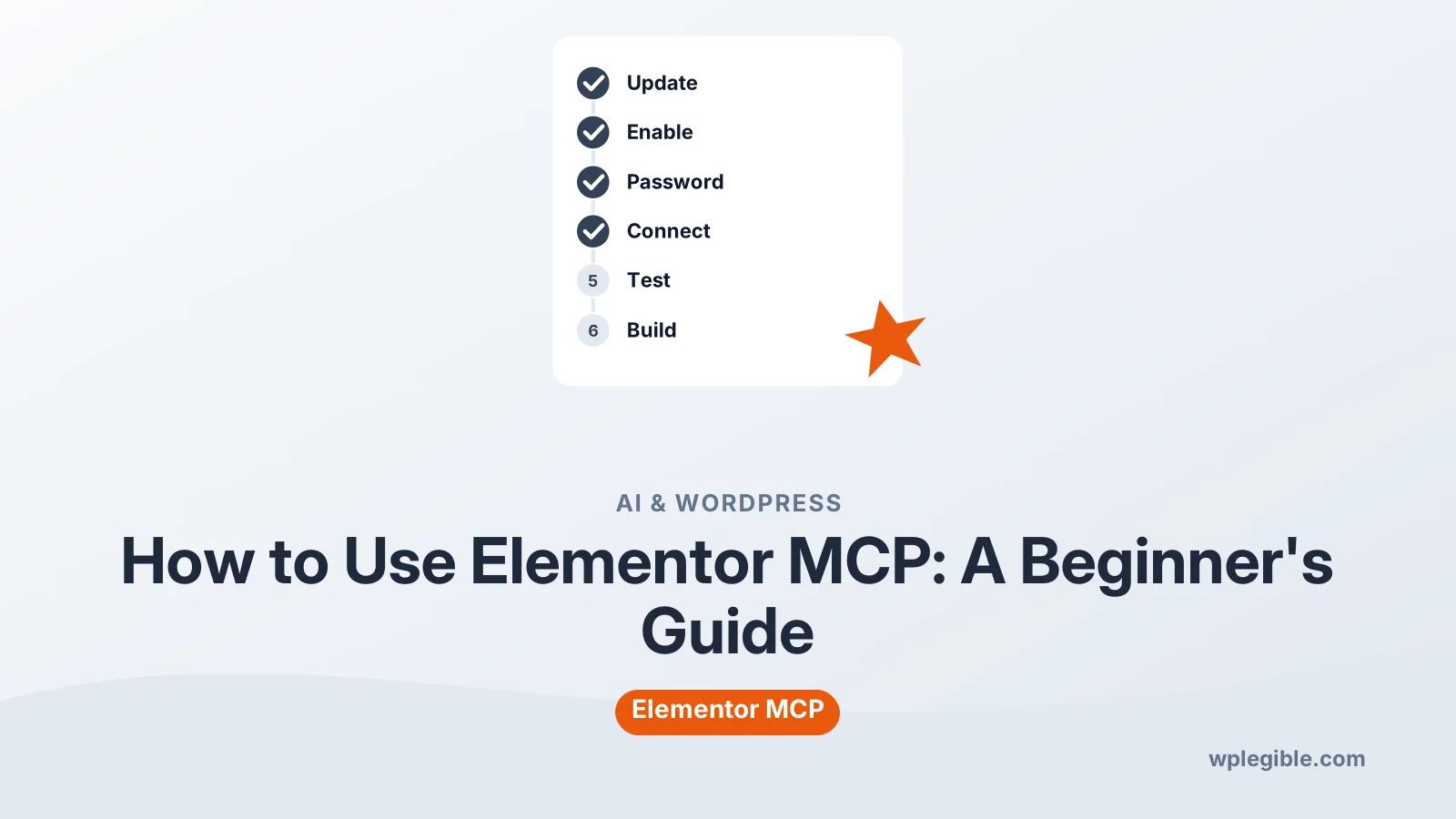
Update Elementor, turn on its MCP connection and copy the server URL. Create a WordPress application password for a dedicated user, add the URL and login to your AI client's MCP settings, then test with read-only prompts before asking it to build draft pages.
Key takeaways
- Elementor MCP lets AI tools such as Claude or Cursor read and build Elementor pages.
- It uses the open Model Context Protocol standard.
- Authenticate with a WordPress application password, not your main password.
- Test with read-only prompts before allowing changes.
- Use a dedicated user, staging site and approval prompts for safety.
- Exact screens may change, so follow Elementor's help article for your version.
How do you use Elementor MCP?
Update Elementor to a version with MCP support, turn on the MCP connection, create an application password, add the server details to your AI tool, then ask it to read or build pages.
Elementor MCP connects your Elementor site to AI assistants such as Claude, ChatGPT, Cursor or Codex. The assistant can then look at your pages and create or edit Elementor content through plain-language requests.
It is still a new feature. Screens and labels may change between releases, so treat this guide as a map and check Elementor's own help article for the exact clicks on your version.
If MCP itself is new to you, start with what is WordPress MCP.
What is Elementor MCP?
Elementor MCP is Elementor's official Model Context Protocol server, which lets outside AI tools work with Elementor pages, templates and design settings on your site.
The Model Context Protocol is an open standard. It defines how an AI app discovers and calls tools on another system. Elementor exposes its own tools, such as reading a page structure or adding widgets, through that standard.
Elementor announced the feature on its Elementor MCP page. It works with the newer Editor V4 building blocks, so results are best on sites that use the current editor.
It is different from Elementor AI, which works inside the editor. For that tool, see how to use Elementor AI.
What do you need before you start?
You need a site running a recent Elementor version with MCP support, an administrator account, an AI client that supports remote MCP servers, and ideally a staging copy of the site.
Checklist:
- A current Elementor version. Update from Plugins > Installed Plugins. The free plugin page is on WordPress.org.
- HTTPS. Application passwords and remote connections need a secure site.
- An MCP-capable AI client. Desktop and coding assistants increasingly support custom MCP servers. Check your client's documentation.
- A staging site. An AI agent can change pages quickly. Test on a staging site first.
- A backup. Take one before you let any tool write to the site.
Some features may depend on your Elementor plan. Check the help center for the current requirements.
How do you turn on the MCP connection in Elementor?
Follow Elementor's help article on connecting to an AI tool, which shows where to enable MCP and where to copy the server URL for your site.
Elementor documents the steps in How to Connect Elementor to an AI Tool Using MCP. In general the process looks like this:
- Open the Elementor settings area in your dashboard.
- Find the MCP or AI connection option and switch it on.
- Copy the server address Elementor gives you.
- Note which user account the connection should use.
Keep the server address handy. Your AI client needs it in a later step.
If you cannot find the option, update Elementor and clear your browser cache. Hosts that block the REST API can also hide or break the feature.
How do you create an application password for the connection?
Go to Users > Profile for the account the AI will use, find Application Passwords, enter a name such as Elementor MCP, and click Add New Application Password.
WordPress shows the password once. Copy it straight away and store it somewhere safe.
Application passwords let outside tools log in to the REST API without your main password. You can revoke each one separately, which makes them safer than sharing your login. Our guide on using application passwords explains them in depth.
Good practice:
- Create a separate WordPress user for AI work, rather than using your main admin account.
- Give that user only the role it needs.
- Name each password after the tool that uses it.
- Revoke the password when you stop using the tool.
How do you add Elementor MCP to your AI tool?
Open your AI client's MCP or connector settings, add a new remote server, paste the Elementor server URL, and supply your WordPress username and application password for authentication.
Each client has its own screen.
Some have a form for a custom connector. Others use a JSON configuration file. Elementor's help article lists setup details for popular clients.
Most setups need three pieces of information:
| Item | Where it comes from |
|---|---|
| Server URL | Elementor's MCP settings |
| Username | The WordPress user for the connection |
| Application password | Users > Profile > Application Passwords |
When a client asks for an authorization header, WordPress application passwords use Basic authentication. That means the text username:application-password, encoded in Base64, after the word Basic. The WordPress REST API authentication docs describe this.
After saving, restart the client if needed. It should list the Elementor tools as available.
How do you test the connection?
Ask the AI tool a read-only question first, such as listing your Elementor pages or describing the layout of one page, before asking it to change anything.
Good first prompts:
- List the pages on my site built with Elementor.
- Describe the sections and widgets on the About page.
- What global colors and fonts does this site use?
If the assistant answers with real details from your site, the connection works. If it says it cannot reach the server, recheck the URL, username and password.
Watch for permission prompts. Most clients ask before running a tool that changes data. Read each request before you approve it.
What can you build with Elementor MCP?
You can ask the AI to create new pages, add sections and widgets, apply your global styles, and edit existing content, then review the result in the Elementor editor.
Example requests:
- Create a draft landing page for a free webinar with a hero, three benefits, a speaker section and a signup form.
- Add a testimonial section under the pricing table on the Services page.
- Change all primary buttons on the Home page to use the accent color.
- Turn this mockup description into a draft page using my global fonts.
Ask for drafts, not published pages. Then open the page in Elementor and adjust spacing, images and text by hand. Our guide on using Elementor templates helps you save good results for reuse.
Be specific. Name the page, the section and the style you want. Vague prompts give vague layouts.
How do you keep Elementor MCP safe?
Use a dedicated user with limited rights, work on staging, require approval for every write action, and revoke the application password when you are done.
An AI agent acts with the permissions of the account it uses. If that account is an administrator, the agent can change anything that account can.
Safety habits:
- Least privilege. Give the AI user the lowest role that still works.
- Approval prompts on. Do not set your client to auto-approve write tools.
- Drafts first. Ask for drafts and publish them yourself.
- Revision history. Elementor's History panel and WordPress revisions let you roll back changes.
- Revoke access. Delete the application password when a project ends.
Be careful with unofficial Elementor MCP servers found online. Several community projects exist. Check who maintains them and what access they ask for before installing one.
What if Elementor MCP is not working?
Most problems come from a wrong URL, a bad application password, a blocked REST API, or a client that does not support remote servers.
Checks to run:
- Paste the server URL into the client again with no spaces.
- Create a fresh application password and update the client.
- Check Tools > Site Health for REST API errors. See fixing the REST API error.
- Ask your host or security plugin whether it blocks REST or application password requests.
- Confirm your AI client supports remote MCP servers.
If you want more control than Elementor's server offers, you can also build your own WordPress MCP server instead.
There are also other ways to connect an AI model to WordPress if MCP is not the right fit.
Frequently asked questions
Is Elementor MCP the same as Elementor AI?
No. Elementor AI works inside the Elementor editor and helps you write text, make images and generate layouts there. Elementor MCP lets outside AI assistants connect to your site and work with Elementor pages through the Model Context Protocol.
Which AI tools work with Elementor MCP?
Any client that supports remote MCP servers can connect in principle. Elementor's own help pages mention popular assistants and coding tools. Check your client's documentation for how it adds a custom MCP server and how it handles authentication.
Is it safe to give an AI tool access to my site?
It can be, with limits. Use a separate user with the lowest role that works, keep approval prompts on, work on a staging site, and revoke the application password when you finish. Never share your main admin password.
Do I need Elementor Pro for MCP?
Requirements can change as the feature develops. Check Elementor's MCP help article and plan pages for the current rules. Some actions may also depend on Pro widgets, so an AI may not be able to use features your plan does not include.
Can the AI publish pages directly?
Depending on its permissions, yes. It is wiser to ask for drafts and publish them yourself after review. That way you can fix layout, image and text issues before visitors see the page.
Sources
- How to connect Elementor to an AI tool using MCP Elementor
- Introducing the Elementor MCP Elementor
- Model Context Protocol Model Context Protocol
- REST API authentication WordPress Developer Resources
- Elementor Website Builder WordPress.org
Is your product missing, or something out of date?
Tell us what to add or correct. We read every note and reply when we need a source. A message does not buy a ranking.
Thanks — we review requests within 3 business days.
Related guides

About the editors
Researched from the primary sources listed above and checked against our editorial rules before publishing.