Plugin how-tos · Guide
How to Use Avada Theme in WordPress: A Beginner's Guide
Short answer
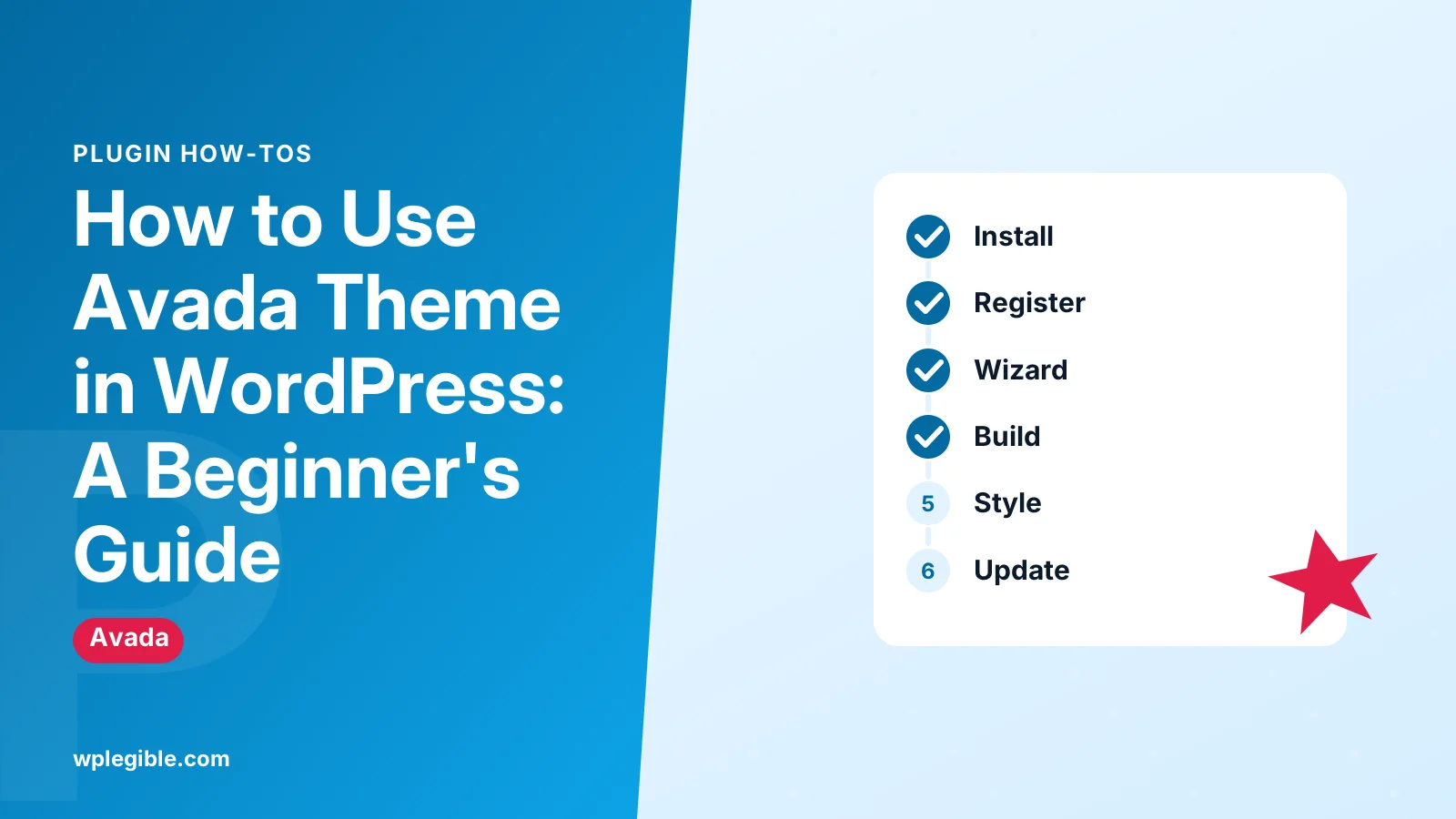
To use Avada, upload the installable theme zip under Appearance and Themes, activate it, and register it with your ThemeForest purchase code. Then run the Avada Setup Wizard to install Avada Core and Avada Builder, import a prebuilt website or start fresh, and edit pages with Avada Builder.
Key takeaways
- Upload only the installable Avada zip, not the full ThemeForest package.
- Register with your purchase code to get plugins, prebuilt sites and updates.
- The setup wizard installs Avada Core and Avada Builder.
- Set colours and fonts in Global Options before styling pages.
- Use Avada Layouts for headers, footers and templates.
- Keep code changes in a child theme.
What is the Avada theme?
Avada is a premium multipurpose WordPress theme sold on ThemeForest that bundles its own page builder, layout builder, global options panel and a library of prebuilt websites.
Avada is more than a theme in the usual sense. It works with two companion plugins, Avada Core and Avada Builder, which add the drag-and-drop builder, design elements and other features.
You can see the product listing on ThemeForest. Each purchase gives you a licence for one site, plus a period of support from the developer.
Because it is a premium theme, Avada is not in the free WordPress.org theme directory. If you are weighing it against free themes, our comparison of free vs premium WordPress themes explains the trade-offs.
What do you need before installing Avada?
You need a self-hosted WordPress site, an Avada purchase with its purchase code, and a hosting plan that meets Avada's server requirements.
Avada runs on self-hosted WordPress, the kind you install on your own hosting. It does not run on free WordPress.com plans that block custom themes.
From your ThemeForest downloads page, choose the Installable WordPress file only option. That gives you the theme zip file you upload to WordPress. The full package download includes extra files, such as documentation and a child theme, that you unzip on your computer first.
Keep your purchase code handy. You use it to register Avada, which gives you access to prebuilt websites, bundled plugins and updates. Avada's guide on how to register Avada shows where to find it.
Install on a staging copy first if your site already has content. A new theme changes how existing pages look.
How do you install Avada in WordPress?
Go to Appearance > Themes > Add New > Upload Theme, choose the Avada zip file, click Install Now, then click Activate.
The upload screen is part of the standard WordPress Themes screen. Upload only the installable theme zip, not the full ThemeForest package, or WordPress will report a missing stylesheet.
If the upload fails because of a file size limit, ask your host to raise the upload limit or upload the theme folder by SFTP into wp-content/themes.
After activation, Avada usually opens its dashboard and prompts you to start the setup wizard.
How do you register Avada and run the setup wizard?
Enter your purchase code in the Avada dashboard to register the theme, then run the Avada Setup Wizard to install plugins and choose a starting point.
Registration links the site to your licence. Once registered, Avada can install its required plugins and import prebuilt content.
The Avada Setup Wizard walks you through the first setup. It offers a choice between building a new site from scratch with guided steps or importing one of the prebuilt websites.
The wizard installs Avada Core and Avada Builder. Both are needed for most Avada features, so keep them active.
Should you import a prebuilt website?
Import a prebuilt website if you want a full design to adapt quickly; skip it if you already have content or prefer a clean start.
Prebuilt websites include pages, layouts, global options and demo content for a niche, such as an agency, restaurant or shop. Importing one gives you a complete starting design.
Import on a fresh install or staging site. Demo content adds pages, images and menus that can mix with existing content and take time to clean up.
You can import only parts of a prebuilt website in most cases, such as pages or global options without demo posts. Choose the smallest set you need.
Later, you can remove unwanted demo content from the Avada websites screen, rather than deleting each page by hand.
How do you edit pages with Avada Builder?
Open a page and click the Avada Live button for front-end editing, or use the backend builder, then add containers, columns and elements.
Avada Builder uses a simple structure. Containers hold columns, and columns hold elements such as text, images, buttons, forms and sliders.
Avada Live is the visual front-end editor. You see the page as visitors will, and edit it in place. The backend builder shows the same structure as boxes inside the WordPress editor, which some people find faster for large layouts.
Each element has tabs for general content, design and extras such as animation. Most design settings include responsive values for desktop, tablet and mobile.
Save often, and use revisions if you need to roll back a change.
How do you set global styles in Avada?
Use Avada > Options to set site-wide colours, typography, layout widths and other defaults that every page and element inherits.
Global Options is Avada's central settings panel. Set brand colours and fonts here first, before styling individual pages.
Avada supports a global colour palette and typography sets. When elements use those global values, changing the palette later updates the whole site in one step.
Each page also has Page Options, found below the editor. These override global settings for that page only, such as hiding the page title bar or changing the sidebar.
Keep overrides to a minimum. Too many page-level changes make the site harder to keep consistent.
How do you build headers, footers and templates with Avada Layouts?
Use Avada > Layouts to create header, footer and content templates, then assign each layout to the pages, posts or archives where it should apply.
Avada Layouts works like a theme builder. You create layout sections, such as a header or a footer, in the builder, then set conditions that decide where they appear.
For example, you can build one header for the whole site and a different one for your shop pages. You can also create a blog post layout that every post uses.
This replaces older approaches where headers were configured only through theme options. For general background on templates, see our explainer on what a WordPress template is.
How do you keep an Avada site fast?
Use Avada's built-in performance settings, turn off features you do not use, optimise images, and add page caching from your host or a plugin.
Avada includes a performance wizard that helps you disable unused elements and features. Fewer active features mean less CSS and JavaScript on each page.
Imported prebuilt websites often include large images and sliders. Replace demo images with compressed versions at the right size, and remove sliders from the top of pages when a static image works.
Pair this with caching. Our guide to how to optimize WordPress speed covers caching, image optimisation and hosting choices.
How do you update Avada safely?
Keep Avada registered so updates appear in WordPress, back up first, and update the theme and its Avada Core and Avada Builder plugins together.
Avada's updates arrive through the WordPress dashboard once the theme is registered. The bundled plugins update through Avada's plugins screen.
Read Avada's changelog before major updates, and test on staging if your site relies on custom code or third-party plugins.
If you make code changes, put them in a child theme. Avada provides one in the full ThemeForest package. The WordPress child theme handbook explains why changes in the parent theme are lost on update.
What are the main Avada parts at a glance?
The table below sums up where each part of Avada lives and what it does, so you can find the right screen quickly.
| Part | Where to find it | What it does |
|---|---|---|
| Setup Wizard | Avada dashboard | Registers, installs plugins, imports or builds a starting site |
| Avada Builder | Page editor and Avada Live | Builds page content with containers, columns and elements |
| Global Options | Avada > Options | Sets site-wide colours, fonts and layout |
| Page Options | Below the page editor | Overrides settings for one page |
| Layouts | Avada > Layouts | Creates headers, footers and content templates with conditions |
| Library | Avada > Library | Stores reusable containers, columns and elements |
Avada's quick start guide is the best next read once your theme is installed. If you later decide to switch themes, see our guide on how to remove WordPress themes to clean up properly.
Frequently asked questions
Is Avada a free WordPress theme?
No. Avada is a premium theme sold on ThemeForest, and each licence covers one site. The purchase includes the theme, its companion plugins, prebuilt websites and a period of support from the developer.
Why does WordPress say the Avada stylesheet is missing?
You probably uploaded the full ThemeForest package instead of the installable theme file. Download the option for the installable WordPress file only, or unzip the full package and upload the theme zip found inside it.
Do I need Avada Core and Avada Builder?
Yes for most sites. Avada Core adds key features and Avada Builder provides the page builder, elements and layouts. Without them, the theme loses much of what makes it useful, and prebuilt websites will not import correctly.
Can I use Avada with Elementor?
It is possible to run another builder with Avada, but it usually duplicates features and adds weight. Most Avada sites use Avada Builder, since the theme's layouts, options and prebuilt websites are designed around it.
Can I use one Avada licence on several sites?
A standard licence covers a single site. If you build more sites, buy a licence for each one. Check the licence terms on ThemeForest for the current rules before you reuse a purchase code.
Sources
- Avada Quick Start Guide Avada
- How To Use The Avada Setup Wizard Avada
- Avada on ThemeForest Envato
- Appearance Themes Screen WordPress.org Documentation
- Child Themes WordPress Developer Resources
Is your product missing, or something out of date?
Tell us what to add or correct. We read every note and reply when we need a source. A message does not buy a ranking.
Thanks — we review requests within 3 business days.
Related guides



About the editors
Researched from the primary sources listed above and checked against our editorial rules before publishing.