Speed & performance · Guide
How to Set Up WP Optimize (Step by Step)
Short answer
To set up WP-Optimize, install and activate it from Plugins, take a database backup, then clean revisions, drafts, spam and transients under Database. Turn on page caching, enable automatic image compression, and switch on minify last, testing your key pages after each step.
Key takeaways
- Back up your database before running any WP-Optimize cleanup.
- Start with safe cleanups like revisions, auto-drafts, trash and spam.
- Use only one page cache plugin at a time.
- Turn on automatic compression so new uploads get optimised.
- Enable minify last, with defaults, and test key pages straight away.
What does setting up WP-Optimize involve?
Setting up WP-Optimize means installing the plugin, backing up, cleaning the database, turning on page caching, compressing images and, carefully, enabling minify.
WP-Optimize bundles four jobs in one plugin: database cleanup, page caching, image compression and CSS and JavaScript minification. You do not have to use all four.
If you already run another cache plugin, you might only want the database tools. If you are on a fresh site with no cache, WP-Optimize can cover most speed basics.
Our explainer on whether the WP-Optimize plugin works covers what to expect before you commit to it.
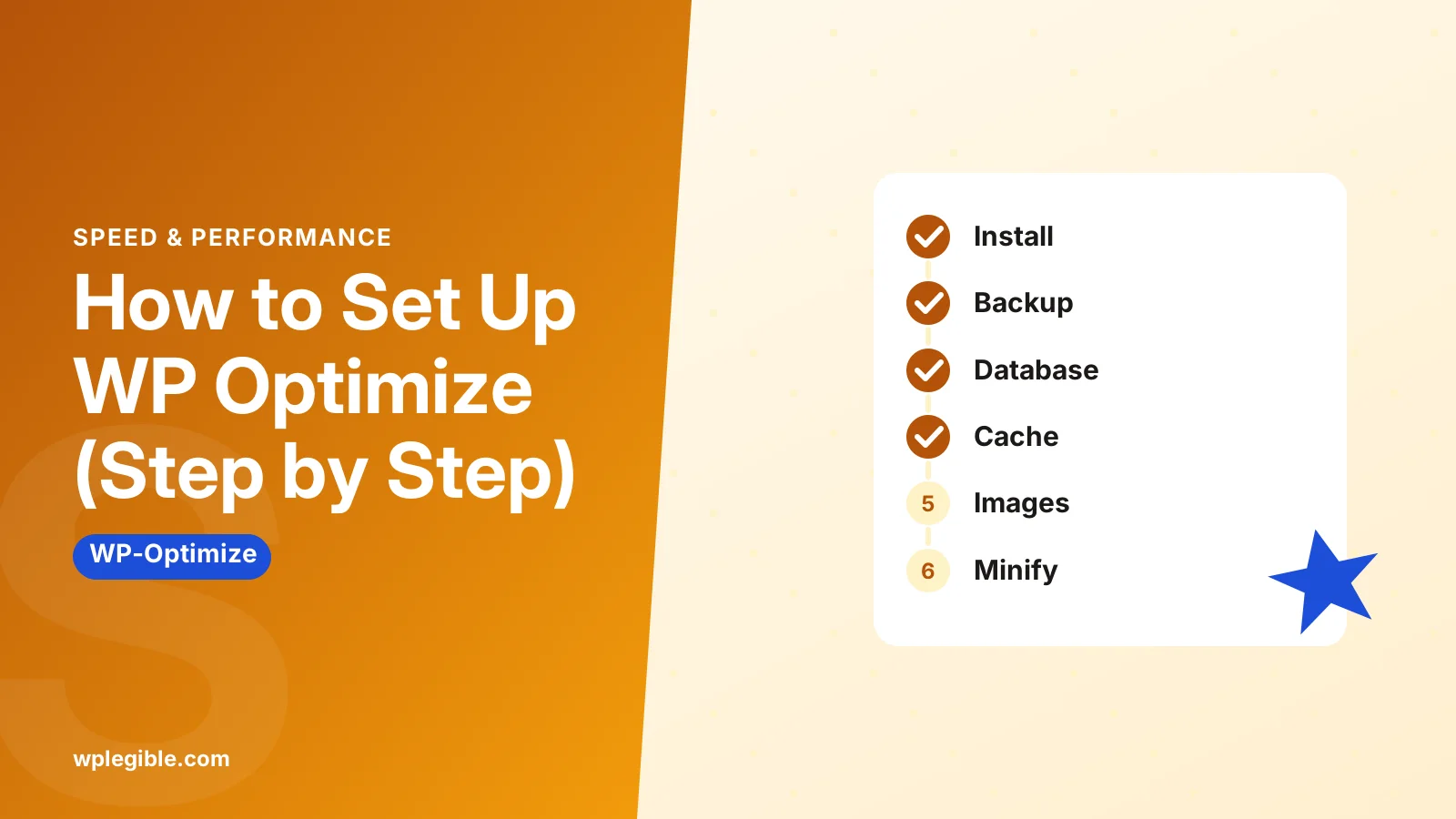
This guide follows the order that causes the fewest problems: install, back up, database, cache, images, then minify last.
How do you install WP-Optimize?
Go to Plugins > Add New in WordPress, search for WP-Optimize, click Install Now and then Activate.
- Log in to your dashboard as an administrator.
- Open Plugins > Add New Plugin.
- Search for WP-Optimize.
- Find the plugin by the UpdraftPlus team and click Install Now.
- Click Activate.
A new WP-Optimize item appears in the left admin menu. The free version is on the WP-Optimize plugin page, which also lists current features and requirements.
If you use the premium version, you download a zip file from your account and upload it through Plugins > Add New Plugin > Upload Plugin instead.
Why should you back up before you start?
Database cleanup permanently deletes data such as old revisions and trashed items, so a backup is your only way back if you remove something you needed.
WP-Optimize shows a reminder to take a backup before running optimisations. It works with UpdraftPlus, from the same developer, and can trigger a backup first if that plugin is installed.
Any good backup works, though. What matters is that it includes the database, and that you know how to restore it.
Our guide on how to back up a WordPress database shows several ways to do this, including from your hosting panel.
How do you clean the database with WP-Optimize?
Open WP-Optimize > Database, tick the cleanup tasks you want, and click Run all selected optimizations, or run each one on its own.
The Optimizations tab lists tasks with a short note on how many items each would remove. Common ones include:
- Optimize database tables
- Clean all post revisions
- Clean all auto-draft posts
- Remove spam and trashed comments
- Remove expired transient options
- Remove pingbacks and trackbacks
- Clean orphaned post meta data
Start with the safe ones: revisions, auto-drafts, trash, spam and expired transients. These rarely matter to anyone.
Revisions are the biggest win on older sites. The WordPress guide to revisions explains what they store and why they pile up.
Be careful with unapproved comments. If you moderate comments, those may be real comments waiting for you.
The Tables tab shows every table with its size and overhead. It can also flag tables left behind by deleted plugins. Only remove those if you are sure the plugin is gone for good.
For a deeper look at database tuning beyond this plugin, see our guide on how to optimize the WordPress database.
How do you schedule automatic cleanups?
In WP-Optimize > Database > Settings, choose how much recent data to keep, turn on scheduled cleanups, pick a frequency and save.
Two settings matter most here:
- Keep last weeks of data. This keeps recent revisions and other items, so you can still roll back a post you edited last week.
- Scheduled clean-up. This runs the selected optimisations automatically on a set schedule.
Weekly is a sensible frequency for most blogs. Busy stores and membership sites may prefer a schedule outside peak hours.
Scheduled tasks rely on WP-Cron, which runs when people visit the site. On very quiet sites, tasks may run late. The WordPress cron documentation explains how this works and how to use a real server cron instead.
How do you turn on page caching?
Go to WP-Optimize > Cache, switch on Enable page caching, save, and then check your site in a private browser window.
Page caching stores a ready-made HTML copy of each page, so WordPress does not rebuild it for every visitor. It usually gives the biggest speed gain of any setting.
Before turning it on, deactivate any other page cache plugin. Two page caches at once often cause stale pages or errors.
Useful options on the same screen include:
- Cache lifespan. How long a cached page lasts before it is rebuilt.
- Preload. Builds cached copies in advance so the first visitor is not slow.
- Advanced settings. Exclude URLs, cookies or user agents from the cache.
If you run a shop, keep cart, checkout and account pages out of the cache. WP-Optimize detects common WooCommerce pages, but check the exclusions list.
Our explainer on page cache vs object cache explains why page caching helps most on content-heavy sites.
The cache area also has Gzip compression and Static file headers tabs. Turn these on only if your host does not already handle them, which many do.
How do you compress images?
Open WP-Optimize > Images, choose a compression level, select the images you want, and click to compress them.
You can pick a lossless or lossy setting. Lossy gives smaller files with a slight quality change most people never notice. Lossless keeps quality but saves less space.
Tick Automatically compress newly-added images so new uploads are handled for you.
Turn on Backup original images if you might want to undo compression later. It uses more disk space, but it is a useful safety net.
There is also an option to create WebP versions of images. For background on modern formats, see our guide on serving images in next-gen formats.
How do you set up minify safely?
Enable minify in WP-Optimize > Minify, start with the default settings, and test every important page before adding more aggressive options.
Minify strips spaces and comments from CSS and JavaScript files. MDN's short glossary entry on minification explains the idea.
Minify is the feature most likely to break layouts or scripts, which is why it comes last.
- Switch on Enable Minify.
- Leave the defaults as they are.
- Purge the minified files and the page cache.
- Test menus, forms, sliders and checkout while logged out.
- Only then try options like deferring JavaScript.
If something breaks, exclude the problem file in the JavaScript or CSS tab, or turn off the option you just enabled.
Which WP-Optimize settings should you use?
Most sites do well with database cleanup weekly, page caching on, automatic image compression on, and minify on with default settings.
| Feature | Where | Suggested start |
|---|---|---|
| Database cleanup | Database > Optimizations | Revisions, drafts, trash, spam, transients |
| Scheduled cleanup | Database > Settings | Weekly, keep last 2 weeks |
| Page cache | Cache > Page cache | On, preload enabled |
| Gzip | Cache > Gzip compression | On only if host does not compress |
| Image compression | Images | Lossy, auto-compress on, backups on |
| Minify | Minify | On, defaults only at first |
Our full guide to WP-Optimize plugin settings explains every option on each tab in more detail.
How do you check that the setup worked?
Measure your pages before and after with a speed tool, confirm pages are served from cache, and keep an eye on the database size over the following weeks.
Run a test on PageSpeed Insights for your home page and a typical post. Compare the results with a test from before setup.
To confirm caching, load a page while logged out and view the page source. WP-Optimize adds a comment near the bottom when a page is served from its cache.
If something looks wrong, clear all caches from the WP-Optimize admin bar menu and test again. For help, the WP-Optimize support forum is the best place to ask.
Frequently asked questions
Is WP-Optimize safe to use?
Yes, when you back up first and stick to the standard cleanup tasks. The risk comes from deleting tables or data you still need, or from minify settings that break scripts. Test changes on a staging site if your site earns money.
Can I use WP-Optimize with another cache plugin?
You can use its database and image tools alongside another cache plugin, but do not run two page caches at once. If you keep your current cache plugin, leave WP-Optimize page caching and minify turned off.
How often should WP-Optimize clean the database?
Weekly suits most blogs and business sites. Very busy sites with lots of edits may benefit from more frequent cleanups, while small sites can run them monthly. Keep a couple of weeks of revisions in case you need to roll back.
Does WP-Optimize image compression reduce quality?
Lossy compression makes small changes that most visitors never notice, and it saves more space. Lossless keeps quality exactly the same but saves less. Turning on backups of original images lets you restore them later if needed.
Why did my site break after enabling WP-Optimize minify?
Some scripts and styles do not handle being combined or deferred. Turn off the last option you enabled, purge the cache and test again. Then exclude the problem file in the minify settings instead of leaving minify off entirely.
Sources
- WP-Optimize WordPress.org Plugins
- WP-Optimize documentation WP-Optimize
- Revisions WordPress.org Documentation
- Cron WordPress Developer Resources
- Minification MDN Web Docs
Is your product missing, or something out of date?
Tell us what to add or correct. We read every note and reply when we need a source. A message does not buy a ranking.
Thanks — we review requests within 3 business days.
Related guides


About the editors
Researched from the primary sources listed above and checked against our editorial rules before publishing.