WooCommerce · Guide
How to Refund an Order in WooCommerce (Step by Step)
Short answer
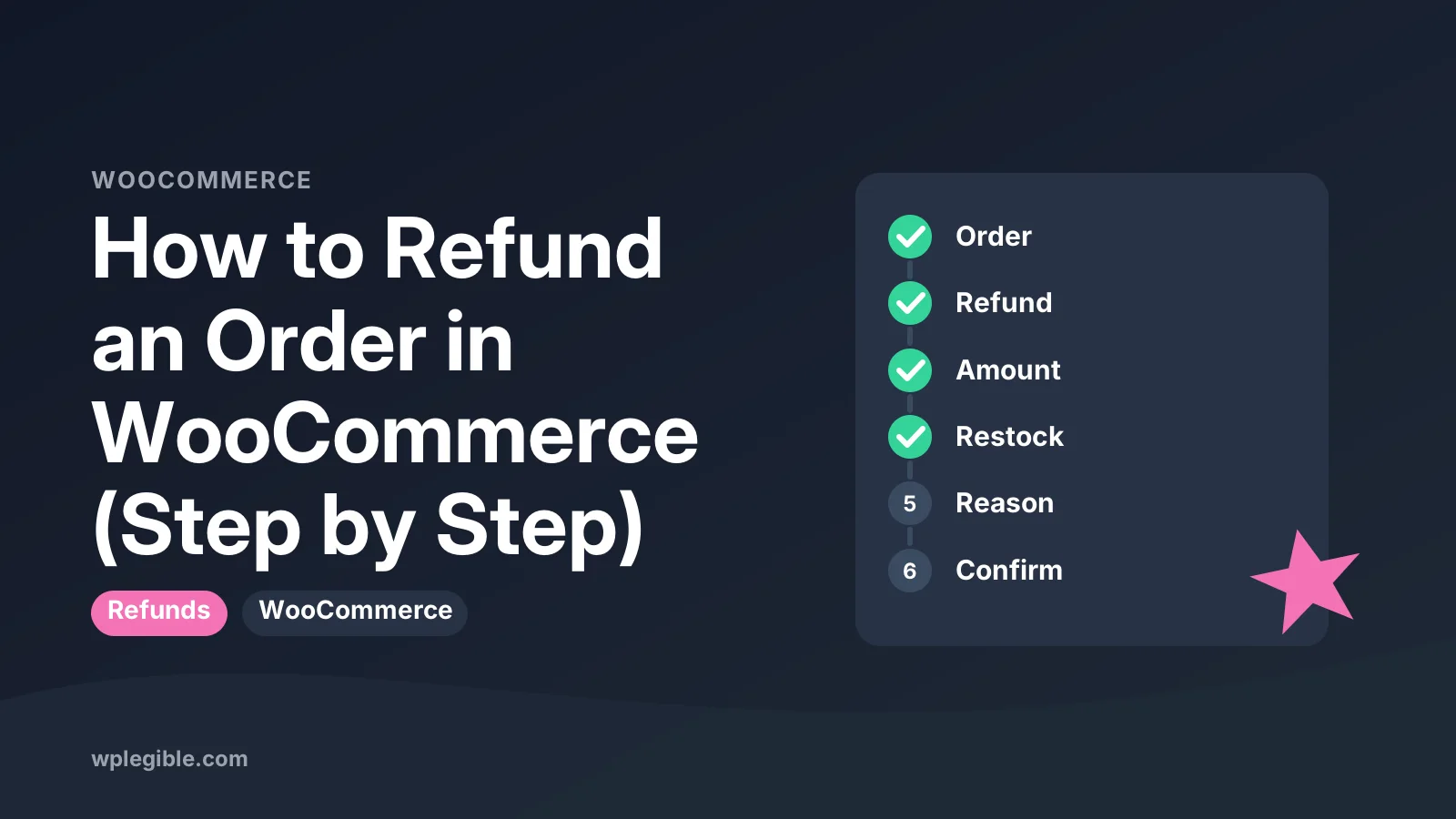
Open WooCommerce, go to Orders and click the order. Press Refund, enter item quantities or a refund amount, add a reason, then click the gateway refund button to send money back automatically, or Refund manually if you will pay the customer yourself.
Key takeaways
- Refunds are built into the WooCommerce order screen, so no plugin is needed for full or partial refunds.
- Use the gateway refund button for card and wallet payments; use Refund manually for bank transfer or cash on delivery.
- Tick Restock refunded items only when products come back in sellable condition.
- A full refund sets the order to Refunded; a partial refund keeps the current status.
- Banks usually take several business days to show the money, and processors may keep their fees.
How do you refund an order in WooCommerce?
Open WooCommerce > Orders, click the order, press the Refund button under the order items, enter the amount or item quantities, add a reason, then click either the automatic gateway refund button or Refund manually.
That is the whole process in one sentence. The rest of this guide explains what each option does, when to pick which button, and what happens to stock, emails and order status afterwards.
WooCommerce handles refunds inside the order screen itself. You do not need an extra plugin for basic full or partial refunds, only the free WooCommerce plugin itself. The official WooCommerce refunds documentation covers the same core screen.
What should you check before issuing a refund?
Check how the customer paid, whether the payment has settled, and whether your gateway supports automatic refunds, because that decides which refund button you can use.
Look at the order notes on the right side of the order screen. They show the payment method, the transaction ID and any earlier refunds or status changes.
Confirm the order status too. Orders that are Pending payment or Failed usually have no captured money to send back, so a refund makes no sense there. Our guide on orders stuck on pending payment explains that case.
A few quick checks save trouble later:
- Is the order paid and captured, not just authorized?
- Does the refund match your written refund policy?
- Is the item being returned, or are you refunding without a return?
- Should the stock go back on sale?
- Is this a suspicious order that you should cancel instead?
If the order looks fraudulent, refund it and then review our tips on how to stop fake orders in WooCommerce so it does not happen again.
Step 1: How do you open the order you want to refund?
Go to WooCommerce > Orders in your dashboard, search by order number, customer name or email, then click the order to open the edit screen.
Stores using High-Performance Order Storage see the same Orders screen. The storage change happens under the hood, so the refund steps do not change. You can read more in our explainer on HPOS in WooCommerce.
Scroll down to the items box. You will see each product, its quantity, the line total, shipping, fees and taxes, followed by the order total.
Step 2: How do you start the refund?
Click the Refund button below the order items, and WooCommerce turns the item rows into editable refund fields.
New fields appear next to each line: a quantity box and a refund total box. Under the items, you also get a Refund amount field and a Reason for refund field.
Nothing has been sent to the customer yet. WooCommerce only records or processes money when you click one of the final buttons.
Step 3: How do you choose what to refund?
Enter quantities for the items being returned, or type a custom amount into the refund amount field, and WooCommerce adds up the total for you.
You have two common patterns:
- Item-based refund. Type how many units of each product you are refunding. WooCommerce fills in the line totals and adds tax for those lines.
- Amount-based refund. Leave the item quantities empty and type a figure into the refund amount field. This suits goodwill credits, shipping refunds or price adjustments.
You can also refund shipping or fees on their own lines. That helps when a parcel arrived late and you want to return only the delivery cost.
The refund cannot be larger than what is left on the order. If you already refunded part of it, the remaining refundable amount is lower.
Step 4: Should you restock items and add a reason?
Tick Restock refunded items when the product is coming back in sellable condition, and leave it unticked if the item is damaged, lost or not being returned.
Restocking only adds back the quantities you entered in the item rows. If you used only the refund amount field, there is nothing for WooCommerce to restock.
This checkbox only matters for products with stock management turned on. You can switch stock management on under WooCommerce > Settings > Products > Inventory, which we cover in WooCommerce settings explained.
Next, type a short reason, such as Returned unopened or Late delivery credit, so your team and your records explain why money went back.
The reason is saved with the refund in the order notes. Some gateways also pass it to the payment processor, where it may show in their dashboard.
Keep reasons short and factual. They become useful later when you look for patterns in returns.
Step 5: Which refund button should you click?
Click Refund via [gateway name] to send money back automatically through your payment processor, or click Refund manually if you will return the money yourself outside WooCommerce.
The difference matters a lot:
| Button | What WooCommerce does | When to use it |
|---|---|---|
| Refund via gateway | Records the refund and asks the gateway to return the money | Card and wallet payments through gateways that support refunds |
| Refund manually | Records the refund only, no money moves | Bank transfer, cash on delivery, cheque, or gateways without refund support |
If the automatic button does not show, your gateway either does not support refunds through WooCommerce or is not set up for it. In that case, issue the refund in the gateway's own dashboard and then record it with Refund manually.
After you click, WooCommerce asks you to confirm. Check the amount once more, because a gateway refund is usually final.
Which payment gateways support automatic refunds?
Most major card gateways for WooCommerce, including WooPayments, Stripe and PayPal Payments, support refunds from the order screen, but always confirm in your gateway's own documentation.
For PayPal, the PayPal Payments refund guide explains how refunds flow back to the buyer. For card payments via Stripe, see the Stripe refunds documentation for timing and fees.
Our guide to setting up Stripe in WooCommerce shows where the gateway settings live.
If you take PayPal, the steps in our PayPal setup guide also cover where its refund options sit.
Offline methods such as direct bank transfer and cash on delivery cannot send money back on their own. You must pay the customer yourself and record the refund manually.
What happens after you issue the refund?
WooCommerce saves the refund as a negative line on the order, adds an order note, and sends the customer a refund email if that email is turned on.
For a full refund, the order status changes to Refunded automatically. For a partial refund, the status usually stays as it was, such as Processing or Completed, and the order shows the refunded amount in red under the total.
The customer gets either the Refunded order email or the partial refund version. You can edit both under WooCommerce > Settings > Emails. Our guide to WooCommerce email settings explains each template.
Reports in WooCommerce Analytics count the refund against your sales for the date it was made, so your net revenue stays accurate.
How long does a WooCommerce refund take to reach the customer?
WooCommerce sends the gateway request within seconds, but the money usually takes several business days to appear on the customer's card or account, depending on the bank and the processor.
That delay is outside your control. Card networks and banks process the reversal on their own schedule.
Tell customers the expected timeframe in your refund email or policy page. It cuts down on where is my refund? support tickets.
Processing fees are another point to note. Many processors do not return their original transaction fee when you refund, so a refund can cost you money. Check your gateway's fee page for the exact rule.
What if the refund button fails or shows an error?
If the gateway refund fails, WooCommerce shows an error and does not record the refund, so check your gateway API keys, the transaction status and the gateway log before trying again.
Common causes include:
- The payment was never captured, so there is nothing to refund yet
- The API keys in your gateway settings are wrong or expired
- The transaction is too old for the processor's refund window
- The order was paid in a currency or mode, such as test mode, that does not match the current settings
Turn on gateway logging in the plugin settings and look under WooCommerce > Status > Logs for the exact message. If you are still building the store, practice the whole process first with our guide on testing WooCommerce payments.
Can you undo a refund? You can delete a refund record from the order by hovering over the refund line and clicking the delete icon, but that does not pull back money already sent through a gateway.
Deleting a refund only changes your WooCommerce records. It is meant for fixing a manual refund that you entered by mistake.
If you sent a gateway refund by accident, contact the customer and ask them to pay again. Payment processors generally do not reverse a completed refund.
How should you handle refunds as your store grows?
Write a clear refund policy, use reasons consistently, review refunds monthly, and consider a returns plugin only when manual refunds start taking real time.
A visible refund policy page sets expectations and helps with payment disputes. Card networks look at your policy when a buyer files a chargeback, and PayPal's seller protection rules also depend on good records, such as proof of shipping. Link it from your footer and checkout.
Export your orders now and then to check refund rates by product. Our guide on exporting WooCommerce orders to CSV shows how. A product with a high refund rate often has a misleading description or a quality issue.
If you get many return requests, a returns or RMA extension lets customers start a return from their account. WooCommerce also lists a Self-Service Refunds extension in its marketplace. Check the product page for current features and pricing before buying.
Frequently asked questions
Can I give a partial refund in WooCommerce?
Yes. Open the order, click Refund, then either enter quantities for only some items or type a smaller figure into the refund amount field. The order keeps its status and shows the refunded amount under the total, and you can issue more partial refunds later up to the order total.
Why is there no automatic refund button on my order?
The automatic button only appears when the payment gateway used for that order supports refunds through WooCommerce and is set up correctly. Offline methods such as bank transfer or cash on delivery never show it. In those cases, return the money yourself and record it with the manual refund button.
Does a WooCommerce refund return the item to stock?
Only if you tick the restock refunded items box and enter item quantities in the refund rows. Stock management must also be enabled for the product. If you refund a plain amount without quantities, WooCommerce has nothing to restock.
Will the customer get an email when I refund?
Yes, if the refunded order email is enabled in WooCommerce email settings. WooCommerce sends a full refund or partial refund version depending on the amount. You can change the subject, heading and extra text for that email in the same settings area.
Do I get my payment processing fees back after a refund?
Often not. Many payment processors keep the original transaction fee even when you refund the full amount, so the refund can cost you a little. The exact rule depends on your processor and plan, so check its fee page before you set your refund policy.
Sources
- Refunding Orders in WooCommerce WooCommerce
- Managing Orders and Refunds (PayPal Payments) WooCommerce
- Refunds Stripe
- Self-Service Refunds for WooCommerce WooCommerce
- WooCommerce Orders documentation WooCommerce
Is your product missing, or something out of date?
Tell us what to add or correct. We read every note and reply when we need a source. A message does not buy a ranking.
Thanks — we review requests within 3 business days.
Related guides



About the editors
Researched from the primary sources listed above and checked against our editorial rules before publishing.