Speed & performance · Guide
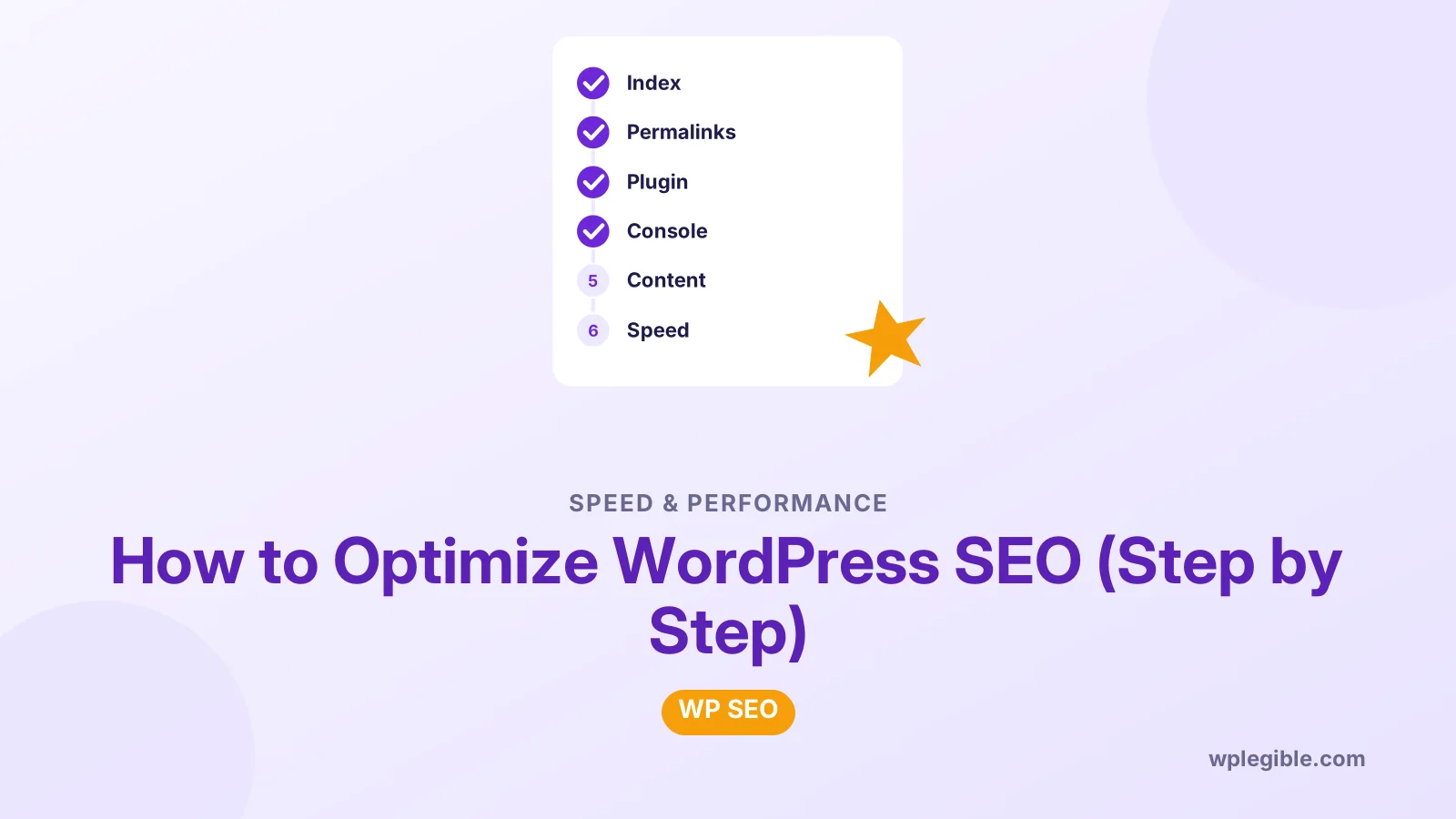
How to Optimize WordPress SEO (Step by Step)
Short answer
To optimize WordPress SEO, make sure search engines can index the site, use Post name permalinks, and install one SEO plugin. Then connect Google Search Console, write helpful content around clear keywords, add internal links, and keep images and page speed in good shape.
Key takeaways
- Untick Discourage search engines in Settings > Reading first.
- Use Post name permalinks and only one SEO plugin.
- Submit your sitemap in Google Search Console.
- Give each page one clear topic and write titles for people.
- Internal links, image compression and speed support rankings.
- Review Search Console monthly and refresh slipping posts.
How do you optimize WordPress SEO?
You optimize WordPress SEO by making sure search engines can index your site, installing an SEO plugin, writing helpful content around clear keywords, linking pages together, and keeping the site fast and mobile friendly.
WordPress already handles a lot of technical SEO well. It produces clean HTML, supports readable URLs and creates a basic sitemap. Your job is to set it up correctly and then publish content people actually want.
This guide walks through the steps in the order that makes sense for a new or neglected site. If you want the background first, read what WordPress SEO is and come back.
Google's SEO Starter Guide is the best free reference for the basics. Everything below fits with its advice.
Step 1: Is your site visible to search engines?
Check Settings > Reading and make sure Discourage search engines from indexing this site is unticked, because a ticked box asks search engines to stay away from every page.
This box is often ticked during development and then forgotten. It is the single most common reason a WordPress site gets no search traffic.
- Go to Settings > Reading.
- Find Search engine visibility.
- Untick the box and click Save Changes.
The Reading Settings documentation notes that it is up to search engines to honor the request. In practice, the major ones do. Also check that no maintenance or coming soon plugin is still active.
Step 2: Are your permalinks set up correctly?
Set Settings > Permalinks to Post name so every URL is short, readable and contains the words from your page slug.
The default Plain structure creates URLs like ?p=123, which tell readers and search engines nothing. Post name gives /how-to-bake-bread/ instead.
Make this change before you publish much content. Changing the structure later alters every URL, so you would need redirects. Our guide to the best permalink structure for SEO explains the options in more detail.
Step 3: Which SEO plugin should you install?
Install one well-known SEO plugin, such as Yoast SEO, Rank Math or All in One SEO, so you can control titles, meta descriptions, sitemaps and schema without code.
All three cover the essentials. Pick one and stick with it. Running two SEO plugins at once often creates duplicate tags.
After installing, run the setup wizard. It will ask for your site type, your name or business name, and your social profiles. Then review these settings:
- Titles and meta templates for posts, pages and archives.
- XML sitemap, which should be enabled.
- Noindex settings for thin archives such as tags or media pages.
- Schema defaults for your organization or person.
For step-by-step setup, see our guide on setting up Yoast SEO.
If you prefer Rank Math, follow our guide to setting up Rank Math instead. Its wizard covers the same ground.
Step 4: How do you connect Google Search Console?
Verify your site in Google Search Console, then submit the sitemap URL from your SEO plugin so Google can find and report on your pages.
Google Search Console is free. It shows which searches bring visitors, which pages are indexed and which have errors.
- Add your site as a property, ideally as a domain property.
- Verify ownership through DNS or the HTML tag option in your SEO plugin.
- Open Sitemaps and submit your sitemap URL.
- Check the Pages report after a few days.
Our walkthrough on how to connect Google Search Console to WordPress covers each verification method. Bing Webmaster Tools is worth adding too, since it can import your Search Console data.
Step 5: How do you pick keywords and write titles?
Choose one main keyword for each page based on what your audience searches, then put it in the title, URL, first paragraph and meta description in natural language.
Start with the questions your customers ask. Free tools such as Google's autocomplete and the People also ask box show how people phrase their searches.
Some rules that keep you out of trouble:
- One topic per page. Two pages targeting the same phrase compete with each other.
- Write titles for people. Clear and specific beats stuffed with keywords. Aim for roughly 50 to 60 characters.
- Write a meta description that sells the click. Search engines may rewrite it, but a good one still helps.
Your SEO plugin gives a field for each. For more, see how to change the SEO title in WordPress.
Step 6: What makes content rank well?
Content ranks when it answers the searcher's question fully and clearly, shows real experience, and is easy to scan with headings, short paragraphs and lists.
Google describes this as helpful, reliable, people-first content. In practice, that means:
- Answer the main question near the top.
- Use one H1 (your post title) and logical H2 and H3 headings.
- Add examples, screenshots, data or steps the reader can follow.
- Show who wrote it, with an author bio that explains their background.
- Update facts, prices and screenshots when they change.
Length matters less than completeness. A clear 900-word answer beats a padded 3,000-word one.
Step 7: How should you use internal links?
Link each new post to two to five related pages on your site with descriptive anchor text, and link back to it from older posts on the same topic.
Internal links help search engines discover pages and understand which ones matter most. They also keep readers on your site longer.
- Use anchor text that describes the target page, not click here.
- Link from high-traffic pages to newer pages you want to rank.
- Fix or remove links to deleted pages.
Our guide on adding internal links in WordPress shows the editor shortcuts and plugin options.
Step 8: How do you optimize images for SEO?
Compress images before or during upload, use descriptive file names, and write alt text that describes what the image shows.
Large images are a common reason WordPress pages load slowly. Resize photos to the size they display at, and use modern formats such as WebP where your setup supports them.
Alt text helps screen reader users and gives search engines context. Describe the image in a short phrase. Include a keyword only when it fits naturally.
See how to optimize images for SEO in WordPress for plugin options and settings.
Step 9: How much does site speed matter for SEO?
Speed is a confirmed but modest ranking signal, measured through Core Web Vitals, and it matters even more for keeping visitors from leaving before the page loads.
Test key pages in PageSpeed Insights. It shows both lab data and real-user data from Chrome where available. The Core Web Vitals overview on web.dev explains the three metrics: loading, interactivity and visual stability.
Quick wins for WordPress:
- Use good hosting with a recent PHP version.
- Install a caching plugin and enable page caching.
- Remove plugins you no longer use.
- Lazy-load images and embeds below the fold.
- Use a lightweight theme.
Our full guide on how to optimize WordPress speed goes into each fix.
For how much speed really affects rankings, read does page speed affect SEO.
Step 10: Should you add schema markup?
Yes, add schema markup for your organization, articles and any FAQs, recipes or products, because it helps search engines understand your content and can earn rich results.
Most SEO plugins add basic schema automatically. You can extend it for specific content types. Our guide to adding schema markup to WordPress covers the options.
Only mark up content that is visible on the page. Test your pages with Google's Rich Results Test after making changes.
Step 11: How do you keep WordPress SEO healthy over time?
Review Search Console monthly, refresh posts that are slipping, fix broken links and 404 errors, and keep WordPress, plugins and themes updated.
SEO is not a one-time setup. A simple monthly routine is enough for most sites:
| Task | How often | Where |
|---|---|---|
| Check indexing and errors | Monthly | Search Console Pages report |
| Find posts losing clicks | Monthly | Search Console Performance |
| Update old posts | Quarterly | WordPress editor |
| Fix broken links and 404s | Monthly | SEO plugin or link checker |
| Update core, plugins, themes | Weekly | Dashboard > Updates |
| Speed test key pages | Quarterly | PageSpeed Insights |
When a post drops, refresh the facts, improve the answer and add better internal links. Our guide on how to update old posts for SEO shows a simple process.
Frequently asked questions
Is WordPress good for SEO out of the box?
WordPress has a solid technical base, with clean code, readable URLs and a built-in sitemap. You still need to set permalinks, add an SEO plugin for titles and meta descriptions, and publish helpful content. The platform alone will not make pages rank.
Do I need a paid SEO plugin?
No. The free versions of Yoast SEO, Rank Math and All in One SEO cover titles, meta descriptions, sitemaps and basic schema. Paid versions add features such as redirect managers and extra schema types, which are helpful but not required to rank.
How long does WordPress SEO take to work?
New pages can be indexed within days, but ranking well usually takes several weeks to months. Results depend on competition, the quality of your content and how many other sites link to you. Keep publishing and improving steadily.
Can I use two SEO plugins at the same time?
It is best not to. Two SEO plugins often output duplicate titles, meta descriptions and schema, which can confuse search engines. Choose one plugin and deactivate the other after importing any settings you want to keep.
Does my WordPress theme affect SEO?
Yes, indirectly. A heavy or poorly coded theme can slow your pages down and produce messy heading structures. A lightweight, well-maintained theme makes speed and clean markup much easier to achieve.
Sources
- SEO Starter Guide Google Search Central
- Creating helpful, reliable, people-first content Google Search Central
- Settings Reading Screen WordPress.org Documentation
- Web Vitals web.dev
- PageSpeed Insights Google
Is your product missing, or something out of date?
Tell us what to add or correct. We read every note and reply when we need a source. A message does not buy a ranking.
Thanks — we review requests within 3 business days.
Related guides


About the editors
Researched from the primary sources listed above and checked against our editorial rules before publishing.