Hosting · Guide
How to Migrate WordPress to a New Host Without Downtime
Short answer
Migrating WordPress to a new host means copying your site files and database to the new server, testing the copy, and then pointing your domain at it. You do not need to reinstall WordPress, and if the domain stays the same, you only edit wp-config.php when the database name or user changes. Lower the DNS TTL two days ahead, and keep the old host running for a week or two after the switch.
Key takeaways
- A WordPress site is files plus a database, and moving it means copying both, with no reinstall needed.
- If the domain stays the same, edit wp-config.php only when the database name or user changes.
- Lower the DNS TTL to 300 seconds at least 48 hours before the move.
- Never change the GUID column in the wp_posts table when updating URLs.
- Duplicator's free plugin handles backups of any size and works on a server with no WordPress installed.
- Keep the old host running for 7 to 14 days after the DNS switch as a safety net.
What does migrating WordPress to a new host involve?
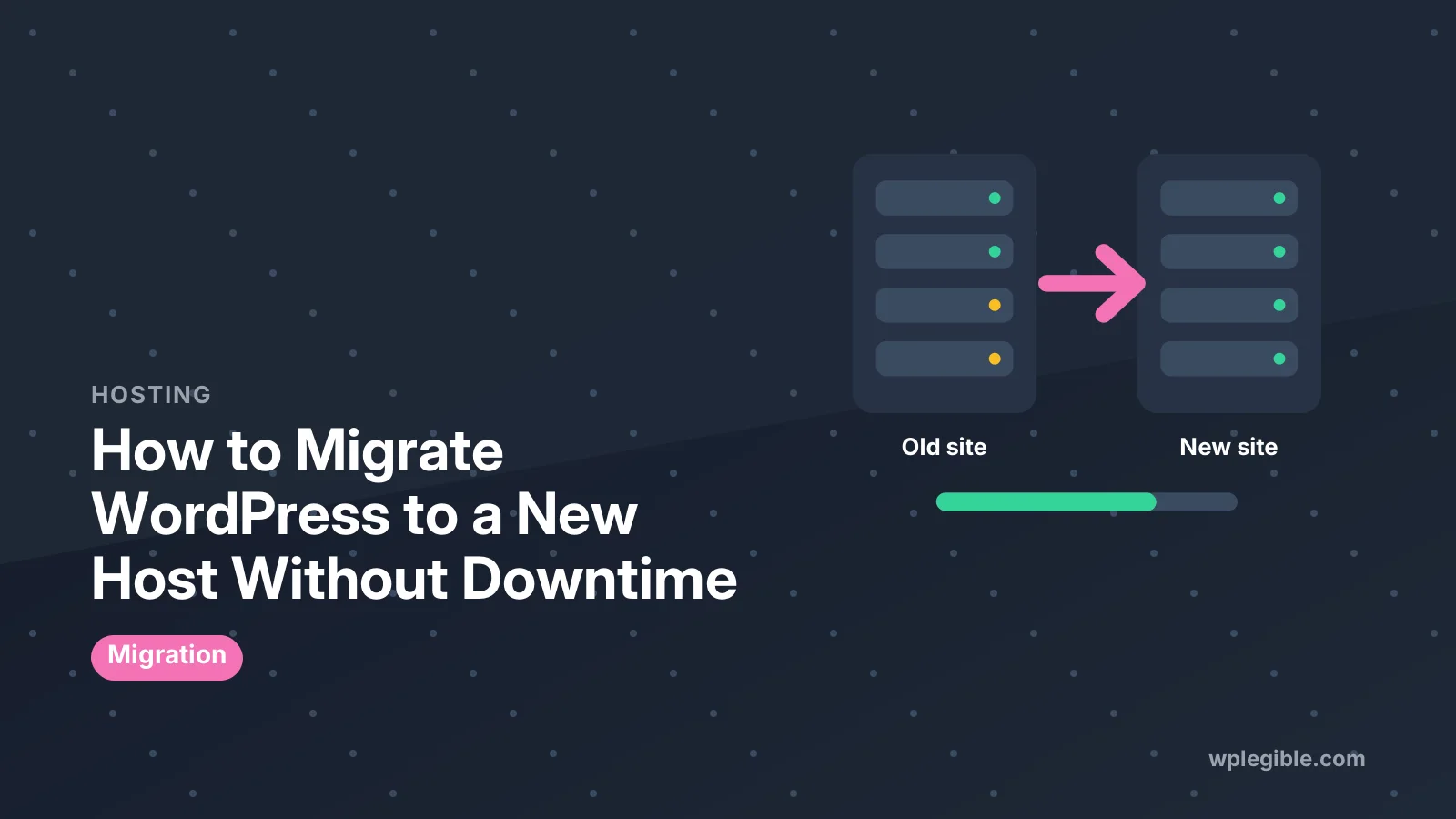
Migrating WordPress to a new host means copying your site files and your database to the new server, testing the copy, and then pointing your domain at it.
A WordPress site is two things: files and a database. The files are WordPress core, your themes, your plugins, your uploads, and wp-config.php.
The database holds your posts, pages, settings, and users. A move copies both parts, and nothing else, as the WordPress documentation explains.
You do not need to reinstall WordPress. The WordPress documentation says plainly that whether you move to a new server or a new spot on the same server, you do not need to reinstall, because WordPress is flexible enough to handle all of these situations.
If your domain name and URLs stay the same, the move is simple: copy the files and the database, and edit wp-config.php only if the database name or user changes. If the domain changes too, you must also update the old address everywhere it appears in the database. How to change hosting without losing SEO
The active work of a plugin move is short: export, upload, and import.
Which migration method should you choose?
Pick the method by your site size, your comfort with databases, and whether your new host moves sites for free.
| Method | Best for | Effort | Main catch |
|---|---|---|---|
| Host migration service | Any site, when the host offers it | Lowest | Not every plan qualifies |
| Migration plugin | Small to medium sites | Low | Your host upload limit can block big imports |
| Manual move | Large sites and full control | Highest | You handle files, database, and URLs yourself |
A host migration service is the easiest route when it is offered. You fill in a form or open a ticket, share access to the old host, and the new host team does the move.
A migration plugin suits most small and medium sites. It packs the whole site into one file, then unpacks it on the new server and fixes the URLs for you. The two long-standing options are Duplicator and All-in-One WP Migration, both free on WordPress.org.
A manual move gives you full control and works on any server, but you handle every step yourself: files, database export and import, wp-config.php, and the search and replace for URLs. Pick it when the site is large, when plugins cannot run, or when the destination has no WordPress installed yet.
What should you do before you migrate?
Before you migrate, back up the site, check the new host can run it, and lower your DNS TTL at least 48 hours ahead.
- Make a full backup of files and database on the old host, and download a copy to your computer. Keep it until the move is done and checked. How cPanel backups compare with plugin backups
- Check that the new host meets the WordPress requirements. WordPress.org recommends PHP 8.3 or greater, and MariaDB 10.11 or greater or MySQL 8.4 or greater, with HTTPS support. WordPress requirements If the new host runs an older PHP version than the old one, update the code or pick a newer PHP version first.
- Lower your DNS TTL to 300 seconds at least 48 hours before the move. The All-in-One WP Migration team gives exactly this advice on its WordPress.org plugin page, because a short TTL means the switch spreads to visitors faster. How long does DNS propagation take?
- Note down the database name and user, the active theme and plugins, and any email accounts on the old host. Email does not move with WordPress, so plan for it separately.
- Put the site in a quiet state. Ask editors to stop publishing, and pause any scheduled posts, so nothing changes while you copy the database. A post published after the export will not exist on the new copy.
How do you migrate with your new host's free migration service?
Ask your new host to migrate the site, give them the access they ask for, and check the result before you switch the domain.
Most hosts that offer free migration ask for the same things: your old host login or a backup file, and the domain name.
You fill in a request form or open a support ticket, and their team copies the files and database to your new account. Turnaround is often a day or two, so ask for the move early rather than on the day you want to switch.
When they say the copy is ready, log in to the new copy and check it before you change DNS. Open the home page, a post, and the admin area.
If the copy looks right, move on to the DNS switch in the section below. If something is missing, tell the host team while the old site is still live.
Confirm what the service does not cover. Email accounts, DNS records, and cron jobs usually stay on the old host, so you must move or recreate those by hand.
How do you migrate WordPress with a plugin?
Install the same migration plugin on both sites, export the old site to one file, then import that file on the new site.
All-in-One WP Migration, made by ServMask, works this way: install it on your current site, click Export, and the plugin creates a single .wpress file holding your whole site, including the database, media, themes, and plugins.
Then install a fresh copy of WordPress on the new host, install the plugin there as well, and use Import to upload the file. The plugin moves everything by itself, including updating URL references and handling serialized data safely, as its WordPress.org plugin page explains, and this plugin walkthrough shows the same steps.
The free plugin backs up and exports sites of any size, but your hosting company decides how large a file you can upload, so a very large backup may not go through the import screen.
That limit comes from the host, not from the plugin, according to the plugin page. If the file is too big, ask the host to raise the upload limit, or use the plugin's paid extension, which uploads around the host limit.
Duplicator works a little differently: it builds a package of your files and database plus an installer script, and you run the installer on the new server. The free plugin handles backups of any size, uses AES-256 archive encryption, and includes 1-click restore, according to its WordPress.org plugin page and Duplicator's own site.
It is also the only migration plugin that works on an empty site, because the installer can rebuild the site where WordPress is not installed yet, as shown in this Duplicator walkthrough.
Whichever plugin you use, log in to the new site with your old username and password after the import, because the database, and with it the users, came from the old site.
How do you migrate WordPress manually?
A manual move means exporting the database, downloading the files, creating a fresh database on the new host, uploading everything, and editing wp-config.php.
- Back up the files and the database on the old host, and download both to your computer.
- On the new host, create an empty database and a database user with full rights to it. Write down the database name, username, password, and host exactly as shown.
- Export the old database, usually from phpMyAdmin in the old host panel, and save the .sql file.
- Download the site files from the old host, usually from the public_html folder or the WordPress root folder.
- Upload the files to the new host. If the new host already installed a fresh WordPress for you, delete that default copy first, so it does not mix with your files.
- Import the .sql file into the new database with phpMyAdmin.
- Edit wp-config.php on the new host with the new database name, user, password, and host. The WordPress documentation lists exactly these four values as the only changes you need when the database moves or is renamed.
If the domain name also changes, you must update the old address in the database. A plain search and replace on the whole database can break serialized data, because some themes and widgets store values with the length of the URL marked.
The WordPress documentation recommends three safe options instead: the Better Search Replace or Velvet Blues Update URLs plugins, the WP-CLI search-replace command, or the Search and Replace for WordPress Databases script.
With WP-CLI, the command looks like this, and the --skip-columns=guid part protects the GUID column:
wp search-replace 'example.com' 'newexample.com' --skip-columns=guidNever change the contents of the GUID column in the wp_posts table. The documentation says the GUID is a permanent identifier for the post, used by feed readers, and must never change, even when the domain changes.
How do you test the new copy before switching?
Test the new copy on the new server before you change DNS, so visitors never see a broken site.
The simplest test is a temporary address. Many hosts give you one, or you can point your own computer at the new server by adding a line to your hosts file with the new IP address and your domain. Either way, you see the new copy while everyone else still sees the old site.
Open the home page, several posts and pages, and the admin area. Log in with your old username and password.
Check that images load, forms send, and the shop checkout works if you have one. Re-save your permalinks under Settings, then Permalinks, because the rewrite rules must be rebuilt on the new server.
If the site shows a white screen, turn on WP_DEBUG in wp-config.php to see the real error, and check that the PHP version matches the old host. If you see a database connection error, check that DB_NAME, DB_USER, DB_PASSWORD, and DB_HOST in wp-config.php match the new server.
If every page shows a 404, re-save the permalinks. These are the common fixes listed on the All-in-One WP Migration plugin page.
How do you switch the domain to the new host without downtime?
Change the DNS records to point the domain at the new server, then keep the old host running for 7 to 14 days.
First, make sure the new copy passes every test in the previous section. Then log in to your domain registrar or DNS provider and change the A record for your domain to the new server IP address.
If your host gave you nameservers instead, change those.
Because you lowered the TTL to 300 seconds two days earlier, most visitors move to the new server within minutes, though some networks cache the old address longer. During the changeover, a few visitors may still reach the old site, which is why the old site must stay live and unchanged.
Keep the old hosting plan running for 7 to 14 days as a safety net, as the All-in-One WP Migration team advises on its plugin page. If something goes wrong after the switch, you can point DNS back and be live again in minutes.
If the site address itself changed, add 301 redirects from the old URLs to the new ones, and update the address in Settings, then General.
How do you check the migration worked?
Check the home page, the admin area, SSL, email, forms, and search visibility, then watch the site for a few days.
- Open the home page and several posts on the new server, and confirm images, menus, and widgets all load. Check for broken links after the move as you click through the pages.
- Log in to wp-admin and confirm your users, plugins, and settings are all there.
- Check that SSL works and the padlock shows, with no mixed-content warnings. If the site loads over http instead of https, check the site address and the SSL setup on the new host.
- Send a test email from a contact form, and place a test order if you run a shop. Email settings often live outside WordPress, so a form can fail even when the site looks fine.
- Search Google for your site name after a few days, and confirm the pages are still indexed under the same URLs.
Also clear every cache: the caching plugin, the host cache, and your browser cache. A stale cache can show you the old site long after the move, and make a good migration look broken.
What mistakes should you avoid when migrating WordPress?
The mistakes to avoid are skipping the backup, changing the domain and the host at the same time, and cancelling the old host too soon.
- Skipping the backup. A full backup of files and database is the only way back if a step fails, so make it before you touch anything.
- Changing the domain and the host in one move. Move the host first with the same domain, then change the domain later if you must. Two changes at once make every error harder to trace.
- Editing the database with a plain search and replace. Use a tool that handles serialized data, and never change the GUID column.
- Forgetting email and DNS. WordPress does not move your email accounts or your DNS records, so move them separately or they will stop working.
- Cancelling the old host right after the switch. Keep it for 7 to 14 days, because DNS can send visitors to the old server for a while, and a rollback needs the old copy.
- Leaving the RELOCATE line in wp-config.php. The WordPress documentation warns that leaving it in is insecure, because it lets an attacker change your site URL. Remove the line once the move is done.
- Not testing before the switch. A broken copy that nobody checked becomes a public outage the moment DNS changes.
Frequently asked questions
Will my site go down during the migration?
The old site stays live until you change DNS, so there is no downtime if you test first. Copy the site to the new host, check the copy on a temporary address, and only then point the domain at the new server. Keep the old host running for 7 to 14 days in case you need to switch back.
Which migration plugin should I use?
The two long-standing free options are Duplicator and All-in-One WP Migration, both on WordPress.org. Duplicator builds a package plus an installer and works on a server with no WordPress installed. All-in-One WP Migration exports one .wpress file and imports it on the new site. Pick the one whose steps feel clearer to you.
Can I change my domain name during the move?
Yes, but it is a bigger job. You must update the old address everywhere it appears in the database, using a tool that handles serialized data, and never change the GUID column. Add 301 redirects from every old URL to its new version, and keep them in place for at least a year.
Why does my site show an error after migrating?
The most common causes are a wrong database login in wp-config.php, a PHP version that differs from the old host, or permalinks that were never re-saved. Check the four database values first, then re-save permalinks under Settings, then Permalinks, and turn on WP_DEBUG to see the real error on a white screen.
How long should I keep my old hosting plan?
Keep it for 7 to 14 days after the switch. DNS can send some visitors to the old server for a while, and the old copy is your rollback if something breaks. Cancel it only after you have checked the new site, including email, forms, and checkout, and the old server shows no more traffic.
Sources
- Migrating WordPress Developer.WordPress.org
- WordPress Requirements WordPress.org
- All-in-One WP Migration and Backup plugin WordPress.org
- Duplicator plugin WordPress.org
Is your product missing, or something out of date?
Tell us what to add or correct. We read every note and reply when we need a source. A message does not buy a ranking.
Thanks — we review requests within 3 business days.
Related guides
About the editors
Researched from the primary sources listed above and checked against our editorial rules before publishing.