Setup & site building · Guide
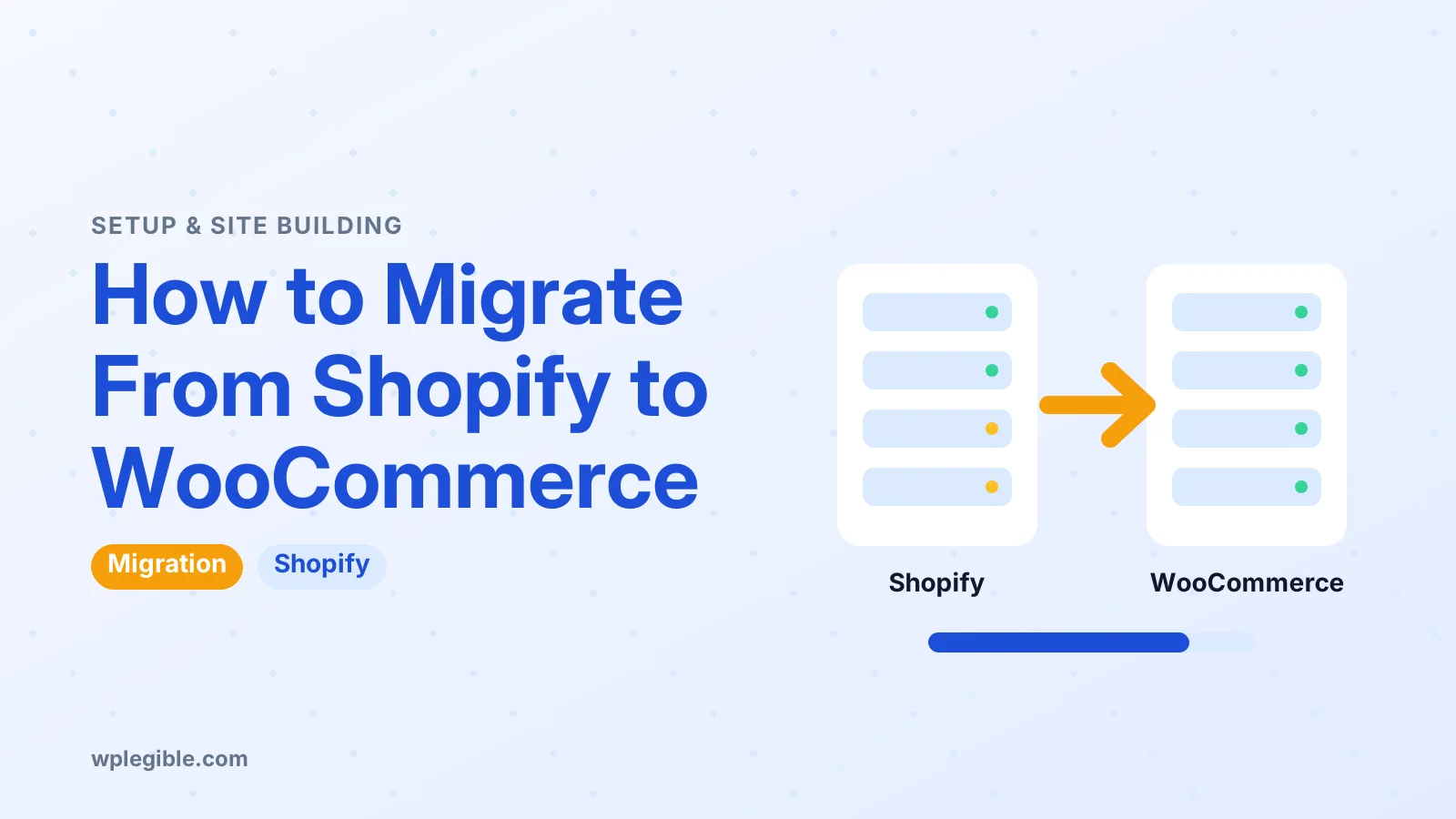
How to Migrate From Shopify to WooCommerce
Short answer
To migrate from Shopify to WooCommerce, back up your Shopify data, set up WordPress and WooCommerce on hosting that meets the server needs, then move products by CSV or with the $79 migration extension. Customers and orders move too, but passwords do not, so plan a password reset, then check payments, shipping, taxes and redirects before launch.
Key takeaways
- Products, customers, orders, coupons, pages and blog posts move, but customer passwords, themes and apps do not.
- WooCommerce is free to install; Shopify Basic costs $39 a month billed monthly or $29 a month billed yearly.
- Shopify CSV exports list product images as URLs and leave out collections, so check both after import.
- The Migrate & Import Shopify to WooCommerce extension costs $79 a year and moves six data types through the API.
- Keep the domain on Shopify until the new store is ready, then update DNS, set up HTTPS and redirect old URLs.
What moves from Shopify to WooCommerce, and what does not?
Products, customers, orders, coupons, pages and blog posts move, but customer passwords, your Shopify theme and your Shopify apps do not.
WooCommerce's own migration guide lists six data types the move covers: products, customers, orders, coupons, pages and blogs, as shown in its Shopify migration guide. Customer passwords stay behind because Shopify does not share them through its API for security reasons, so buyers set a new password on the new store.
Your theme cannot move either. Shopify themes use Liquid templates, while WordPress themes use PHP templates, so you pick a WooCommerce-ready theme and rebuild the design. Apps do not move, but most app jobs have a WordPress plugin that does the same work.
How much does the move cost?
The WooCommerce plugin itself is free, so the move costs your hosting, a domain, payment fees and any paid migration tool you choose.
WooCommerce is open-source software you install on WordPress hosting you rent yourself, and it takes no share of your sales, according to WooCommerce's migration guide.
Compare that with Shopify Basic, which costs $39 a month billed monthly or $29 a month billed yearly in the US, as listed on Shopify's pricing page (checked November 2026).
Payment fees still apply on every order. WooPayments charges US stores 2.9% plus $0.30 per card payment, with no monthly fee, according to WooCommerce's fee documentation. The paid migration extension costs $79 a year, which is the only fee most small stores need to add.
For a full cost picture before you commit, read how much a WooCommerce store costs. It breaks down hosting, extensions and payment fees side by side.
What should you do before you export anything?
Make a full backup of your Shopify data while the old store still runs, and keep the store live until the new one is checked.
Start with the export list in WooCommerce's guide: products, customers, orders, theme files and media, as set out in its Shopify migration guide. Shopify emails large export files to you instead of downloading them in the browser, so check your inbox for each one.
Also write down every app and integration the store uses, with what each one does. A discount app, a reviews app and a shipping app each need a WooCommerce replacement, and the list stops you forgetting one until launch week.
Keep a copy of your current sales and traffic numbers too. You need them later to check that the new store takes the same number of orders after launch.
How do you set up WordPress and WooCommerce first?
Install WordPress on hosting that meets WooCommerce's server needs, then install WooCommerce and run its setup wizard.
WooCommerce 10.8 and later needs WordPress 6.9 or newer, PHP 8.3 or newer, MySQL 8.0 or newer or MariaDB 10.6 or newer, a 256 MB WordPress memory limit and HTTPS, according to WooCommerce's server recommendations (checked November 2026).
WordPress itself recommends PHP 8.3 or newer and MySQL 8.4 or newer or MariaDB 10.11 or newer, as listed on WordPress.org's requirements page.
Install WordPress first, then add WooCommerce from Plugins, then Add New in the dashboard. The setup wizard asks for your store address, currency, product types and payment methods, and it creates the shop, cart and checkout pages for you.
Pick a theme that states WooCommerce support on its page. A theme without that support can still work, but product pages and the cart may look wrong until you fix the templates.
How do you move products with a CSV file?
Export a product CSV from Shopify, reshape its columns to the WooCommerce format, then import it from Products, then Import.
In your Shopify admin, go to Products, then Export, and pick all products or a filtered set, as described in Shopify's export help page. Choose the plain CSV format if you plan to edit the file in a text editor, or the spreadsheet format for Excel or Google Sheets.
Two limits matter. Product images are not inside the CSV file; they are links to image URLs, so the image files must stay online until the import finishes, according to Shopify's export help page.
Collections are not in the export either, so add a Collection column to the file before you import it.
Then open Products, then Import in WooCommerce, choose the file, and check the column mapping screen before you run it. Import a small batch first, open three or four products, and check prices, images and variants before you import the rest.
| Data | Shopify export | What to check after import |
|---|---|---|
| Products | Products, then Export, plain CSV or spreadsheet CSV | Prices, images, variants and stock on a sample |
| Customers | Customers, then Export, names, emails, addresses and tags | Email addresses and addresses on a sample |
| Orders | Orders, then Export, transaction history included | Order totals, dates and statuses on a sample |
| Coupons | Not in a product export | Recreate codes and test one at checkout |
| Media | Not bundled in exports, download from Content, then Files | Images load from the new host, not Shopify URLs |
How do you move customers and orders?
Export customers and orders as CSV files from Shopify, then import them with a plugin, and tell customers to reset their passwords.
Shopify exports customer names, emails, addresses and tags, and order files hold the transaction history, as described in WooCommerce's migration guide. Order files for a large store may arrive by email, so allow time for them.
Passwords cannot move, so plan a password-reset email for the first week after launch. Customers who try their old password will fail to log in, and a clear email with a reset link keeps that from turning into lost orders.
WooCommerce's guide suggests free WordPress plugins for customers and orders, and it names the paid extension for a full move in one place. If you sell subscriptions, read the guide to selling subscriptions with WooCommerce first, since renewals need separate planning from a plain order import.
When should you use the paid migration extension instead?
Use the paid extension when your catalog is large or you want customers, orders, coupons, pages and blog posts moved through the Shopify API in one run.
The Migrate and Import Shopify to WooCommerce extension costs $79 a year and imports six data types through the Shopify API with no CSV files, according to its WooCommerce documentation page (checked November 2026). You connect it with your store URL, API key and API secret key from a Shopify custom app.
The CSV route costs nothing and suits a small catalog you can check by hand. The extension suits a store with hundreds of products, where fixing CSV columns by hand would take days.
One warning from the extension page: it needs a host with enough CPU and memory for the import, since the work is heavy. Ask your host about memory limits before you start a large import.
How do you move payments, shipping and taxes?
Set up WooPayments or Stripe, rebuild your shipping zones and rates, and set your tax rules in WooCommerce before you take orders.
WooCommerce supports major cards, Apple Pay and Google Pay through WooPayments, as noted in WooCommerce's migration guide. For card payments, the guide to setting up Stripe in WooCommerce walks through the connection step by step.
Shipping does not move in a product CSV. Rebuild each shipping zone, rate and free-shipping rule in WooCommerce, then place a test order to an address in each zone. Tax rules need the same treatment: set your tax rates and check them against one real order before launch.
How do you point your domain at the new store?
Keep the domain on Shopify until the new store is ready, then update the DNS records to the new host and set up redirects for old product URLs.
WooCommerce's guide gives two choices: transfer the domain or update the DNS settings to point at the new store, as explained in its Shopify migration guide. Updating DNS is the safer choice, since the domain stays registered where it is.
Set up an SSL certificate and turn on HTTPS before the domain moves. WooCommerce's guide lists an SSL certificate as a step before going live, and browsers warn visitors away from plain HTTP checkout pages.
Old Shopify product URLs will break unless you redirect them. Map each old URL to its new WooCommerce URL, and check the redirects after the DNS change. The guide to moving a WordPress site without losing SEO covers the redirect steps in detail.
What should you check before you go live?
Place test orders, check prices and images on your best-selling products, and confirm emails, taxes and stock counts.
Run through this list on the new store:
- Buy a product with a card, then refund it, and confirm the order email arrives.
- Open your ten best-selling products and check the price, images, variants and stock.
- Check the cart, checkout and thank-you page on a phone.
- Confirm tax totals on orders to each region you ship to.
- Check that coupon codes from Shopify work on the new store.
If a link breaks after the move, the guide to fixing broken links after migration shows where to look first. Keep the Shopify store open in read-only mode for a week after launch, so you can compare any order that looks wrong.
What mistakes cause the most failed migrations?
The common failures are skipping the backup, moving the domain too early, and never testing checkout before launch.
Avoid these five mistakes:
- Importing the whole catalog without checking a small batch first.
- Pointing the domain at the new store before payments and shipping are set up.
- Forgetting that customer passwords do not move, and sending no reset email.
- Leaving product images on Shopify URLs, then closing the Shopify store so the images break.
- Skipping the subscription renewal check, so repeat billing fails after launch.
Plan the move in stages, and give yourself a full week between the first import and launch day. A staged move lets you fix each problem while the old store still takes orders.
Frequently asked questions
How much does it cost to migrate from Shopify to WooCommerce?
The WooCommerce plugin is free, so the main costs are hosting, a domain and payment fees of 2.9% plus $0.30 per US card payment through WooPayments. The paid migration extension costs $79 a year. Compare that with Shopify Basic at $39 a month billed monthly or $29 a month billed yearly.
Can customer passwords move from Shopify to WooCommerce?
No. Shopify does not share customer passwords through its API, so passwords cannot be exported or imported. Customers need to set a new password on the new store, so send a password-reset email in the first week after launch and make the reset link easy to find.
How much does Shopify Basic cost?
Shopify Basic costs $39 a month billed monthly or $29 a month billed yearly in the US, as listed on Shopify's pricing page in November 2026. WooCommerce itself is free, but you pay separately for hosting, a domain and payment processing fees on each order.
Do product images move with a Shopify CSV export?
Yes, if you keep the image URLs online until the import finishes. Shopify product exports list images as URLs rather than files, so the images must stay reachable. After import, check that product images load from your new host and do not still point at Shopify.
When should I point my domain at the new WooCommerce store?
Keep the Shopify store live until the new store is checked, then update the DNS records to point the domain at the new host. Set up HTTPS first, redirect old product URLs to the new ones, and place test orders before you tell customers the new store is open.
Sources
- How to migrate from Shopify WooCommerce
- Migrate & Import Shopify to WooCommerce WooCommerce
- Exporting products Shopify Help Center
- Shopify Pricing Shopify
- WooCommerce Server Recommendations WooCommerce
- Requirements WordPress.org
Is your product missing, or something out of date?
Tell us what to add or correct. We read every note and reply when we need a source. A message does not buy a ranking.
Thanks — we review requests within 3 business days.
Related guides

About the editors
Researched from the primary sources listed above and checked against our editorial rules before publishing.