WooCommerce · Guide
How to Install WooCommerce Plugin in WordPress Manually (Step by Step)
Short answer
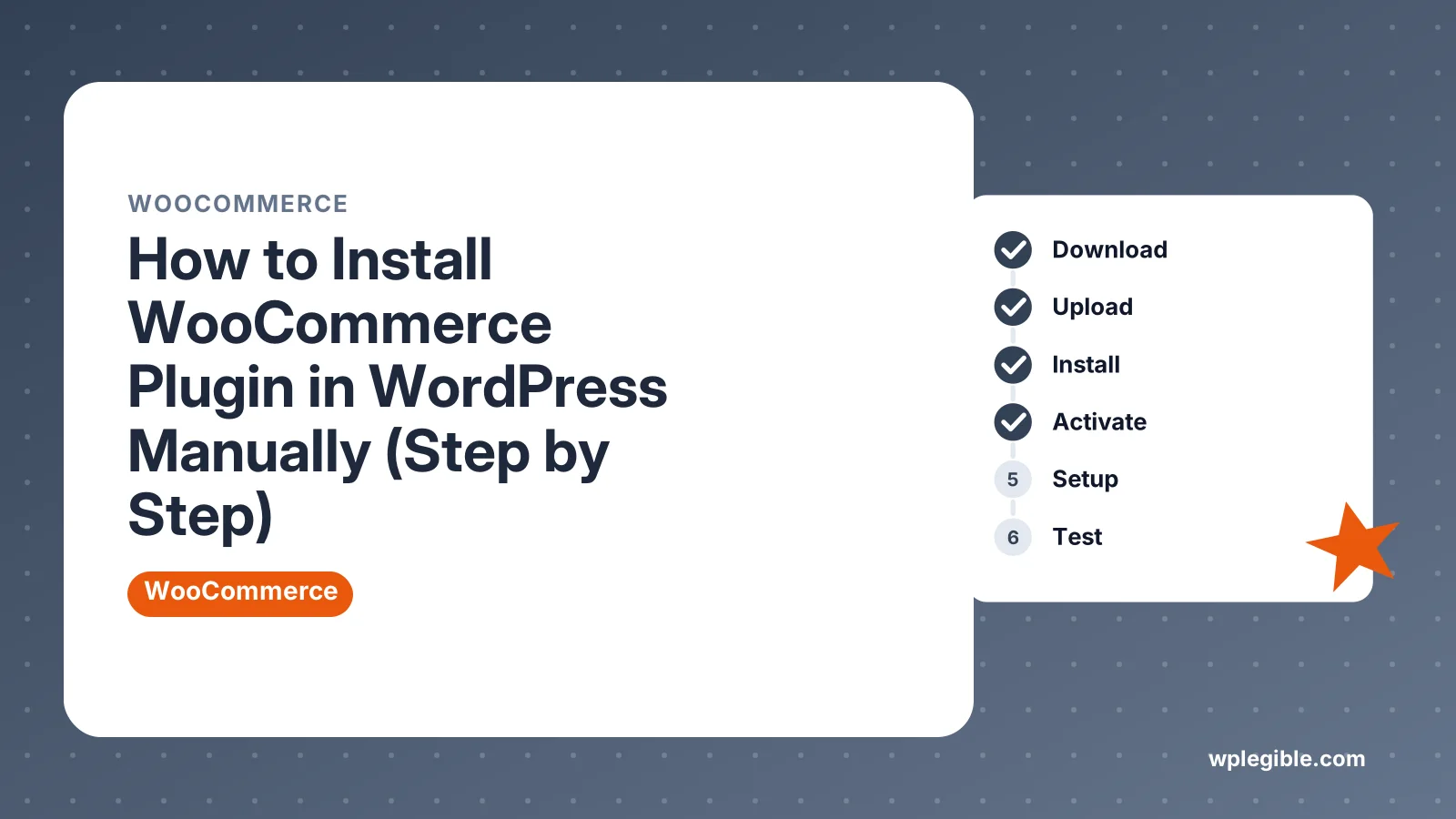
Download the WooCommerce ZIP from the WordPress plugin directory, then go to Plugins, Add New Plugin and click Upload Plugin. Choose the file, click Install Now and then Activate. If the upload fails, copy the unzipped folder to wp-content/plugins with FTP instead.
Key takeaways
- Download WooCommerce only from WordPress.org or WooCommerce.com.
- Upload the ZIP under Plugins > Add New Plugin > Upload Plugin.
- Use FTP if the host's upload size limit blocks the ZIP.
- WP-CLI installs and activates WooCommerce in one command.
- Run the setup wizard and place a test order before launch.
How do you install WooCommerce manually in WordPress?
Download the WooCommerce ZIP file from WordPress.org, go to Plugins > Add New Plugin > Upload Plugin in your dashboard, choose the file, click Install Now, then click Activate.
That is the manual upload method. It is useful when the plugin search does not work, when your site has no outgoing internet access, or when you need a specific WooCommerce version.
If the dashboard upload fails, you can also copy the plugin folder to your server with FTP or install it from the command line with WP-CLI.
| Method | When to use it | What you need |
|---|---|---|
| Upload ZIP in dashboard | Plugin search fails or you need a set version | Admin login and the ZIP file |
| FTP or File Manager | Upload limit is too small or dashboard is broken | FTP or hosting panel access |
| WP-CLI | You work on a server or local dev site | SSH or terminal access |
| Plugin search (automatic) | Normal sites with no restrictions | Admin login only |
What do you need before installing WooCommerce?
You need an admin account on a self-hosted WordPress site, hosting that meets WooCommerce's server requirements, and a recent backup of your site.
WooCommerce runs on WordPress.org sites, not on basic WordPress.com plans without plugin support. Check that you can see the Plugins menu in your dashboard.
WooCommerce publishes its current server requirements, including recommended PHP and database versions. Your host's control panel usually shows which PHP version your site runs.
Store sites use more memory and database queries than blogs. Our guide on what hosting resources WooCommerce needs explains what to look for.
Take a backup before installing any large plugin. If something conflicts, you can roll back in minutes.
Step 1: Download the WooCommerce ZIP file
Go to the WooCommerce page in the WordPress plugin directory and click the Download button to save the latest version as a ZIP file.
The official listing is at wordpress.org/plugins/woocommerce. Download only from there or from your WooCommerce.com account, never from third-party sites.
Unofficial copies may contain malware. They also skip the security review that plugins in the directory go through.
Need an older release? Scroll to the Advanced View link on the plugin page. It lists previous versions you can download, which helps if a new release clashes with your theme.
Do not unzip the file if you plan to upload it in the dashboard. WordPress expects the ZIP as it is.
Step 2: Upload the ZIP in the WordPress dashboard
Log in to wp-admin, go to Plugins > Add New Plugin, click Upload Plugin at the top, choose the ZIP file you downloaded, and click Install Now.
WordPress unpacks the file into wp-content/plugins/woocommerce. A progress screen shows each step as it runs.
The WordPress documentation on managing plugins covers this upload screen and the other plugin options.
If you see a message that the destination folder already exists, WooCommerce is already on the site. Newer WordPress versions offer to replace the current version with the uploaded one, which is handy for rolling back.
Step 3: Activate WooCommerce
Click Activate Plugin on the success screen, or find WooCommerce in the Plugins list and click Activate there.
Activation creates the database tables WooCommerce needs and adds new menu items such as WooCommerce, Products, Payments and Analytics.
You will likely be redirected to the setup screen. You can complete it now or skip it and come back later.
Step 4: Run the setup wizard
Answer the setup questions about your store address, industry, product types and business details, then choose which extras to install.
The wizard creates the key store pages, such as Shop, Cart, Checkout and My Account. Do not delete these pages, because WooCommerce relies on them.
Untick any optional extensions you do not need. You can always add payment, shipping or marketing tools later.
Our guide to WooCommerce settings explained walks through every tab once setup is done.
How do you install WooCommerce with FTP?
Unzip the WooCommerce file on your computer, upload the whole woocommerce folder to wp-content/plugins on your server with an FTP client or File Manager, then activate it under Plugins.
This route skips PHP's upload size limit, which often blocks large ZIP files on cheap hosting. The plugin is large, so the transfer can take a few minutes.
Make sure the folder name is exactly woocommerce and that the main plugin file, woocommerce.php, sits directly inside it. A double folder such as woocommerce/woocommerce will stop WordPress from finding the plugin.
Many hosts let you upload the ZIP through File Manager and extract it on the server. That is faster than sending thousands of small files over FTP.
How do you install WooCommerce with WP-CLI?
Connect to your server or open your local site shell, then run wp plugin install woocommerce --activate from the WordPress folder.
WP-CLI downloads the plugin from WordPress.org and activates it in one step. Add a version flag to install a specific release.
The full list of options is in the wp plugin install command reference. You can also install from a ZIP file path or URL.
This is the fastest method for developers who manage several sites. It also works when the dashboard is slow or broken.
Why does the WooCommerce upload fail?
The most common causes are a file size limit set too low by your host, a timeout during upload, wrong folder permissions, or a missing PHP extension.
Match the error to its cause:
- The uploaded file exceeds the upload_max_filesize directive. Raise the limit or use FTP. PHP's core ini settings define this value.
- The link you followed has expired. Usually post_max_size or the execution time is too low. Our guide on the link you followed has expired explains the fix.
- Could not create directory. File permissions on wp-content/plugins are wrong. Ask your host to correct them.
- Plugin could not be activated because it triggered a fatal error. Your PHP version may be too old, or another plugin conflicts.
- Database update required. WooCommerce needs to update its tables. See how to fix the WooCommerce database update notice.
When an error is unclear, turn on WP_DEBUG_LOG in wp-config.php and check the debug log for the exact message.
What should you do after installing WooCommerce?
Add your first products, set up payments and shipping, check tax settings, choose a compatible theme, and place a test order before you launch.
A working checklist for the first day:
- Payments. Connect at least one gateway, such as Stripe or PayPal.
- Shipping. Create zones and methods for the places you ship to.
- Taxes. Decide whether prices include tax and set rates.
- Theme. Use a theme that supports WooCommerce, or follow how to install a WooCommerce theme.
- Test order. Buy something yourself in test mode to check emails and stock.
Keep the plugin updated, since store plugins handle payments and personal data. Our guide on updating WooCommerce safely covers backups and staging.
How do you check that WooCommerce installed correctly?
Open WooCommerce > Status in the dashboard and review the System Status report, which flags missing pages, outdated templates and server settings that need attention.
Green ticks mean a setting is fine. Red or orange notices point to problems such as a low memory limit or a template your theme overrides with an old copy.
Also visit the Shop, Cart and Checkout pages on the front end. If any of them show a blank area or an error, the theme or a page builder may not be loading WooCommerce blocks correctly.
Note the version number shown on the Plugins screen. Our guide on checking your WooCommerce version shows other places to find it if you need it for support requests.
Is WooCommerce free to install?
Yes, the core WooCommerce plugin is free to download and install, though many stores add paid extensions, themes or payment fees later.
You still pay for hosting, a domain and payment processing fees on each sale. Our guide on whether WooCommerce is free breaks down which costs are optional.
Manual installation does not change the price. It is the same free plugin, just added a different way.
Frequently asked questions
Can I install WooCommerce without the plugin search?
Yes. Download the ZIP from the WordPress plugin directory and upload it under Plugins, Add New Plugin, Upload Plugin. You can also unzip it and copy the folder to the plugins directory with FTP or a hosting file manager.
Where does WooCommerce get installed on the server?
WordPress places it in wp-content/plugins/woocommerce. The main file inside that folder is woocommerce.php. If the folder ends up nested inside another folder with the same name, WordPress will not detect the plugin.
Can I install an older version of WooCommerce manually?
Yes. Open the Advanced View on the WooCommerce plugin page and download a previous version. Upload it and choose to replace the current version. Older versions may miss security fixes, so only use them briefly while you fix a conflict.
Why is the Upload Plugin button missing?
You may not be an administrator, your site may be on a WordPress.com plan without plugin support, or a setting such as DISALLOW_FILE_MODS in wp-config.php may block plugin installs. Check your role and ask your host.
Do I need to deactivate other plugins before installing WooCommerce?
Usually no. Most plugins work alongside WooCommerce. If activation causes errors, deactivate plugins one at a time to find the conflict. Testing on a staging copy first avoids breaking a live site.
Sources
- WooCommerce WordPress.org Plugins
- Server Requirements WooCommerce
- Manage Plugins WordPress.org Documentation
- wp plugin install WordPress Developer Resources
- Description of core php.ini directives PHP Manual
Is your product missing, or something out of date?
Tell us what to add or correct. We read every note and reply when we need a source. A message does not buy a ranking.
Thanks — we review requests within 3 business days.
Related guides



About the editors
Researched from the primary sources listed above and checked against our editorial rules before publishing.