Plugin how-tos · Guide
How to Install GeneratePress Theme (Step by Step)
Short answer
In your dashboard, go to Appearance, Themes, Add New Theme and search for GeneratePress. Click Install, then Activate. If you bought the premium version, keep this free theme active and upload GP Premium as a plugin on the Plugins screen.
Key takeaways
- The free GeneratePress theme installs from Appearance > Themes > Add New Theme.
- Upload the ZIP with Upload Theme if the directory search is blocked.
- GP Premium is a plugin, not a theme, and needs the free theme active.
- Add the official child theme only if you plan to edit code.
- Starter sites need the premium Site Library module.
How do you install the GeneratePress theme?
Go to Appearance > Themes > Add New Theme, search for GeneratePress, click Install on the theme by Tom Usborne, then click Activate.
The free GeneratePress theme lives in the WordPress.org directory, so you can install it from your dashboard in under a minute.
GeneratePress is known for being small and fast. It loads very little code by default and leaves the design work to the Customizer, blocks or a page builder.
You can see the theme's details and version history on the GeneratePress page on WordPress.org.
What do you need before installing GeneratePress?
You need a self-hosted WordPress site, an administrator account, recent WordPress and PHP versions, and a backup if the site already has content.
Checklist:
- Administrator access. Other roles cannot install or switch themes.
- Updated WordPress. Run core updates first to avoid version warnings.
- A backup. A theme switch changes the look instantly and may move widgets and menus around.
- A plan for layouts. GeneratePress works well with the block editor, GenerateBlocks and page builders like Elementor.
New to the theme? Our explainer on what GeneratePress does gives a quick overview.
If you are deciding between the free and paid versions, read is GeneratePress free before you buy anything.
How do you install GeneratePress from the dashboard?
Open Appearance > Themes, click Add New Theme, search for GeneratePress, click Install, then click Activate.
Steps:
- Log in to your WordPress dashboard.
- Go to Appearance > Themes.
- Click Add New Theme.
- Type GeneratePress in the search box.
- Hover over the theme and click Install.
- Click Activate when the install finishes.
Your site now runs GeneratePress. The default design is simple: a header, a content area, a sidebar and a footer.
WordPress explains this screen in its Work with themes guide.
To look before you switch on a live site, click Live Preview instead of Activate. Visitors keep seeing the old theme until you activate.
The preview opens the Customizer with GeneratePress applied. You can click around your pages and even change settings, and nothing is saved unless you choose Activate & Publish.
Once active, the old theme stays installed but inactive. You can switch back any time from the same Themes screen if you change your mind.
How do you install GeneratePress with a ZIP file?
Download the GeneratePress ZIP, go to Appearance > Themes > Add New Theme > Upload Theme, choose the file, click Install Now and then Activate.
Use this method if the directory search is blocked or slow on your host.
Steps:
- Download the ZIP from the WordPress.org theme page.
- Go to Appearance > Themes > Add New Theme.
- Click Upload Theme.
- Select the ZIP and click Install Now.
- Click Activate.
Upload the ZIP exactly as downloaded. If you unzip it and zip it again, you may end up with a folder inside a folder, which WordPress rejects.
You can also copy the unzipped generatepress folder into wp-content/themes with FTP. Our guide on getting FTP access to WordPress shows how to connect.
Should you install a GeneratePress child theme?
Use a child theme only if you plan to add custom PHP or edit template files; Customizer settings and most design changes survive theme updates without one.
GeneratePress offers a ready-made blank child theme in its documentation. You install it the same way as any ZIP theme, with the parent theme still installed.
Steps:
- Keep GeneratePress installed.
- Download the child theme ZIP from the GeneratePress documentation.
- Upload it under Appearance > Themes > Add New Theme > Upload Theme.
- Activate the child theme, not the parent.
Set this up before you customize. Switching to a child theme later can reset some theme options, because they are stored per theme.
Learn more in our guide on what a child theme is, or read the WordPress child themes handbook.
How is installing GeneratePress Premium different?
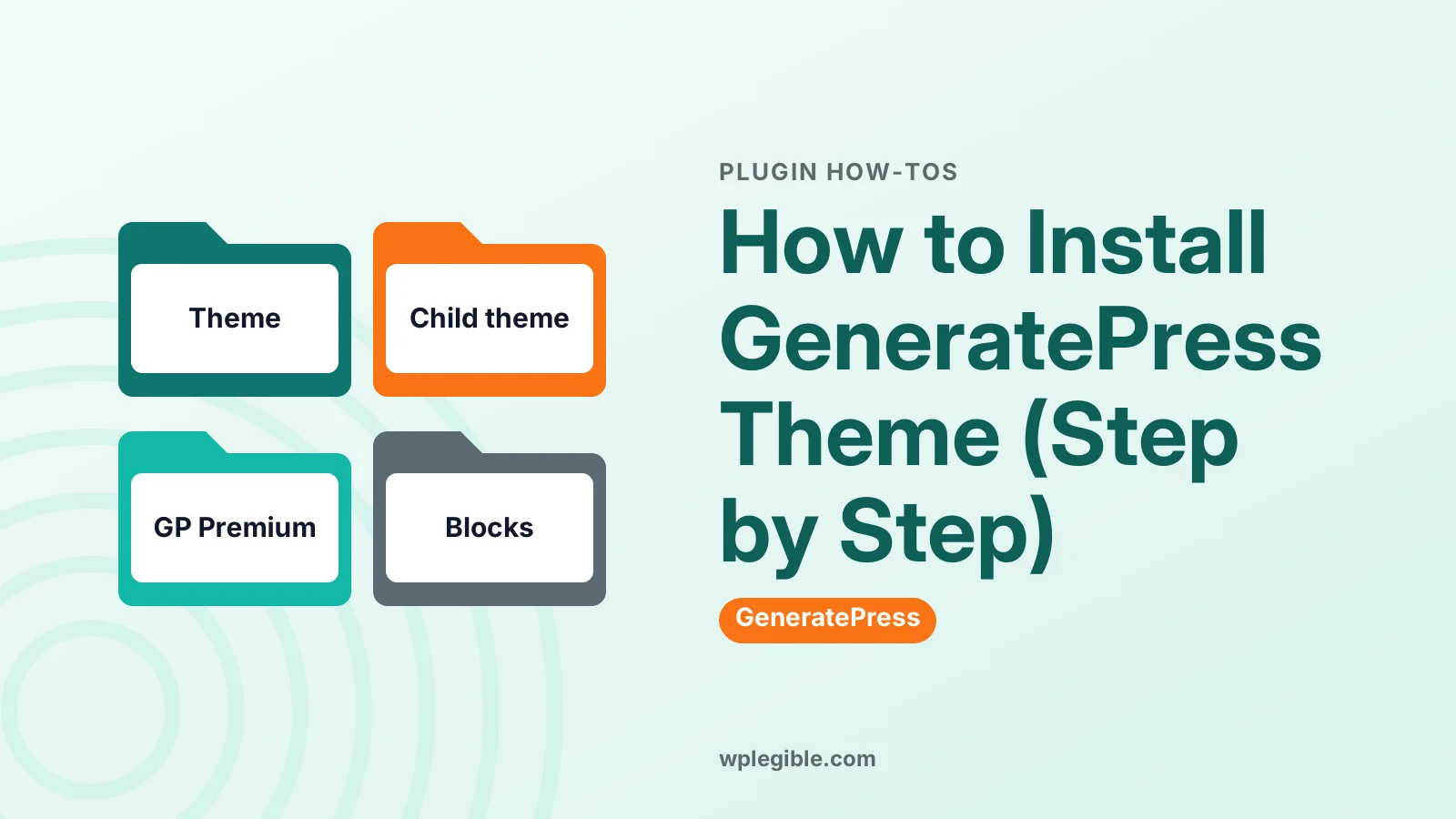
GeneratePress Premium is a plugin called GP Premium that you upload on the Plugins screen, while the free theme stays installed and active underneath it.
That is the most common mix-up. The premium ZIP will not install on the Themes screen.
| Item | Type | Where to install |
|---|---|---|
| GeneratePress | Theme | Appearance > Themes > Add New Theme |
| GeneratePress child theme | Theme | Appearance > Themes > Upload Theme |
| GP Premium | Plugin | Plugins > Add New Plugin > Upload Plugin |
| GenerateBlocks | Plugin | Plugins > Add New Plugin |
GP Premium adds modules such as the Site Library, Elements, extra typography and more colors. You turn modules on under Appearance > GeneratePress.
Our step-by-step guide to installing GeneratePress Premium covers the license key and modules. The official GeneratePress install and update docs cover the same process.
What should you set up right after installing GeneratePress?
Set your colors and fonts, add your logo, choose sidebar layouts, assign menus, and check the site on a phone.
Most settings live in Appearance > Customize:
- Site Identity. Upload a logo and site icon.
- Colors. Set the global color palette.
- Typography. Pick system fonts or Google fonts.
- Layout. Choose container width, sidebars and footer widgets.
- Menus. Assign your primary menu.
GeneratePress also adds an Appearance > GeneratePress screen. In the free version it links to documentation and shows which premium modules exist.
The Customizer saves nothing until you click Publish, so you can test freely.
A good order is to set colors and fonts first, then the header, then layouts. Global choices made early flow into every page, so you edit less later.
If you use a page builder such as Elementor, set the page layout to full width with no sidebar for builder pages. GeneratePress has a Layout box in the page editor sidebar for exactly this, so one page can be full width while blog posts keep the sidebar.
Keep the theme updated from Dashboard > Updates. GeneratePress releases are small and usually safe, but take a backup before major version jumps, just as you would for any theme.
For a full walkthrough of these screens, see our guide on how to use GeneratePress in WordPress.
How do you add a starter site to GeneratePress?
Starter sites come from the GeneratePress Site Library, which is a premium module, so you need GP Premium active before you can import one.
With GP Premium active:
- Go to Appearance > GeneratePress.
- Turn on the Site Library module.
- Open the Site Library and browse the designs.
- Choose a site and start the import.
The importer may install GenerateBlocks or other plugins the design relies on. On a site with real content, test the import on a staging copy first.
Our guide on setting up a staging site explains how to make one.
A full import can replace your homepage setting, menus and Customizer options. Importing on staging lets you see the result before your real site changes.
If you stay on the free theme, build your homepage with blocks instead. The free GenerateBlocks plugin adds containers, grids and buttons that pair well with the theme.
Why won't GeneratePress install or activate?
The usual causes are a blocked connection to WordPress.org, uploading the GP Premium ZIP as a theme, an upload size limit, or an old PHP version.
Quick fixes:
- Search returns nothing. Your host may block the directory. Upload the ZIP instead.
- The package could not be installed. Check you are not uploading GP Premium on the Themes screen.
- Missing style.css error. The ZIP has an extra folder level. Download a fresh copy.
- Requires a newer PHP version. Ask your host to switch PHP. The PHP supported versions page shows which versions still get fixes.
- Site looks unchanged. Clear your cache plugin and CDN, then reload.
If you see a critical error, turn on logging with our guide to enabling debug mode and read the first message.
Frequently asked questions
Is GeneratePress free to install?
Yes. The GeneratePress theme is free in the WordPress.org directory. The paid GP Premium plugin adds modules like the Site Library and Elements, but the free theme works fully on its own.
Do I need to uninstall my old theme first?
No. Install and activate GeneratePress, and the old theme simply becomes inactive. You can delete unused themes later, but keep one default WordPress theme installed as a fallback.
Will GeneratePress keep my posts and pages?
Yes. Themes do not store your content, so posts, pages and media stay. Menus and widgets may need reassigning because each theme has its own menu locations and widget areas.
Can I install GP Premium without the free theme?
No. GP Premium adds features to the GeneratePress theme, so the free theme or a GeneratePress child theme must be active. Without it, most premium modules do not appear.
How do I update GeneratePress later?
The free theme updates from Dashboard > Updates like any WordPress.org theme. GP Premium updates the same way once your license key is active on the GeneratePress settings screen.
Sources
- GeneratePress theme WordPress.org
- Install and update GeneratePress Docs
- Work with themes WordPress.org
- Child themes WordPress Developer Resources
- GenerateBlocks plugin WordPress.org
Is your product missing, or something out of date?
Tell us what to add or correct. We read every note and reply when we need a source. A message does not buy a ranking.
Thanks — we review requests within 3 business days.
Related guides



About the editors
Researched from the primary sources listed above and checked against our editorial rules before publishing.