Plugin how-tos · Guide
How to Install Fluent Forms Pro (Step by Step)
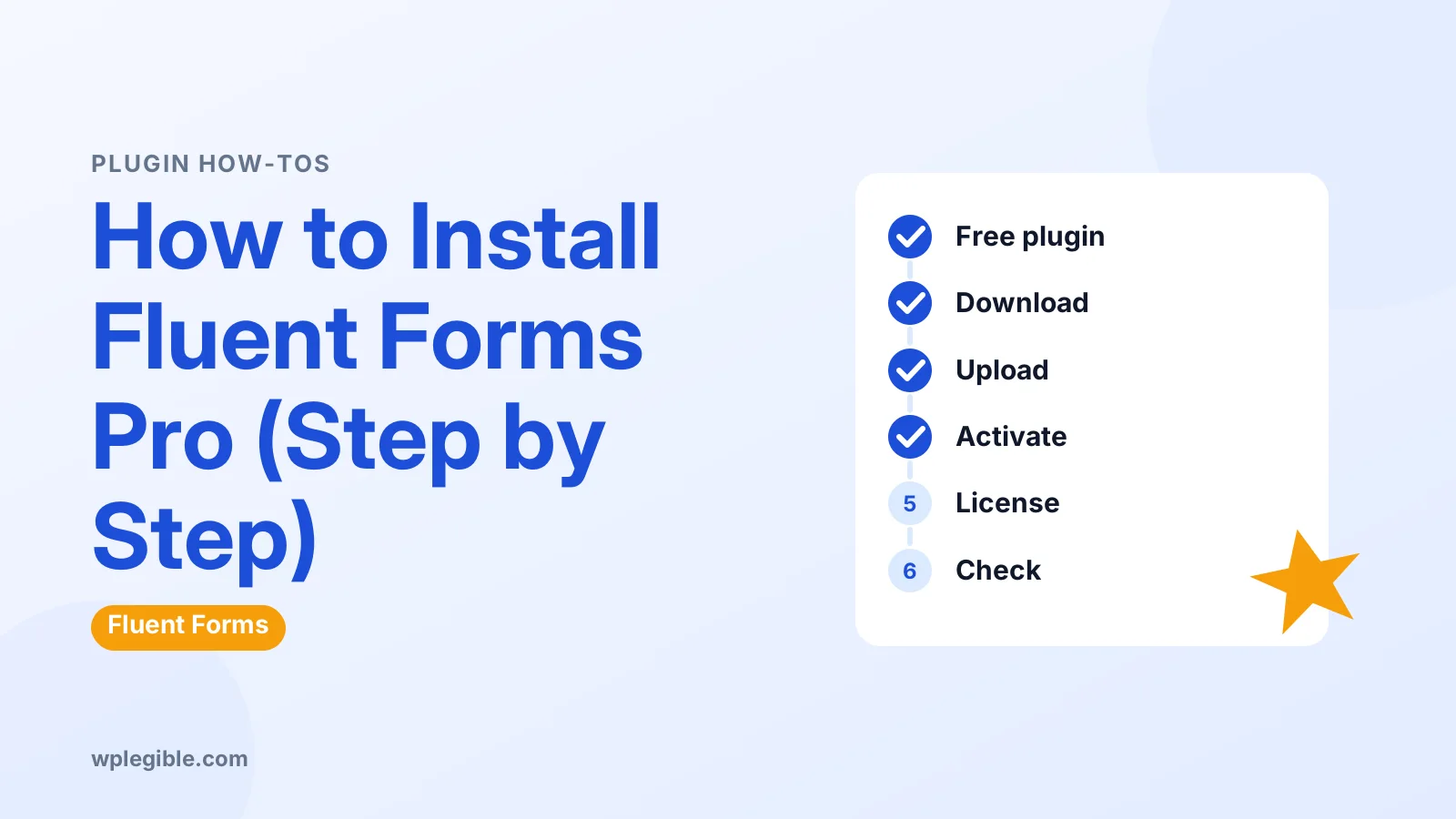
Short answer
Install and activate the free Fluent Forms plugin from Plugins > Add New. Then download the Pro add-on zip from your Fluent Forms account, upload it with Plugins > Add New > Upload Plugin, activate it, and paste your license key into the Fluent Forms license screen to enable updates.
Key takeaways
- Fluent Forms Pro is an add-on, so the free Fluent Forms plugin must be active too.
- Download the Pro zip and license key from your Fluent Forms account.
- Upload the zip in Plugins > Add New > Upload Plugin without unzipping it.
- Activate the license key to receive updates and support.
- Upload size errors can be fixed by your host or by installing over FTP.
- Deactivate the license on an old site before moving it to a new one.
How do you install Fluent Forms Pro?
Install the free Fluent Forms plugin first, download the Pro add-on zip from your Fluent Forms account, upload it in Plugins > Add New > Upload Plugin, activate it, then enter your license key.
Fluent Forms Pro is not a separate, standalone form plugin. It is an add-on that adds extra features in the free Fluent Forms plugin from WordPress.org. Both must be installed and active.
That two-part setup is the main thing that confuses people. If you upload only the Pro zip, it will ask you to install the free plugin before it works.
This guide walks through the whole process, from purchase to license activation, plus what to do if something goes wrong.
What do you need before you start?
You need an active Fluent Forms Pro purchase, access to your Fluent Forms account to download the zip and license key, and an administrator login on your WordPress site.
A short checklist:
- A Pro license. Bought from the official Fluent Forms site. Plans differ mainly by the number of sites. See how much Fluent Forms costs for the plan structure.
- Your account login. The zip file and license key live in your customer account.
- WordPress admin access. Only administrators can install plugins.
- A recent backup. Good practice before adding any plugin.
- Up-to-date WordPress and PHP. Check the plugin's requirements on its WordPress.org page.
Only buy from the official site. Pro zips offered on marketplaces or nulled download sites can contain malware and will not receive updates or support.
If you are still deciding, read is Fluent Forms free to see what the free version already includes.
Step 1: Install the free Fluent Forms plugin
Go to Plugins > Add New, search for Fluent Forms, click Install Now on the plugin by WPManageNinja, then click Activate.
Steps:
- In your dashboard, go to Plugins > Add New.
- Type Fluent Forms in the search box.
- Find the plugin named Fluent Forms and check the author is WPManageNinja.
- Click Install Now.
- Click Activate.
A new Fluent Forms menu appears in the dashboard sidebar. You may see a short welcome or setup screen, which you can complete or skip.
If you already use the free version, skip this step. Your existing forms stay in place when you add Pro.
Step 2: Download the Fluent Forms Pro zip file
Log in to your account on the Fluent Forms website, open your downloads or purchases area, and download the Fluent Forms Pro zip file to your computer.
After purchase, you receive an email with account details. Log in to the customer dashboard linked from the Fluent Forms website.
In the account area you will find:
- Your downloads. A button to download the latest Pro add-on as a zip.
- Your license key. A long string you will paste into WordPress later.
- Site activations. A list of sites using the license.
Do not unzip the file. WordPress needs the zip as it is.
Some browsers, especially Safari on macOS, unzip downloads automatically. If that happens, turn off that browser option or compress the folder again.
Step 3: Upload and activate Fluent Forms Pro
Go to Plugins > Add New, click Upload Plugin, choose the Pro zip, click Install Now, then click Activate Plugin.
Steps:
- Go to Plugins > Add New.
- Click Upload Plugin at the top of the screen.
- Click Choose File and select the Fluent Forms Pro zip.
- Click Install Now.
- When the upload finishes, click Activate Plugin.
The official guide to upgrading to the Pro add-on shows the same flow with screenshots. WordPress's own plugin management documentation covers uploading zips in general.
If WordPress says the destination folder already exists, an older copy is already installed. Our guide on fixing destination folder already exists explains how to replace it safely.
Step 4: Activate your license key
After activating Pro, paste your license key into the Fluent Forms license screen and click activate, which turns on automatic updates and support for that site.
Fluent Forms usually shows a notice prompting you to activate your license once Pro is active. Click it, or find the license section within the Fluent Forms settings area.
Steps:
- Copy your license key from your Fluent Forms account.
- Open the license screen from the admin notice or the Fluent Forms settings.
- Paste the key into the license field.
- Click the button to activate the license.
- Confirm the status shows as active.
Fluent Forms keeps a help article on where to enter the license key in case the menu location changes in a new version.
Pro features generally work after activation, but without an active license you will not receive updates. Running outdated plugins is a security risk, so always activate the key.
Step 5: Check that Pro features are available
Open Fluent Forms, create or edit a form, and confirm that Pro fields, conditional logic and premium integrations are no longer locked.
Quick checks:
- Pro fields. In the form editor, fields such as file upload, repeat fields or payment fields should be usable rather than marked as Pro.
- Integrations. Go to the integrations area and confirm premium modules can be switched on.
- Advanced logic. Conditional logic and calculations should be available in field settings.
If features still look locked, clear any caching plugin and reload the page. Then confirm both the free plugin and the Pro add-on are active on the Plugins screen.
Once everything works, our guide on how to use Fluent Forms in WordPress shows how to build your first form.
How do the free and Pro plugins work together?
The free plugin provides the form builder and core features, while the Pro add-on adds advanced fields, integrations and logic, so both must stay active and up to date.
| Item | Free Fluent Forms | Fluent Forms Pro add-on |
|---|---|---|
| Where it comes from | WordPress.org | Your Fluent Forms account |
| Installed via | Plugins > Add New search | Upload Plugin with zip |
| Needs a license key | No | Yes, for updates and support |
| Works alone | Yes | No, needs the free plugin |
| Updates | WordPress.org | Through the activated license |
Keep the two in sync. When you update one, check for an update to the other. Mismatched versions are a common cause of odd behavior after updates.
What should you do if installation fails?
Most failures come from an upload size limit, a mismatched or unzipped file, a missing free plugin, or an inactive license, and each has a straightforward fix.
Common problems:
- The uploaded file exceeds the upload_max_filesize directive. Your server's upload limit is too low. Ask your host to raise it, or upload the unzipped plugin folder to wp-content/plugins/ with FTP.
- The package could not be installed. The file is probably unzipped or corrupted. Download the zip again.
- Pro asks for the free plugin. Install and activate free Fluent Forms first.
- License will not activate. Check you copied the full key without spaces and that your plan has a free site slot. Deactivate the license on an old site if needed.
- Features still locked. Clear caches and confirm both plugins are active.
If a feature such as notifications or logic misbehaves after setup, see our guides on Fluent Forms email notifications not working and conditional logic issues.
How do you move Fluent Forms Pro to another site?
Deactivate the license on the old site, install the free plugin and Pro add-on on the new site, then activate the same key there.
Each license covers a set number of sites. Moving a site, such as from staging to live, can use up a slot if you forget to deactivate the old one.
Fluent Forms also lets you manage site activations from your account dashboard. The help article on transferring a license between domains explains the process.
Your forms move with the site's database when you migrate. Fluent Forms also has an export and import tool if you only want to copy forms between sites.
Frequently asked questions
Do I need the free Fluent Forms plugin to use Pro?
Yes. Fluent Forms Pro is an add-on that extends the free plugin from WordPress.org. Install and activate the free plugin first, then upload and activate the Pro add-on. Both need to stay active for Pro features to work.
Where do I find my Fluent Forms Pro license key?
Your license key is in your customer account on the Fluent Forms website, usually alongside your downloads and purchase details. It is also often included in the purchase confirmation email. Copy the full key without extra spaces before pasting it into WordPress.
Will installing Pro delete my existing forms?
No. Your forms, entries and settings are stored by the free plugin and stay in place. Adding the Pro add-on only adds more fields, integrations and features. Take a backup before installing any plugin as a general precaution.
What happens if my Fluent Forms Pro license expires?
Pro features generally keep working, but you stop receiving updates and support. Outdated plugins can develop security and compatibility problems over time, so renew the license or plan to replace the plugin before running old versions for long.
Can I install Fluent Forms Pro on a staging site?
Yes, but staging activations may count toward your site limit depending on your plan. Check the license terms in your account. Deactivate the license on staging when you finish testing so you can activate it on the live site.
Sources
- Fluent Forms WordPress.org
- Upgrade to Pro add-on Fluent Forms Docs
- Where do I enter the Fluent Forms license key? WPManageNinja
- How to transfer a license from one domain to another WPManageNinja
- Manage plugins WordPress.org
Is your product missing, or something out of date?
Tell us what to add or correct. We read every note and reply when we need a source. A message does not buy a ranking.
Thanks — we review requests within 3 business days.
Related guides



About the editors
Researched from the primary sources listed above and checked against our editorial rules before publishing.