WooCommerce · Guide
How to Find WooCommerce Product ID (Step by Step)
Short answer
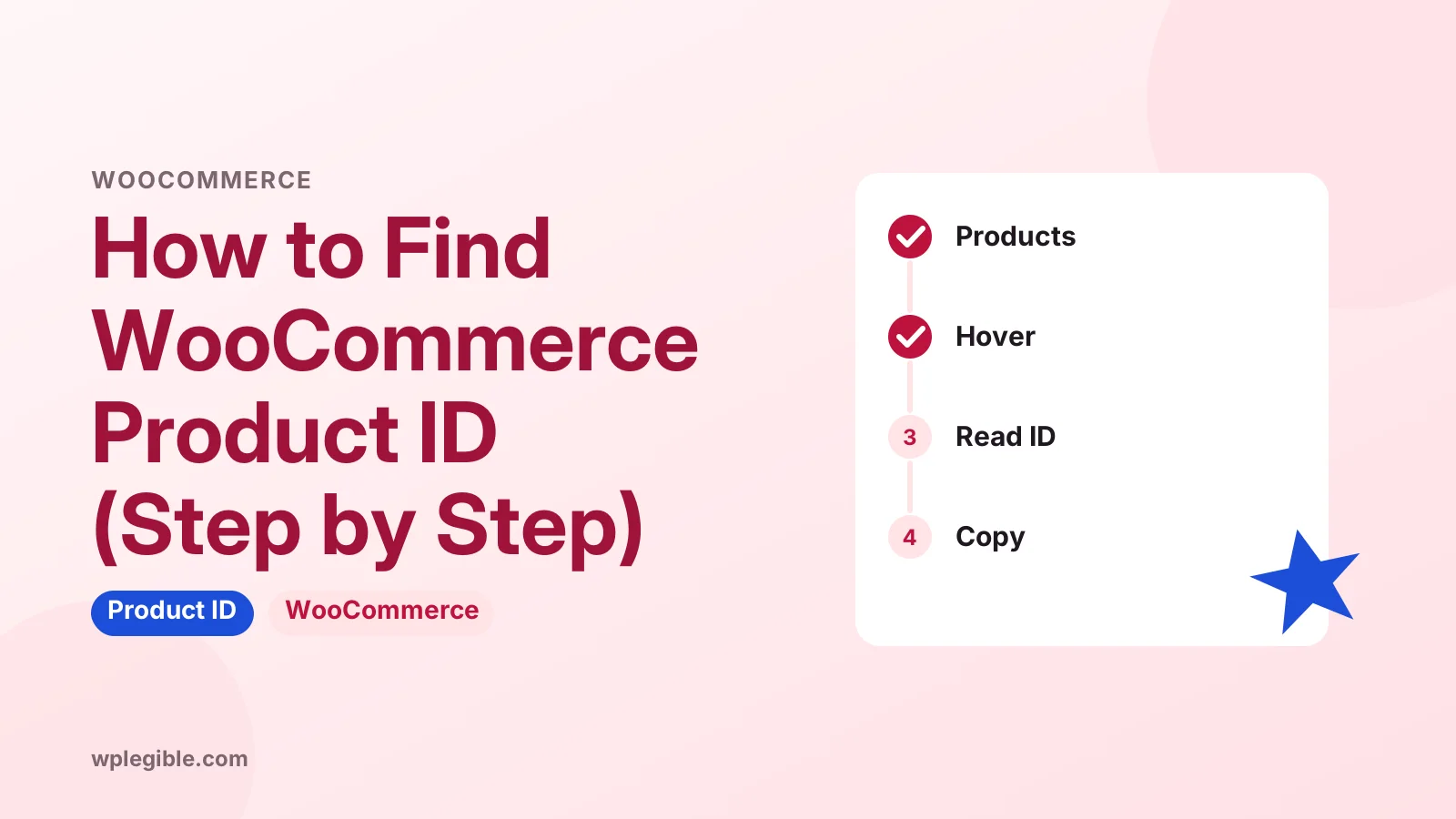
Go to Products, then All Products in your WordPress dashboard and hover over the product name. The ID appears as ID: followed by a number below the name. You can also open the product and read the number after post= in the browser address bar.
Key takeaways
- Hover over a product in Products > All Products to see its ID.
- The number after post= in the edit URL is the product ID.
- Variation IDs appear with a # sign in the Variations tab.
- A CSV export lists IDs for every product and variation at once.
- Product IDs are automatic; SKUs are codes you set yourself.
What is a WooCommerce product ID?
A WooCommerce product ID is the unique number WordPress gives each product when it is saved, and you can see it in the Products list, the edit screen URL or your store's export file.
Products in WooCommerce are stored as a custom post type called product. That means each product gets a post ID from the same counter that numbers your posts, pages and media.
So a product ID of 1532 does not mean you have 1,532 products. It simply means that was the next free ID in the database when the product was created.
You need the ID for many everyday jobs. Shortcodes, coupon rules, import files, tracking scripts, custom code and some plugin settings all ask for it.
If you are new to how WooCommerce stores data, our guide on what WooCommerce does explains the basics.
How do you find a product ID in the Products list?
The quickest way is to go to Products > All Products in your dashboard and hover over a product name, where WooCommerce shows ID: 123 in the small row of links below it.
Here is the full process:
- Log in to your WordPress dashboard.
- Go to Products > All Products.
- Move your mouse over the product name.
- Look at the grey line that appears under the name. It starts with ID: followed by the number.
That row also holds the Edit, Quick Edit, Trash, View and Duplicate links. The ID sits at the very start.
If you have hundreds of products, use the search box at the top right of the Products screen first. Filter by name or SKU, then hover over the result.
On a phone or tablet there is no hover. Tap the product row and the links, including the ID, usually appear below the name.
How do you find the product ID in the edit screen URL?
Open the product for editing and look at your browser's address bar, where the number after post= is the product ID.
A typical edit URL looks like this:
https://example.com/wp-admin/post.php?post=1532&action=editIn that example the product ID is 1532.
This method works for every post type in WordPress, so it is handy when a plugin hides the hover links or your admin screen is customised.
It also helps when a colleague sends you a link to a product edit page. You can read the ID straight from the link without opening anything.
How do you find the ID of a product variation?
Variation IDs are shown in the Variations panel of a variable product, where each variation row starts with a hash sign and a number such as #1540.
To see them:
- Edit the variable product.
- Scroll down to the Product data box.
- Click the Variations tab.
- Read the number shown at the start of each variation row.
Each variation is stored as its own post of type product_variation. Its parent product keeps a separate ID.
This matters when you set up coupons, stock syncing or feeds. Some tools want the parent ID, while others need the exact variation ID for a size or colour.
If you use colour or image swatches, the IDs stay the same. Swatch plugins change how variations look, not how they are stored. Our explainer on variation swatches for WooCommerce covers that in more detail.
How do you find a product ID on the front end of your store?
You can find a product ID on the live product page by using your browser's inspect tool and looking for the postid- class on the body tag or the data-product_id attribute on the add to cart button.
Steps in Chrome, Edge or Firefox:
- Open the product page on your store.
- Right-click anywhere on the page and choose Inspect.
- Look at the opening body tag. Most themes add a class like postid-1532.
- Or right-click the Add to cart button, choose Inspect, and look for data-product_id.
Google's Chrome DevTools documentation explains the inspector if you have not used it before.
This method is useful when you do not have admin access, for example when you are helping a client or setting up tracking on a site you only view.
Be aware that some themes and page builders change the body classes. If you do not see postid-, search the page source for product_id instead.
How do you get product IDs for many products at once?
The fastest way to collect many IDs is to export your products to CSV from Products > All Products > Export, because the file includes an ID column for every product and variation.
WooCommerce's built-in product CSV importer and exporter handles this without an extra plugin.
- Go to Products > All Products.
- Click Export at the top of the screen.
- Choose which columns and product types to include. Keep ID, Type, SKU and Name at minimum.
- Click Generate CSV and open the file in a spreadsheet app.
Variation rows include a Parent column, so you can match each variation to its main product.
This is also the safest way to build a list for bulk edits, feeds or migrations. Our guide on how to export WooCommerce products walks through the export options.
How do developers get a product ID in code?
In PHP you can get a product ID with the get_id() method on a WooCommerce product object, or with the core get_the_ID() function inside the loop on a single product page.
Two common examples:
// Inside a single product template or the loop
$product_id = get_the_ID();

// When you already have a product object
global $product;
$product_id = $product->get_id();
The WordPress get_the_ID() reference explains how the core function behaves inside and outside the loop.
To look up a product by its SKU, WooCommerce provides wc_get_product_id_by_sku(). It returns the ID, or zero if no product uses that SKU.
$product_id = wc_get_product_id_by_sku( 'TSHIRT-RED-M' );If you work with the REST API, product IDs come back in the id field of each product. The WooCommerce REST API docs list the products endpoint and its fields.
Always test code snippets on a staging site first, and add them through a child theme or a code snippets plugin rather than editing core files.
Can you find product IDs in the database?
Yes, product IDs are stored in the ID column of the wp_posts table, and you can filter for them in phpMyAdmin by setting post_type to product or product_variation.
A simple read-only query looks like this:
SELECT ID, post_title, post_status
FROM wp_posts
WHERE post_type = 'product'
ORDER BY ID DESC;
Your table prefix may differ from wp_. Check the $table_prefix line in wp-config.php if the query fails.
Only run SELECT queries unless you know exactly what you are doing. Take a database backup before any change. Our guide on how to query the WordPress database covers safe practice.
Note that turning on High-Performance Order Storage moves orders into their own tables, but products stay in wp_posts. The product ID method above still works with HPOS on.
What is the difference between a product ID and a SKU?
A product ID is an automatic number WordPress assigns and you cannot normally change, while a SKU is a stock code you choose yourself and can edit at any time.
| Product ID | SKU | |
|---|---|---|
| Who sets it | WordPress, automatically | You or your supplier |
| Can you edit it | No, not safely | Yes, in the Inventory tab |
| Format | Whole number | Letters, numbers, dashes |
| Unique | Always unique site-wide | Must be unique among products |
| Survives migration | Can change on import to a new site | Stays the same if exported |
| Common uses | Shortcodes, code, coupon rules | Inventory, feeds, suppliers |
If you move products to a new store, IDs can change because the new database has its own counter. SKUs travel with the export, so they are a better key for matching products between systems.
That is why most import tools and marketplaces prefer SKUs, while WordPress features such as shortcodes still use IDs.
Where will you use a WooCommerce product ID?
You will mostly use product IDs in shortcodes, coupon settings, custom code, analytics tags and plugin settings that target specific products.
A few common examples:
- Shortcodes: the WooCommerce shortcode [products ids=“1532,1540”] shows chosen products on any page. See our explainer on what a shortcode is if these are new to you.
- Add to cart links: a link like ?add-to-cart=1532 adds that product to the cart.
- Coupons: product restrictions let you pick products by name, but some imports and APIs need IDs.
- Tracking: analytics and ad pixels often send product IDs as item identifiers.
- Custom code: conditions like if ( is_product() && get_the_ID() === 1532 ) run code on one product only.
When a field asks for several IDs, separate them with commas and no extra spaces unless the plugin says otherwise.
Why can't you see the product ID?
If the ID is missing, a plugin, a custom admin theme or a restricted user role is usually hiding the row actions, so use the edit URL or a CSV export instead.
Check these points:
- User role: shop managers can see IDs, but some custom roles have limited access to the Products screen.
- Admin plugins: white-label and admin-cleanup plugins sometimes remove hover links.
- Mobile view: tap the product row instead of hovering.
- Screen Options: some plugins add an ID column you can switch on from Screen Options at the top right.
If none of that helps, the edit URL method always works because WordPress needs the post number to load the edit screen.
Product IDs are also handy when you troubleshoot store problems. If a single item misbehaves, our guide on fixing products not showing in the shop page uses IDs to isolate the cause.
Frequently asked questions
Where is the product ID in WooCommerce?
Go to Products, then All Products, and hover over the product name. A grey row of links appears under the name and starts with ID followed by the number. You can also read the number after post= in the edit screen URL.
Can I change a WooCommerce product ID?
Not safely. The ID is the post ID WordPress assigns in the database, and orders, variations, images and other records point to it. If you need a code you control, use the SKU field in the Inventory tab instead.
Is the product ID the same as the SKU?
No. The product ID is an automatic number from WordPress, while the SKU is a stock code you type in yourself. Both are unique, but only the SKU can be edited and stays the same when you move products to another store.
How do I find the ID of a product variation?
Edit the variable product, open the Variations tab in the Product data box and look at the number with a hash sign at the start of each variation row. That number is the variation ID, which is different from the parent product ID.
Why do my product IDs skip numbers?
Products share the same ID counter as posts, pages, media, revisions and other content. Every time any of those items is created, the counter moves up, so product IDs are rarely in a neat sequence. This is normal and does not cause any problems.
Sources
- Product CSV Importer and Exporter WooCommerce
- get_the_ID() function reference WordPress Developer Resources
- WooCommerce REST API documentation WooCommerce
- Chrome DevTools Chrome for Developers
Is your product missing, or something out of date?
Tell us what to add or correct. We read every note and reply when we need a source. A message does not buy a ranking.
Thanks — we review requests within 3 business days.
Related guides



About the editors
Researched from the primary sources listed above and checked against our editorial rules before publishing.