Blogging & content · Guide
How to Embed X Post in WordPress (Step by Step)
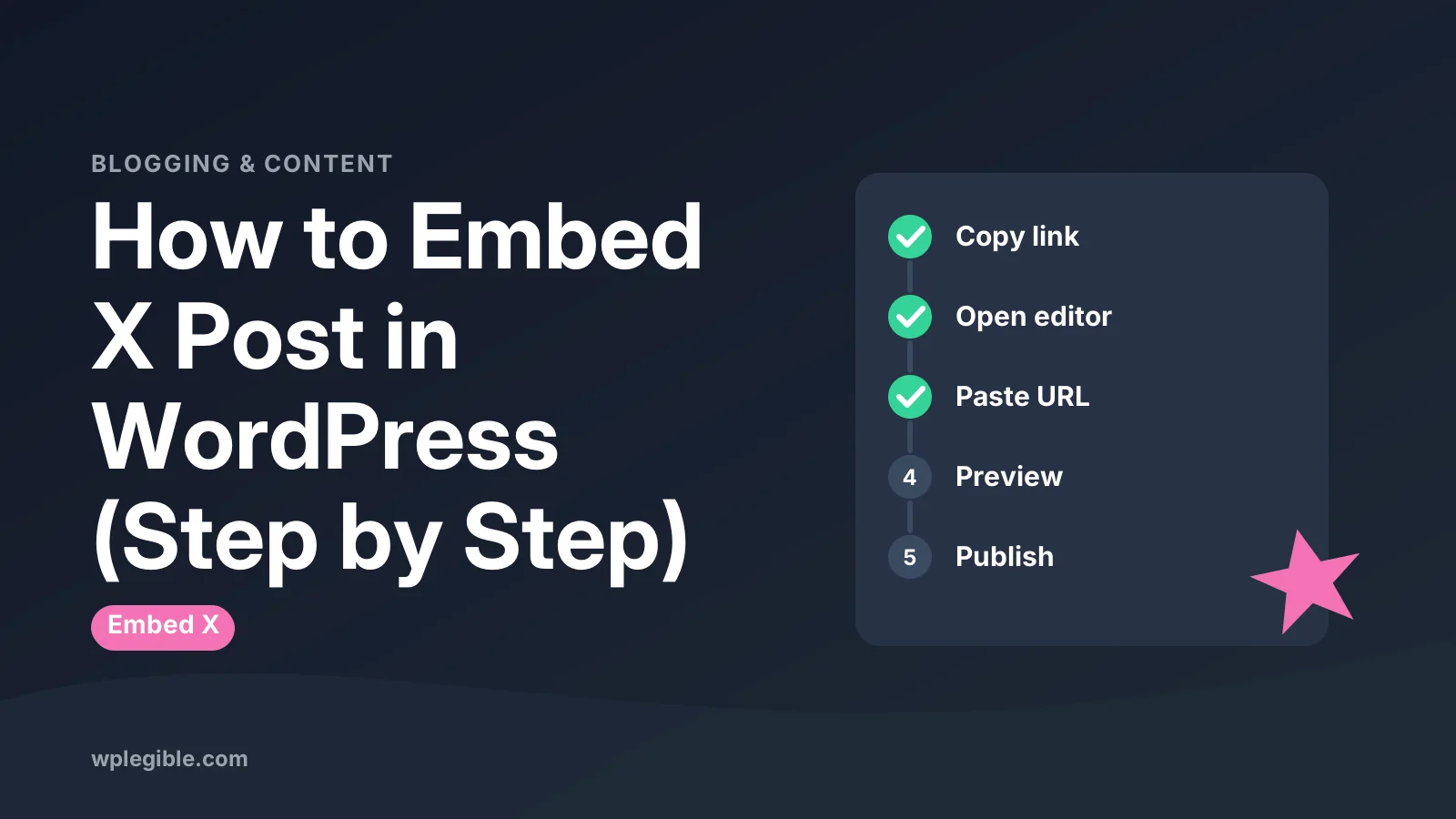
Short answer
Copy the link to the post on X, then paste it on its own line in the WordPress editor. WordPress turns it into an embedded post automatically through oEmbed. For a dark theme or other options, paste X's embed code into a Custom HTML block instead.
Key takeaways
- Pasting the post link on its own line is the fastest method and needs no plugin.
- The Embed block works when a pasted link does not convert.
- X's embed code in a Custom HTML block adds options such as a dark theme.
- Protected or deleted posts cannot be embedded.
- Each embed loads scripts from X, so limit how many you use on one page.
How do you embed an X post in WordPress?
Copy the post's link from X, paste it on its own line in the WordPress block editor, and WordPress turns it into an embedded post automatically.
That is the quickest method and needs no plugin. WordPress uses a standard called oEmbed to ask X for the post's display code, then shows the post with its text, media and author.
There are three main ways to embed a post from X, formerly Twitter:
- Paste the URL into the block editor or classic editor.
- Use the Embed block and paste the URL into it.
- Paste X's embed code into a Custom HTML block for more control.
Most people only need the first one. The others help when the link will not convert or when you want options such as a dark theme.
WordPress lists X among its supported services in the embeds documentation.
How do you copy the link to an X post?
Open the post on X, click the share icon, and choose Copy link, or copy the address from your browser bar when the post is open.
A single post's link looks like this: the X domain, the account name, the word status, then a long number. The number is the post ID.
On the X website:
- Open the post you want to embed.
- Click the share icon below it.
- Choose Copy link.
On the mobile app, tap the share icon and choose Copy link in the same way.
Make sure you copy the link to the post itself, not the profile. A profile link creates a different kind of embed or none at all.
If you want to embed a reply inside a thread, open that specific reply first and copy its own link. Each reply has its own status number, so copying the link from the top of the thread embeds the first post instead.
How do you paste the X post link in the block editor?
Click into an empty paragraph, paste the link on its own, and the editor converts it to an embed block with a preview.
Follow these steps:
- Open the post or page in the editor.
- Press Enter to start a new empty paragraph.
- Paste the X link and nothing else on that line.
- Wait a second for the preview to load.
- Add a caption below if you want, then save.
If you prefer, click the plus icon, search for Embed or X, and add the embed block. Paste the link into its field and click Embed.
The block toolbar lets you set alignment. Wide and full alignment depend on your theme. The block's settings also include a toggle for resizing on smaller screens.
How do you embed an X post in the classic editor?
In the classic editor, paste the link on its own line in the Visual tab and WordPress embeds the post when you preview or publish.
Do not turn the link into a clickable hyperlink. If it is wrapped in a link, WordPress treats it as normal text.
Keep the link on its own line with nothing before or after it. Switch to the Visual tab to see the preview.
If you use a page builder such as Elementor, look for its embed or HTML widget. Paste either the URL or X's embed code there.
How do you use X's embed code for more control?
Get the embed code from X's publish tool, then paste it into a Custom HTML block, where you can switch to a dark theme or hide the parent conversation.
X offers its own embed generator. On the post, open the menu with three dots and choose Embed post, or go to X's publish tool and paste the link there.
The tool gives you a short block of HTML with a script tag. To use it:
- Copy the code from X.
- In WordPress, add a Custom HTML block.
- Paste the code into the block.
- Click Preview in the block toolbar to check it.
X's embedded posts documentation lists the options you can add. Common ones are a dark theme, hiding the conversation and hiding photos or link cards.
Only administrators and editors can save script tags on a standard site. Authors may find the script removed when they save.
On WordPress multisite networks, only super admins can save unfiltered HTML by default. Everyone else should stick to the pasted URL or the Embed block, which do not need script tags.
Which embedding method should you use?
Use the plain URL for everyday posts and the embed code only when you need a setting the plain URL does not give you.
| Method | Plugin needed | Customizable | Best for |
|---|---|---|---|
| Paste URL in block editor | No | Little | Most posts |
| Embed block | No | Little | When auto-convert fails |
| Classic editor URL | No | Little | Classic editor sites |
| X embed code in Custom HTML | No | Theme, conversation, media | Styling control |
| Feed plugin | Yes | High | Showing a whole timeline |
Why is your X embed not working?
Embeds usually fail because the link is to a deleted or protected post, the link has extra text around it, or an older WordPress version does not recognize x.com links.
Work through these checks:
- Protected or deleted posts. Posts from private accounts, and posts that were deleted, cannot be embedded.
- Extra characters. Tracking parts after a question mark sometimes confuse the embed. Remove everything after the post ID.
- Domain not recognized. WordPress tracked this in Trac ticket 59142. Update WordPress first. If an x.com link still stays as plain text, try the same link with twitter.com instead.
- Script blocked. Ad blockers and privacy tools often hide X embeds for some visitors.
- Caching and minifying. Optimization plugins can break the widget script. Exclude it from delay settings.
If the embed shows as a plain quote with a link, the X script did not load. The text is still readable, but the styled card is missing.
To see what is going wrong, open the page while logged out and open your browser console. Red errors that mention the X widget script usually point to a blocker, a security header or a script optimization setting.
If the preview works in the editor but not on the live page, clear your page cache. A cached copy made before you added the embed will not show it.
Do X embeds affect speed and privacy?
Yes, each embed loads scripts from X that add weight to the page and may set cookies, so use them with care.
One embed is fine. Ten on a single page can slow it noticeably, especially on mobile. Our guide on speeding up YouTube embeds covers the same idea of loading third-party embeds only when needed.
Privacy matters too. Embedded content may let the third party track visitors.
If your site uses a cookie consent tool, check whether it blocks X embeds until the visitor agrees. Our overview of GDPR compliance for WordPress explains the basics. This is general information, not legal advice.
A screenshot with a link to the original post is a lightweight alternative. Add descriptive alt text so the content stays accessible. Our guide to optimizing images for WordPress shows how to keep screenshots small.
Can you embed an X timeline or profile instead?
Yes, X's publish tool can create embed code for a profile timeline, and some plugins add live feeds with more layout options.
Paste the profile link into the publish tool and copy the code. Add it to a Custom HTML block or a widget area.
Timeline embeds depend on X's current rules and may show fewer posts than expected. Plugins such as Jetpack's social tools or dedicated feed plugins offer more control, but they add another plugin to maintain.
For other embed types, see our guide on embedding Google Maps.
If you collect sign-ups or feedback, our guide to embedding a Google Form follows the same paste-and-preview approach.
Frequently asked questions
Do I need a plugin to embed X posts in WordPress?
No. WordPress supports X embeds out of the box. Paste the post link on its own line in the editor or use the Embed block. A plugin is only useful if you want a full live feed or extra layout options.
Why does my X link show as plain text?
The link may be inside other text, turned into a hyperlink, or to a protected or deleted post. Older WordPress versions may also not recognize the x.com domain. Paste the link alone on a new line and update WordPress before trying again.
Can I embed an X post in dark mode?
Yes, through X's embed code. Generate the code with X's publish tool, choose the dark option if offered, or add the theme attribute described in X's documentation. Paste the result into a Custom HTML block.
Will the embed disappear if the original post is deleted?
The styled card stops loading when the original post is removed. If you used X's embed code, the quoted text in the HTML may still show as plain text. Take a screenshot if keeping the content matters.
Can authors on my site embed X posts?
Yes, using the pasted link or Embed block. Pasting raw embed code with script tags is limited to users who can save unfiltered HTML, usually administrators and editors on a standard single site.
Sources
- Embeds WordPress.org Documentation
- Embedded posts overview X Developer Platform
- Publish tool X
- Ticket 59142: X/Twitter posts cannot be embedded WordPress Trac
- How to embed X posts or feeds in WordPress Jetpack
Is your product missing, or something out of date?
Tell us what to add or correct. We read every note and reply when we need a source. A message does not buy a ranking.
Thanks — we review requests within 3 business days.
Related guides



About the editors
Researched from the primary sources listed above and checked against our editorial rules before publishing.