Developer · Guide
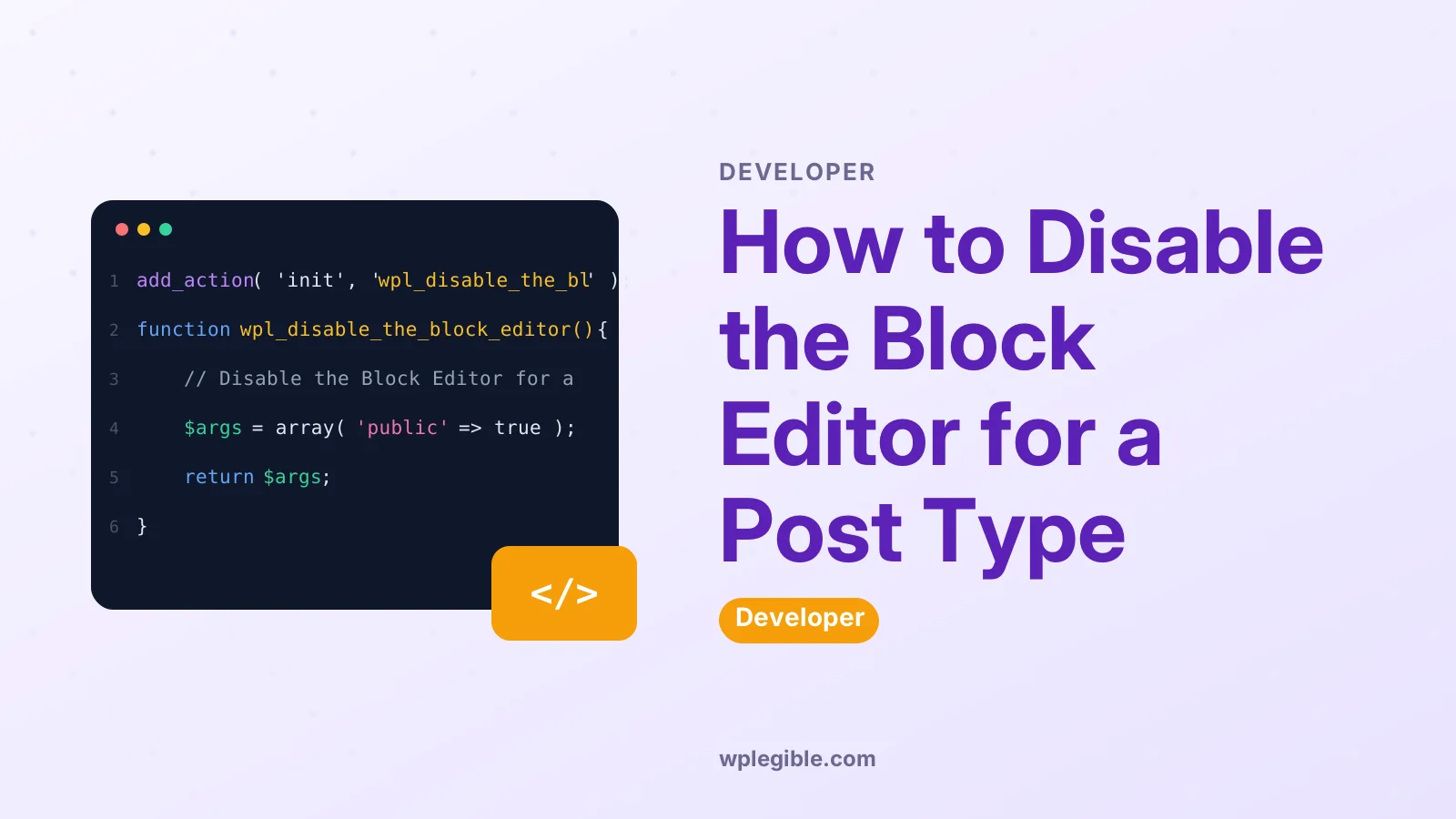
How to Disable the Block Editor for a Post Type
Short answer
To disable the block editor for a post type, add a filter on use_block_editor_for_post_type that returns false when the post type slug matches your target. Other post types keep the block editor. To turn it off for the whole site instead, use the __return_false callback or the Classic Editor plugin.
Key takeaways
- The use_block_editor_for_post_type filter returns false for the post type slug you want in the classic editor.
- The block editor needs show_in_rest set to true and editor support, or the post type never gets it.
- The __return_false callback turns off the block editor for every post type at once.
- The Classic Editor plugin restores the classic editor for the whole site, with settings at Settings → Writing.
- Content saved as blocks stays saved as HTML and still shows on the front end.
What does disabling the block editor for a post type do?
Disabling the block editor for one post type sends that post type back to the classic editor while other post types keep the block editor.
WordPress calls the block editor Gutenberg in everyday talk, but the code name for the switch is the block editor. The change is per post type, so posts can keep blocks while a custom post type such as “Events” or “Listings” uses the old editor. The rest of the site does not change.
Developer Reference states that the function use_block_editor_for_post_type() returns whether a post type is compatible with the block editor (checked November 2026). That one check decides which editor opens for that post type.
When should you disable the block editor for a post type?
Disable the block editor for a post type when that post type works better with the classic editor than with blocks.
A post type built around one long text field, a simple form, or a meta box layout may be easier to edit in the classic editor.
A post type fed by an older plugin that expects the classic editor can also be a good case. Keep the block editor for post types where blocks add real value, such as rich layouts with images and columns.
Make WordPress Core states that the block editor is the default editor for all post types that both declare “editor” support and set show_in_rest to true, with show_in_rest defaulting to false (checked November 2026).
A post type that never set show_in_rest to true never had the block editor in the first place.
If your reason is a page builder, read the comparison of Gutenberg vs Elementor before you switch, since a builder may change the editor choice for you.
What do you need before you start?
You need an admin account, the exact slug of the post type, and a safe place to add code.
Find the post type slug in the dashboard URL when you open that post type, or ask the person who registered it. A slug such as “event” is not the same as the label “Events”, so copy it exactly. One wrong letter means the filter will not match.
You also need a way to add code that survives updates. Put code in a child theme functions file or a small custom plugin, never in a parent theme that updates overwrite. A parent theme update replaces its files, and your filter would vanish with them.
Set aside 15 minutes for the filter method. The plugin method takes about 5 minutes. Keep a second admin tab open so you can test the change right away.
How do you disable the block editor for one post type with a filter?
Add a filter on use_block_editor_for_post_type that returns false for your post type slug and leaves every other post type alone.
Follow these steps:
- Open your child theme functions file or your small custom plugin.
- Add the filter code shown below, with your post type slug in place of “my_post_type”.
- Save the file.
- Open an item of that post type in the dashboard.
- Confirm the classic editor opens instead of the block editor.
- Open a normal post and confirm the block editor still opens there.
Use this code pattern, from Make WordPress Core (checked November 2026):
add_filter( 'use_block_editor_for_post_type', 'my_post_type_filter', 10, 2 );

function my_post_type_filter( $use_block_editor, $post_type ) {
    if ( 'my_post_type' === $post_type ) {
        return false;
    }
    return $use_block_editor;
}
The callback gets two values: the current editor choice and the post type slug.
It returns false only when the slug matches your target, and it returns the current value for every other post type. The number 10 is the priority, and the number 2 tells WordPress to pass both values to the callback.
PHP Manual states that a function is defined with the function keyword, a name, a list of parameters, and a body in curly braces (checked November 2026). Your callback follows that shape, with the two values as its parameters.
Make WordPress Core states that in WordPress 5.0 the filters are use_block_editor_for_post and use_block_editor_for_post_type (checked November 2026). The post filter targets one post, while the post type filter targets every item of a post type.
Why does the filter check show_in_rest and editor support?
The filter only works when WordPress sees the post type as able to use the block editor at all.
Developer Reference states that the block editor depends on the REST API, and if the post type is not shown in the REST API it will not work with the block editor (checked November 2026).
That is why show_in_rest matters: no REST API listing means no block editor.
Developer Reference states that the function returns false if the post type does not exist, if the post type does not support “editor”, or if show_in_rest is false (checked November 2026). Those three checks run before your filter gets a say.
Developer Reference states that the filter “use_block_editor_for_post_type” was introduced in WordPress 5.0.0 and the function moved to wp-includes in 6.1.0 (checked November 2026).
The filter has been part of WordPress since the block editor launch, so it works on any site running a current version.
If your filter seems to do nothing, check these three points first.
A post type that does not exist returns false already, so a typo in the slug looks like the filter ran when it did not. A post type with no “editor” support also returns false, so the classic editor was already its editor.
How do you disable the block editor for all post types?
Return false for every post type with the __return_false callback instead of writing a check for each slug.
Use this code pattern:
add_filter( 'use_block_editor_for_post_type', '__return_false' );That one line turns off the block editor for all post types.
It is the right choice when you want the classic editor across the whole site and you do not want to list each post type by hand. It is the wrong choice when only one post type needs the classic editor, since it changes posts and pages too.
If you use this method, test a post, a page, and each custom post type after you save. All three should open in the classic editor. If any one still opens in the block editor, another plugin or theme may be forcing the block editor back on.
To go back, remove the line and save again. The block editor returns for every post type that meets the checks in the section above.
How do you disable the block editor with the Classic Editor plugin?
Install the Classic Editor plugin when you want a settings screen instead of code.
Follow these steps:
- Go to Plugins → Add New in your dashboard.
- Search for “Classic Editor”.
- Install the plugin and click Activate.
- Go to Settings → Writing.
- Pick the default editor for all users.
- Choose whether users may change the editor for their own posts.
WordPress.org states that the Classic Editor is an official plugin maintained by the WordPress team that restores the previous (“classic”) editor and the “Edit Post” screen (checked November 2026).
It also states that admins can select the default editor for all users and allow users to change it, and that settings can be changed at Settings → Writing (checked November 2026).
WordPress.org states that version 1.7.0 is the latest changelog entry and the plugin page was updated on 2026-05-28 (checked November 2026). That date is the plugin page update date, not a release date for the version.
The plugin changes the editor for the whole site, not for one post type. Use the filter method in the section above when you need to target a single post type. Use the plugin when you want every post type in the classic editor and you want a settings screen to control it.
The plugin does not fit every site. WordPress.org states that it does NOT work with full site editing and block themes (checked November 2026). If your site uses a block theme, read the guide on block theme vs classic theme before you install it.
For the wider move back to the old editor, the guide on how to go back to the classic editor walks through the same choice step by step.
How do you check that it worked?
Open one item of the target post type and one item of another post type, then compare the editors.
The target post type should open in the classic editor, with its single text area and the old toolbar.
The other post type should still open in the block editor, with blocks and the + inserter button. If both open in the same editor, your change did not take effect or it hit the wrong target.
Check the front end too. Open a published item of the target post type on the live site and confirm the content shows as before. Content already saved as blocks stays saved as HTML and still shows on the front end, so a correct switch does not blank a published item.
If the target post type still opens in the block editor, work through this list. First, confirm the slug in the code matches the real slug exactly.
Second, confirm the code sits in a child theme or a custom plugin that is active. Third, check whether another plugin forces the block editor on. Fourth, clear any cache that stores the editor screen.
WordPress.org states that the block editor became the default editor in WordPress 5.0 in December 2018 and replaced the classic editor (checked November 2026). Knowing that date helps you judge old advice: any guide written before December 2018 describes a WordPress without the block editor as default.
What happens to content you already saved as blocks?
Content you already saved as blocks stays saved and still shows on the front end after you switch the post type to the classic editor.
Blocks save as HTML in the post content, so the front end does not need the block editor to show them.
Open an old item in the classic editor and you will see the saved HTML rather than the block layout. Edit it with care, since the classic editor shows the markup, not the block controls.
New items in that post type will use the classic editor from the start, so they will not gain block features.
That includes block patterns: the guide on how to use block patterns in WordPress covers a block editor feature, and patterns are not part of the classic editor. If a post type needs patterns, keep the block editor for it.
Plan the switch around your content. If a post type holds many block-heavy items that editors still update often, the classic editor will slow those edits down. If the items are short and rarely change, the switch costs little.
What mistakes should you avoid?
Avoid putting the filter in a parent theme, since the next theme update will wipe it out.
Use a child theme functions file or a small custom plugin, as the section on what you need explains. Check after each theme update that the filter is still in place, even when you used a child theme, since a theme change can still swap the active theme.
Avoid a typo in the post type slug. The filter compares the slug exactly, so “event” and “events” are two different targets. Copy the slug from the dashboard URL instead of typing it from memory.
Avoid using the __return_false line when you only mean to change one post type. That line turns off the block editor for every post type, including posts and pages. Use the callback with the slug check instead.
Avoid installing the Classic Editor plugin on a block theme site and expecting full site editing to keep working. WordPress.org states that the plugin does NOT work with full site editing and block themes (checked November 2026).
If you need to change a header on a block theme, read the guide on how to edit the header in a block theme instead of forcing the classic editor onto it.
Avoid editing block-saved HTML in the classic editor without a backup. Save a copy of the content first, or test the edit on a draft copy, so a bad edit does not break a live item.
| Method | What it changes | Best for |
|---|---|---|
| Filter with a slug check | One post type only | One custom post type that needs the classic editor |
| __return_false filter | All post types | A whole site moving to the classic editor |
| Classic Editor plugin | All post types, with a settings screen | Site owners who want no code |
| No change | Nothing | Post types that already work well with blocks |
Frequently asked questions
Can I disable the block editor for posts only?
Yes. Use the same filter and put the slug 'post' in the check, so the callback returns false only for posts. Pages and custom post types keep the block editor. Test a post and a page after you save to confirm only posts changed.
Will my old block content disappear if I switch a post type to the classic editor?
No. Content already saved as blocks stays saved as HTML and still shows on the front end. In the classic editor you will see the saved HTML rather than the block layout, so edit old items with care and keep a copy of the content before you change it.
Does the Classic Editor plugin disable the block editor for one post type?
No. The Classic Editor plugin changes the editor for the whole site, not for one post type. It restores the classic editor and adds settings at Settings → Writing for the default editor. To target a single post type, use the use_block_editor_for_post_type filter instead.
Why is my filter not working?
First check the slug in your code against the real post type slug, since one wrong letter means no match. Then check that the post type exists, supports the editor, and sets show_in_rest to true, since the function returns false for any of those three cases. Also check that the code sits in an active child theme or custom plugin.
Can I use the Classic Editor plugin with a block theme?
No. The Classic Editor plugin does NOT work with full site editing and block themes. If your site uses a block theme, the plugin is not the right tool. Use the filter method only if you have a clear reason, and test the site after the change.
How do I turn the block editor back on for a post type?
Remove the filter code and save the file, or deactivate the Classic Editor plugin if you used it. The block editor returns for every post type that declares editor support and sets show_in_rest to true. Open one item of the post type to confirm the block editor opens again.
Sources
- use_block_editor_for_post_type() WordPress Developer Resources
- Block Editor Filters Make WordPress Core
- User-defined functions PHP Manual
- Classic Editor WordPress.org
- WordPress Block Editor WordPress.org
Is your product missing, or something out of date?
Tell us what to add or correct. We read every note and reply when we need a source. A message does not buy a ranking.
Thanks — we review requests within 3 business days.
Related guides


