Hosting · Guide
How to Create WordPress Website without Domain and Hosting (Step by Step)
Short answer
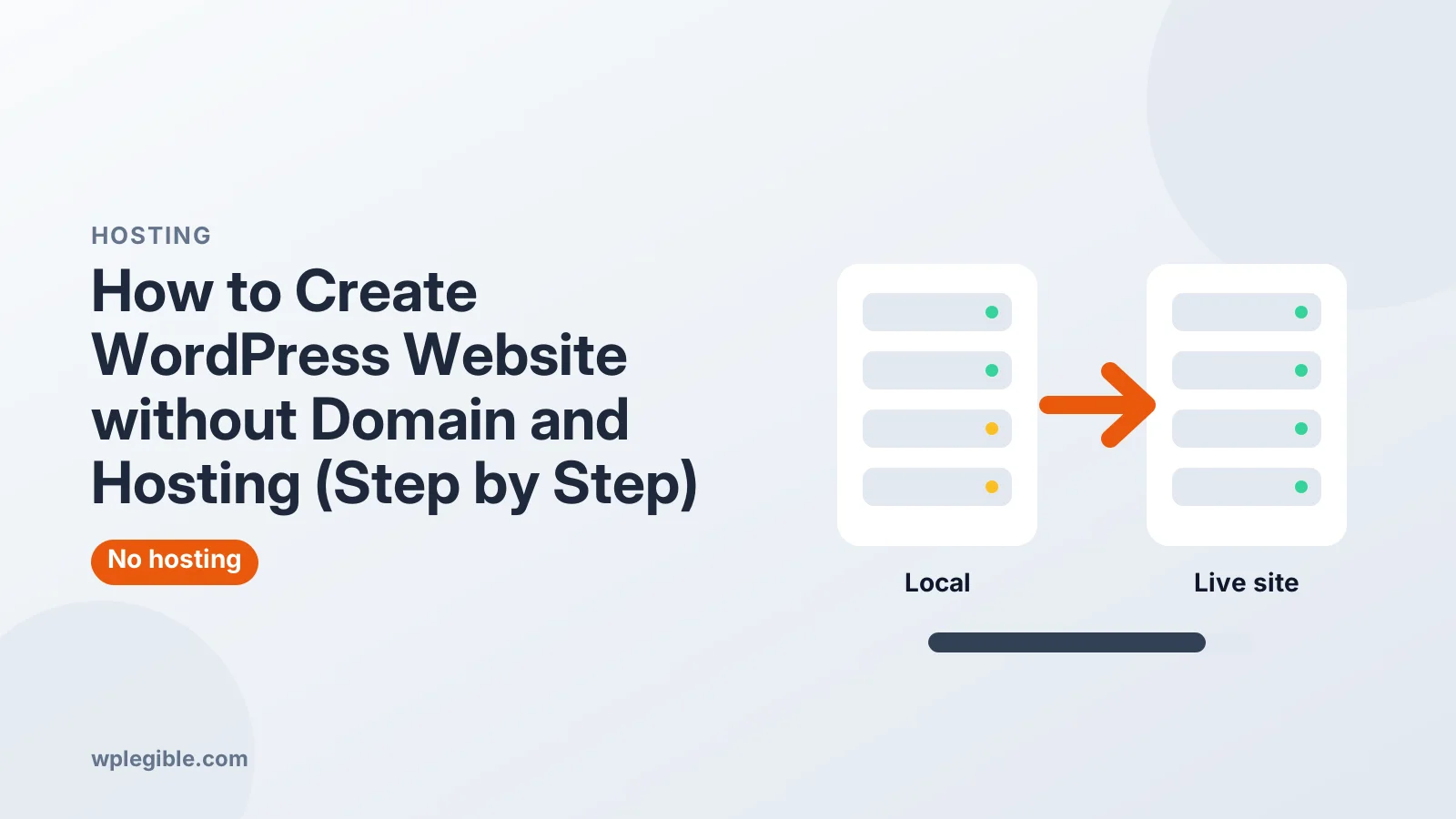
Use WordPress Playground to run WordPress in your browser, install it on your computer with a free local app such as Local, or start a free WordPress.com site on a subdomain. Build your pages there, then buy a domain and hosting and migrate the site when you want it live.
Key takeaways
- WordPress Playground runs a full WordPress site in your browser with no signup.
- A local install gives you a private, complete site on your own computer.
- WordPress.com's free plan gives you a public site on a subdomain, with limits.
- Free hosting companies are usually slow, ad-supported and risky for real sites.
- Build pages, menus and content first, then migrate to a real host.
- Export or back up your work so a closed tab or failed laptop does not erase it.
How do you create a WordPress website without a domain and hosting?
You can build a WordPress site for free in your browser with WordPress Playground, on your own computer with a local app, or on a free WordPress.com subdomain, then add a domain and hosting later.
Many people want to try WordPress or build a site before paying for anything. That is a smart approach. You can learn the dashboard, test themes and even build every page before you spend money.
The catch is that a site without a domain and hosting is either private, temporary, or limited. To have a real public website on your own address, you will eventually need both.
This guide walks through the three main options step by step, compares them, and explains how to move your work to a real host when you are ready.
What are your options for building without a domain or host?
The three practical routes are WordPress Playground in a browser tab, a local WordPress install on your computer, and a free WordPress.com site on a subdomain such as yourname.wordpress.com.
Each suits a different goal:
| Option | Cost | Who can see it | Plugins and themes | Best for |
|---|---|---|---|---|
| WordPress Playground | Free | Only you, in your browser | Most free ones | Quick tests and learning |
| Local install (e.g. Local) | Free | Only you, on your computer | Any, including premium | Building a full site before launch |
| WordPress.com free plan | Free | Public, on a subdomain | Limited on the free plan | Simple public blog right away |
| Free hosting companies | Free | Public, on a subdomain | Varies | Usually not recommended |
If your aim is a public site today with no money spent, WordPress.com is the only simple option. If you want a private place to build and learn, Playground or a local install is better.
Step 1: Try WordPress instantly with WordPress Playground
Open playground.wordpress.net in your browser and a full WordPress site starts in seconds, with no signup, domain, hosting or installation required.
WordPress Playground runs WordPress entirely in your browser. It uses the same software as a normal site, so the dashboard, editor, themes and plugins work the way they would on a host.
To get started:
- Open the Playground website in a modern browser.
- Wait for the dashboard to load. You are logged in as an administrator automatically.
- Go to Appearance > Themes to try a theme, or Plugins > Add New to install a plugin.
- Create pages and posts as you would on any WordPress site.
The important limit is that Playground is a sandbox. By default your changes may disappear when you close the tab, unless you use its options to save the site in your browser or export it. Nobody else can visit the site.
Our full guide on how to use WordPress Playground explains saving, exporting and loading a site.
Step 2: Build a full site locally on your computer
Install a free local development app such as Local, create a new WordPress site in it, and you get a private site on your computer that works offline and keeps your work.
A local install is the best choice if you want to build a real site before launch. Everything stays on your computer, you can use any theme or plugin, and you can take as long as you like.
Using Local as an example:
- Download and install Local for Windows, macOS or Linux.
- Click the button to create a new site.
- Choose a site name, then keep the preferred environment unless you need something specific.
- Set an admin username, password and email.
- Click WP Admin to open your dashboard.
Our step-by-step guide on installing WordPress with Local covers each screen.
If you prefer XAMPP or another stack, read how to set up a local WordPress development environment.
Your local site uses an address like mysite.local, which only works on your machine. Some local apps offer temporary live links so you can show a client, but that is for previews, not hosting.
If the dashboard will not open, see how to open the WordPress dashboard on localhost.
Step 3: Publish a free public site on WordPress.com
Sign up at WordPress.com, choose the free plan, and pick a free subdomain such as yoursite.wordpress.com to get a live public site without buying a domain or hosting.
WordPress.com is a hosted service run by Automattic. It uses WordPress software but handles hosting for you. The free plan gives you a public address on a wordpress.com subdomain.
The basic steps:
- Create a WordPress.com account.
- When asked for a domain, choose the free subdomain option instead of buying one.
- Select the free plan.
- Pick a theme and start adding pages and posts.
Free plans come with limits. Typically you cannot install your own plugins or custom themes, ads may appear, and storage is limited. Check current details on the WordPress.com pricing page, as plans change.
Our guide on setting up a website with WordPress.com walks through each screen.
To understand how this differs from self-hosted WordPress, read is WordPress.com or WordPress.org better.
What about free web hosting companies?
Some companies offer free hosting with a subdomain, but they often come with ads, poor speed, weak security and little support, so they are rarely a good base for a real site.
Free hosts have to make money somehow. That can mean forced ads, strict resource limits, outdated PHP versions, or pressure to upgrade. Some free hosts have disappeared with their users' sites.
If you are tempted, read our breakdown of whether free WordPress hosting is safe first. For learning, Playground or a local install gives you the same experience with less risk.
Step 4: Build your site the right way while you wait
Use the free environment to choose a theme, create key pages, set up menus and install essential plugins, so launch day is just a move rather than a full build.
A sensible build order:
- Pick a theme. Start with a well-supported free theme from the WordPress theme directory.
- Create core pages. Home, About, Services or Blog, and Contact.
- Set your homepage. Choose a static homepage or latest posts in Settings > Reading.
- Build menus. Add your main pages to the header navigation.
- Install essentials. A form plugin, an SEO plugin and a backup plugin cover most needs.
- Write real content. Draft posts now so the site is not empty at launch.
Avoid typing your final domain into settings or content yet. When you move the site, a migration tool will update URLs for you.
Step 5: Add a domain and hosting when you are ready
When you want a public site on your own address, buy a domain, choose WordPress hosting, and move your local or Playground site there with a migration plugin or your host's tools.
You do not need to rebuild anything. The usual path is:
- Register a domain. Prices vary by extension and registrar. See how much a domain name costs for typical ranges.
- Choose a host. Shared hosting is enough for most new sites.
- Point the domain to the host. Our guide on pointing a domain to WordPress hosting explains the DNS steps.
- Migrate your site. Use a migration plugin to export from your local site and import on the host. Many hosts also offer free migration.
- Check everything. Test links, forms, images and SSL on the live site.
If you started on WordPress.com and later want full control, see how to move from WordPress.com to WordPress.org.
Which option should you choose?
Choose Playground to explore for an hour, a local install to build a complete site before launch, and WordPress.com if you need a free public site today and can accept its limits.
Some quick guidance by goal:
- Just curious about WordPress? Playground. No setup at all.
- Learning to build sites properly? A local install. You get the full self-hosted experience.
- Building a client or business site? Build locally, then launch on real hosting.
- Want a free personal blog online now? WordPress.com free plan.
Whichever route you choose, the WordPress skills transfer. The editor, themes and settings work the same way, so nothing you learn is wasted.
What mistakes should you avoid?
Avoid losing unsaved Playground work, building on a free host you cannot leave, and launching without testing the move to your real domain.
A few common traps:
- Closing a Playground tab without saving. Export the site if you want to keep it.
- Relying on a free host for a business. Moving later can be harder than starting right.
- Installing too many plugins locally. Keep the build lean so the live site stays fast.
- Skipping backups. Even local sites can be lost if your computer fails. Copy the site folder or export it regularly.
The official WordPress download page is where self-hosted WordPress comes from, and it remains free whichever path you take.
Frequently asked questions
Can I make a WordPress website for free?
Yes. WordPress software is free, and you can run it free in WordPress Playground, on your computer with a local app, or on a WordPress.com free plan with a subdomain. A custom domain and quality hosting cost money, but you can add them later when you are ready to launch.
Can other people see a local WordPress site?
No. A local site lives on your computer and only you can open it. Some local apps offer temporary share links for previews, but these are not meant for hosting. To make the site public, migrate it to a web host with a domain.
Does WordPress Playground save my site?
Playground is a temporary sandbox, so work can be lost when you close the tab unless you use its options to save in the browser or export the site. Export your site regularly if you plan to keep or move it.
Can I move a WordPress.com free site to my own hosting later?
Yes. WordPress.com lets you export your content, which you can import into a self-hosted WordPress site. Some design settings and features may not carry over exactly, so plan time to check the theme, menus and plugins after the move.
Do I need a domain to install WordPress?
Not to install it locally or in Playground, where WordPress uses a temporary or local address. You only need a domain when you want a public website at your own address, such as yourbusiness.com, on a web host.
Sources
- WordPress Playground WordPress.org
- Local WP Engine
- WordPress.com Automattic
- Download WordPress WordPress.org
- WordPress theme directory WordPress.org
Is your product missing, or something out of date?
Tell us what to add or correct. We read every note and reply when we need a source. A message does not buy a ranking.
Thanks — we review requests within 3 business days.
Related guides

About the editors
Researched from the primary sources listed above and checked against our editorial rules before publishing.