Setup & site building · Guide
How to Create New Widget in WordPress (Step by Step)
Short answer
To create a new widget in WordPress without code, go to Appearance, then Widgets, and build it from blocks or a Custom HTML block inside a widget area. To create one with code, extend the WP_Widget class in a small plugin and register it on the widgets_init hook, or build a custom block.
Key takeaways
- The Widgets screen is a block editor, so blocks can become widgets.
- Custom HTML blocks suit embeds and small snippets.
- Synced patterns let one widget appear in several places.
- Code widgets extend WP_Widget and register on widgets_init.
- Block themes use the Site Editor instead of widget areas.
How do you create a new widget in WordPress?
You can create a new widget without code by building it from blocks or a Custom HTML block in Appearance > Widgets, or with code by registering a PHP widget class or building a custom block.
The right method depends on what you need. A simple text box with a button needs no code at all. A widget that pulls data, has its own settings form or will be reused across many sites is better built in code.
This guide covers both routes. If you only want to place an existing widget, such as a search box or recent posts list, our guide on how to add a widget in WordPress is the shorter path.
If the term itself is new to you, start with what a widget is.
What should you check before creating a widget?
Check that your theme has widget areas, because block themes replace widgets with the Site Editor and classic themes vary in where widgets can appear.
Open Appearance in wp-admin. If you see Widgets, your theme supports widget areas such as a sidebar or footer.
If you only see Editor, you have a block theme. There is no Widgets screen; you add the same content by editing templates and template parts in the Site Editor.
Also decide where the code will live, if you use code. Widget code belongs in a small custom plugin or a snippets plugin, not in a parent theme that updates will overwrite.
Take a backup or use a staging site before adding PHP. A typo in a PHP file can take the site offline until it is fixed.
Which method should you choose?
Pick the no-code block method for one-off content, the PHP class for classic reusable widgets with settings, and a custom block when you want something that works in widget areas and in posts.
| Method | Code needed | Best for | Works in block themes |
|---|---|---|---|
| Blocks in the widget editor | None | Text, images, buttons, simple layouts | Yes, via the Site Editor instead |
| Custom HTML block | Basic HTML | Embeds, small scripts, custom markup | Yes, via the Site Editor |
| Synced pattern | None | The same content in several places | Yes |
| PHP widget class | PHP | Classic widgets with a settings form | No widget areas, but can be shown with the Legacy Widget block |
| Custom block | JavaScript and PHP | Modern, reusable components | Yes |
How do you create a widget with blocks and no code?
Go to Appearance > Widgets, open a widget area, click the plus button and combine blocks such as Heading, Paragraph, Image and Buttons into the widget you want.
Since WordPress 5.8, the Widgets screen is a block editor. Each widget area works like a small post, so anything you can build with blocks can become a widget.
Steps:
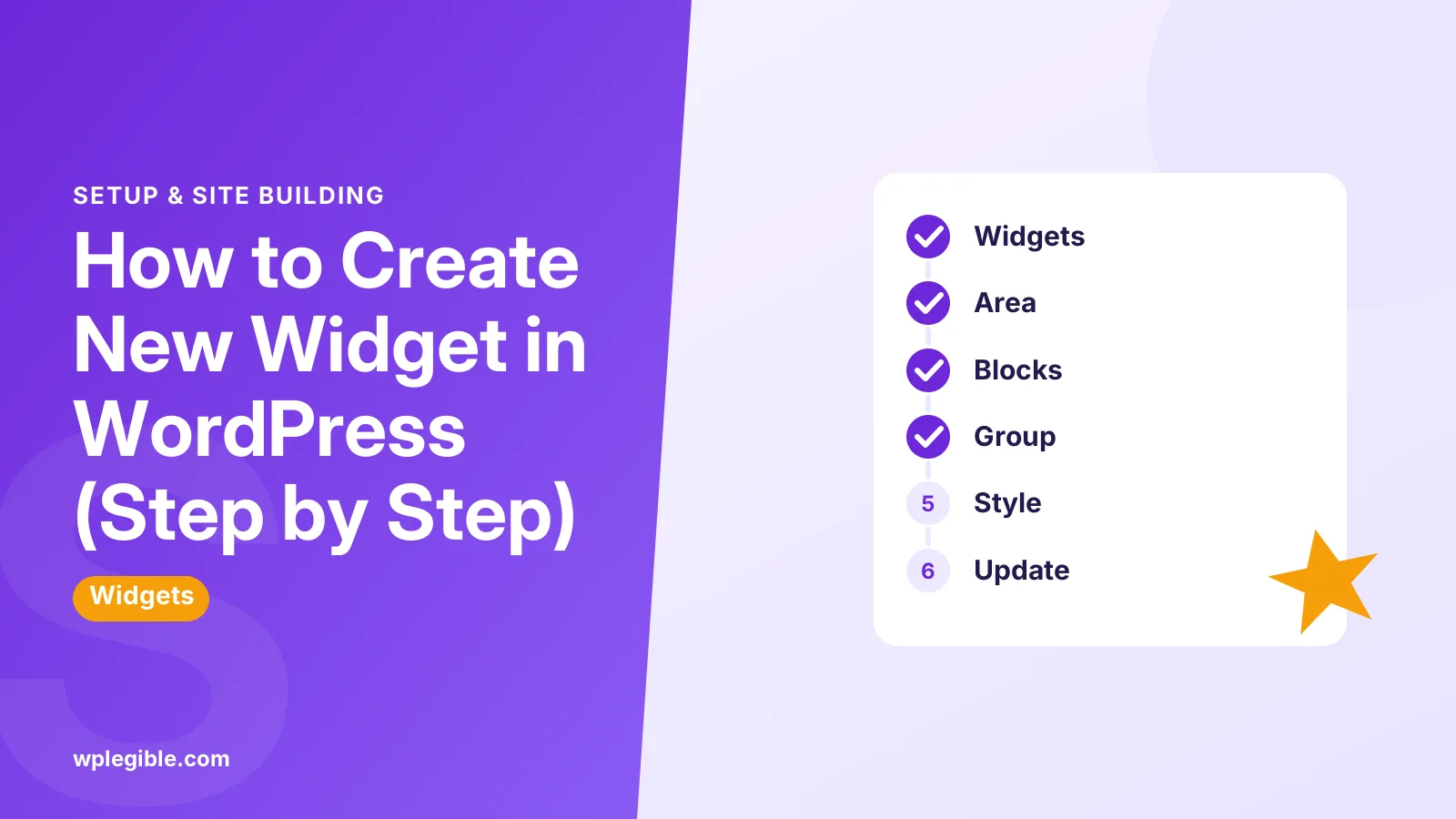
- Go to Appearance > Widgets.
- Expand the widget area, such as Sidebar or Footer.
- Click the plus icon and add a Group block to hold your widget.
- Add blocks inside the group, such as a heading, some text and a button.
- Style the group with background colour and padding in the block settings.
- Click Update to save.
Grouping the blocks makes the widget easy to move or delete as one unit. The WordPress.org guide to the block-based widgets editor shows each screen.
The change to a block-based screen was announced in the WordPress 5.8 widgets editor dev note, which also explains how older widgets carry over.
Keep block widgets light. A sidebar full of large images and embeds slows every page that shows it, so compress images and avoid heavy third-party scripts where you can.
How do you make a custom HTML widget?
Add a Custom HTML block to the widget area and type or paste your HTML, such as an embed code, a small form or a styled box.
This suits newsletter sign-up embeds, affiliate banners and third-party widgets that give you a snippet. The Custom HTML block page explains what it accepts.
Only administrators can save unfiltered HTML on single sites, and some tags are stripped for other roles. Use the preview tab to check how it will look.
How do you reuse one widget in several areas?
Turn your group of blocks into a synced pattern, then insert that pattern into each widget area or template where it should appear.
When you edit the synced pattern later, every copy updates. Our guide on creating synced patterns walks through it.
How do you create a classic widget with PHP?
Create a class that extends WP_Widget with methods to output the widget, show its settings form and save its settings, then register it on the widgets_init hook.
This is the traditional way to build widgets, described in the Widgets API in the theme handbook. A minimal example:
<?php
/*
 * Plugin Name: My Simple Widget
 */
class My_Simple_Widget extends WP_Widget {
  public function __construct() {
    parent::__construct( 'my_simple_widget', 'My Simple Widget',
      array( 'description' => 'Shows a short message.' ) );
  }
  public function widget( $args, $instance ) {
    $title = ! empty( $instance['title'] ) ? $instance['title'] : '';
    echo $args['before_widget'];
    if ( $title ) {
      echo $args['before_title'] . esc_html( $title ) . $args['after_title'];
    }
    echo '<p>Thanks for visiting.</p>';
    echo $args['after_widget'];
  }
  public function form( $instance ) {
    $title = isset( $instance['title'] ) ? $instance['title'] : '';
    printf( '<p><label for="%1$s">Title:</label><input class="widefat" id="%1$s" name="%2$s" type="text" value="%3$s"></p>',
      esc_attr( $this->get_field_id( 'title' ) ),
      esc_attr( $this->get_field_name( 'title' ) ),
      esc_attr( $title ) );
  }
  public function update( $new_instance, $old_instance ) {
    return array( 'title' => sanitize_text_field( $new_instance['title'] ) );
  }
}
add_action( 'widgets_init', function () {
  register_widget( 'My_Simple_Widget' );
} );
Save this as a PHP file in a new folder under wp-content/plugins, then activate it under Plugins. Your widget appears in the widget inserter.
What does each part of the class do?
The constructor names the widget, widget() prints it on the site, form() builds the settings fields in the admin, and update() cleans the values before saving.
- __construct sets the widget's ID, name and description.
- widget outputs the front-end HTML, wrapped in the before and after markup your theme sets.
- form shows the settings fields in the editor.
- update sanitises and returns the values to store.
Always escape output and sanitise input, as the example does. The WP_Widget class reference lists every method.
To add more settings, repeat the same pattern: add a field in form(), clean it in update(), and read it from $instance in widget(). Checkboxes, dropdowns and textareas all follow this shape.
Give your class and widget ID a unique prefix, such as your initials or company name. That avoids clashes with other plugins that might register a widget with the same name.
How do PHP widgets show in the block widget editor?
Classic widgets appear inside the block editor through the Legacy Widget block, which shows the form() fields and a preview.
You do not need to do anything special. WordPress wraps registered widgets automatically, as described in the Legacy Widget block guide.
If you prefer the old drag-and-drop screen, the official Classic Widgets plugin restores it.
How do you create a widget as a custom block?
Scaffold a block with the create-block tool, build it, and activate the generated plugin; the block then appears in the widget editor, the Site Editor and posts.
Run this in your plugins folder with Node.js installed:
npx @wordpress/create-block my-widget-blockThe @wordpress/create-block package creates a plugin with all the files a block needs. Edit the generated files, run the build, then activate the plugin.
Blocks are the long-term direction for WordPress, so new widget-like features are worth building this way. Our guide on how to create a custom block in WordPress covers the details.
What if your theme has no place for the widget?
Register a new widget area with register_sidebar in a child theme or plugin and print it in a template with dynamic_sidebar.
That lets you add a widget area above the footer, below posts or anywhere else your theme allows. Our guide to adding a custom widget area shows the full code.
In block themes, you skip widget areas entirely. Insert your block or pattern directly into the template part in the Site Editor.
How do you create a dashboard widget?
Use the wp_add_dashboard_widget function on the wp_dashboard_setup hook to add a box to the wp-admin Dashboard screen.
Dashboard widgets are different from site widgets. Only logged-in users see them, which makes them good for notes, links or stats for clients.
Agencies often use them to show a support contact, a link to documentation or a short checklist for editors. Keep them simple so the Dashboard stays fast.
The Dashboard Widgets API has a worked example you can copy into a small plugin.
Why is your new widget not showing?
The usual causes are an empty or unsaved widget area, a theme that does not print that area on the current page, caching, or a PHP error that stopped the widget registering.
Check that you clicked Update in the widget editor. Then view a page type that uses that sidebar, because many themes hide sidebars on pages or full-width templates.
Clear any page cache after changes. If a coded widget is missing from the inserter, enable debugging to look for PHP errors.
Our guide on fixing widgets not showing goes through each cause.
Once the widget appears, how to edit a widget shows how to change its content and settings later.
Frequently asked questions
Can I create a WordPress widget without coding?
Yes. Open Appearance, then Widgets, add a Group block to a widget area and build your widget from blocks such as Heading, Paragraph, Image and Buttons. A Custom HTML block works for embed codes. Click Update to save.
Where should I put custom widget code?
Put it in a small custom plugin or a code snippets plugin. Adding it to a parent theme's functions file means it disappears when the theme updates. A plugin also keeps the widget available if you change themes later.
Why can I not find the Widgets menu?
You are probably using a block theme. Block themes have no widget areas, so the Widgets screen is hidden. Use the Site Editor under Appearance to add blocks to templates and template parts instead.
Do classic PHP widgets still work in WordPress?
Yes. Widgets built with the WP_Widget class still register and appear in the block widget editor through the Legacy Widget block. For new projects, a custom block is the more future-proof choice.
What is the difference between a widget and a widget area?
A widget is a piece of content, such as a search box or a text block. A widget area is a place in the theme, such as a sidebar or footer, where widgets can be placed. You create widget areas with register_sidebar.
Sources
- Widgets WordPress Theme Handbook
- WP_Widget class WordPress Developer Resources
- Block-based Widgets Editor WordPress.org Documentation
- Legacy Widget Block Block Editor Handbook
- @wordpress/create-block npm
- Dashboard Widgets API WordPress Developer Resources
Is your product missing, or something out of date?
Tell us what to add or correct. We read every note and reply when we need a source. A message does not buy a ranking.
Thanks — we review requests within 3 business days.
Related guides



About the editors
Researched from the primary sources listed above and checked against our editorial rules before publishing.