WooCommerce · Guide
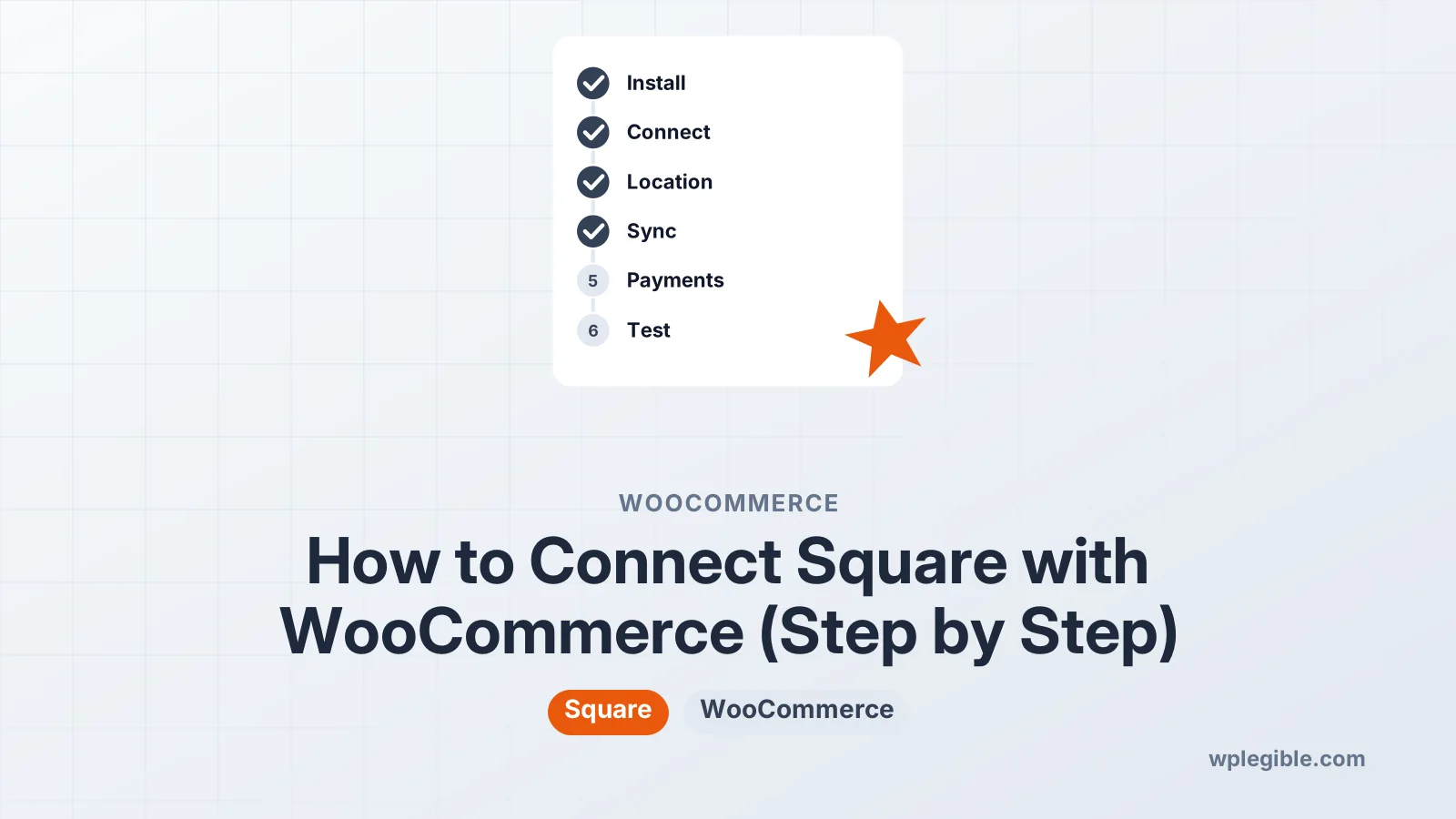
How to Connect Square with WooCommerce (Step by Step)
Short answer
Install the free WooCommerce Square extension, open WooCommerce settings and click Connect with Square, then log in and pick your business location. Choose a sync setting, enable Square under Payments and run a small test order.
Key takeaways
- The official route is the free WooCommerce Square extension.
- Your store needs HTTPS and a currency that matches Square.
- Pick one system of record for products and edit only there.
- Every product needs a unique SKU for sync to work.
- Test with sandbox mode or a low-value order before launch.
How do you connect Square with WooCommerce?
You connect Square with WooCommerce by installing the free WooCommerce Square extension, clicking Connect with Square in its settings, choosing your business location, and turning on Square as a payment method.
The extension is built and maintained by the WooCommerce team. It lets your store take card payments through Square and, if you want, keep products, prices and stock in step with your Square account.
The whole setup takes around 15 to 30 minutes for a small shop. Product sync can take longer if you have a big catalogue.
If you only want a yes or no on whether Square works with WordPress at all, our overview of integrating Square with WordPress compares every option. This guide focuses on the WooCommerce route, step by step.
What do you need before you start?
You need a working WooCommerce store on HTTPS, an active Square account in a supported country, and a store currency that matches your Square account currency.
Run through this checklist first:
- WooCommerce installed and set up. Products, tax and shipping basics should already be in place.
- An SSL certificate. Card payments must run over HTTPS. Many hosts include a free certificate from Let's Encrypt.
- A Square account. Sign up at Square and finish any identity checks Square asks for.
- A supported country. Square only operates in some countries. Check the WooCommerce Square documentation for the current list.
- Matching currency. Your WooCommerce currency under WooCommerce > Settings > General must match the currency of your Square location.
- Administrator access to both WordPress and Square.
Take a full backup before you install a new payment extension. It is quick and saves a lot of stress if something clashes.
How do you install the WooCommerce Square extension?
Go to Plugins > Add New Plugin, search for WooCommerce Square, then click Install Now and Activate on the plugin by WooCommerce.
Step by step:
- Log in to your WordPress dashboard.
- Go to Plugins > Add New Plugin. Older versions call it Add New.
- Search for WooCommerce Square.
- Find the plugin made by WooCommerce. You can confirm it against the WooCommerce Square listing on WordPress.org.
- Click Install Now, then Activate.
After activation, WooCommerce shows a notice asking you to connect Square. You can follow that link or open the Square settings yourself, as shown next.
Be careful with look-alike plugins. Several third-party plugins also sync Square and WooCommerce. They are not wrong to use, but they have different settings, and this guide follows the official extension.
How do you connect your Square account?
Open the Square settings in WooCommerce, click Connect with Square, log in to Square, approve the requested permissions, and you will be sent back to your store.
The steps look like this:
- Go to WooCommerce > Settings and open the Square tab.
- Click Connect with Square.
- Log in with the Square account that owns the business.
- Review the permissions the extension asks for and click Allow.
- You return to the WooCommerce settings with the account connected.
Exact labels can change between versions. If the screen looks different, the official setup and configuration guide shows the current layout.
Once connected, pick the Business location. Square accounts can have several locations, such as a shop and a market stall. Online orders will be recorded against the one you choose, and stock syncs with that location.
Should you test in sandbox mode first?
Yes, test with a Square sandbox account before taking real money, so you can check checkout, refunds and sync without charging real cards.
Square offers a developer sandbox with test card numbers. The extension has an option to use sandbox mode, where you enter sandbox credentials instead of connecting your live account. Look for it in the advanced or debug section of the Square settings.
Testing on a staging copy of your site is even safer. You can break things there without affecting real customers or real stock.
When you test, check:
- A successful card payment
- A declined card
- A full and a partial refund
- An order with a product that should sync stock
Our guide on how to test WooCommerce payments lists more test cases worth running before launch.
How do you set up product and stock sync?
In the Square settings, choose whether to sync products and which system is the system of record, either WooCommerce or Square, then run the first sync.
This is the most important choice in the whole setup. The system of record is the side where you edit products. The other side follows it.
| Sync option | Where you edit products | Good for |
|---|---|---|
| Sync off | Each system separately | Payments only, no shared stock |
| WooCommerce as system of record | WooCommerce | Online-first shops |
| Square as system of record | Square Dashboard | Shops that mainly sell in person |
A few rules keep sync healthy:
- Edit on one side only. If Square is the system of record, change prices and names in Square, not WooCommerce.
- Use matching SKUs. The extension matches products by SKU. Missing or duplicate SKUs are the top cause of sync problems.
- Start small. Sync a few products first and check them before syncing your full range.
- Watch inventory. Stock can sync both ways when enabled, so a sale in your shop lowers online stock too.
The WooCommerce Square sync settings documentation explains each option and what data moves in each direction.
How do you turn on Square payments at checkout?
Go to WooCommerce > Settings > Payments, enable Square, set the title customers will see, choose your transaction type, and save.
Inside the Square payment settings you can usually adjust:
- Title and description shown at checkout, such as Credit or debit card
- Transaction type, either charge right away or authorise only and capture later
- Card types shown as icons
- Digital wallets such as Apple Pay and Google Pay, where available in your region
- Gift cards, if your Square account supports them
- Saved cards, so returning customers can pay faster
The payment settings guide lists every field and what it does.
Most shops should choose to charge right away. Authorise only is useful if you make products to order and want to check stock before taking the money.
If Square does not appear in your payment list, our guide on WooCommerce payment settings not displaying covers the usual fixes.
How do you check that everything works?
Place a real low-value order, refund it from the WooCommerce order screen, and confirm the payment and refund both appear in your Square Dashboard.
Run through this short test:
- Create a cheap test product, or lower a price for a few minutes.
- Place an order on the front end with a real card.
- Check the order status in WooCommerce > Orders. It should move to Processing or Completed.
- Open your Square Dashboard and find the payment under transactions.
- Refund the order from WooCommerce and check that the refund also shows in Square.
- If sync is on, check that stock dropped in both systems.
Delete or reset the test product afterwards. Leaving a cheap item live is an easy way to lose money.
What problems happen most often?
The most common Square problems are currency mismatches, missing SKUs, sync conflicts, expired connections and orders stuck in pending payment.
| Problem | Likely cause | Fix |
|---|---|---|
| Square missing at checkout | Currency mismatch or HTTPS problem | Match currency and check SSL |
| Products not syncing | Missing or duplicate SKUs | Give every product a unique SKU |
| Prices keep reverting | Editing on the wrong side | Edit only in the system of record |
| Connection lost | Token expired or account changed | Disconnect and connect again |
| Order stuck as pending | Payment interrupted or blocked | Check logs and Square Dashboard |
The extension can write a debug log. Turn it on in the advanced settings, reproduce the problem, and then read the log under WooCommerce > Status > Logs. Turn logging off afterwards.
For stuck orders, our guide on orders stuck on pending payment goes deeper.
Is Square the right payment option for your store?
Square is a strong choice if you also sell in person with Square hardware, because stock and sales stay in one system; online-only shops may prefer other gateways.
Square shines when your shop, market stall and website all need the same stock count. One sale anywhere updates the rest.
If you only sell online, compare fees and features first. Our comparison of WooCommerce payment gateway fees shows how the main options stack up. Fees change over time and differ by country, so always check the current Square pricing page for your region.
You can also run Square next to another gateway. Some shops keep Square for cards and add PayPal for customers who prefer it.
Frequently asked questions
Is the WooCommerce Square extension free?
Yes, the extension itself is free to download and use. Square charges its own processing fee on each payment, and the rate depends on your country and card type. Check Square's pricing page for current rates in your region.
Can I use Square with WooCommerce outside the US?
Only in countries where Square operates and the extension supports. The list has grown over time, so check the WooCommerce Square documentation and Square's own site for your country before you build your checkout around it.
Do I have to sync products to use Square payments?
No. You can leave product sync off and use Square only to take card payments. Sync is optional and mainly useful when you also sell in person and want one stock count across your shop and website.
Why are my Square products not showing in WooCommerce?
Usually the sync is off, the wrong system of record is chosen, or products are missing SKUs. Check the sync settings, give each item a unique SKU in Square, and run the sync again. Then look at the WooCommerce logs for errors.
Can customers use Apple Pay and Google Pay with Square?
In many regions, yes. The extension supports digital wallets where Square offers them. You turn them on in the Square payment settings, and Apple Pay may need domain verification. Availability depends on your country and Square account.
Sources
- WooCommerce Square documentation WooCommerce
- Setup and Configuration of WooCommerce Square WooCommerce
- WooCommerce Square: Sync Settings WooCommerce
- WooCommerce Square: Payment Settings WooCommerce
- WooCommerce Square plugin WordPress.org Plugins
Is your product missing, or something out of date?
Tell us what to add or correct. We read every note and reply when we need a source. A message does not buy a ranking.
Thanks — we review requests within 3 business days.
Related guides



About the editors
Researched from the primary sources listed above and checked against our editorial rules before publishing.