Speed & performance · Guide
How to Clear Beaver Builder Cache (Step by Step)
Short answer
Go to Settings, then Beaver Builder, open the Tools tab and click the clear cache button. Beaver Builder deletes its stored layout CSS and JavaScript and rebuilds them on the next page load. Then clear your caching plugin, host cache, CDN and browser so visitors see the fresh files.
Key takeaways
- The clear cache button is in Settings, Beaver Builder, Tools.
- Clearing the cache does not delete any layouts.
- Clear caches from builder outward to the browser.
- WP-CLI can clear the cache during deployments.
- Always clear the builder cache after a migration.
- Check minification plugins if old styles persist.
How do you clear the Beaver Builder cache?
Go to Settings > Beaver Builder in your WordPress dashboard, open the Tools tab, and click the clear cache button, then clear any page, server, CDN and browser caches on top.
Beaver Builder generates CSS and JavaScript files for each layout and stores them so pages load quickly. When those files are out of date, pages can look broken or ignore your latest edits.
Clearing the cache deletes the stored files. Beaver Builder rebuilds them the next time each page loads, so nothing in your layouts is lost.
The official Tools tab documentation describes the settings on that screen if you want to see each option.
What does the Beaver Builder cache store?
The Beaver Builder cache stores compiled CSS and JavaScript for each layout, saved as files in your uploads folder, so the server does not rebuild them on every visit.
Every row, column and module has settings such as colours, spacing and animations. Beaver Builder turns those settings into stylesheet and script files per page.
These files live in a folder inside wp-content/uploads, usually named bb-plugin with a cache subfolder. Global CSS and theme-related assets may also be cached there.
This is separate from page caching. A page cache stores the whole HTML page, while Beaver Builder's cache only stores the layout assets.
When should you clear the Beaver Builder cache?
Clear it after updating Beaver Builder, its theme or add-ons, after migrating the site, and whenever the live page does not match what you see in the editor.
Common signs that the cache is stale include:
- Spacing or colours that differ between editor and front end
- Modules that look unstyled or stacked oddly
- Animations or sliders that stop working after an update
- Layout changes that only appear for logged-in users
- Broken styles after moving the site to a new domain
If the editor itself will not load, cache is still worth clearing first. Our guide on Beaver Builder not working in WordPress covers the deeper fixes if it does not help.
How do you clear the cache step by step?
You clear it from the Tools tab in the Beaver Builder settings, which takes about a minute.
- Log in to WordPress as an administrator.
- Go to Settings > Beaver Builder.
- Click the Tools tab.
- Find the cache section and click the clear cache button.
- Wait for the confirmation, then open an affected page in a private browser window.
On a multisite network, settings may live in the network admin instead. Network admins can clear cache there for the whole network.
If you use the Beaver Builder Theme, its own compiled CSS is rebuilt too. Recheck your header and footer after clearing.
What other caches do you need to clear?
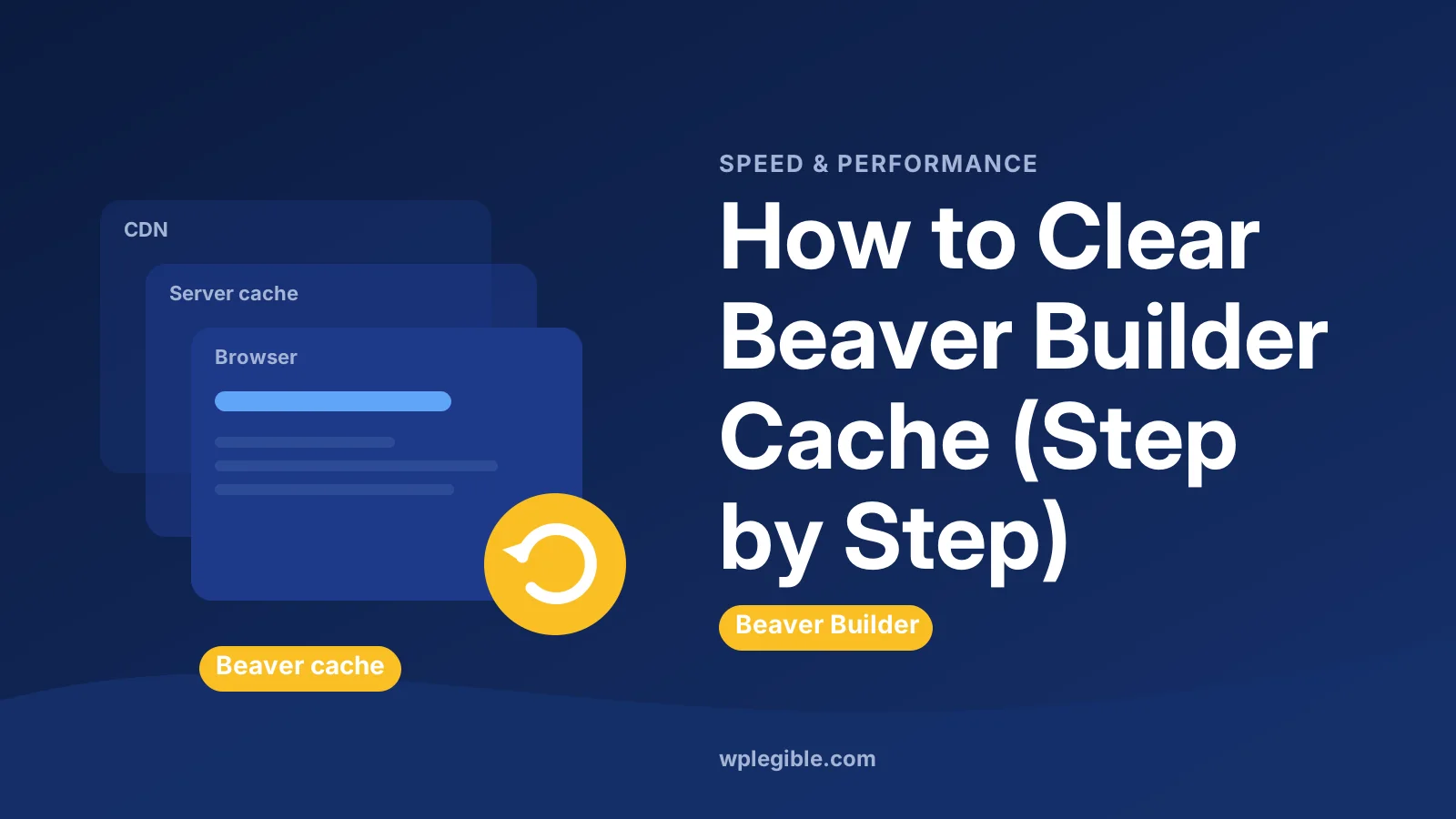
After Beaver Builder's cache, clear your caching plugin, your host's server cache, any CDN such as Cloudflare, and finally your browser cache.
| Cache layer | Where to clear it | Why it matters |
|---|---|---|
| Beaver Builder | Settings > Beaver Builder > Tools | Rebuilds layout CSS and JS |
| Caching plugin | Plugin toolbar or settings | Stops old HTML linking to old files |
| Host cache | Hosting dashboard or toolbar button | Server-level page caching |
| CDN | CDN dashboard, purge everything | Edge copies of CSS and pages |
| Browser | Hard refresh or private window | Your own local copy |
Order matters. Clear from the inside out: builder, plugin, server, CDN, browser. If you clear the CDN first, it can refill with old files before the builder cache is gone.
For the plugin and host layers, see our guide on how to clear cache in WordPress. Cloudflare users can follow Cloudflare's own purge cache guide.
Can you clear the Beaver Builder cache with WP-CLI?
Yes, Beaver Builder adds WP-CLI commands, including one that clears its cache, which helps on staging pipelines and after deployments.
From the site's root folder, the command looks like this:
wp beaver clearcacheOn multisite, an extra flag clears the cache for all sites. Check the exact options on the Beaver Builder WP-CLI page, since flags can change between versions.
WP-CLI itself must be installed on your server. Many managed hosts include it, and the WP-CLI handbook explains how to install and run it.
Adding this command to your deployment script means every release starts with fresh layout files.
Is there a faster way than going into settings?
Yes, small helper plugins such as BB Delete Cache add a clear cache button to the admin toolbar, so you do not need to open the settings page each time.
BB Delete Cache is listed in the WordPress plugin directory. It is a convenience tool, not a requirement.
Before installing any helper, check when it was last updated and whether it is tested with your WordPress version. An abandoned helper is not worth the risk for a two-click saving.
Some hosting toolbars also clear builder caches as part of a full purge. Check your host's documentation to see what its button covers.
Can you delete the cache folder manually?
You can delete the files inside the Beaver Builder cache folder by FTP or your host's file manager, because Beaver Builder recreates them, but use the Tools tab when you can.
Manual deletion is useful when the dashboard is unreachable, for example after a failed update. Only delete the contents of the cache subfolder, not the whole uploads folder.
Take a backup first. One wrong click in a file manager can remove media files, which are much harder to restore than cache.
After deleting, load the site in a private window. If pages look unstyled, check that the folder is writable, because Beaver Builder needs write access to rebuild files.
Why do changes still not show after clearing the cache?
If changes still do not appear, another cache is serving old files, a CSS optimisation plugin is combining old assets, or the page you edited is not the one you are viewing.
Check that you published your changes. Beaver Builder has Done, Publish and Save Draft options, and a draft will never appear on the live page.
Next, temporarily turn off CSS and JavaScript minification or combination in your optimisation plugin. Combined files can hold on to old layout styles even after the builder cache is cleared.
If you use a template or a Beaver Themer layout, make sure you edited the template rather than a single page. Our guide on CSS changes not showing covers more causes.
Why does the site break after a migration?
After a migration, cached Beaver Builder files can still point to the old domain or file paths, so clear the cache once the new URLs are in place.
First, update URLs in the database with a proper search and replace that handles serialized data. Our guide on how to search and replace in the WordPress database explains safe ways to do this.
Then clear the Beaver Builder cache so it regenerates CSS using the new paths. Finally, purge your CDN and page cache.
If images inside layouts still point to the old site, check background image settings in rows and modules, which sometimes store full URLs.
Does clearing the cache slow down your site?
Clearing the cache slows only the first load of each page while Beaver Builder rebuilds its files, and normal speed returns straight after.
On a large site, you can warm the cache by visiting your key pages or letting a cache preload feature crawl the site.
Do not clear the cache on a schedule without a reason. Constant rebuilding adds server work and gives no benefit when nothing has changed.
For general speed tuning, pair Beaver Builder with good hosting and a page cache. Beaver Builder's settings and our guide to Beaver Builder global settings help keep layouts lean.
What is a good cache routine for Beaver Builder sites?
A good routine is to clear the Beaver Builder cache after every update, theme change or migration, then purge the page cache and CDN, and test in a private window.
Keep a short checklist so you never skip a layer. Many layout problems reported as bugs turn out to be one forgotten cache.
Test changes on a staging copy first when you update Beaver Builder or its add-ons. If something breaks, you can fix it there instead of on the live site.
And when a fresh cache does not solve a problem, move on to conflict testing with the Health Check plugin, which lets you disable plugins only for your own session.
Frequently asked questions
Does clearing the Beaver Builder cache delete my pages?
No. The cache only holds generated CSS and JavaScript files for your layouts. Your pages, rows, modules and settings are stored in the database and stay untouched. Beaver Builder rebuilds the cache files automatically the next time each page is viewed.
Where is the Beaver Builder cache stored?
It is stored as files inside your uploads folder, in a Beaver Builder folder with a cache subfolder. You normally never need to touch it, because the Tools tab clears it for you, but you can empty it by FTP if the dashboard is unavailable.
How often should I clear the Beaver Builder cache?
Clear it when something changes, such as an update, a theme switch, a migration or a layout that looks wrong. There is no benefit in clearing it on a fixed schedule, and constant rebuilding adds unnecessary work for your server.
Why does the page look right when logged in but not for visitors?
Logged-in users usually bypass page caching, so they see fresh files while visitors get an old cached copy. Clear the Beaver Builder cache, then purge your page cache, host cache and CDN, and check again in a private window.
Does clearing the cache fix a Beaver Builder editor that will not load?
Sometimes, especially right after an update. If it does not help, check the browser console for JavaScript errors, test for plugin conflicts, and confirm your PHP memory limit is high enough for the builder.
Sources
- Tools tab Beaver Builder Knowledge Base
- WP-CLI for the plugin and theme Beaver Builder Knowledge Base
- WP-CLI Handbook WordPress.org
- Purge cache Cloudflare Docs
- BB Delete Cache WordPress.org Plugins
Is your product missing, or something out of date?
Tell us what to add or correct. We read every note and reply when we need a source. A message does not buy a ranking.
Thanks — we review requests within 3 business days.
Related guides



About the editors
Researched from the primary sources listed above and checked against our editorial rules before publishing.