Setup & site building · Guide
How to Change URL of a Page on WordPress (Step by Step)
Short answer
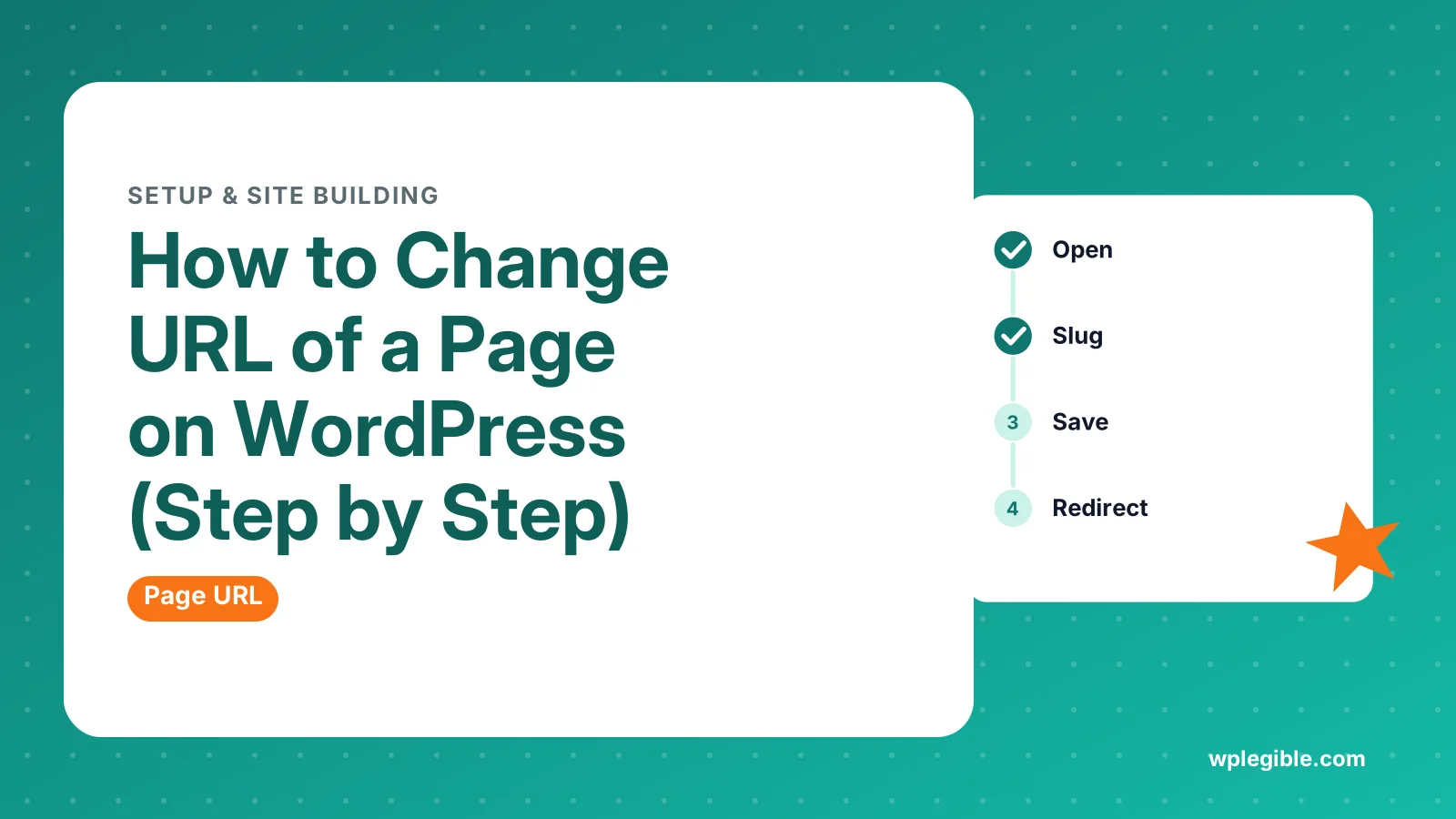
Open the page in the editor, click the URL or Link setting in the page sidebar and type a new slug, then click Update. You can also change the slug with Quick Edit in the Pages list. Afterwards, add a 301 redirect from the old address so links and rankings keep working.
Key takeaways
- You change a page URL by editing its slug.
- Use the page sidebar, Quick Edit or the classic editor.
- Parent pages add their slug to the child page URL.
- A -2 suffix means the slug is already taken, often by trash.
- Always add a 301 redirect from the old address.
How do you change the URL of a page on WordPress?
Open the page in the editor, find the URL or Link setting in the page sidebar, edit the slug (the last part of the address), then update the page and add a 301 redirect from the old URL.
The slug is the only part of a single page's address you normally change. The domain stays the same, and the rest comes from your site settings and any parent page.
This guide covers the block editor, Quick Edit, the classic editor, parent pages and the redirect step that protects your traffic.
Which part of a page URL can you change?
You can change the page slug and its parent page, while the domain and site-wide structure come from your general and permalink settings.
Take the address example.com/services/web-design/. Here, web-design is the slug of the page, and services is its parent page.
| Part of the URL | Where it is set | Affects |
|---|---|---|
| Domain (example.com) | Settings, General, and your host | Whole site |
| Permalink structure | Settings, Permalinks | Posts, not pages |
| Parent page path (/services/) | Page Attributes or Parent setting | This page and its children |
| Slug (/web-design/) | The page's URL or Link setting | This page only |
Pages ignore the post permalink structure. They always use the parent path plus the slug. Our explainer on what a slug is in WordPress covers this in more depth.
Step 1: How do you open the page's URL setting in the block editor?
Go to Pages, open the page, make sure the settings sidebar is visible, select the Page tab and click the current URL or Link value to edit it.
If you cannot see the sidebar, click the settings icon in the top right corner of the editor. It looks like a square panel.
In recent WordPress versions, the page summary shows a Link or URL row with the current address. Clicking it opens a small panel with the slug field.
The label and layout have changed between WordPress versions. If your screen looks different, check the Page/Post Settings Sidebar documentation for your version.
The URL setting only appears once the page has been saved at least once, even as a draft.
Step 2: How do you edit the slug?
Replace the text in the slug field with a short, lowercase name using hyphens between words, then click outside the field to apply it.
Good slugs follow a few simple rules:
- Use lowercase letters, numbers and hyphens only.
- Keep it short, usually two to five words.
- Describe the page clearly, such as contact or pricing.
- Drop filler words like the, and or of when they add nothing.
- Avoid dates or numbers that will go out of date.
WordPress cleans up the slug automatically. Spaces become hyphens, and most special characters are removed.
Google's URL structure guidelines recommend simple, readable URLs that use words rather than long ID numbers.
Step 3: How do you save the new URL?
Click Update or Save on the page, then open the new address in a private browser window to confirm it loads correctly.
The change does not go live until you save. If the page is published, the new address works immediately after updating.
If you see a 404 at the new address, go to Settings, then Permalinks, and click Save Changes. This refreshes the rewrite rules without changing anything else.
Clear your caching plugin and any CDN cache too. Our guide on how to clear cache in WordPress lists the usual places to purge.
How do you change a page URL with Quick Edit?
In the dashboard go to Pages, hover over the page, click Quick Edit, change the Slug field, and click Update without opening the editor.
Quick Edit is the fastest method when you need to change several slugs. It also shows the Parent dropdown for pages.
This is handy if the editor is slow to load or a page builder makes the sidebar hard to reach.
The same Slug field appears for posts in the Posts list. The Pages screen documentation describes the other Quick Edit options.
What about the classic editor?
In the classic editor, click the Edit button next to the permalink shown under the page title, change the slug, click OK, then click Update.
If you do not see the permalink line, the page may not have been saved yet. Save it as a draft first.
Sites that use the Classic Editor plugin or an older setup all work this way. The rules for a good slug are the same as above.
How do you change the URL when using Elementor or another page builder?
Page builders do not usually control the slug, so exit the builder, open the page in the WordPress editor or use Quick Edit, and change the slug there.
In Elementor, you can return to the WordPress dashboard from the builder menu. Then edit the slug as you would for any other page.
Some builders show page settings with a title and status, but the address is still handled by WordPress. Changing the slug outside the builder does not affect your design.
How do parent pages change a page URL?
Choosing a parent page adds the parent's slug to the address, so setting Services as the parent of Web Design produces /services/web-design/.
In the block editor, look for the Parent setting in the page sidebar. In Quick Edit, use the Parent dropdown.
Changing a parent page's slug also changes the URL of every child page under it. Plan for redirects on all of them, not just the parent.
To remove the parent path, set the parent to (no parent). The page then sits at the top level, such as /web-design/.
Why does WordPress add -2 to your new URL?
WordPress adds -2 when another page, post, attachment or item in the trash already uses that slug, because two items at the same level cannot share an address.
Check the trash first. A deleted page still reserves its slug until you empty the trash or delete it permanently.
Attachments can also claim slugs. If you uploaded an image called pricing.jpg, its attachment page might hold the slug pricing.
Once the conflict is gone, edit the slug again and remove the -2.
Do you need a redirect after changing a page URL?
Yes, add a 301 redirect from the old address to the new one, because WordPress does not reliably redirect old page slugs on its own and old links would otherwise return 404.
WordPress keeps a record of old slugs for regular posts, but the wp_check_for_changed_slugs function skips hierarchical content like pages. Do not count on it either way.
A redirect keeps visitors, bookmarks and backlinks working. It also tells search engines the page has moved permanently. Our guide on how to set up 301 redirects in WordPress shows the main methods.
The free Redirection plugin can also watch for slug changes and create redirects for you, depending on its settings.
Do not forget internal links. Update menus and any links in your content that point to the old address.
Does changing a page URL hurt SEO?
A changed URL can cause a short dip while search engines process the move, but a proper 301 redirect and updated internal links keep most rankings intact.
Only change URLs when there is a real reason, such as a confusing slug or a site restructure. Changing working URLs for small gains is rarely worth the risk.
After the change, use Google Search Console's URL Inspection tool to request indexing of the new address.
If you are changing the structure for every post on the site, follow our guide on how to change permalinks without breaking SEO instead.
How do you change the home page URL?
The home page always sits at your domain root, so instead of editing its slug, choose which page appears there under Settings, then Reading.
Select A static page and pick your home page from the list. That page then loads at the bare domain.
Changing the domain itself is a bigger job that involves Settings, General and your hosting. Treat it as a migration, with a backup first.
Frequently asked questions
Why can't I see the URL option for my page?
The URL setting appears only after the page has been saved at least once, so save it as a draft first. Also check that the settings sidebar is open and the Page tab is selected. Some plugins or user roles can hide the option, so test as an Administrator.
Can I change a page URL without losing SEO?
Mostly, yes. Add a 301 redirect from the old address to the new one, update internal links and menus, and request indexing for the new URL in Search Console. Expect a short settling period, but rankings usually carry over when redirects are correct.
How do I remove the parent folder from a page URL?
Open the page, find the Parent setting in the sidebar or in Quick Edit, and choose no parent. The page then moves to the top level of your site. Add a redirect from the old nested address to the new one.
Can I use capital letters or spaces in a page URL?
WordPress converts spaces to hyphens and generally lowercases slugs, so it is best to type them that way yourself. Lowercase letters, numbers and hyphens give clean addresses that are easy to share and that work reliably on every server.
Does changing the page title change the URL?
No. After a page is published, editing the title does not update the slug. You must change the slug separately in the URL setting or Quick Edit. This prevents accidental broken links when you tweak a title.
Sources
- Page/Post Settings Sidebar WordPress.org Documentation
- Pages Screen WordPress.org Documentation
- URL structure best practices for Google Google Search Central
- Redirection WordPress.org Plugins
- wp_check_for_changed_slugs() WordPress Developer Resources
- URL Inspection Tool Google Search Console Help
Is your product missing, or something out of date?
Tell us what to add or correct. We read every note and reply when we need a source. A message does not buy a ranking.
Thanks — we review requests within 3 business days.
Related guides



About the editors
Researched from the primary sources listed above and checked against our editorial rules before publishing.