Blogging & content · Guide
How to Change Order of WordPress Posts (Step by Step)
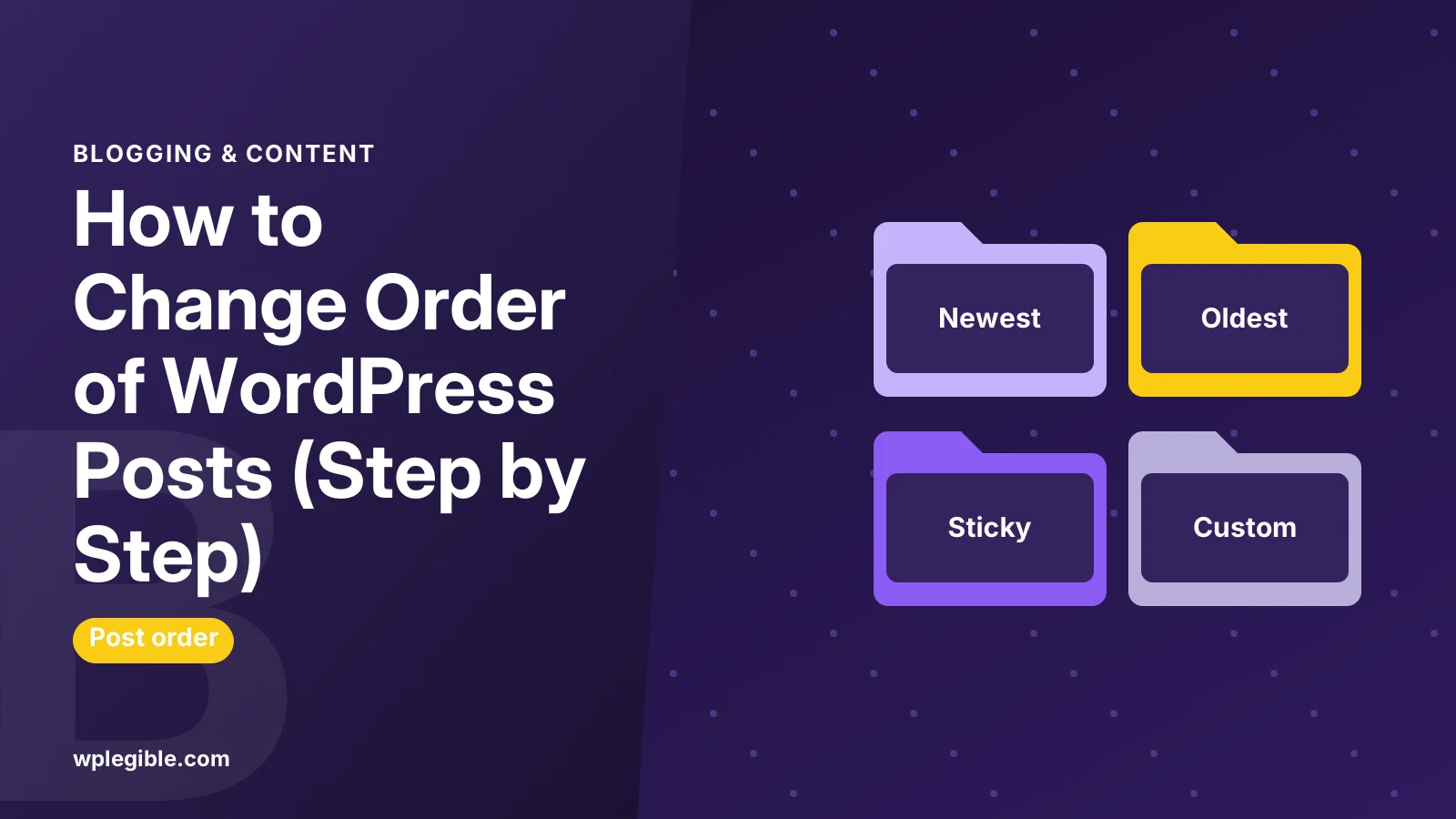
Short answer
Change the order of WordPress posts by editing publish dates, making key posts sticky, setting the order in the Query Loop block, using a drag-and-drop plugin, or adding a pre_get_posts snippet. Pick the method based on how much control you need.
Key takeaways
- WordPress shows posts newest first by default.
- Sticky posts pin content to the top of the blog page.
- The Query Loop block has its own order setting.
- Drag-and-drop plugins save a manual order to menu_order.
- A pre_get_posts snippet changes order without a plugin.
How do you change the order of WordPress posts?
You can change the order of WordPress posts by editing their publish dates, making posts sticky, changing the Query Loop block's order setting, installing a drag-and-drop ordering plugin, or adding a pre_get_posts code snippet.
By default, WordPress shows posts in reverse chronological order. The newest post appears first on your blog page and in archives.
That default suits most blogs. But you may want an evergreen guide at the top, a series in reading order, or a custom order for a portfolio or team page.
The best method depends on whether you want a quick tweak or a fully manual order.
Which method should you use?
Use date changes or sticky posts for small tweaks, the Query Loop block for one-off listings, a plugin for drag-and-drop control, and code when you want a lightweight, permanent rule.
| Method | Best for | Skill needed | Affects |
|---|---|---|---|
| Change publish date | Moving a few posts | None | All date-ordered lists |
| Sticky posts | Pinning one or two posts to the top | None | Main blog page |
| Query Loop order setting | A specific listing in a block theme | Low | That block only |
| Drag-and-drop plugin | Full manual order | Low | Lists that use menu order |
| pre_get_posts code | Site-wide custom rules | Medium | Queries you target |
How do you reorder posts by changing the date?
Open a post, click the publish date in the settings sidebar, pick a newer or older date and time, and click Update; WordPress then places it according to the new date.
Steps:
- Go to Posts > All Posts and open the post.
- In the Post settings panel, click the date next to Publish.
- Choose a new date and time.
- Click Update.
Quick Edit works too. Hover over the post in the list, click Quick Edit, and change the date fields.
Keep in mind that dates are visible to readers in many themes. Backdating or forward-dating a post can mislead readers about when it was written, so use this method with care.
If you pick a future date, WordPress schedules the post instead of publishing it immediately. The Posts screen documentation explains post statuses and dates.
How do you pin a post to the top?
Make it sticky: open the post, tick Stick to the top of the blog in the settings sidebar, and click Update so it appears above newer posts on your main blog page.
Sticky posts are the built-in way to feature content. They stay at the top of the posts page until you untick the option.
Sticky posts only affect the main blog listing in most themes. Category archives and custom loops may ignore them unless the theme supports it.
Our guide on how to make a post sticky in WordPress covers the editor, Quick Edit and theme quirks.
How do you change post order in the Query Loop block?
Select the Query Loop block in the editor or Site Editor, open its settings, and choose an order such as newest to oldest, oldest to newest, A to Z, or Z to A.
The Query Loop block powers post lists in block themes and on custom pages. Its order setting only changes that one block.
- Open the page or template in the editor. For the blog page in a block theme, go to Appearance > Editor and open the relevant template.
- Select the Query Loop block. Use the List View if it is hard to click.
- In the block toolbar or sidebar, find the Order by control.
- Pick the order you want.
- Save the template or page.
Turn off Inherit query from template if the order options are hidden. The Query Loop block documentation describes every setting.
If you are new to this block, read what a WordPress Query Loop is first.
How do you reorder posts with drag and drop?
Install a post ordering plugin, activate it, then drag posts into the order you want on the All Posts screen or the plugin's sorting page; the plugin saves the order to the menu_order field.
Popular free options include Post Types Order and Intuitive Custom Post Order. Both work with posts, pages and custom post types.
General steps:
- Go to Plugins > Add New and search for the plugin.
- Install and activate it.
- Open the plugin's settings and choose which post types to sort.
- Go to the list screen or sorting page and drag items into place.
- Check the front end to confirm your theme uses the new order.
Some themes and page builder widgets run their own queries. If the order does not change on the front end, check the plugin's option to apply the custom order automatically.
Before installing, check the plugin's last update date and compatibility with your WordPress version.
How do you change post order with code?
Add a pre_get_posts function in a child theme or code snippets plugin that sets orderby and order on the main query, so WordPress sorts posts your way without a plugin interface.
This example sorts the blog page alphabetically by title:
add_action( 'pre_get_posts', function( $query ) {
    if ( ! is_admin() && $query->is_main_query() && $query->is_home() ) {
        $query->set( 'orderby', 'title' );
        $query->set( 'order', 'ASC' );
    }
} );
The snippet uses a PHP anonymous function, which needs no separate function name. You can swap title for modified to show recently updated posts first, menu_order for manual order, or rand for random order.
The pre_get_posts hook reference explains the conditional checks. The WP_Query orderby parameters list every supported value.
Always add code through a child theme or a snippets plugin, not the parent theme's functions file. Theme updates would erase your change. For custom loops, our guide on how to use WP_Query shows the same parameters in action.
How do you change the order of pages?
Pages have a built-in Order field: open the page, find Order under Page Attributes in the sidebar, enter a number, and lower numbers appear first in lists that sort by menu order.
This field stores the menu_order value. Many themes, page list blocks and widgets use it when showing child pages.
The Order field does not change your navigation menu. Menus are ordered separately under Appearance > Menus or in the Navigation block.
How do you order posts in a category?
To order posts in one category, use a plugin that supports per-category sorting, or target the category in your pre_get_posts code with is_category() so only that archive changes.
For example, change the condition in the snippet above to:
if ( ! is_admin() && $query->is_main_query() && $query->is_category( 'recipes' ) ) {This sorts only the recipes category archive. Everything else stays in date order.
For more on category archives, see how to display all categories in WordPress.
Why doesn't my new post order show up?
Usually caching, a theme or page builder with its own query, or sticky posts overriding the order prevent changes from showing, so clear caches and check which query builds the list.
Work through these checks:
- Clear your caching plugin, host cache and CDN cache.
- Check whether the list comes from a page builder widget with its own order setting.
- Untick sticky posts you no longer want pinned.
- Make sure your code targets the right query and page type.
- Temporarily switch to a default theme on a staging site to see if the theme overrides ordering.
A staging site is the safest place to test plugin and code changes before going live.
Does post order affect SEO?
Post order does not directly affect rankings, but it changes which posts get the most internal visibility on your blog page and archives, which can influence how quickly they are crawled and how much traffic they receive.
Posts near the top of your blog page are linked from a strong page. Moving key guides higher can help readers and crawlers find them.
Google notes in its guide to crawlable links that it finds pages through links. Pages buried deep in paginated archives get fewer internal links, so a thoughtful order helps important posts stay discoverable.
Avoid changing dates just to look fresh. If you update a post, show the updated date honestly instead of faking a new publish date.
Frequently asked questions
How do I put an old post at the top of my blog?
Make the post sticky by ticking Stick to the top of the blog in the post settings sidebar. It will stay above newer posts on your main blog page until you untick the option. This avoids changing the post's publish date.
Can I reorder WordPress posts without a plugin?
Yes. You can change publish dates, use sticky posts, set the order in the Query Loop block, or add a pre_get_posts snippet to a child theme or snippets plugin. Plugins are only needed if you want drag-and-drop manual sorting.
How do I show posts in oldest-first order?
In a block theme, select the Query Loop block and set the order to oldest to newest. In classic themes, use a pre_get_posts snippet that sets order to ASC on the main query. This works well for tutorial series and stories.
Why are my posts not in date order?
Sticky posts, a custom ordering plugin, a page builder widget or theme code can change the default order. Check for sticky posts first, then review plugin settings and any custom code. Clearing your cache also helps confirm the real order.
Does changing the post date hurt SEO?
Changing a date does not directly harm rankings, but faking freshness can confuse readers and search engines. If you have genuinely updated a post, show an updated date instead. Use sticky posts or custom ordering when you only want to change position.
Sources
- Query Loop Block WordPress.org Documentation
- pre_get_posts WordPress Developer Resources
- WP_Query Order and Orderby Parameters WordPress Developer Resources
- Post Types Order WordPress.org Plugin Directory
Is your product missing, or something out of date?
Tell us what to add or correct. We read every note and reply when we need a source. A message does not buy a ranking.
Thanks — we review requests within 3 business days.
Related guides



About the editors
Researched from the primary sources listed above and checked against our editorial rules before publishing.