Setup & site building · Guide
How to Add Calendly to Your WordPress Website (Step by Step)
Short answer
In Calendly, open your event type, choose the option to add it to a website, pick inline embed, popup widget or popup text, and copy the code. In WordPress, paste it into a Custom HTML block on your booking page, then publish and check the live page.
Key takeaways
- Calendly offers inline, popup widget and popup text embeds.
- Paste the code into a Custom HTML block; no plugin is required.
- Add the popup widget site-wide through footer scripts, not a single block.
- Check the live page, because the editor often will not run the script.
- JavaScript delay settings and consent tools are common reasons the embed is blank.
How do you add Calendly to your WordPress website?
Copy the embed code from your Calendly account, then paste it into a Custom HTML block on the WordPress page where you want people to book, and publish the page.
That is the whole process for most sites, and it works with any theme. You do not need a plugin unless you prefer a shortcode or a settings screen.
Calendly offers three embed styles: an inline calendar on the page, a floating popup button, and a text link that opens a popup. You choose the style before copying the code.
This guide walks through each style, the plugin option, page builders, and fixes for when the calendar does not show.
What do you need before you start?
You need a Calendly account with at least one event type set up, and a WordPress user role that can add Custom HTML, which on a normal site means an Administrator or Editor.
Set up your availability, meeting length and questions inside Calendly first. The embed shows whatever your event type is configured to show, so fix those details at the source.
On WordPress.com, embedding third-party scripts may need a paid plan that allows them. Check your plan before you start if your site is hosted there.
Calendly's own help article on adding Calendly to a WordPress site is worth keeping open alongside this guide in case its menus change.
Which Calendly embed type should you choose?
Choose inline embed for a dedicated booking page, popup widget for a site-wide floating button, and popup text when you want a booking link inside your own copy.
| Embed type | How it looks | Best for | Where to paste it |
|---|---|---|---|
| Inline embed | Full calendar inside the page | A Book a Call or Contact page | Custom HTML block on that page |
| Popup widget | Floating button in a corner of every page | Sites where booking is the main goal | Site-wide footer or header scripts |
| Popup text | A text link that opens the calendar | Inside articles, sales pages, menus | Custom HTML block where the link goes |
| Plain link | Normal link to your Calendly page | Simplest setup, emails | Any button or link |
Calendly's page on embed options shows previews of each style and the customization settings available.
How do you get the embed code from Calendly?
In Calendly, open the event type or scheduling page you want to share, choose the option to add it to a website, pick an embed type, adjust the settings, and copy the code.
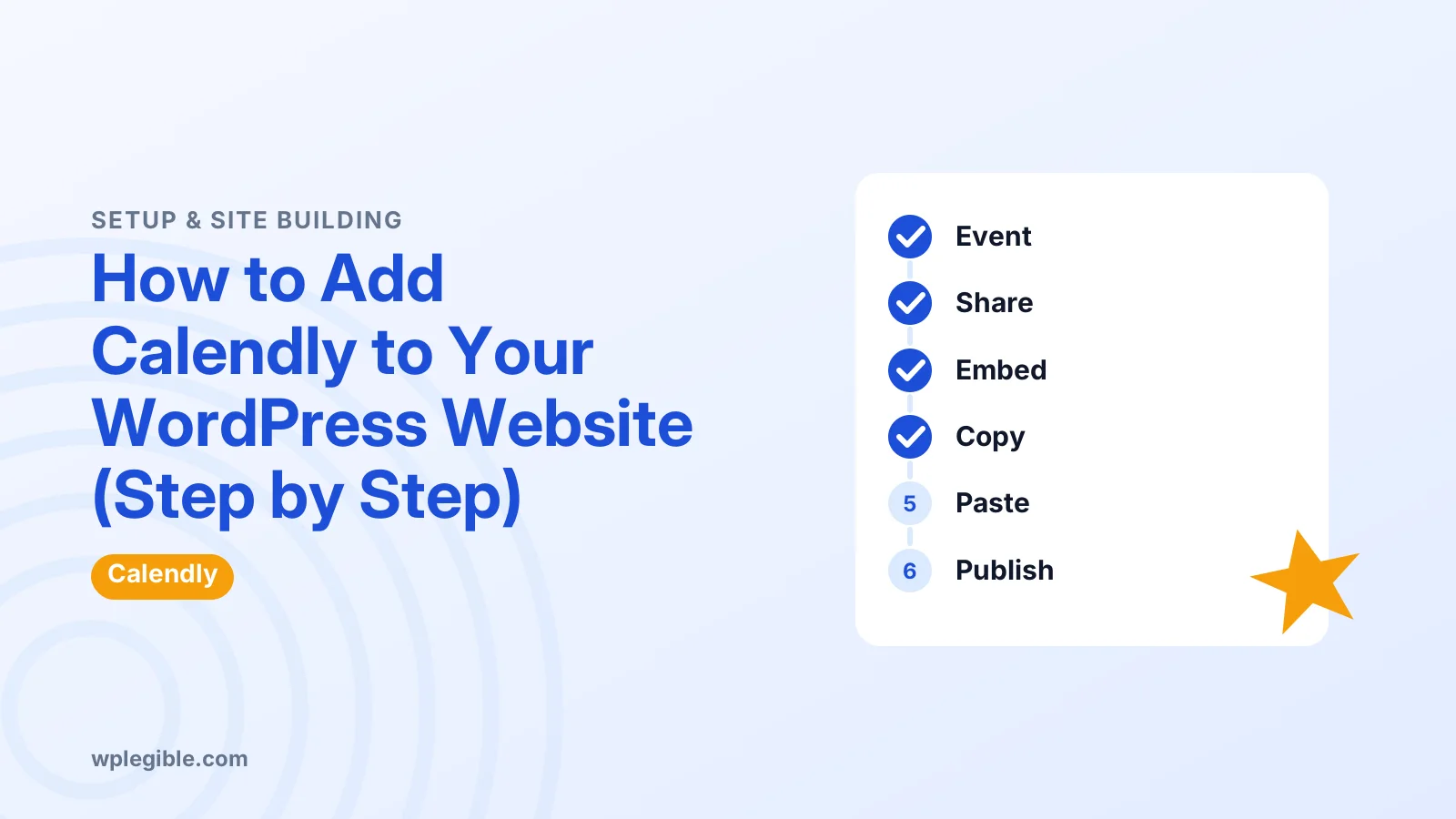
The steps look roughly like this:
- Log in to Calendly and find the event type you want people to book.
- Click Share or the menu on that event type.
- Choose Add to website or the embed option.
- Pick Inline embed, Popup widget or Popup text.
- Adjust colors, button text and whether to hide event details.
- Click Copy code.
Calendly updates its interface from time to time, so the button labels may differ a little. If you cannot find it, search Calendly's help center for embed options.
You can embed a single event type or your whole scheduling page, which lists every event type. A single event usually converts better because visitors have one clear choice.
How do you paste the inline embed into a page?
Edit the page in WordPress, add a Custom HTML block where the calendar should appear, paste the Calendly code, preview it, and publish.
Here is the process in the block editor:
- Go to Pages and open or create your booking page.
- Click the plus icon and search for Custom HTML.
- Paste the code you copied from Calendly.
- Click Preview inside the block to check it.
- Publish or update the page, then view it on the live site.
The Custom HTML block documentation explains the block in more detail. Our guide on adding HTML in WordPress covers other places you can paste code.
The editor preview sometimes shows a blank box because scripts do not always run inside the editor. Always check the published page before deciding something is broken.
Give the calendar room. Inline embeds need a decent height, so use a full-width or wide layout on that page if your theme allows it.
How do you add the popup widget to every page?
Paste the popup widget code into your site's footer scripts using a code snippets plugin, your theme's header and footer script setting, or a child theme hooked to wp_footer.
Unlike the inline embed, the popup widget belongs on every page, so a single block is not enough. Most themes and snippet plugins have a Footer scripts box for exactly this.
For developers, a small function in a child theme can print the code on the wp_footer hook so it loads on every page.
Check your mobile layout after adding the widget. A floating button can cover chat widgets, cookie banners or a sticky add-to-cart bar.
How do you add a popup text link?
Copy the popup text code from Calendly and paste it in a Custom HTML block wherever you want the link, such as the end of a blog post or under a pricing table.
The link opens the booking calendar over the page, so visitors never leave your site. That keeps them close to the content that convinced them to book.
You can change the link text in Calendly before copying, or edit the visible words directly in the pasted code. Keep it action-focused, like Book a free 15-minute call.
Can you use a plugin instead?
Yes, plugins such as EMC – Easily Embed Calendly Scheduling let you add Calendly with a shortcode or block and manage settings inside WordPress.
The EMC plugin page on WordPress.org lists its current features and compatibility. Read recent reviews and check when it was last updated before installing.
A plugin helps if you add Calendly to many pages or want non-technical editors to use it without touching code. For one booking page, the plain embed code is simpler and adds nothing extra to your site.
If you are new to shortcodes, our guide on what a shortcode is explains how they work.
How do you add Calendly in Elementor or other page builders?
In Elementor, drag an HTML widget onto the page and paste the Calendly code; other builders like Divi, Beaver Builder and Bricks have a similar code or HTML module.
The builder method works the same as the block editor. The calendar may not display inside the builder's editing view, so preview the page on the front end.
If you use the popup widget, add it site-wide through your builder's custom code area or theme settings rather than on each page.
Why is the Calendly embed not showing?
The calendar usually fails to show because a plugin stripped or delayed the script, a cache served an old page, the block height is too small, or a cookie or privacy tool blocked it.
Work through these checks:
- Check the published page, not the editor. Scripts often do not run in the editor preview.
- Clear caches. Clear your caching plugin and browser cache. Our guide on clearing cache in WordPress covers every layer.
- Exclude the script from delay or combine settings. Performance plugins that delay JavaScript can stop the widget until a visitor interacts with the page.
- Check your role. If your account lacks the unfiltered_html permission, WordPress strips the script tag when you save.
- Check consent tools. Cookie banners may block third-party scripts until visitors accept.
- Check the browser console. Errors there often name the blocked file.
Calendly's embed developer documentation helps if you need advanced options such as prefilling names or tracking events.
Should you use Calendly or a WordPress booking plugin?
Use Calendly if you mainly book calls and meetings and want calendar sync with little setup, and use a WordPress booking plugin if you need bookings stored on your site or tied to WooCommerce.
Calendly runs on its own servers, so your WordPress site only shows the calendar. Data, reminders and integrations live in Calendly.
Booking plugins store appointments in your WordPress database and can take payments through your own checkout. That suits salons, rentals and classes.
Our guide on adding a booking calendar to WordPress compares plugin options if Calendly is not the right fit.
Frequently asked questions
Is it free to embed Calendly on WordPress?
Embedding works on Calendly's free plan, and WordPress needs no paid plugin for it. Some options, such as removing Calendly branding or using certain integrations, need a paid Calendly plan. Check Calendly's current pricing page for exactly what each plan includes.
Why does my Calendly embed look blank in the editor?
The block editor often does not run third-party scripts in its preview, so the Calendly box appears empty while editing. Publish or preview the page on the front end. If it is still blank there, check caching and JavaScript delay settings.
Can I add Calendly to my WordPress menu?
Yes. The simplest way is to add a custom link menu item pointing to your Calendly scheduling page. If you want a popup instead, use the popup text code in a header area or a menu plugin that accepts HTML.
Does the Calendly embed slow down my site?
It adds a small script and loads the calendar from Calendly's servers, which can add some weight. Keep the inline embed on a dedicated booking page, and only use the site-wide popup widget if booking is a core goal of every page.
Will bookings show up inside WordPress?
No. Bookings made through the embed are stored in your Calendly account and synced to your connected calendar. WordPress only displays the scheduler. Use Calendly's integrations or a WordPress booking plugin if you need appointment data inside your site.
Sources
- How to add Calendly to a WordPress site Calendly Help Center
- Embed options Calendly Help Center
- Getting Started with Embeds Calendly Developer
- EMC – Easily Embed Calendly Scheduling WordPress.org
- Custom HTML block WordPress.org
- wp_footer hook WordPress Developer Resources
Is your product missing, or something out of date?
Tell us what to add or correct. We read every note and reply when we need a source. A message does not buy a ranking.
Thanks — we review requests within 3 business days.
Related guides



About the editors
Researched from the primary sources listed above and checked against our editorial rules before publishing.