Hosting · Guide
How to Access File Manager in WP Engine (Step by Step)
Short answer
WP Engine does not have a cPanel-style file manager. To access your files, create an SFTP user in the WP Engine User Portal under your site's environment, then connect with an SFTP app such as FileZilla using the host, port, username and password the portal shows.
Key takeaways
- WP Engine uses SFTP instead of a browser-based file manager.
- Create SFTP users per environment in the User Portal.
- Use the host and port the portal shows, usually port 2222.
- Most of your work happens inside the wp-content folder.
- Developers can use SSH Gateway and WP-CLI for faster work.
Does WP Engine have a file manager?
WP Engine does not give you a cPanel-style file manager; instead, you access your site's files over SFTP using an SFTP user created in the WP Engine User Portal.
This surprises many people who move from shared hosting. On cPanel hosts, you click File Manager and edit files in the browser. WP Engine is a managed host built around its own portal, so file access works differently.
The good news is that SFTP gives you everything a file manager does, and more. You can upload, download, rename, edit and delete files using a free desktop app.
WP Engine's own guide to SFTP usage and access is the official reference for the steps below.
What do you need before you start?
You need access to the WP Engine User Portal with permission to manage SFTP users, and an SFTP app on your computer.
Check these points:
- Portal access. Your user role must allow managing SFTP users for the site.
- The right environment. WP Engine sites usually have production, staging and development environments, each with its own files.
- An SFTP app. FileZilla, WinSCP and Cyberduck are free and popular.
- A backup. Take one before editing core files like wp-config.php.
If you are not sure whether WP Engine keeps backups for you, our guide on whether WP Engine includes backups explains how its backup points work.
How do you create an SFTP user in WP Engine?
In the User Portal, open your site, choose the environment, go to the SFTP users page, and add a new user with a username and password.
- Log in to the WP Engine User Portal.
- Click Sites and choose your site.
- Select the environment you want, such as production.
- Open SFTP users in the environment menu.
- Click the button to add a new SFTP user.
- Enter a username and a strong password.
- Choose the access path, usually the site root.
- Save the user.
The portal then shows the connection details you need. Copy the host name and port.
WP Engine's User Portal overview explains how the portal is organised if you cannot find the menu.
Give each person their own SFTP user. That way you can remove access for one person without changing everyone else's password.
You can also limit a user to one folder by changing the access path. For example, a designer who only works on the theme could be limited to the themes folder, which reduces the damage a mistake can cause.
How do you connect with an SFTP app?
Open your SFTP app, enter the host, port, username and password from the User Portal, make sure the protocol is SFTP, and connect.
WP Engine's SFTP details follow a standard pattern. The host is usually your environment name followed by sftp.wpengine.com, and the port is usually 2222. Always use the exact values shown in your portal.
In FileZilla:
- Open File > Site Manager.
- Click New site.
- Set Protocol to SFTP.
- Enter the host and port from the portal.
- Set Logon Type to Normal.
- Enter your SFTP username and password.
- Click Connect.
The first time you connect, the app asks you to trust the server's key. Accept it if the host name matches.
You can download FileZilla from the FileZilla project site. Windows users may prefer WinSCP, which has a simple two-pane layout.
| Setting | Value |
|---|---|
| Protocol | SFTP, not plain FTP |
| Host | Shown in the User Portal |
| Port | Shown in the portal, usually 2222 |
| Username | Your SFTP user |
| Password | Your SFTP password |
Where are your WordPress files once connected?
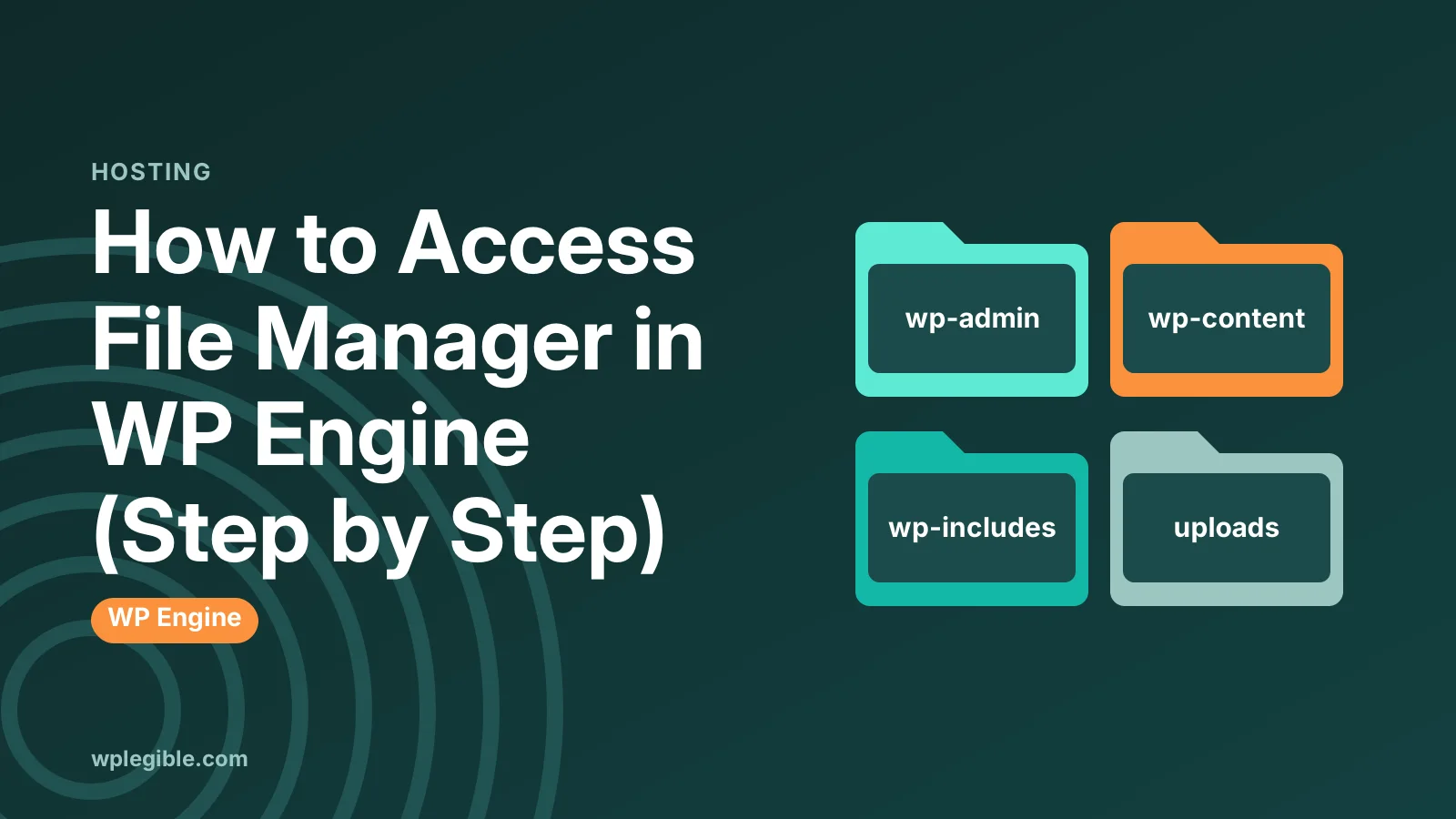
You land in the site's root folder, which holds the standard WordPress files and folders such as wp-admin, wp-content and wp-includes.
Most of your work happens in wp-content:
- wp-content/themes holds your themes.
- wp-content/plugins holds your plugins.
- wp-content/uploads holds your media library files.
The wp-config.php file sits in the root and holds database details and key settings. The WordPress guide to editing wp-config.php explains what each setting does.
On WP Engine, some core files and system folders are managed by the platform. Avoid changing files outside wp-content unless WP Engine's docs say it is safe.
What can you do over SFTP?
SFTP lets you do everything a file manager does: upload and download files, rename folders, edit files, and fix a site you cannot log in to.
Common tasks include:
- Deactivating a plugin that locks you out, by renaming its folder.
- Uploading a theme or plugin that is too big for the dashboard upload.
- Downloading a copy of your uploads folder.
- Editing a file such as a child theme's functions file.
To edit a file, right-click it in your SFTP app and choose View/Edit. The app downloads it, opens it in a text editor, and uploads it again when you save.
If you are fixing a broken site, our guide to fixing a plugin conflict shows how to find the plugin causing trouble by renaming folders.
Is there a faster way for developers?
Yes, WP Engine also offers SSH Gateway access, which lets developers use the command line and WP-CLI, plus Git push for code deployments.
SSH uses a key pair rather than a password. You add your public key in the User Portal, then connect from a terminal.
SSH is ideal for tasks like running WP-CLI commands, searching through files, or making bulk changes. WP Engine documents this in its SSH Gateway guide.
If you only need to edit a few files now and then, SFTP is simpler and less risky.
For a full copy of the site, including the database, a backup download from the portal is often quicker than pulling every file over SFTP. WP Engine lets you create a backup point and request a zip file of it from the backups page of each environment.
That zip is also handy when you want to inspect files offline without touching the live site.
Can you use a file manager plugin instead?
You can install a WordPress file manager plugin, but it adds security risk, and WP Engine restricts some plugins, so SFTP is the safer choice.
File manager plugins give anyone with admin access full control over your files from the browser. If an admin account is ever taken over, the attacker gets that control too.
Some file manager plugins have also had serious security flaws in the past. WP Engine keeps a list of plugins that are not allowed on its platform, so check it before installing any file tool.
If you do use one, remove it as soon as you finish. Our guide on removing unused plugins and themes safely explains why leftover tools matter.
Why can't you connect to WP Engine SFTP?
Connection problems usually come from using FTP instead of SFTP, the wrong port, a typo in the host, connecting to the wrong environment, or a password issue.
Check these first:
- Protocol. Make sure you chose SFTP. Plain FTP will not work.
- Port. Use the port shown in the portal, not 21 or 22.
- Host. Copy it exactly, including the environment name.
- Environment. Production and staging have separate SFTP users.
- Password. Reset it in the portal if in doubt.
- Firewall. Some office or public networks block non-standard ports.
If none of that helps, try a different network such as a phone hotspot. If it works there, your usual network is blocking the connection.
How do you keep SFTP access secure?
Use a separate SFTP user per person, choose strong passwords, delete users who no longer need access, and never share login details by email.
Review the SFTP users list in the User Portal every few months. Remove old contractors and anyone who has left your team.
For general advice on protecting a WordPress install, the WordPress guide to hardening WordPress covers file access, passwords and permissions.
If you are moving a site onto WP Engine and need file access during the move, see our guide on how to migrate a WordPress site to WP Engine.
Frequently asked questions
Does WP Engine have cPanel?
No. WP Engine uses its own User Portal instead of cPanel. You manage domains, backups, SFTP users and other settings there. File access is through SFTP or SSH rather than a browser-based file manager.
What port does WP Engine SFTP use?
WP Engine SFTP usually uses port 2222, not the standard port 22 or the FTP port 21. Always check the connection details shown in the User Portal for your environment, and copy the host and port exactly as listed.
Can I use plain FTP with WP Engine?
No. WP Engine only supports secure SFTP connections. Set the protocol in your app to SFTP. Plain FTP sends passwords without encryption, which is why managed hosts like WP Engine do not allow it.
Why can't I see my staging site files over SFTP?
Each WP Engine environment has its own files and its own SFTP users. Create an SFTP user for the staging environment in the User Portal and connect with that user's host details to see staging files.
Is it safe to install a file manager plugin on WP Engine?
It is generally safer to use SFTP. File manager plugins give full file control to anyone with admin access, and some have had serious security flaws. WP Engine also restricts certain plugins, so check its list before installing one.
Sources
- SFTP Usage and Access WP Engine
- User Portal Overview WP Engine
- SSH Gateway WP Engine
- FileZilla FileZilla Project
- Hardening WordPress WordPress Developer Resources
Is your product missing, or something out of date?
Tell us what to add or correct. We read every note and reply when we need a source. A message does not buy a ranking.
Thanks — we review requests within 3 business days.
Related guides


About the editors
Researched from the primary sources listed above and checked against our editorial rules before publishing.