Canva is the top GIF creator software for most people, with a free plan, animated templates and GIF export, rated 4.7 out of 5 on G2 from 7,972 reviews. Pick Photoshop for frame-by-frame control, or VEED for browser video-to-GIF work with captions and subtitles.
How we make this list: we compare pricing pages, product documentation and public user reviews, then re-check every price before each update. No product paid for a place. Disclosure.
Canva is the top pick: a free plan, animated templates and GIF export, rated 4.7/5 on G2 from 7,972 reviews.
Photoshop gives the most frame control at $22.99 a month, with a 4.6/5 G2 rating from 13,463 reviews and no free plan.
GIMP is the best free desktop pick: layer-frame GIFs at no cost, rated 4.3/5 from 1,484 G2 reviews.
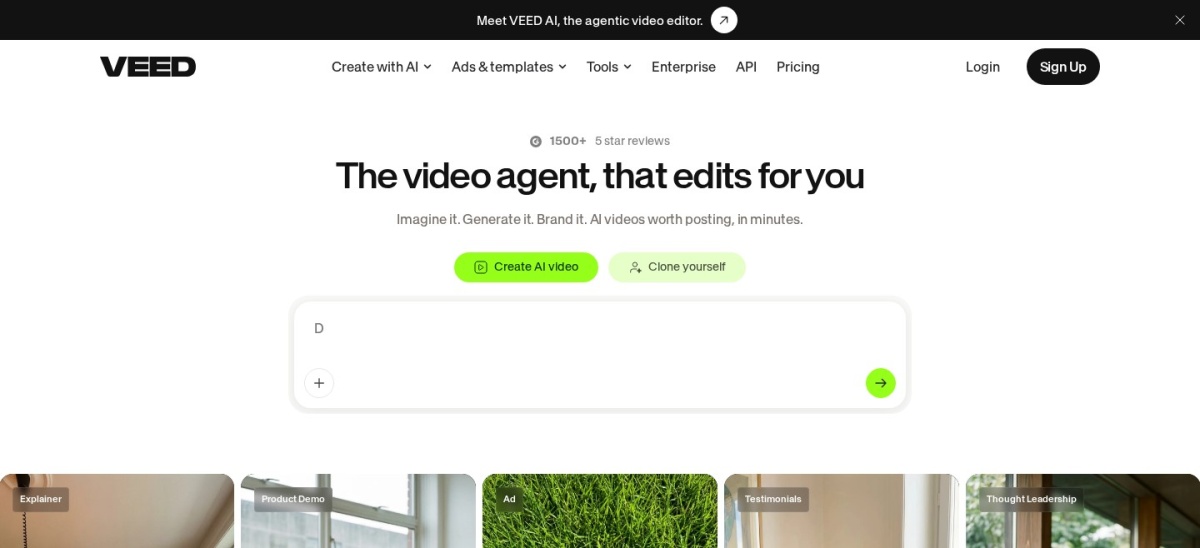
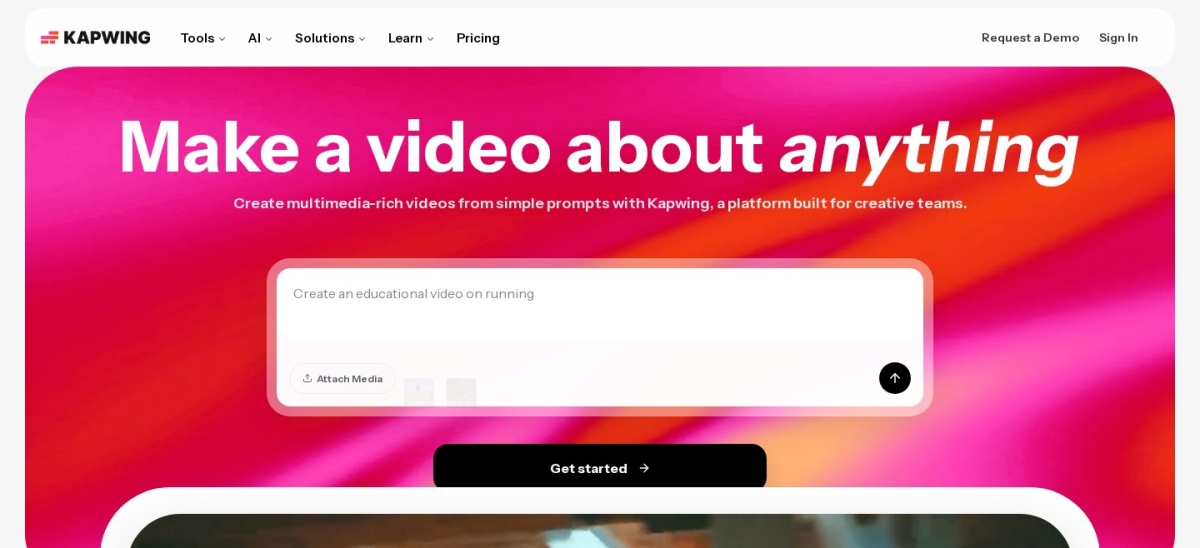
VEED and Kapwing turn video into GIFs in the browser; VEED rates 4.6/5 from 2,195 reviews, Kapwing 3.9/5 from 41.
Snagit is the cheapest paid tool here at $39 a year, built for screen demos and tutorial GIFs.
Paid plans in this list run from $39 to $275.88 a year; five of the nine tools have a free plan.
How do you choose the top GIF creator software?
A GIF creator is a recorder, a converter or a designer. Recorders capture the screen, converters turn video into GIFs, and designers build animated graphics from templates.
Start with the source of your GIF. A screen demo needs a recorder such as Snagit, a video clip needs a converter such as VEED or Movavi, and a branded social post needs a designer such as Canva or Adobe Express.
Watch the loop and the file size. Short clips loop cleanly, while long, high-resolution GIFs grow large fast. Our guide on optimizing images for WordPress explains why heavy images slow a page down.
Free plans cover most one-off GIFs. GIMP costs nothing, and Canva, Adobe Express, VEED, Kapwing and Filmora all have free tiers, though several add a watermark until you pay.
Pay only when GIFs are a weekly job. A subscription makes sense for teams shipping loops every week; for a single GIF, the free tools in this list are enough.
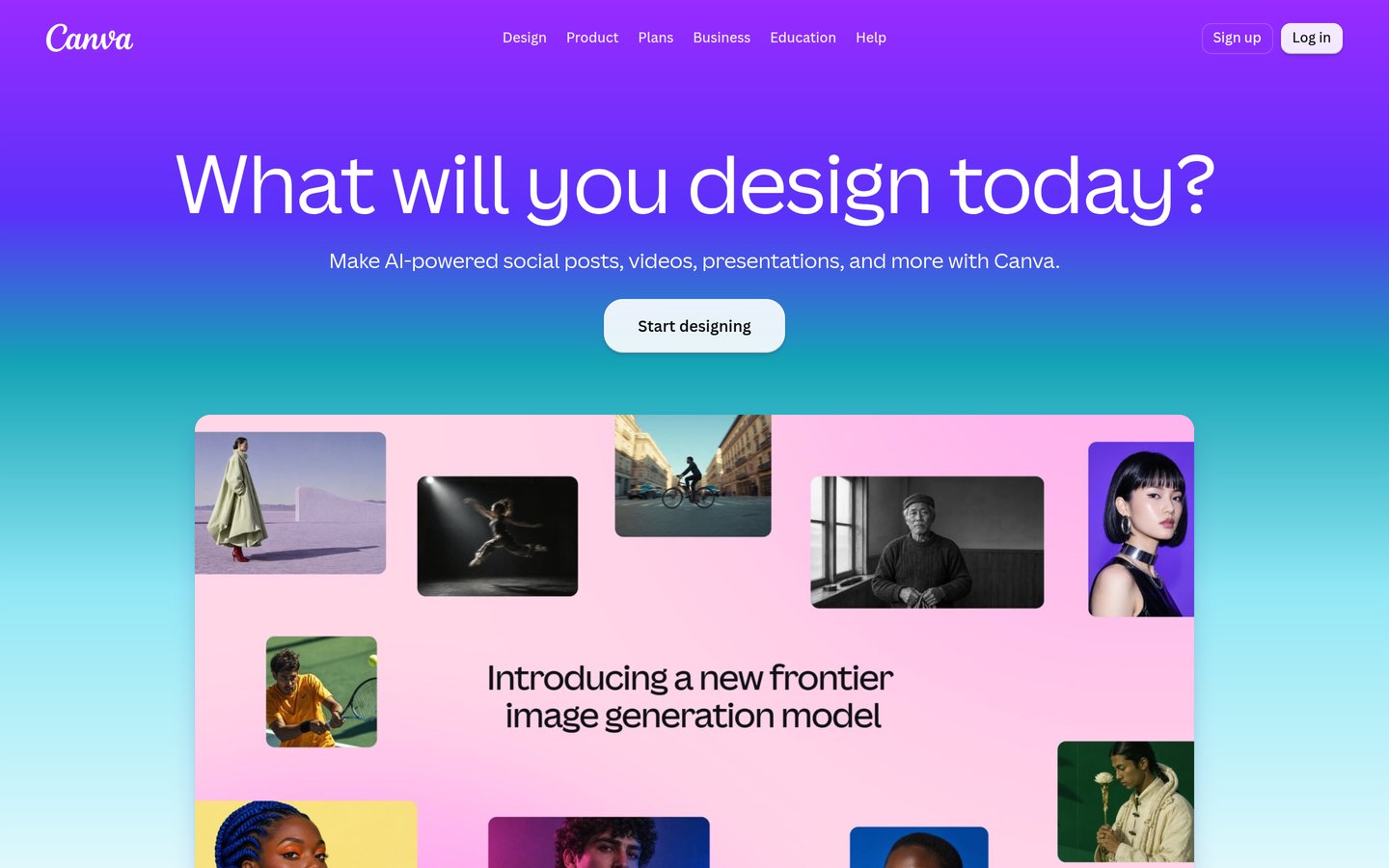
Canva is a browser design tool that turns animated designs into GIFs. Start from an animated template, add text, photos and brand colours, then export the result as a GIF for social posts, emails and presentations. The free plan includes more than 1 million templates, 3 million stock assets and 5GB of storage.
The trade off is control. Canva animates whole designs rather than single frames, so exact timing and loop points are hard to set, and premium templates and assets need Pro at $12 a month billed annually. It suits marketers and small teams that want a GIF to match the rest of their content.
What we like
Largest template library in this list
Free plan covers GIF export
Rated 4.7 out of 5 from 7,972 G2 reviews
Brand kits keep GIFs on-brand
Watch out for
No frame-by-frame timing control
Premium templates and assets need Pro
GIFs can look template-like
Pro adds premium assets, brand kits and 100GB storageVisit canva.com
02
Adobe Photoshop
4.6/5on G2 (13,463 reviews, checked Nov 2026)
Starts at$22.99/mo
Best for frame-by-frame GIFs
Free plan7-day trial
GIF exportTimeline frames
PlatformsWindows, macOS
Paid plan$22.99/mo
adobe.com
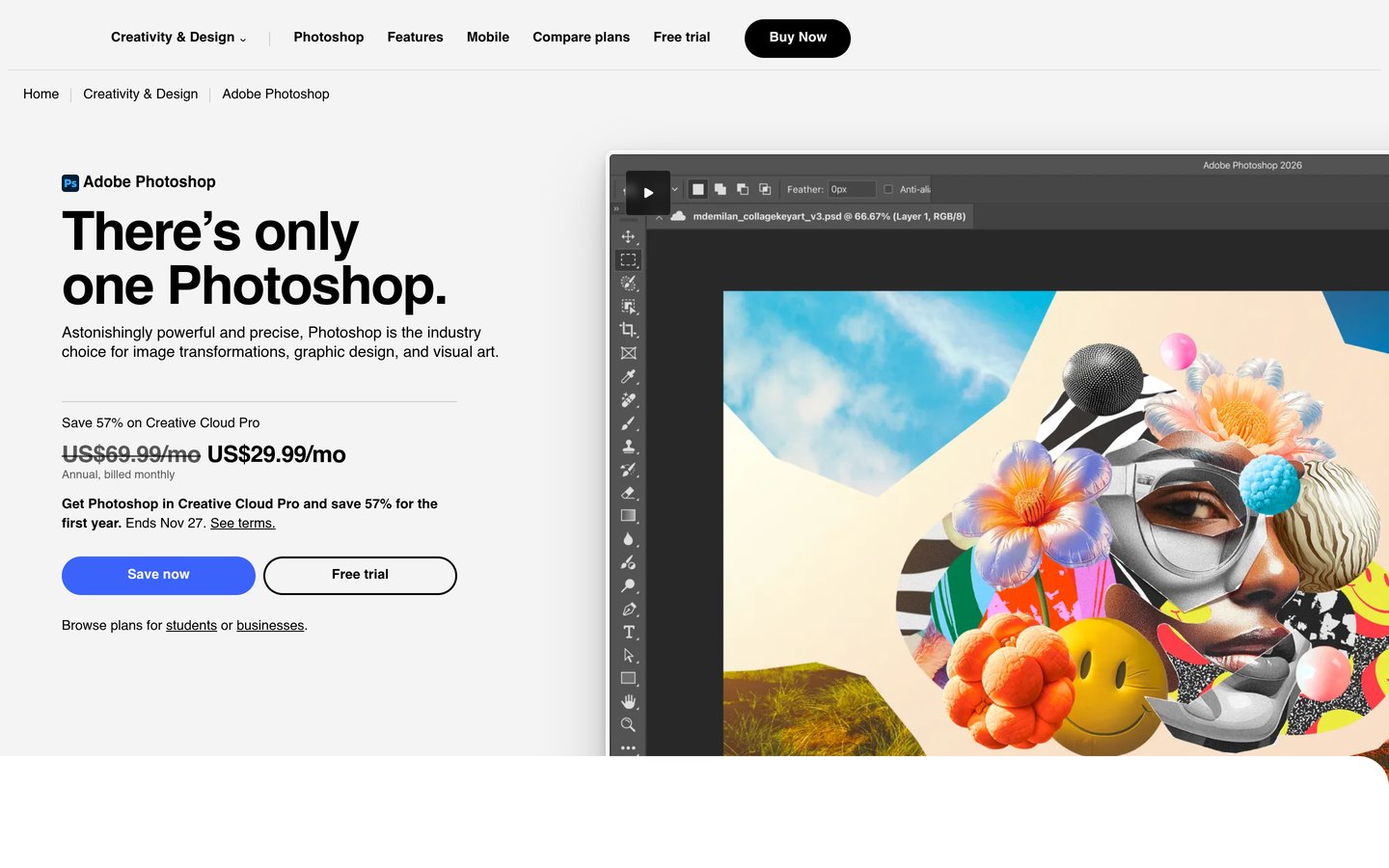
Adobe Photoshop homepage, captured Nov 2026.
Adobe Photoshop is the professional image editor behind most polished GIFs in ads and product launches. Its timeline turns layers into frames, so timing, colours and loops can be set exactly, and GIFs export at the size and quality a campaign needs. It runs on Windows and macOS, with a 7-day trial and no free plan.
The trade off is price. Adobe Photoshop costs $22.99 a month for individuals, the highest price in this list, and the learning curve is steep for anyone who only needs a quick loop. It suits designers and marketers who already work in Adobe tools and need frame-level control.
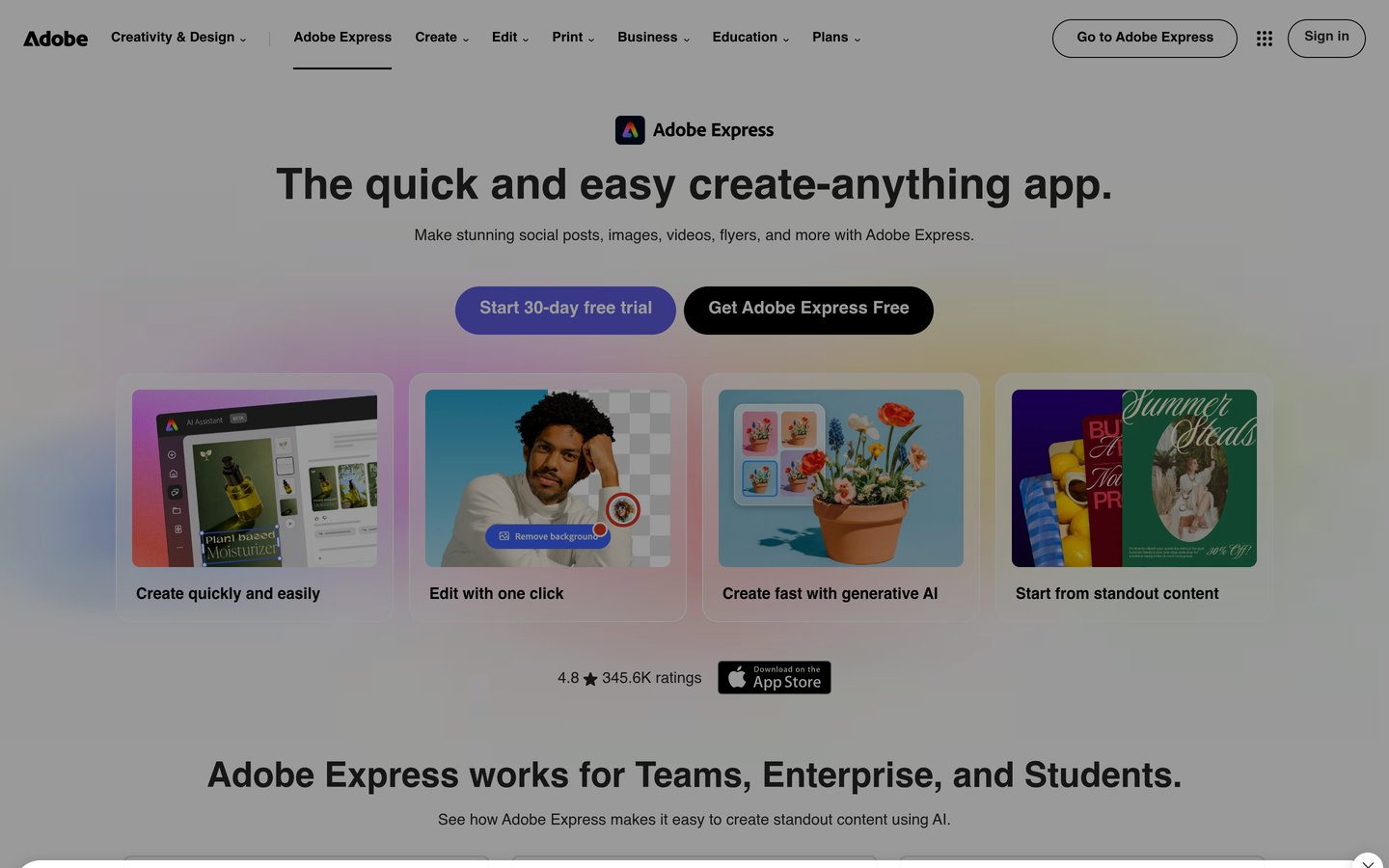
Adobe Express is a browser design tool for fast animated social posts, flyers and ads. Templates, Adobe Stock photos and Firefly image tools sit in one editor, and finished designs export as GIFs for social feeds and email. The free plan covers core templates, and Premium adds 200M+ stock assets, 250 Firefly credits a month and 100GB of storage.
The trade off is depth. Express is built for speed, so layered editing and precise animation timing stay in Photoshop, and some templates and assets need Premium at $9.99 a month. It suits small teams already using Adobe tools who want branded GIFs without opening a full editor.
What we like
Fastest route to a branded animated post
Rated 4.4 out of 5 from 1,109 G2 reviews
200M+ Adobe Stock assets on Premium
Brand kits and one-click resize
Watch out for
No frame-by-frame animation control
Best stock and fonts need Premium
Lags with heavy designs, per reviewers
Premium adds stock, fonts, brand kits and Firefly creditsVisit adobe.com
04
GIMP
4.3/5on G2 (1,484 reviews, checked Nov 2026)
PriceFree
Best free desktop GIF editor
Free planYes, free
GIF exportLayer frames
PlatformsWindows, macOS, Linux
Paid planNone, free
gimp.org
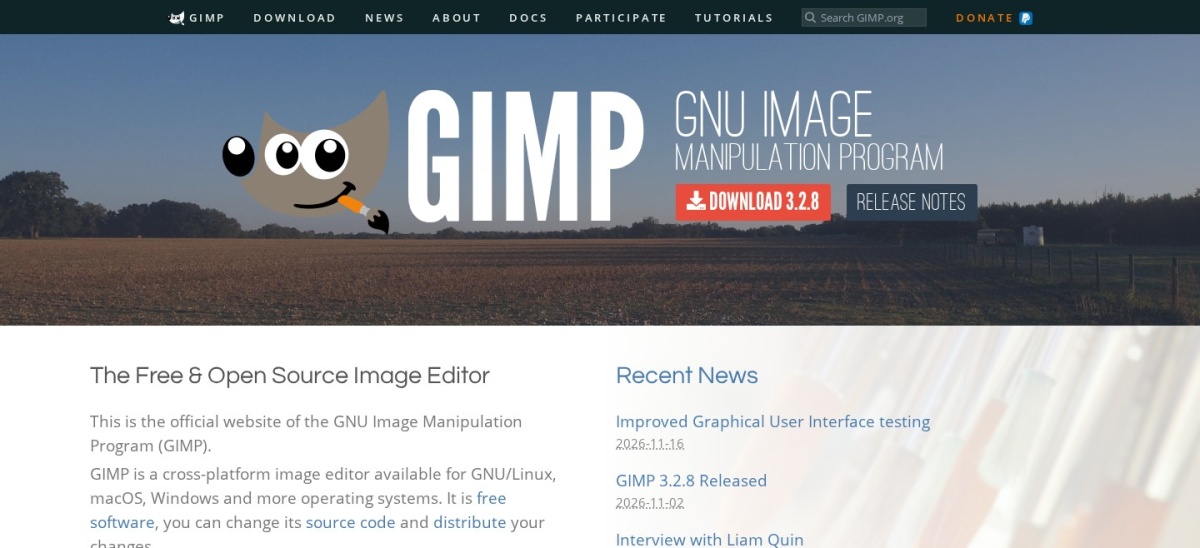
GIMP homepage, captured Nov 2026.
GIMP is a free, open-source image editor that makes GIFs the simple way: each layer becomes a frame. Set the timing per layer, add filters and text, then export a looping GIF for banners, sprites and short animations. It runs on Windows, macOS and Linux, and costs nothing at all.
The trade off is ease of use. The interface feels dated next to Canva or Express, and frame timing is manual work rather than a timeline with previews. It suits designers and developers who want full control of an animated GIF without paying for it.
VEED is a browser video editor that turns clips into GIFs without installing anything. Trim the clip, add captions or subtitles, then export a GIF for social posts, emails and help pages. The free plan covers short projects with a watermark, and exports are capped at 10-minute videos and 50MB uploads.
The trade off is price for the basics. The Basic plan costs $12 a month billed annually, and G2 lists a $20 a month Creator plan, so the cheapest paid tier is worth confirming on the pricing page before buying. It suits creators who turn the same clip into a GIF, a short video and a captioned post.
What we like
No install; everything runs in the browser
Rated 4.6 out of 5 from 2,195 G2 reviews
Captions and subtitles built in
Exports GIF, MP4 and stills from one project
Watch out for
Free exports carry a watermark
Paid plan names and prices differ across sources
Monthly cost feels steep for casual use
Basic removes the watermark and lifts export limitsVisit veed.io
06
Kapwing
3.9/5on G2 (41 reviews, checked Nov 2026)
Paid from$16/mo
Best for team GIF and video edits
Free planYes, watermarked
GIF exportVideo to GIF
Free credits10 credits
Paid planPro, $192/yr
kapwing.com
Kapwing homepage, captured Nov 2026.
Kapwing is a browser editor for turning video into GIFs with text, captions and resizing for each social feed. Teams can edit the same project together and export the result as a GIF, an MP4 or a still image. The free plan includes 10 credits, a watermark, 720p exports and 5GB of storage.
The trade off is the rating and the price. Kapwing scores 3.9 out of 5 on G2 from 41 reviews, the lowest here, and Pro costs $16 a month on annual billing, or $24 month to month. It suits small teams that make GIFs alongside video and need shared browser projects.
Snagit is a screen capture tool that turns anything on screen into a GIF for tutorials, demos and help pages. Capture a region or record a short clip, add arrows, callouts and steps, then share the result as an animated GIF. TechSmith says more than 39 million people use it, and it runs on Windows and macOS.
The trade off is scope. Snagit records and annotates, but it is not a design tool, so styled graphics and templates belong in Canva or Express, and there is no free plan beyond a trial. It suits support, training and product teams that explain software with short looping clips.
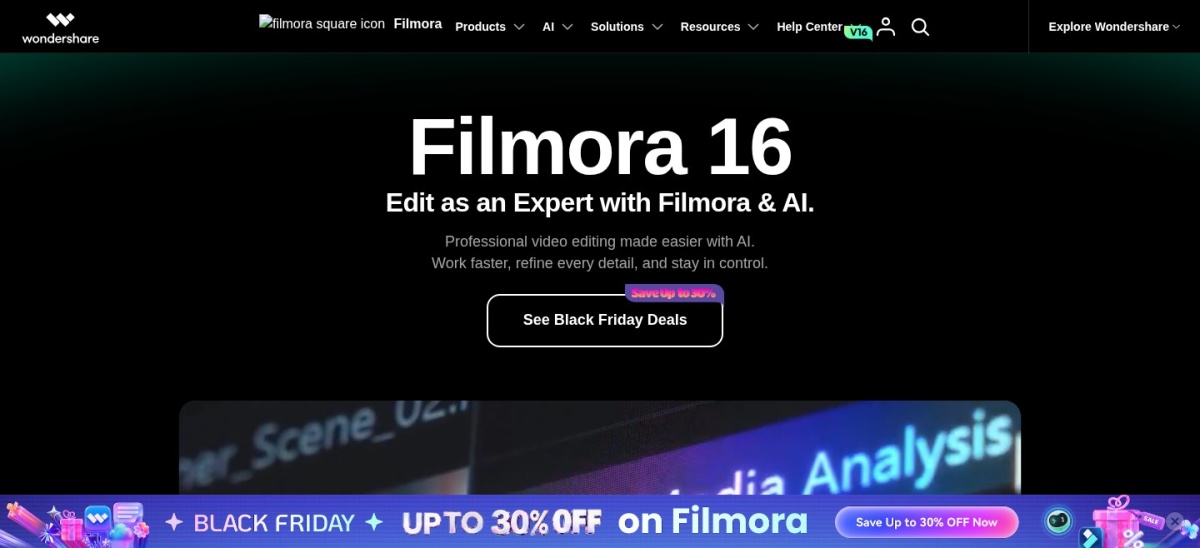
Wondershare Filmora is a desktop video editor that exports finished clips as GIFs for social posts and ads. Drag-and-drop editing, effects, transitions and AI tools turn a raw clip into a short loop without a steep learning curve. The free version covers the full editor with a watermark, and Basic costs $49.99 a year with 200 AI credits a month.
The trade off is weight. Filmora is a full video editor, so it is more than a quick GIF converter needs, and some effects and assets cost extra beyond the plan. It suits creators who already edit video and want GIFs as one more export from the same project.
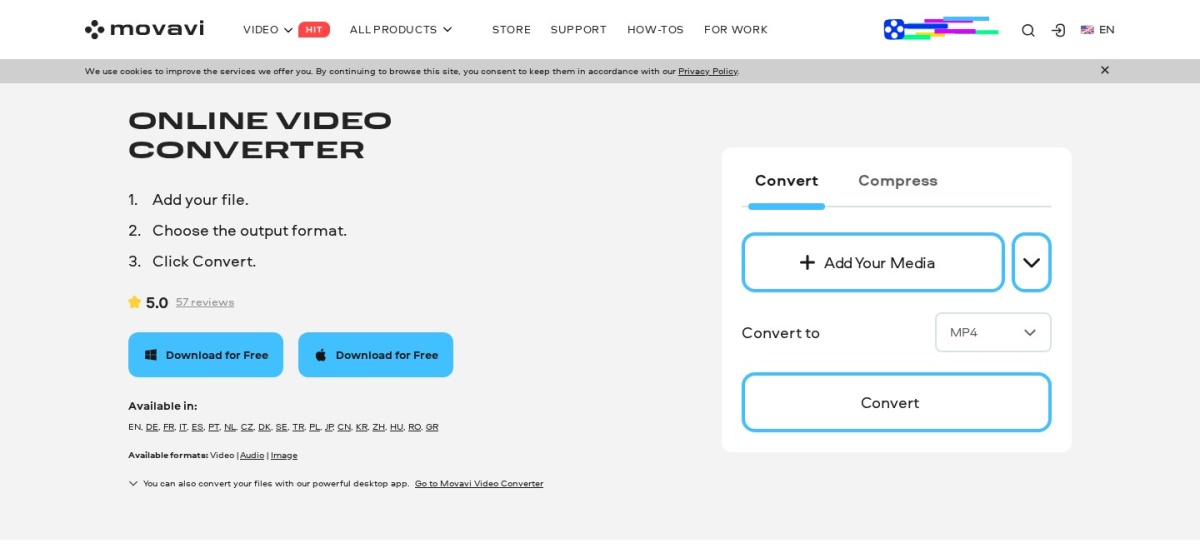
Movavi Video Converter homepage, captured Nov 2026.
Movavi Video Converter is a desktop converter that turns video, audio and image files into GIFs in a few clicks. It supports 180+ formats, with batch processing, trimming and compression, so a folder of clips becomes a set of loops quickly. It runs on Windows and macOS, with a 7-day trial.
The trade off is the price picture. The vendor store showed a 1-year plan at $49.95 with a $71.95 list price, and G2 lists a $59.95 business licence, so confirm the regular personal rate before buying. It suits anyone converting clips to GIFs in bulk without learning an editor.
Free plans make GIFs well. GIMP, Canva, Adobe Express, VEED, Kapwing and Filmora all export GIFs without payment, and GIMP never charges at all.
Paid plans mainly remove friction. Watermarks go away, export limits rise, and premium templates, stock assets and brand kits open up.
The cheapest paid plans are Snagit at $39 a year and Filmora Basic at $49.99 a year. Photoshop, at $22.99 a month, is the dearest here and only makes sense when frame-level control is the job.
If you make one GIF a month, stay free. The paid tier earns its keep only when GIFs ship every week and watermarks or limits get in the way.
How we chose
We started from the GIF creators that appear most often in buyer guides and app stores, then kept the established tools with a public rating and a current homepage or pricing page.
Prices come from each vendor's pricing page or G2 pricing data, checked on 29 November 2026. Ratings and review counts come from G2 on the same day. Where a vendor shows a sale, the list shows the regular price.
We left out tools with no public rating, including ScreenToGif, and tools whose price is not published. No vendor paid for a place, and we do not claim hands-on testing for this list.
How to choose GIF creator software
Match the tool to the source of your GIF, then check the free plan before paying.
Name the source first. A screen demo, a video clip and a designed graphic each suit a different tool, so pick the type before the brand.
Try the free plan. Make one real GIF end to end and check the export for watermarks, size and loop quality before you pay.
Check the export limits. Look for caps on length, resolution and monthly credits, and keep an eye on file size before the GIF goes on a page.
Pay only for a repeated need. A subscription makes sense when you make GIFs every week; for one-off jobs the free tools in this list are enough.
FAQ
What is the best GIF creator software in 2026?
Canva is the best GIF creator software for most people. Its free plan covers animated templates and GIF export, and it is rated 4.7 out of 5 on G2 from 7,972 reviews. Adobe Express suits branded work, and Photoshop suits frame-level control.
Can I create GIFs for free?
Yes. GIMP is completely free, and Canva, Adobe Express, VEED, Kapwing and Filmora all have free plans. Free exports may carry a watermark, as with Kapwing and VEED, so check the export before you publish.
How much does GIF creator software cost?
Paid plans in this list run from $39 a year for Snagit to $275.88 a year for Photoshop. Most tools sit between $49.95 and $192 a year, and five of the nine have a usable free plan.
What is the best GIF creator software for beginners?
Canva is the easiest starting point, with animated templates and no install. Adobe Express is the closest alternative, while GIMP suits beginners who want a free desktop editor and can accept a learning curve.
Canva vs Photoshop: which is better for GIFs?
Canva is better for quick animated social posts, with templates and a free plan. Photoshop is better when a GIF needs exact frame timing, colours and loop control, but it costs $22.99 a month and has no free plan.
How do I turn a video into a GIF?
Upload the clip to VEED, Kapwing or Movavi Video Converter, trim it to a few seconds, then export as a GIF. Keep clips short, since long, high-resolution GIFs grow large and load slowly on a page.
SaaS SEO and WordPress specialist with about 8 years of experience. Rakib compares WordPress plugins, themes, hosting and software using public pricing, documentation and user reviews. See how we rank.