Affinity Photo is the best Photoshop alternative for most people, with full layers, masks and RAW editing for $69.99 once. GIMP is the best free desktop editor, Photopea is the best free browser editor for PSD files, and Canva is the easiest option for quick designs.
How we make this list: we compare pricing pages, product documentation and public user reviews, then re-check every price before each update. No product paid for a place. Disclosure.
Affinity Photo is the closest Photoshop replacement here, with full layers, masks and RAW editing for $69.99 once.
GIMP and Krita cost nothing and cover most desktop editing, while Photopea does the same job in a browser tab for free.
Pixlr Plus is the cheapest paid plan at $1.99 a month billed annually, and Fotor Pro is $39.99 a year.
Pixelmator Pro at $49.99 once is the cheapest paid editor for Mac owners, and PaintShop Pro at $79.99 once is the Windows match.
Canva holds the highest rating here at 4.7 out of 5 from 7,945 G2 reviews, but Pro costs $120 a year.
What to look for in a Photoshop alternative
Photoshop costs $22.99 a month for the single app, so most people switch to escape the subscription, not because they dislike the editor. The first question is whether you need layers and masks, or just quick fixes and templates.
If you retouch photos, composite images or work with PSD files, pick a layer-based editor: Affinity Photo, GIMP, Photopea, Pixelmator Pro or PaintShop Pro. If you make social graphics, Canva, Pixlr or Fotor will finish the job faster.
Check the file formats before you commit. Our guide on optimizing images for WordPress explains why exports matter, and Affinity Photo, GIMP, Photopea, Pixelmator Pro and PaintShop Pro all open PSD files, while Canva imports them with limits.
Free plans differ most on ads and exports. GIMP and Krita have no ads at all, while Photopea, Pixlr and Fotor show ads until you pay.
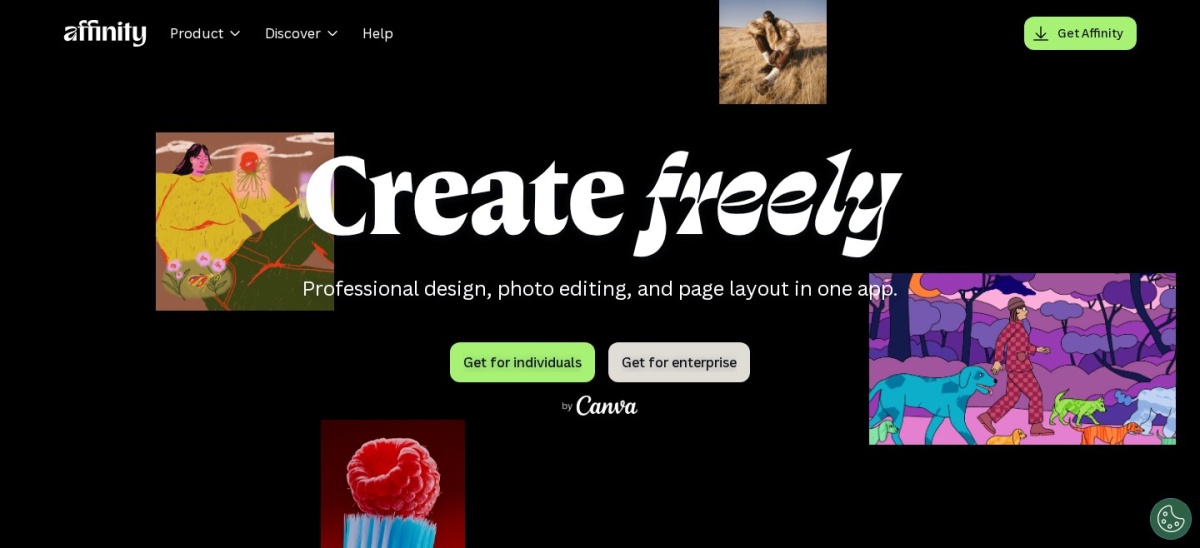
Affinity Photo is a full layer-based editor with RAW develop, masks, frequency-separation retouching and panorama stitching. The unified Affinity app is free for personal use with a Canva account, and the commercial licence costs $69.99 once.
The trade off is the missing catalog. There is no Lightroom-style library, so organizing thousands of photos needs another tool. It suits photographers and designers who want Photoshop-style editing with no monthly bill.
What we like
Free for personal use, $69.99 once for commercial use
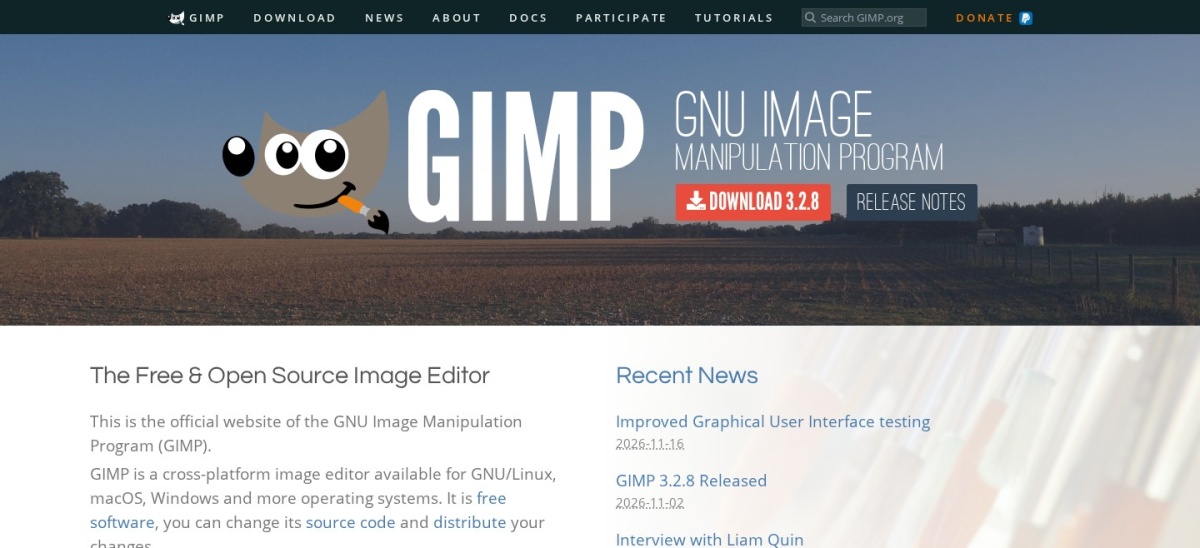
GIMP is a free, open-source photo editor with layers, masks, retouching tools and support for PSD files. Version 3.2.8, released in November 2026, covers most everyday photo work at no cost, and plugins add RAW editing and extra filters.
The trade off is the learning curve. The interface feels dated next to Photoshop, and some tools take more clicks to reach. It suits anyone with no budget who wants a full desktop editor and does not mind learning it.
What we like
Completely free, with no paid tier
Opens and saves PSD files
Large plugin library
Watch out for
Dated interface with a steep learning curve
RAW editing needs a plugin
No paid plan exists, so there is nothing to upgrade toVisit gimp.org
03
Photopea
4.5/5on Capterra (114 reviews, checked Nov 2026)
Paid from$5/mo
Best free editor in the browser
PriceFree with ads
Opens PSD filesYes, with layers
Install neededNo, runs in a browser
Paid planPremium, $5/mo
photopea.com
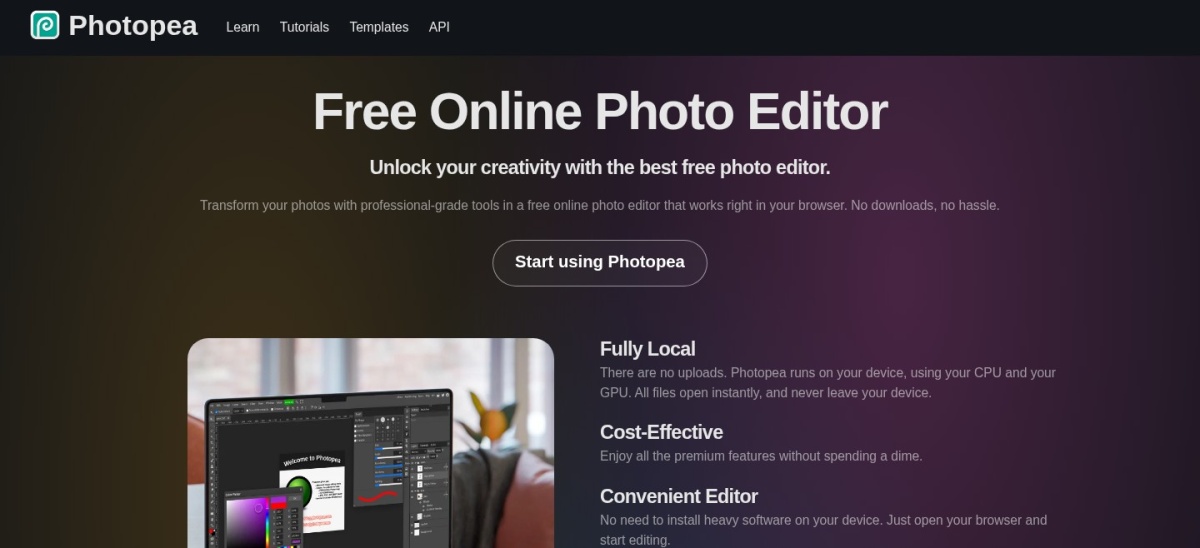
Photopea homepage, captured Nov 2026.
Photopea is a browser editor that mirrors Photoshop's layout, shortcuts and layer model, and it opens PSD, XCF and Sketch files with layers intact. The free version includes the full editor with ads, plus 0.5 GB of PeaDrive storage.
The trade off is the ads. They sit along the edge of the screen on the free plan, and Premium at $5 a month only removes them and adds storage. It suits quick PSD edits on any computer where you cannot install software.
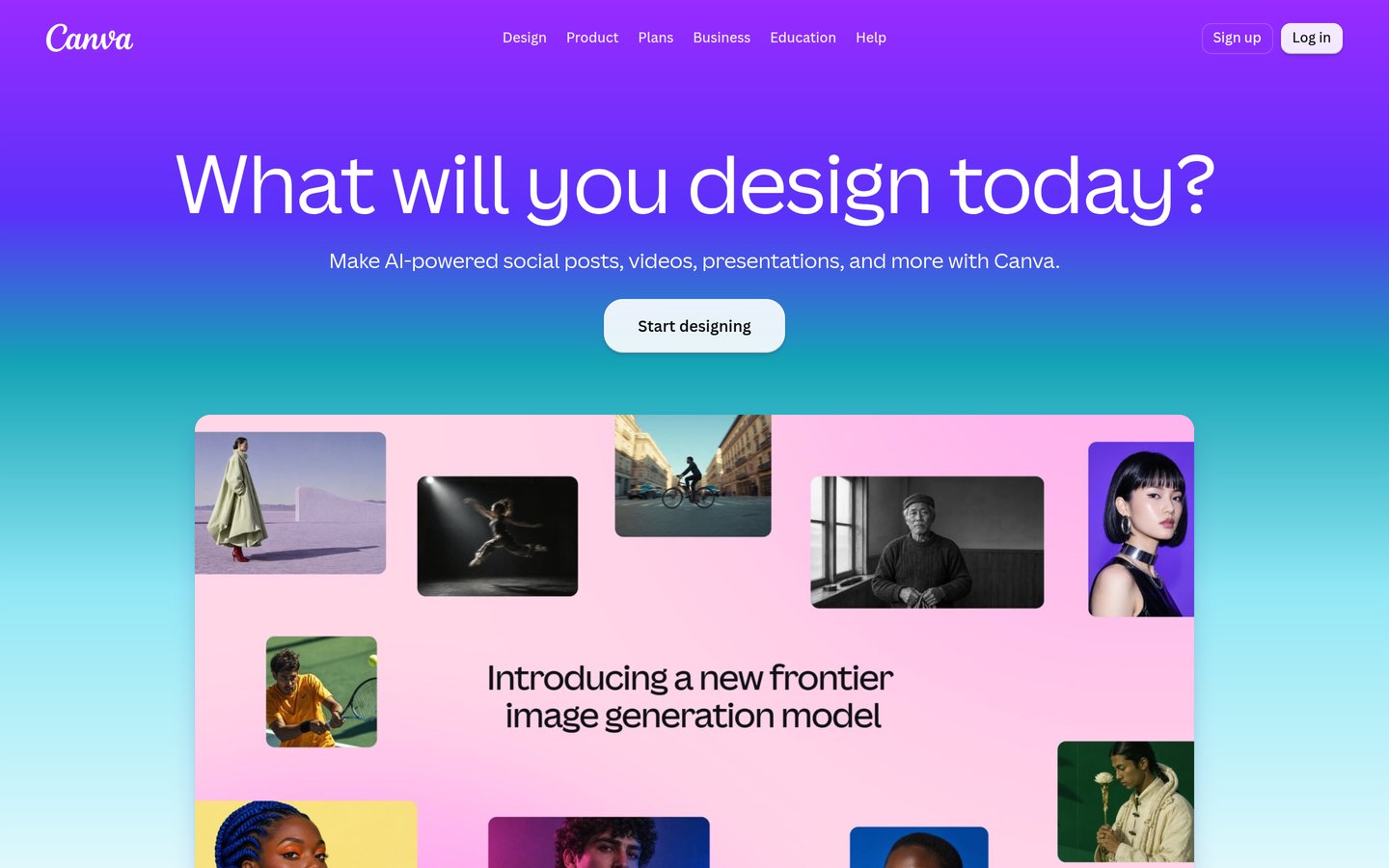
Canva is a browser design platform with thousands of templates, stock photos and fonts, plus AI tools that remove backgrounds and resize designs. The free plan covers everyday graphics, and Pro at $120 a year adds a Brand Kit, premium templates and 1 TB of storage.
The trade off is depth. Canva cannot match Photoshop for layered retouching or RAW work, and its designs can look generic without custom work. It suits marketers, teachers and small teams who need a finished graphic fast.
What we like
Fastest route from photo to finished design
Huge template and stock library
Highest rating in this list at 4.7 out of 5
Watch out for
No RAW editing or deep retouching
Best AI tools need the Pro plan
Pro adds a Brand Kit, background remover and 1 TB of storageVisit canva.com
05
Pixlr
4.4/5on G2 (750 reviews, checked Nov 2026)
Paid from$1.99/mo
Best budget browser editor
Free planYes, with ads
Plus price$1.99/mo billed annually
AI toolsRemove, Generative Fill
PlatformBrowser, mobile apps
pixlr.com
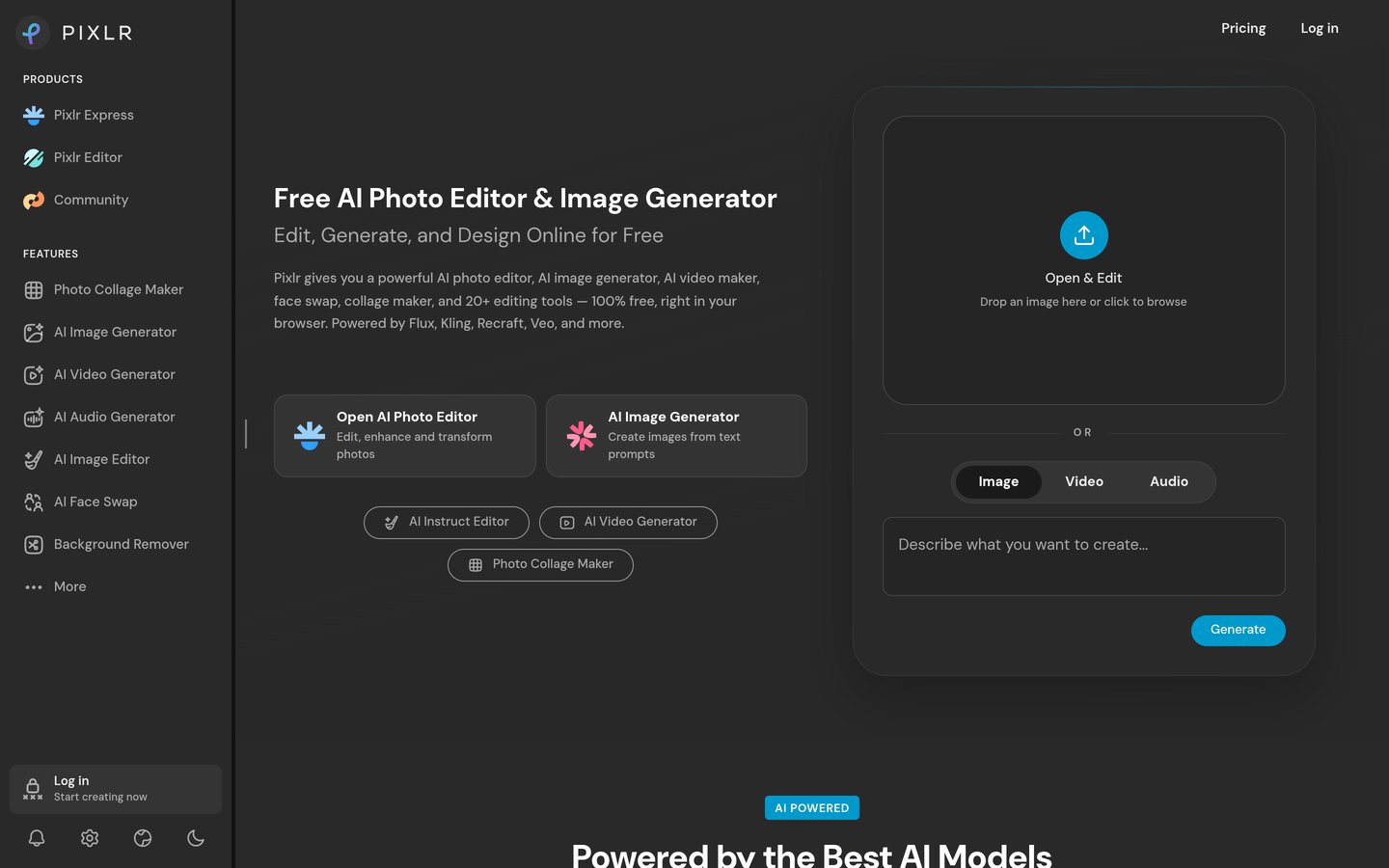
Pixlr homepage, captured Nov 2026.
Pixlr is a browser editor with AI tools that need no install. AI Remove cuts out backgrounds, Generative Fill extends or replaces parts of an image, and the free plan covers basic edits with ads.
The trade off is polish. The interface is busy, free exports carry ads, and the AI tools are simpler than Photoshop's. It suits quick edits on any computer and anyone who wants the cheapest paid plan in this list.
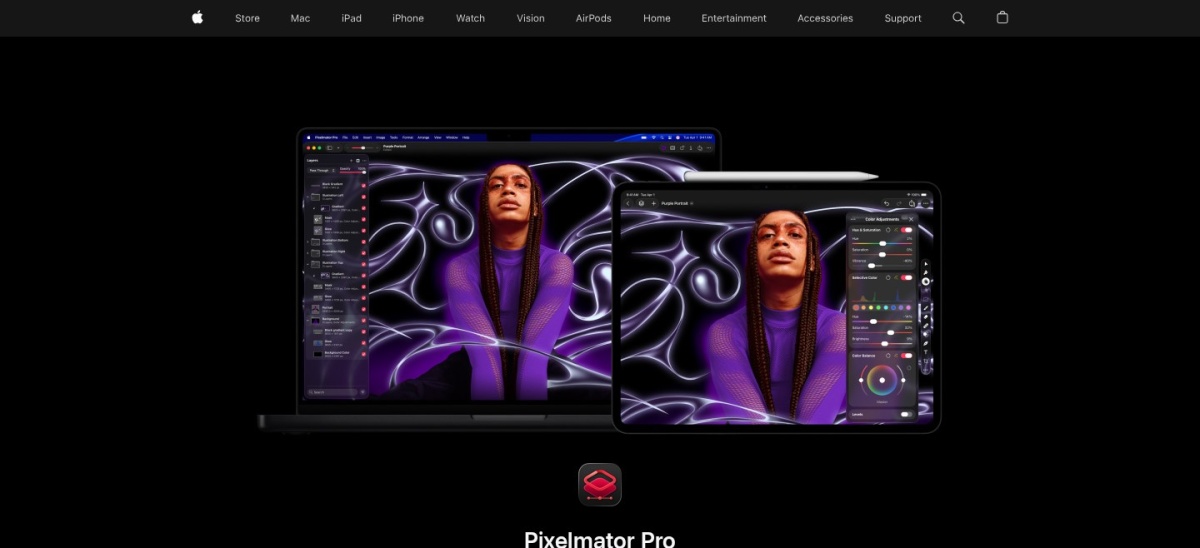
Pixelmator Pro is a Mac-native editor with layers, RAW support, masking and machine-learning tools such as Super Resolution and Denoise. It costs $49.99 once on the Mac App Store, with no subscription.
The trade off is the platform. It runs on Mac only, and the newest features, including the Warp tool and the iPad app, live in the Apple Creator Studio subscription instead. It suits Mac owners who want a fast native editor they pay for once.
What we like
Fast native Mac app with Apple Silicon support
$49.99 once, the cheapest paid editor here
Machine-learning upscaling and denoise included
Watch out for
Mac only, with no Windows version
Newest features need the Creator Studio subscription
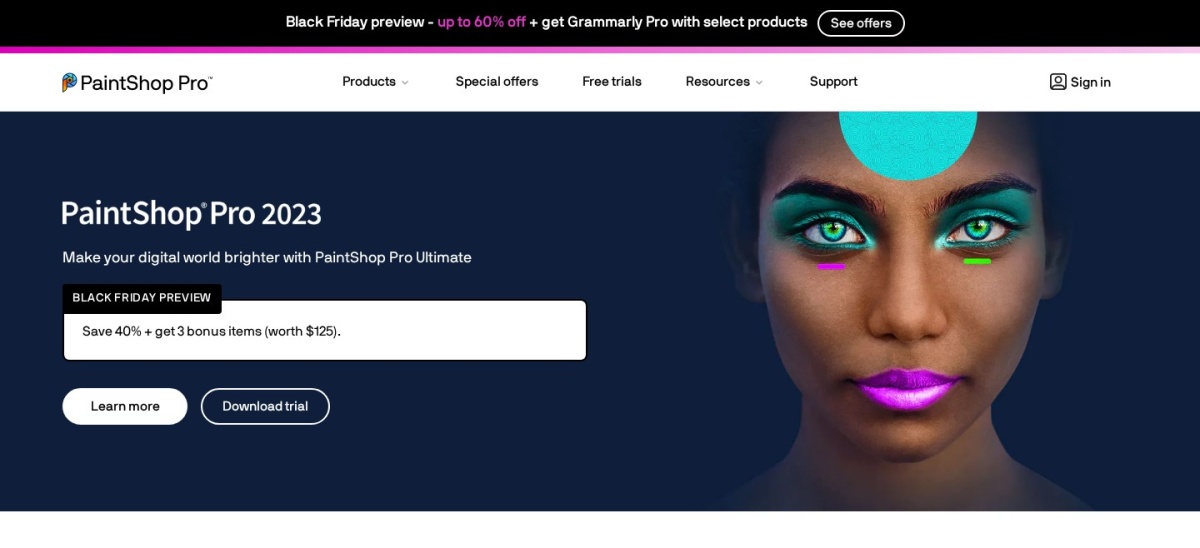
Corel PaintShop Pro is a Windows photo editor with layers, masks, RAW editing in AfterShot Lab and AI tools for denoise and background replacement. The Standard edition costs $79.99 once, with a 30-day free trial.
The trade off is age. The current release still carries the 2023 name and gets compatibility updates rather than major new versions. It suits Windows photographers who want a one-time purchase with Photoshop-style layers.
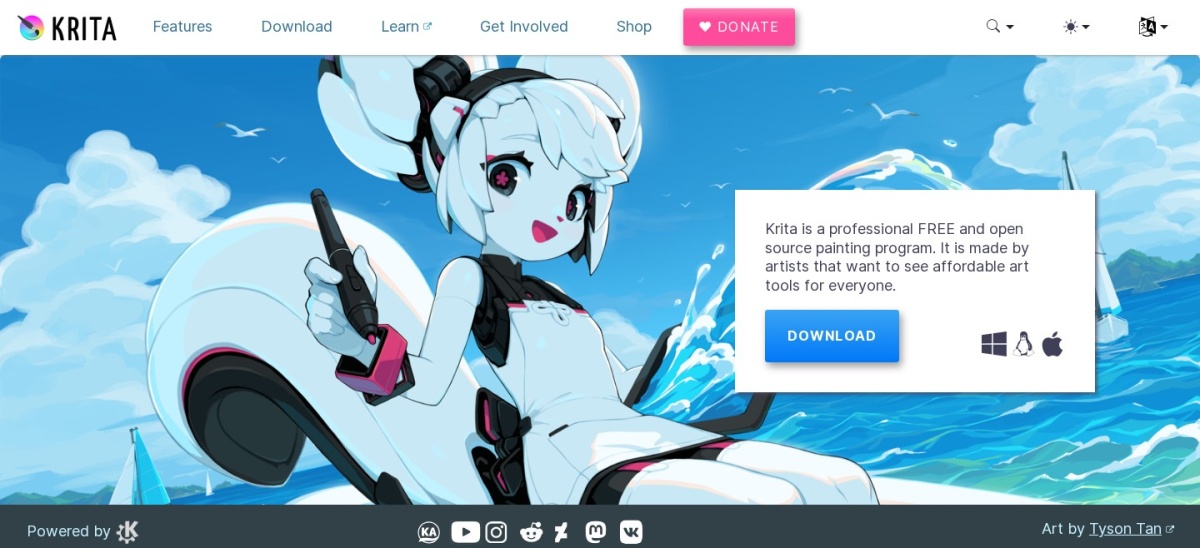
Krita is a free, open-source editor built for digital painting, with more than 100 brush engines, layers, masks and animation tools. It also handles photo retouching and supports PSD files, so it works as a free Photoshop stand-in for illustrators.
The trade off is focus. Krita is a painting tool first, so its photo tools are thinner than GIMP's and it has no RAW workflow of its own. It suits illustrators and comic artists who paint more than they retouch photos.
What we like
Completely free, with no paid tier
Best brush set of any free editor here
Animation tools included
Watch out for
Photo tools are thinner than GIMP's
No built-in RAW workflow
No paid plan exists, so there is nothing to upgrade toVisit krita.org
09
Fotor
4.2/5on G2 (342 reviews, checked Nov 2026)
Paid from$39.99/yr
Best for one-click AI fixes
Free planYes, with ads
AI credits100/month on Pro
Batch editingYes, on Pro
Paid planPro, $39.99/yr
fotor.com
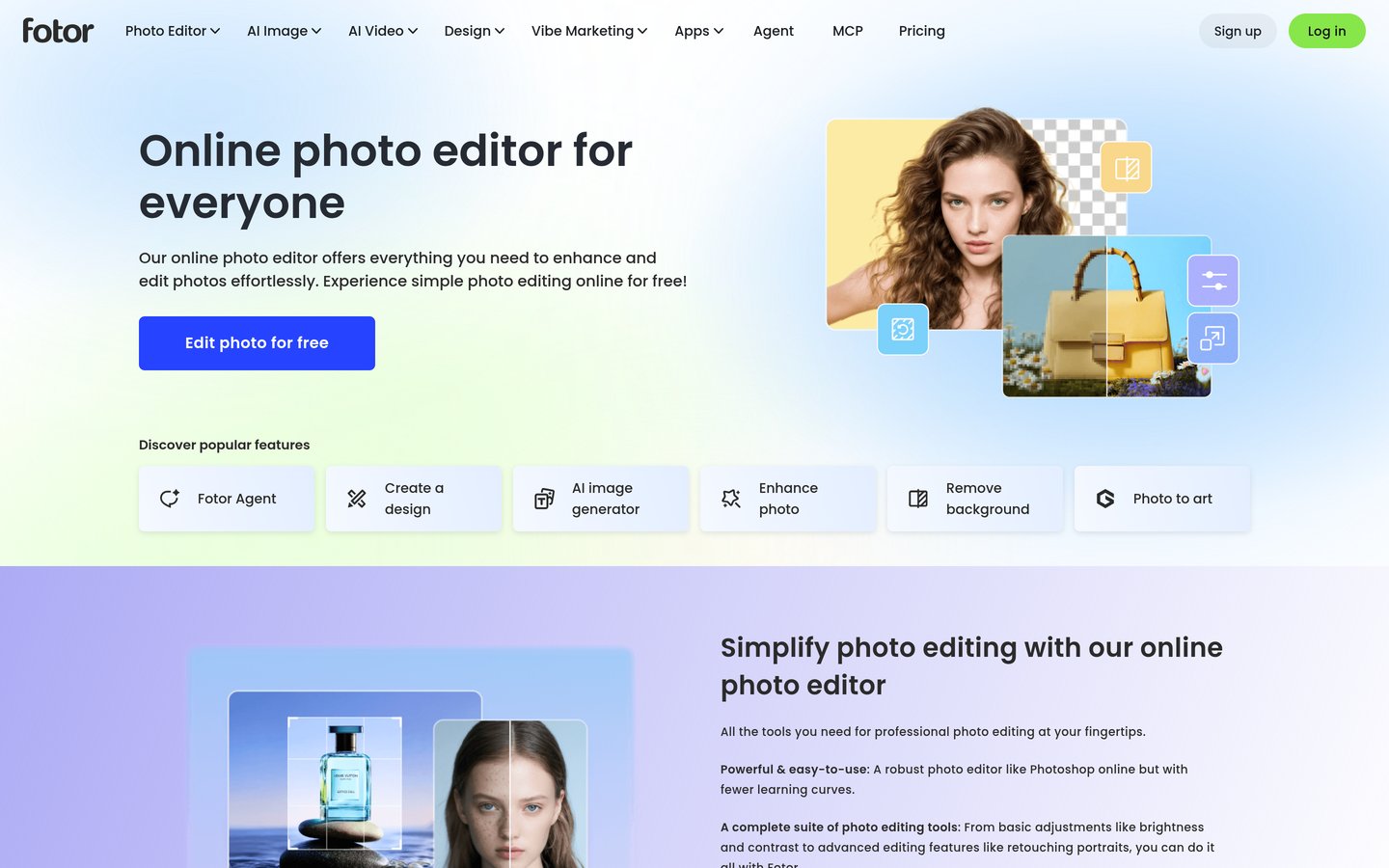
Fotor homepage, captured Nov 2026.
Fotor is an online editor built for fast one-click fixes. Its AI Enhancer sharpens and brightens photos, the background remover cuts out subjects, and HDR and batch editing handle whole sets at once.
The trade off is depth. Fotor is quick and simple but lacks the layered editing and RAW controls of the pro tools, and the free plan shows ads. It suits casual users who want better photos in seconds.
What we like
Fastest one-click enhancements here
Batch editing on the Pro plan
Free plan covers the main AI tools
Watch out for
No layered editing or RAW workflow
Ads on the free plan
Pro adds HD exports, 100 AI credits a month and no watermarksVisit fotor.com
Before you switch from Photoshop
Export a few real PSD files first and open them in the new editor. Layers, masks and text usually survive, but smart objects and some adjustment layers may flatten or change.
Check the plugins you rely on. Photoshop actions and third-party plugins rarely move across, so list the ones you use weekly before you cancel.
Keep Photoshop for one more month. Run the new editor on live work while the subscription is still active, so a missing feature costs you time, not a missed deadline.
How we chose
We started from the most named Photoshop alternatives in buyer guides and review sites, then kept nine with a public rating and published pricing.
Prices come from each vendor's pricing page or a pricing check that read it, checked on 29 November 2026. Ratings and review counts come from G2 or Capterra on the same day. Where a vendor shows a sale, the list shows the regular price.
We left out editors with no public rating, including ON1 Photo RAW, and Luminar Neo, whose listed prices conflict across sources. No vendor paid for a place, and we do not claim to have used these tools ourselves.
How to choose a Photoshop alternative
Start with the work you do most, then match the editor to it.
Decide if you need layers. Retouching, compositing and PSD work need a layer-based editor such as Affinity Photo, GIMP or Photopea. Quick fixes and social graphics do not.
Pick desktop or browser. Desktop editors handle large files better, while Photopea and Pixlr run anywhere with no install. Try the browser option first if you switch computers often.
Check your platform. Pixelmator Pro is Mac only and PaintShop Pro is Windows only. Affinity Photo, GIMP and Krita run on Mac, Windows and Linux.
Weigh a one-time price against a subscription. A $69.99 licence beats a $120-a-year plan after one year, but only if the editor covers your work. Use the free plan or trial first.
FAQ
What is the best Photoshop alternative?
Affinity Photo is the best Photoshop alternative for most people. It offers full layers, masks and RAW editing for $69.99 once, with no subscription, and it holds a 4.5 out of 5 rating on G2 from 234 reviews.
What is the best free Photoshop alternative?
GIMP is the best free desktop alternative, with layers, masks and PSD support at no cost. Photopea is the best free browser option, opening PSD files with layers intact in a tab.
Can I open PSD files without Photoshop?
Yes. Affinity Photo, GIMP, Photopea, Pixelmator Pro and PaintShop Pro all open PSD files, and Photopea keeps layers intact in the browser. Canva imports PSD files but with limits on layers and effects.
Is Affinity Photo really free?
The unified Affinity app is free for personal use with a Canva account. A commercial licence costs $69.99 once, and the Universal Licence, which adds Designer and Publisher, costs $164.99 once.
Which Photoshop alternative is best for beginners?
Canva is the easiest to start with, thanks to templates and one-click tools, and it holds a 4.7 out of 5 G2 rating. Pixlr is the cheapest paid step up at $1.99 a month billed annually.
Do any Photoshop alternatives work on Linux?
Yes. GIMP and Krita both run on Linux, Mac and Windows, and Photopea runs in any browser. Affinity Photo, Pixelmator Pro and PaintShop Pro do not offer Linux versions.
SaaS SEO and WordPress specialist with about 8 years of experience. Rakib compares WordPress plugins, themes, hosting and software using public pricing, documentation and user reviews. See how we rank.