Adobe Acrobat Reader is the best software for opening PDFs for most people: it is free, rated 4.5 out of 5 from 1,768 G2 reviews, and renders files exactly as their authors made them. Pick PDFgear if you want every tool free, or Foxit for the lightest desktop reader.
How we make this list: we compare pricing pages, product documentation and public user reviews, then re-check every price before each update. No product paid for a place. Disclosure.
Adobe Acrobat Reader is the best free PDF reader for most people, rated 4.5 out of 5 from 1,768 G2 reviews.
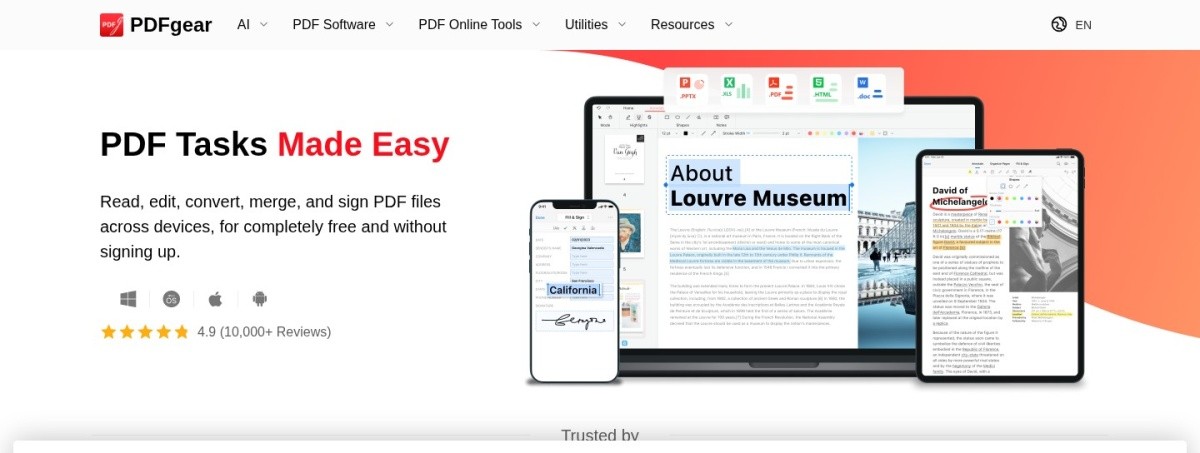
PDFgear is the only tool here that is completely free, with a 4.8 out of 5 G2 rating from 186 reviews.
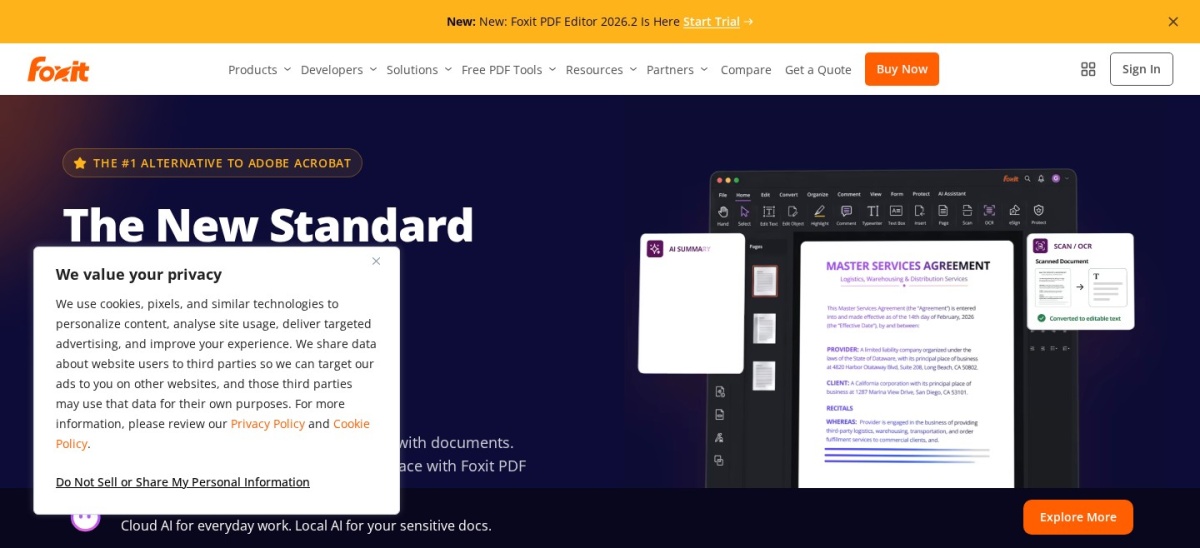
Foxit PDF Reader is the lightest desktop option, rated 4.6 out of 5, with a free plan for Windows and Mac.
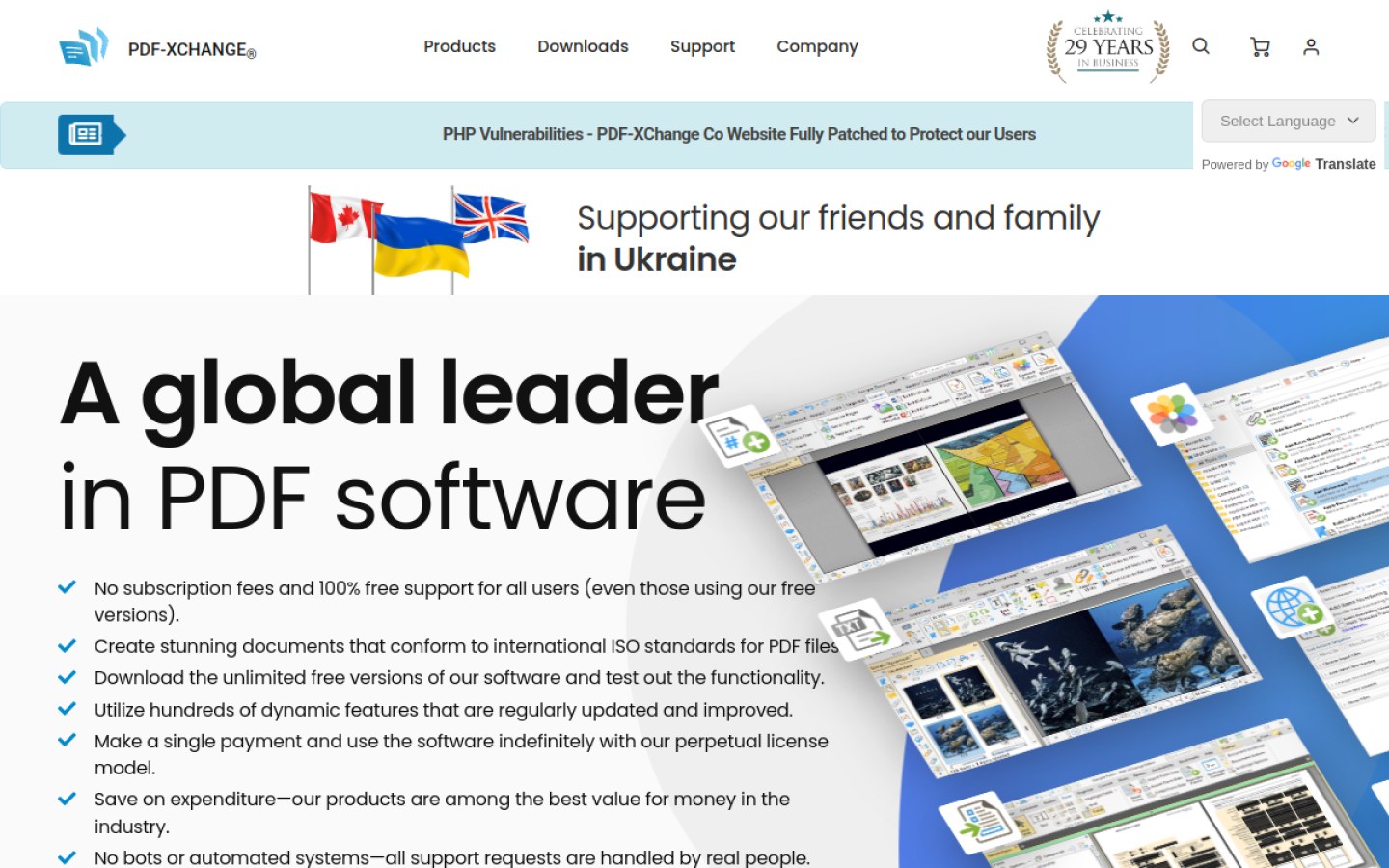
PDF-XChange Editor costs $62 once, the only one-time license in this list, and UPDF Pro is $49.99 a year.
Web readers cap free use: Smallpdf allows 1 task a month, Sejda allows 3 tasks an hour, both with file size limits.
What to look for in a PDF reader
Every computer already opens PDFs. Browsers, phones and email apps all show them, so a dedicated reader has to earn its place.
A good reader opens large files fast, keeps the layout intact, and lets you highlight text, fill in forms and sign without paying. The free plan is what matters most here, since opening a PDF should cost nothing.
Paid plans in this list add editing, converting, OCR and e-signatures. If you only read and sign, the free version of any tool here is enough. Our guide on adding a PDF to WordPress covers the publishing side once the file is ready.
Watch the limits on web tools. Free plans cap file size, pages or tasks per hour, and some save a watermark on your file. Desktop readers have no such caps, but they only run on the systems they support.
Adobe Acrobat Reader is the free PDF reader from the company that created the PDF format. It opens, views, shares, signs and comments on PDFs on Windows, Mac, iOS and Android, and picks up where you left off across devices.
The trade off is that editing costs extra. Changing text, converting files and OCR need Acrobat Standard at $14.99 a month on an annual plan, or $179.88 a year. It suits anyone who wants the default reader that every PDF is made to work with.
Foxit PDF Reader is a fast, lightweight free reader for Windows and Mac. It opens PDFs, adds comments, fills forms and signs documents, and now includes AI document help. G2 reviewers praise it most for speed and for using little system memory.
The trade off is that deeper work is paid. OCR, redaction and full editing need Foxit PDF Editor at $129.99 a year. It suits Windows and Mac users who want a quick reader that starts fast and stays out of the way.
PDFgear is a free PDF reader and editor with no paid plan at all. It covers reading, editing, converting, annotating and signing, plus an AI chat that answers questions about a document, with no watermarks and no forced sign-up.
The trade off is support and polish. There is no paid tier, so there is no priority support, and team features such as admin controls are thin. It suits readers who want every tool free and do not need a help desk.
PDF-XChange Editor is a Windows PDF reader with a strong free version. It handles reading, commenting and most everyday edits, and the $62 one-time license opens the full editor, including OCR, redaction and digital signatures, with a year of updates.
The trade off is that it runs on Windows only, and the interface looks dated next to newer rivals. Paid features watermark output when used in the free version. It suits Windows users who refuse subscriptions.
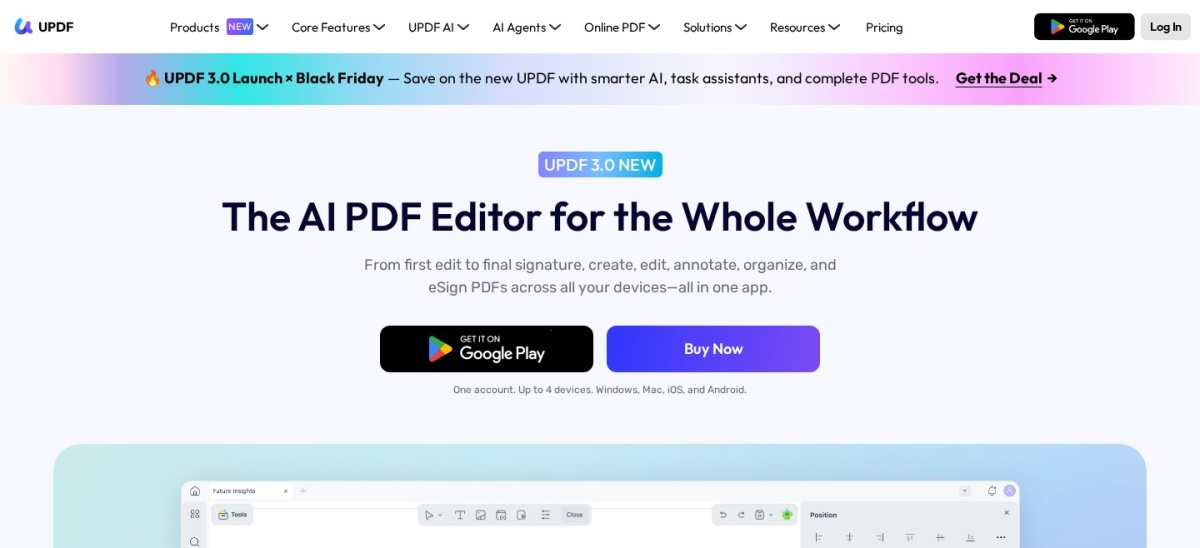
UPDF is a modern PDF reader that runs the same app on Windows, Mac, iOS and Android, with one account covering up to 4 devices. The free version reads and annotates, while Pro at $49.99 a year adds editing, OCR and conversion, and a lifetime plan costs $79.99 once.
The trade off is the free tier. Saved files from the free version carry a watermark, and AI use is capped at 2 queries a day, with the AI assistant sold separately. It suits people who read PDFs on more than one device.
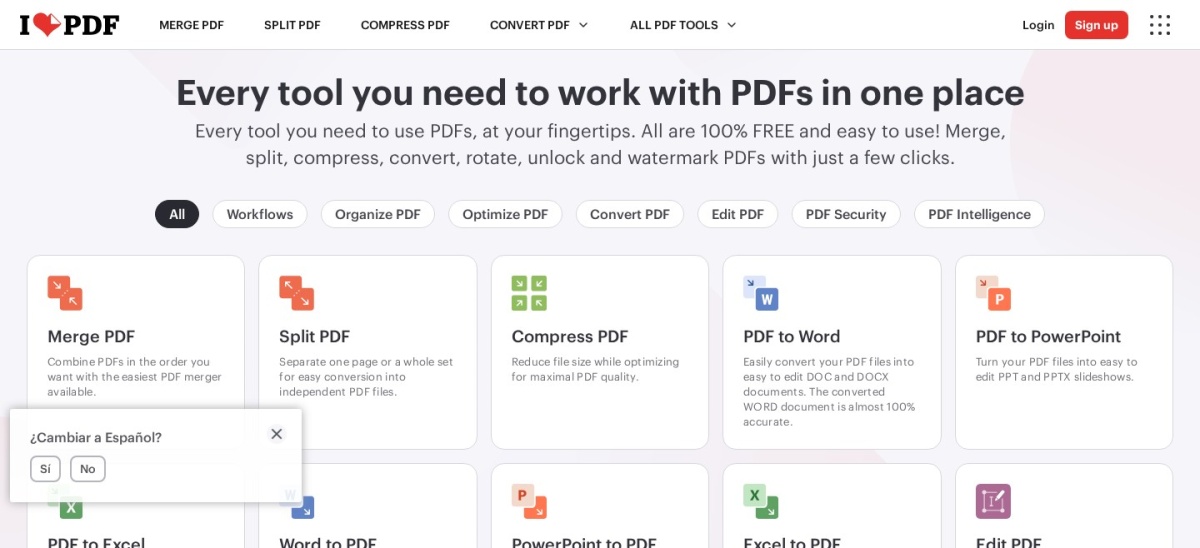
iLovePDF is a web PDF toolkit with more than 30 tools in one place. It merges, splits, compresses and converts PDFs in a browser tab with no install, and its desktop app covers free PDF reading. G2 reviewers rate it 4.6 out of 5.
The trade off is the free limit. Free use caps file size and daily tasks, and the desktop app only reads PDFs, while Premium at $5 a month billed annually, or $60 a year, removes the caps. It suits occasional use on shared machines.
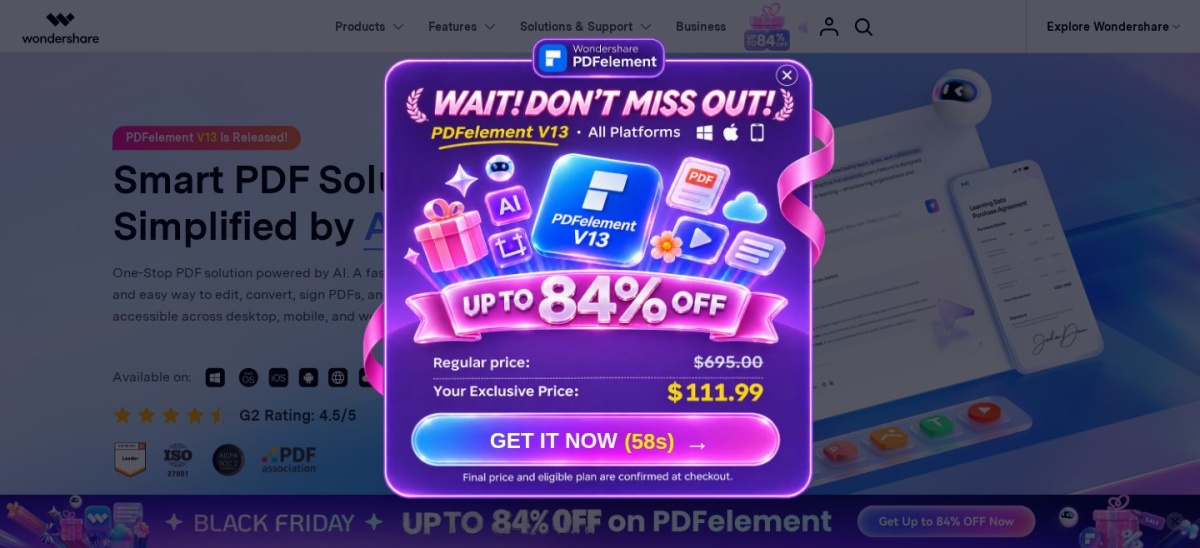
Wondershare PDFelement homepage, captured Nov 2026.
Wondershare PDFelement is a desktop PDF suite that covers reading, editing, converting, OCR, forms, redaction and e-signatures in one app. It runs on Windows, Mac, mobile and the web, and its AI assistant Lumi can summarize and rewrite text inside a document.
The trade off is that there is no free plan, only a 14-day trial that watermarks saved files. Heavy AI use beyond 50 uses needs a separate plan, and the perpetual license costs $129.99. It suits people who edit PDFs daily and want one app for it.
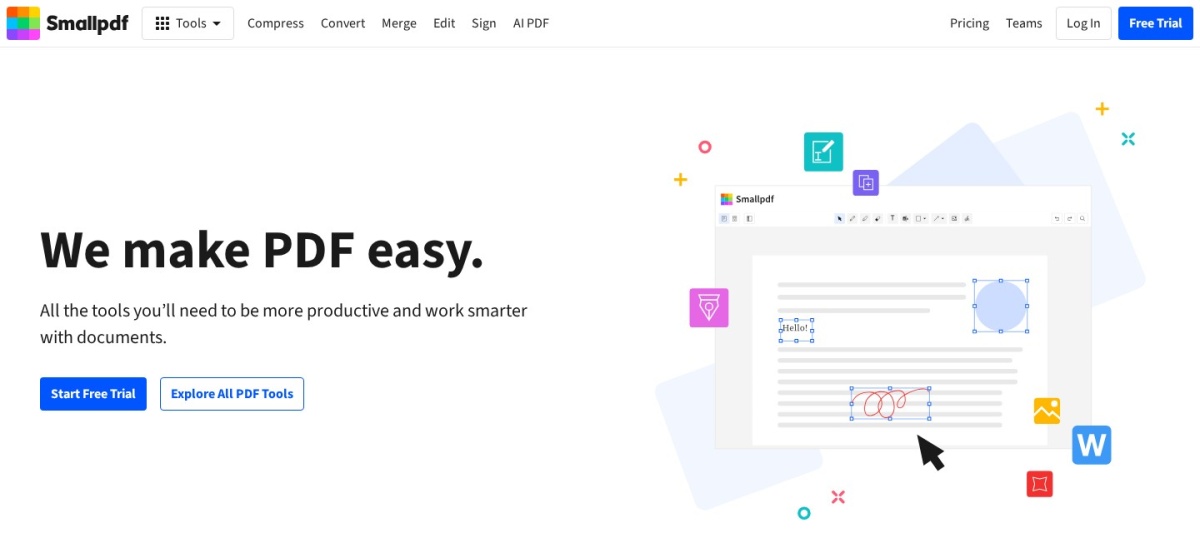
Smallpdf is a browser PDF toolkit with more than 30 tools for compressing, converting, merging, editing and signing PDFs. The free plan covers 1 task a month on files up to 15 MB, and Pro at $120 a year adds unlimited tools plus a Sign.com Premium account.
The trade off is the tight free plan and the price. One free task a month is the strictest limit in this list, and Pro is the priciest web option here. It suits people who want the easiest interface and work mostly in a browser.
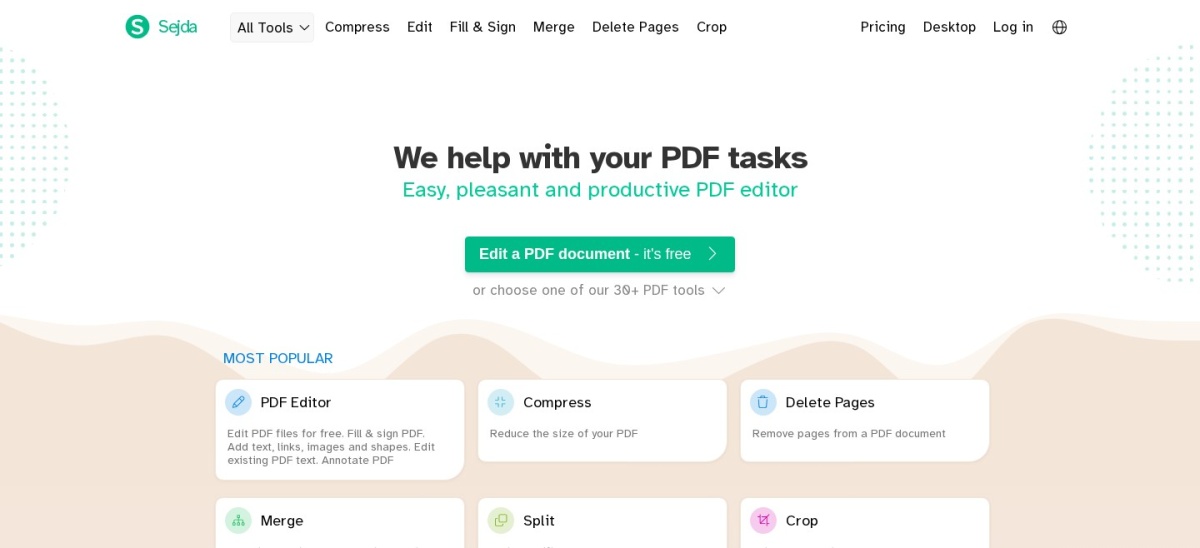
Sejda is a browser PDF editor with more than 30 tools that needs no account. You upload a file, edit, merge, split or compress it, and download the result, with files auto-deleted after 2 hours. The free plan covers 3 tasks an hour on files up to 50 MB and 200 pages.
The trade off is the hourly limit. Three free tasks an hour is enough for a single file, but a batch will make you wait or pay, though the $5 week pass covers a one-off project and the $63 a year plan adds the desktop app. It suits private, occasional jobs.
What we like
No signup needed
Files deleted after 2 hours
$5 week pass for one-off jobs
Watch out for
Free plan stops at 3 tasks an hour
Free files capped at 50 MB and 200 pages
Desktop app needs the paid plan
Annual plan adds the desktop app and removes limitsVisit sejda.com
Free vs paid: what you give up
Free plans cover reading, highlighting, form filling and signing in every desktop tool here. That is enough for most people who open PDFs to read them.
Paid plans add text editing, conversion to Word or Excel, OCR on scanned pages and e-signatures. PDFelement charges $79.99 a year for that set, while UPDF charges $49.99.
One-time licenses are rare. PDF-XChange Editor costs $62 once, and UPDF sells a lifetime plan for $79.99. Both avoid a yearly bill.
If you open PDFs every day for work, the paid upgrade is worth it for OCR and conversion alone. If you read a few files a week, stay on a free plan.
How we chose
We started from the PDF readers people actually install: Adobe Acrobat Reader, Foxit, PDFgear, PDF-XChange Editor, UPDF, iLovePDF, PDFelement, Smallpdf and Sejda.
Prices come from each vendor's pricing page or a November 2026 read of it, checked on 26 November 2026. Ratings and review counts come from G2 on the same day, except Sejda, which uses Capterra. Where a vendor shows a sale, the list shows the regular price.
We left out readers with no public rating and tools that are editors only with no free way to open a PDF. No vendor paid for a place, and we do not claim to have used these tools ourselves.
How to choose software for opening PDFs
Start with where you open PDFs most, then pick the reader that fits that place.
Decide desktop or browser. If you open PDFs on one computer, a desktop reader is faster and has no file limits. If you open them on shared or borrowed machines, a web tool needs no install.
Check the free plan first. Read, highlight, fill forms and sign should all be free. If a tool charges for those basics, skip it.
Mind the file size caps. Web tools limit free files to 15 MB or 50 MB and a few tasks an hour. Desktop readers have no such caps, so they suit large reports and scans.
Pay only for editing. Buy a paid plan when you need to change text, convert files or run OCR. For reading alone, the free version is enough.
FAQ
What is the best software for opening PDFs?
Adobe Acrobat Reader is the best choice for most people. It is free, rated 4.5 out of 5 from 1,768 G2 reviews, and opens PDFs exactly as their authors made them on Windows, Mac, iOS and Android. Foxit is the lighter desktop alternative.
Is there a completely free PDF reader?
Yes. PDFgear is completely free with no paid plan, and it is rated 4.8 out of 5 on G2 from 186 reviews. Adobe Acrobat Reader and Foxit PDF Reader are also free for reading, highlighting, filling forms and signing.
Do I need to pay to open a PDF?
No. Every tool in this list opens PDFs for free, and most let you highlight, fill in forms and sign without paying. Paid plans only add editing, conversion, OCR and e-signatures, which casual readers rarely need.
What is the best PDF reader for Windows?
Foxit PDF Reader is the best Windows pick for speed, rated 4.6 out of 5 on G2. PDF-XChange Editor is the best Windows pick if you want a one-time license, at $62 once instead of a yearly subscription.
Can I open PDFs in my browser instead?
Yes. iLovePDF, Smallpdf and Sejda all open PDFs in a browser tab with no install. Free plans cap file size and tasks, so they suit occasional use, while desktop readers have no caps and work offline.
Which PDF reader is best for large files?
Desktop readers handle large files best, since web tools cap free uploads at 15 MB or 50 MB. Foxit and PDF-XChange Editor are both praised in G2 reviews for opening large documents quickly on Windows.
SaaS SEO and WordPress specialist with about 8 years of experience. Rakib compares WordPress plugins, themes, hosting and software using public pricing, documentation and user reviews. See how we rank.