HandBrake is the best software for MOV to MP4 conversion for most people. It is free, open source and rated 4.7 out of 5 from 155 G2 reviews, with batch conversion and device presets. Pick Movavi Video Converter for the easiest paid workflow or CloudConvert when you want no install at all.
How we make this list: we compare pricing pages, product documentation and public user reviews, then re-check every price before each update. No product paid for a place. Disclosure.
HandBrake converts MOV to MP4 free with no watermark, no time limit and a batch queue, rated 4.7 out of 5 from 155 G2 reviews.
Movavi Video Converter is the highest rated tool here at 4.8 out of 5, but its free trial stops at 60 seconds and adds a watermark.
VLC is already on many machines and converts MOV to MP4 free, though the option is buried in its menus and there is no batch queue.
CloudConvert and Convertio need no install; CloudConvert gives 10 free conversions a day while Convertio caps free files at 100 MB.
Paid plans run from $39.95 a year for Movavi to $147 a year for VEED, and Zamzar's free tier is the tightest at 2 files a day.
What to look for in a MOV to MP4 converter
MOV is Apple's QuickTime format, and it plays well on Macs and iPhones but can fail on Windows, Android and many web players. MP4 is the format most devices, editors and sites expect, so converting is often the fastest fix.
A desktop converter suits regular use. It works offline, handles large files and batch jobs, and keeps your footage on your own machine. HandBrake and VLC do this free, while Movavi and UniConverter add speed and presets for a yearly fee.
An online converter suits a one-off file. You upload, pick MP4 and download, with no install. The catch is the free cap: file size, daily conversions or a watermark. Our guide on how to resize a video in WordPress helps when the converted file is still too large for your site.
Check the free limit before you start a big job. A 50 MB cap or a 2-file daily limit can stop a batch halfway, and a watermark on a trial export cannot be removed later.
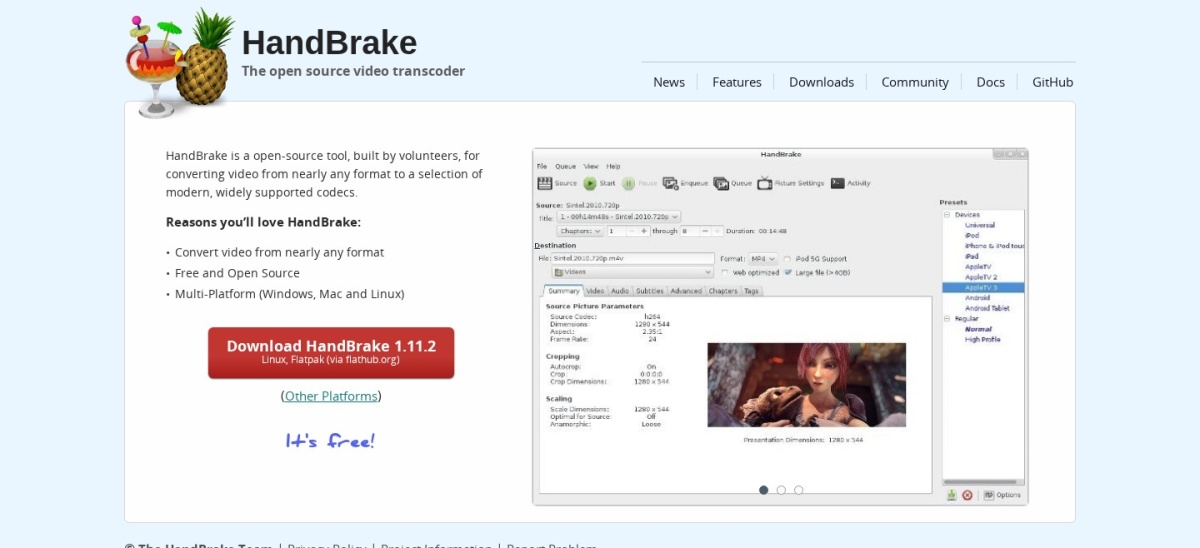
HandBrake is a free, open-source video transcoder for Windows, Mac and Linux that converts MOV files to MP4 with no watermark and no time limit. It includes device presets, a batch queue for converting many files at once, and controls for resolution, frame rate and subtitles.
The trade off is the interface. It looks dated and packs in settings that can overwhelm a first-time user, and there is no built-in editor or cloud option. It suits anyone who converts video files often and wants a free desktop tool with no strings attached.
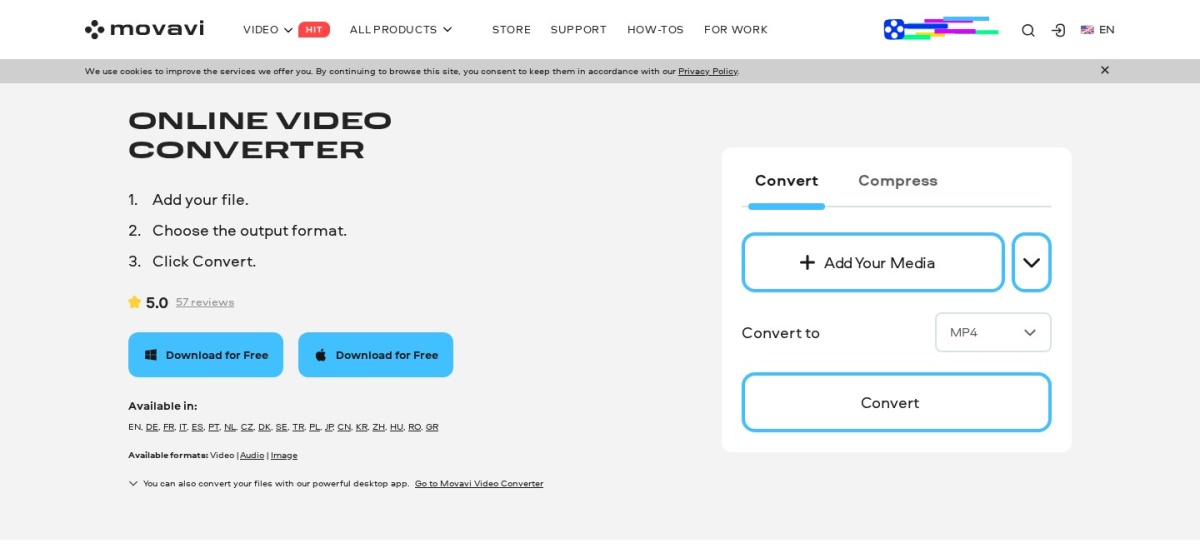
Movavi Video Converter homepage, captured Nov 2026.
Movavi Video Converter is a desktop converter for Windows and Mac that supports more than 180 formats, including MOV to MP4. The paid version adds batch conversion, AI upscaling and device presets, and G2 reviewers rate it 4.8 out of 5 for speed and ease of use.
The trade off is the trial. Free use stops after 60 seconds per file and stamps a watermark on the output, so real work needs Premium at $39.95 a year. It suits people who want the simplest paid converter and convert files every week.
What we like
Highest rating in this list at 4.8 out of 5
Simple interface with device presets
Batch conversion and AI upscaling on paid plans
Watch out for
Trial stops at 60 seconds with a watermark
No usable free plan, only a trial
Premium adds watermark-free batch conversion and AI upscalingVisit movavi.com
03
VLC media player
4.7/5on G2 (630 reviews, checked Nov 2026)
PriceFree
Best free converter already installed
PriceFree, open source
PlatformsWindows, Mac, Linux and more
Batch conversionNo built-in queue
Paid planNone, fully free
videolan.org
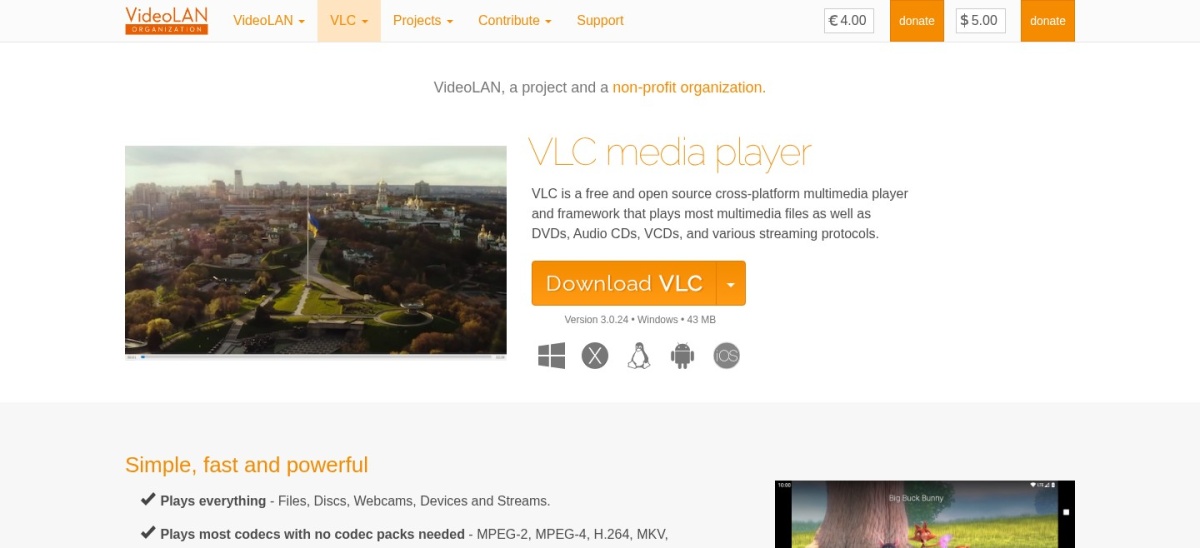
VLC media player homepage, captured Nov 2026.
VLC media player is a free, open-source player for Windows, Mac, Linux, Android and iOS that also converts video through its Convert and Save feature. It plays almost any format without codec packs, so a MOV file that will not open elsewhere usually plays and converts here.
The trade off is that conversion is buried in the menus. There is no batch queue in the main window and no presets beyond the profile list, so converting a folder of files takes patience. It suits a quick one-off conversion on a machine that already has VLC installed.
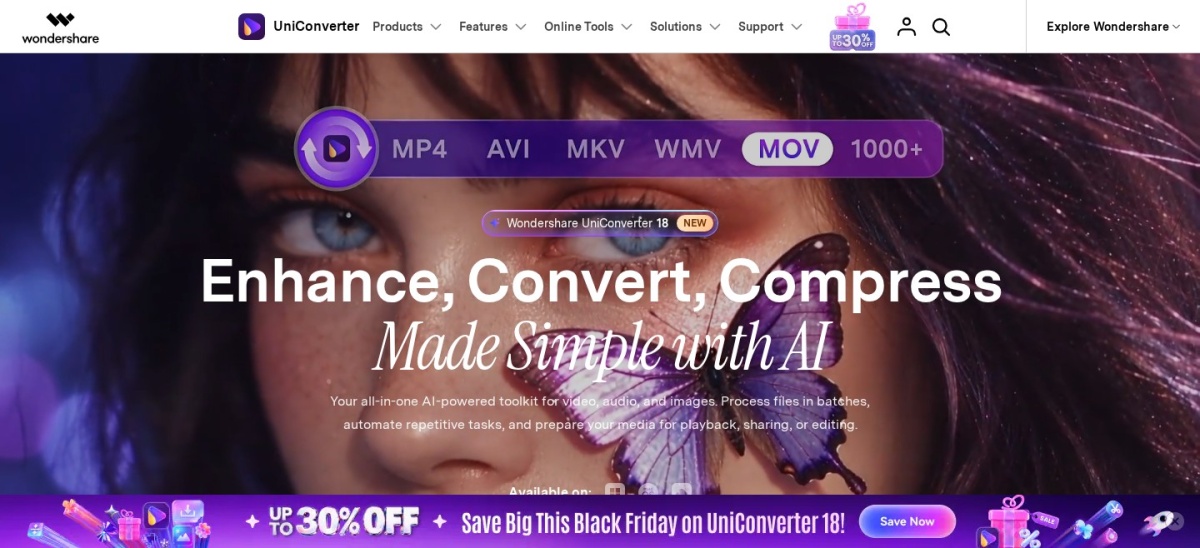
Wondershare UniConverter homepage, captured Nov 2026.
Wondershare UniConverter is a desktop converter for Windows and Mac that supports nearly 1,000 formats, with GPU acceleration for faster conversion. The paid version adds batch conversion, compression, downloading and basic editing, and the trial converts the first third of each video.
The trade off is price and add-ons. The yearly plan lists at $49.99, currently shown at $39.99, and AI features run on credits with a $19.99 a month trial add-on. It suits heavy users who want one desktop app for converting, compressing and downloading video.
What we like
Widest format support in this list
GPU acceleration speeds up conversion
Batch conversion, compression and downloading in one app
Watch out for
Trial only converts the first third of a video
AI features cost extra credits
Lowest G2 rating among the desktop converters here
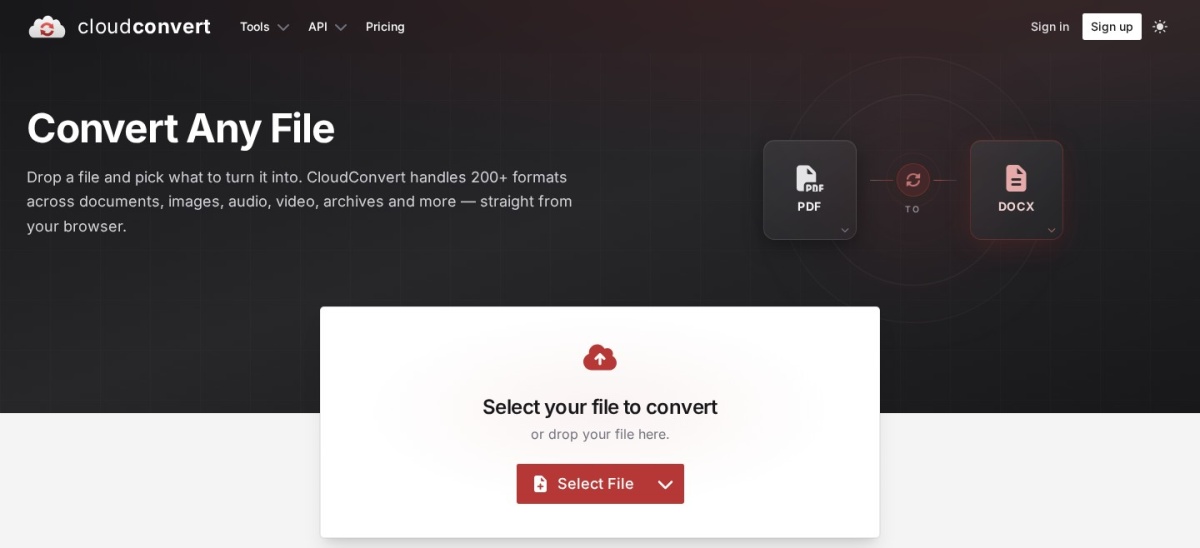
CloudConvert is an online converter that runs in the browser, with no software to install and support for more than 200 formats. The free plan covers 10 conversions a day, and paid plans start with a subscription at $8 a month or a one-time package of credits that never expires.
The trade off is the credit system. Each conversion costs credits by the minute, so long videos use more than short ones, and free use stops at 10 conversions a day. It suits occasional converters who want a quick MOV to MP4 change without installing anything.
What we like
No install, works in any browser
10 free conversions a day, no card needed
One-time credit packages never expire
Watch out for
Credit pricing is harder to predict than a flat fee
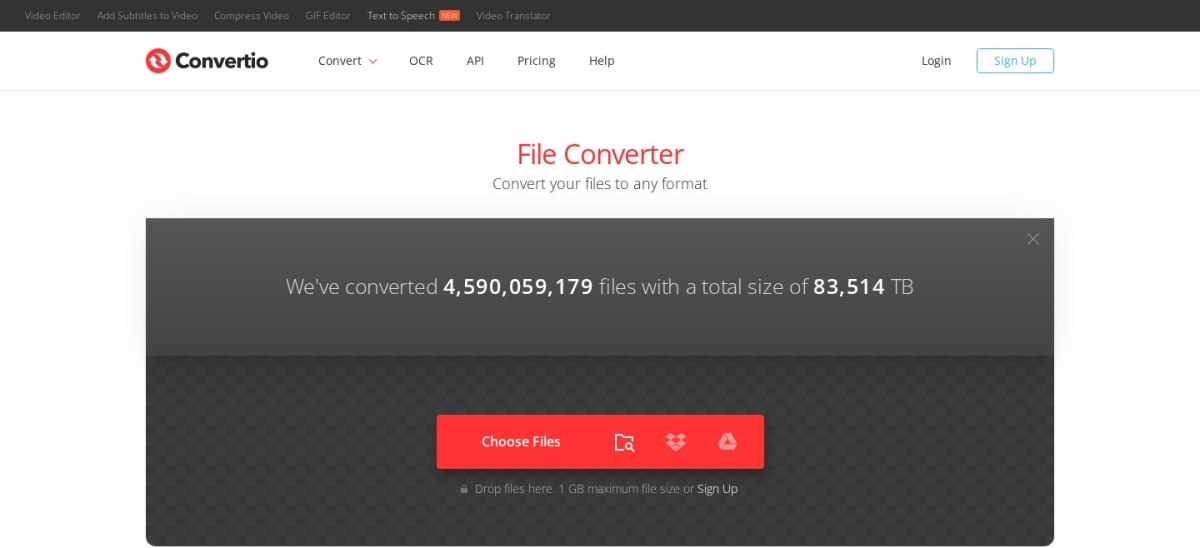
Convertio is a browser-based converter that handles more than 300 file formats, including MOV to MP4, with no install. The free plan accepts files up to 100 MB, and the Lite plan raises the cap to 1 GB with 1,000 conversion credits a month.
The trade off is the monthly price. Lite costs $11.99 month to month, or $6.99 a month billed annually, and files must upload to Convertio's servers before conversion. It suits people who convert files a few times a month and want the simplest online flow.
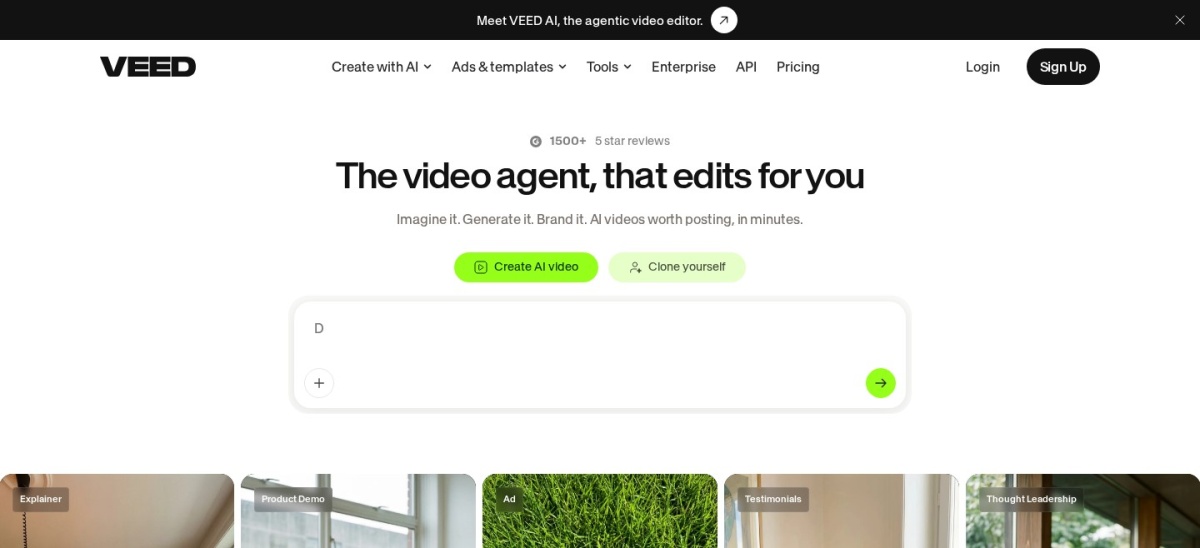
VEED is a browser-based video editor that also converts MOV files to MP4 by importing a clip and exporting it in the format you need. The free plan includes basic editing and 720p exports, while Creator at $12.25 a month billed annually adds 1080p exports and 500 AI credits a month.
The trade off is that conversion is a side feature. Free exports carry a watermark, and the monthly price of $25 is steep if you only convert files. It suits creators who already edit in VEED and want conversion in the same place.
What we like
Edit and convert in one browser tab
Auto-captions and templates built in
Rated 4.6 out of 5 from 2,168 G2 reviews
Watch out for
Free exports carry a watermark
Monthly billing at $25 is steep for conversion only
No one-click convert button
Creator adds 1080p exports without a watermarkVisit veed.io
08
Zamzar
4.3/5on Trustpilot (1,295 reviews, checked Nov 2026)
Paid from$12/mo
Best long-running online converter
Price$12/mo, Basic
Free plan2 conversions a day
Free file cap50 MB
Formats1,200+
zamzar.com
Zamzar homepage, captured Nov 2026.
Zamzar is an online converter running since 2006, with support for more than 1,200 formats across video, audio, documents and images. The free tier allows two conversions a day with a 50 MB file cap, and files are deleted from its servers after 24 hours.
The trade off is the free limit. Two files a day at 50 MB each is the tightest free tier in this list, and lifting it costs $12 a month for Basic. It suits occasional users who value a long-running service and want email delivery of finished files.
What we like
Running since 2006, the oldest converter here
More than 1,200 formats across file types
Email delivery of finished files
Files deleted after 24 hours
Watch out for
Free tier allows only 2 files a day
50 MB free file cap is the tightest here
Monthly-only billing, no annual discount shown
Basic adds unlimited web conversions and 200 MB filesVisit zamzar.com
09
Clipchamp
4.1/5on G2 (50 reviews, checked Nov 2026)
Paid from$99.99/yr
Best free start on Windows
Price$99.99/yr via Microsoft 365
Free export1080p, no watermark
4K exportPremium only
PlatformsWindows app and browser
clipchamp.com
Clipchamp homepage, captured Nov 2026.
Clipchamp is Microsoft's video editor, built into Windows 11 and also available in the browser. The free plan includes unlimited watermark-free exports up to 1080p, a screen recorder and auto-captions, and a MOV clip can be exported as MP4 from the timeline.
The trade off is that it is an editor first. There is no one-click convert button, free exports stop at 1080p, and 4K needs Premium through Microsoft 365 Personal at $99.99 a year. It suits Windows users who want a free editor that also handles conversion.
What we like
Unlimited watermark-free 1080p exports on the free plan
Built into Windows 11, no install needed
Screen and camera recorder included
Watch out for
Free exports stop at 1080p
Premium cannot be bought on its own
No one-click convert button
Premium adds 4K, premium stock and a brand kit via Microsoft 365Visit clipchamp.com
Desktop vs online: which fits
Desktop tools win for privacy and volume. Files stay on your machine, there is no upload wait, and batch queues handle folders of clips.
Online tools win for speed on a single file. There is nothing to install, and they work on any device with a browser, including a Chromebook or a borrowed laptop.
For most people, the split is simple. Convert often or work with large files, pick a desktop tool. Convert once in a while, use an online tool and check its free cap first.
If you also edit, pick the editor. VEED and Clipchamp convert as part of editing, so a clip that needs a trim and a format change takes one trip.
How we chose
We started from the converters most often named in 2026 round-ups for MOV to MP4, then kept only established tools with a public rating on G2 or Trustpilot.
Prices come from each vendor's pricing page, checked on 26 November 2026. Ratings and review counts come from G2 and Trustpilot on the same day. Where a vendor shows a sale, the list shows the regular price.
We left out converters with no public rating and tools whose price is only shown inside the app. No vendor paid for a place, and we do not claim to have used these tools ourselves.
How to choose a MOV to MP4 converter
Match the tool to how often you convert and how large your files are.
Count how often you convert. A weekly job points to a desktop tool, while a file or two a month fits a free online converter.
Check the free limit against your file. A 50 MB cap or a 60-second trial limit will stop a large MOV file, so check the cap before you upload or install.
Decide whether you need batch conversion. HandBrake, Movavi and UniConverter queue many files at once, while online tools mostly convert one file at a time on the free plan.
Watch for watermarks on trial exports. Free trials of paid tools often stamp the output, so export a short test clip and check it before converting the full file.
FAQ
What is the best software for MOV to MP4 conversion?
HandBrake is the best pick for most people. It is free and open source, converts MOV to MP4 with no watermark, and is rated 4.7 out of 5 from 155 G2 reviews. It runs on Windows, Mac and Linux and queues many files at once.
Can I convert MOV to MP4 for free?
Yes. HandBrake and VLC convert MOV to MP4 free with no watermark and no time limit. CloudConvert and Convertio also convert free in the browser, but CloudConvert stops at 10 conversions a day and Convertio caps free files at 100 MB.
Is there a MOV to MP4 converter with no install?
Yes. CloudConvert, Convertio and Zamzar all run in the browser with nothing to install. CloudConvert gives 10 free conversions a day, Convertio accepts free files up to 100 MB, and Zamzar allows two free conversions a day.
Why does my MOV file not play on Windows?
MOV is Apple's QuickTime format, and Windows Media Player does not always include the right codec. Converting the file to MP4 fixes it on most players, and VLC plays MOV files directly if you only need to watch one.
Does converting MOV to MP4 lose quality?
It can, because MP4 uses lossy compression. HandBrake and Movavi let you set the quality and bitrate, so a high setting keeps the loss hard to notice. Keep the original MOV file if you plan to edit the video again later.
Which converter is best for batch conversion?
HandBrake is the best free option for batches, with a queue that converts many files in one run. Movavi and UniConverter also handle batches on paid plans, with faster conversion and device presets. Online tools mostly convert one file at a time for free.
SaaS SEO and WordPress specialist with about 8 years of experience. Rakib compares WordPress plugins, themes, hosting and software using public pricing, documentation and user reviews. See how we rank.