Camtasia is the best screen recording software for tutorials, with a full editor, quizzes and SCORM export, rated 4.6 out of 5 on G2. Pick ScreenPal for the lowest price, Loom for fast async walkthroughs, and OBS Studio if you want a free recorder with no limits.
How we make this list: we compare pricing pages, product documentation and public user reviews, then re-check every price before each update. No product paid for a place. Disclosure.
Camtasia pairs recording with a full tutorial editor, quizzes and SCORM export, but watermark-free exports start at $179.88 a year.
ScreenPal is the cheapest paid pick at $4 a month billed yearly, with a full editor and AI captions on higher plans.
Loom Starter is free for 25 videos of up to 5 minutes, and Business removes the limits at $15 a month billed yearly.
OBS Studio is fully free with 4K recording, no watermark and no time limit, but it has no built-in editor.
Descript edits video by editing the transcript, which makes cutting mistakes from a tutorial faster than a timeline.
What a tutorial recorder needs that a meeting recorder does not
A tutorial is watched more than once, often by people who pause, rewind and follow along. That makes clear audio, a visible cursor and readable on-screen text more important than meeting features such as live chat or breakout rooms.
Editing matters as much as recording. A good tutorial tool cuts mistakes, zooms in on small buttons, adds callouts and captions, and exports a file you can publish. Our guide on how to embed a video in WordPress covers what happens once the lesson is ready to publish.
Captions and chapters help every viewer, and quizzes matter when the tutorial is part of a course. If you teach for a living, weigh those features as heavily as the recording quality.
Price is the last filter, not the first. A free recorder with no editor can cost more in editing time than a paid tool that does both jobs.
The 9 best screen recording software tools for tutorials
01
Camtasia
4.6/5on G2 (1,764 reviews, checked Nov 2026)
Starts at$39/yr
Best screen recorder for tutorials overall
RecordingUp to 4K UHD
Video editorMultitrack, built in
Quizzes and SCORMYes, Essentials up
Paid planStarter, $39/yr
techsmith.com
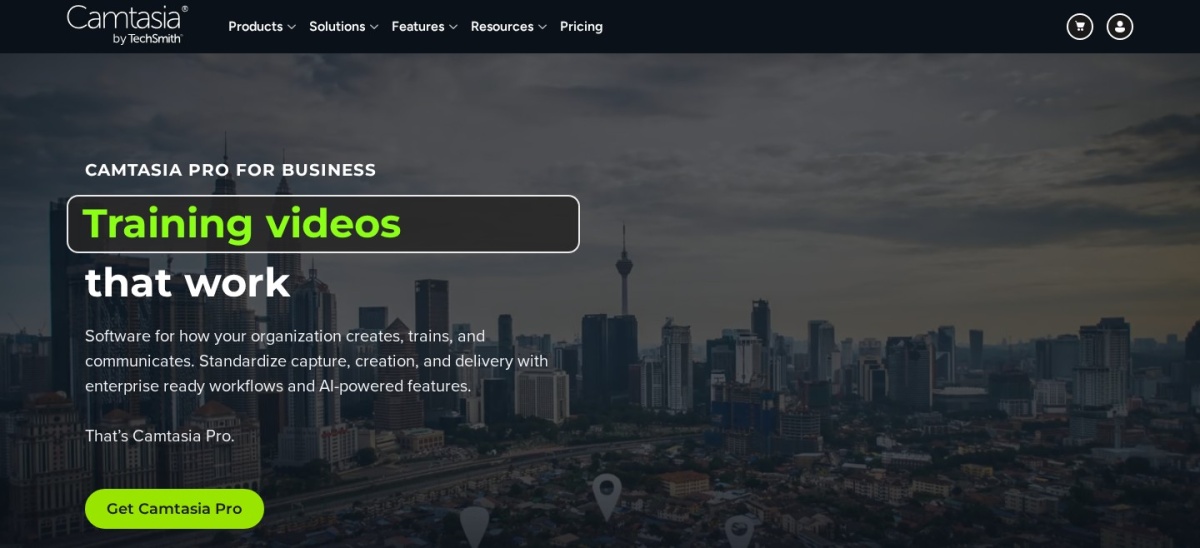
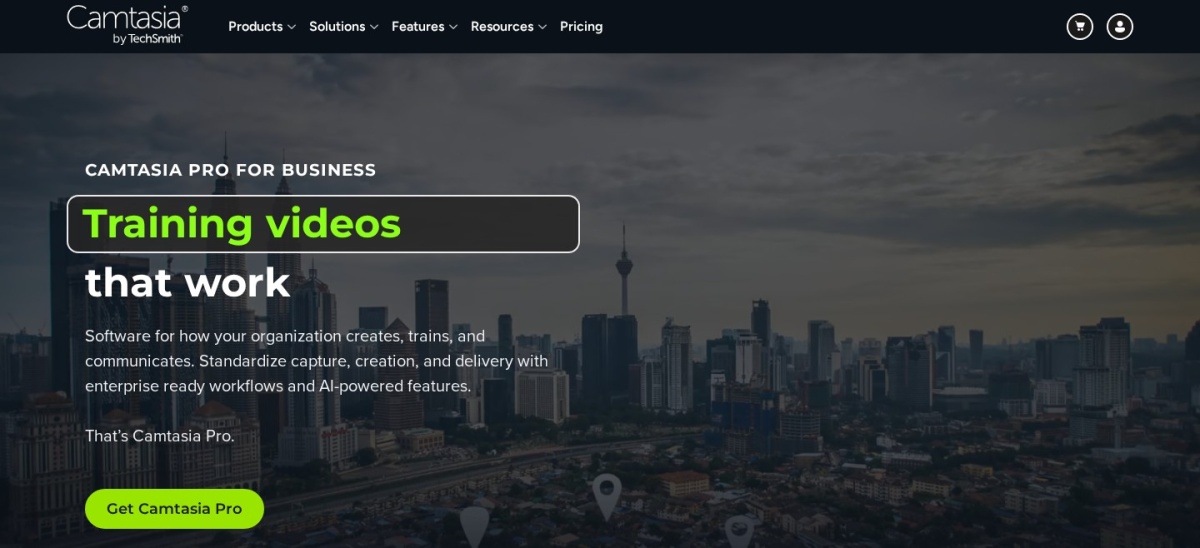
Camtasia homepage, captured Nov 2026.
Camtasia is TechSmith's screen recorder and video editor, built for tutorials and training videos. It records the screen in up to 4K, the webcam and system audio, and adds cursor effects, callouts, captions and a multitrack editor in the same app.
The trade off is the watermark. Starter costs $39 a year, but its editor exports carry a watermark, so watermark-free tutorials start with Essentials at $179.88 a year. It suits course creators and trainers who want recording and editing in one app.
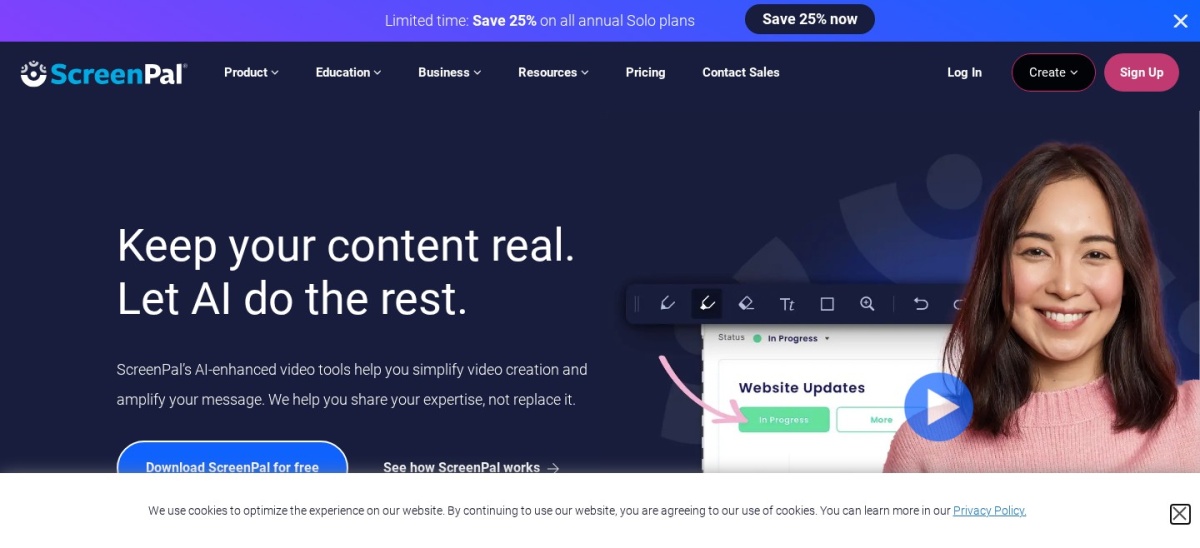
ScreenPal is a screen recorder and video editor, formerly Screencast-O-Matic, aimed at teachers and trainers. The free plan records up to 15 minutes per take, and Solo Deluxe at $4 a month billed yearly adds unlimited recording, the full editor and AI speech-to-text captions.
The trade off is AI depth. The full AI set, including text-to-speech narration and translation, sits on Solo Max at $10 a month billed yearly, and the site is running a 25% sale on Solo plans through 5 December. It suits teachers and solo creators who want a cheap recorder with a real editor.
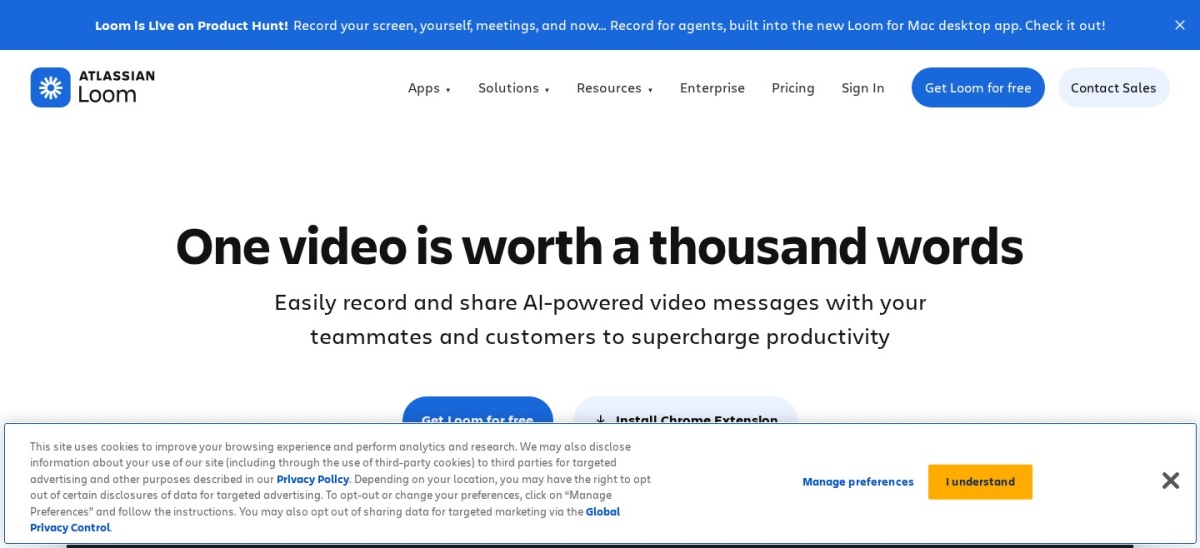
Loom is a cloud recorder for quick video walkthroughs: record the screen and camera, and share a link as soon as you stop. The free Starter plan covers 25 videos of up to 5 minutes each at up to 720p, with transcriptions in more than 50 languages.
The trade off is editing depth. Business costs $15 a user a month billed yearly and removes the video and length limits, adds up to 4K and basic trim-and-stitch editing, but it is not a full editor. It suits teams that answer the same how-to questions with short videos.
What we like
Fastest route from record to shared link
Free plan covers short walkthroughs
Rated 4.7 out of 5 from 2,588 G2 reviews
Watch out for
Free videos stop at 5 minutes
Editing is trim and stitch only
Business + AI adds summaries, chapters and filler removalVisit loom.com
04
OBS Studio
4.6/5on G2 (141 reviews, checked Nov 2026)
PriceFree
Best free screen recorder for tutorials
PriceFree, open source
RecordingUp to 4K, no limit
Scenes and sourcesYes, unlimited
Paid planNone
obsproject.com
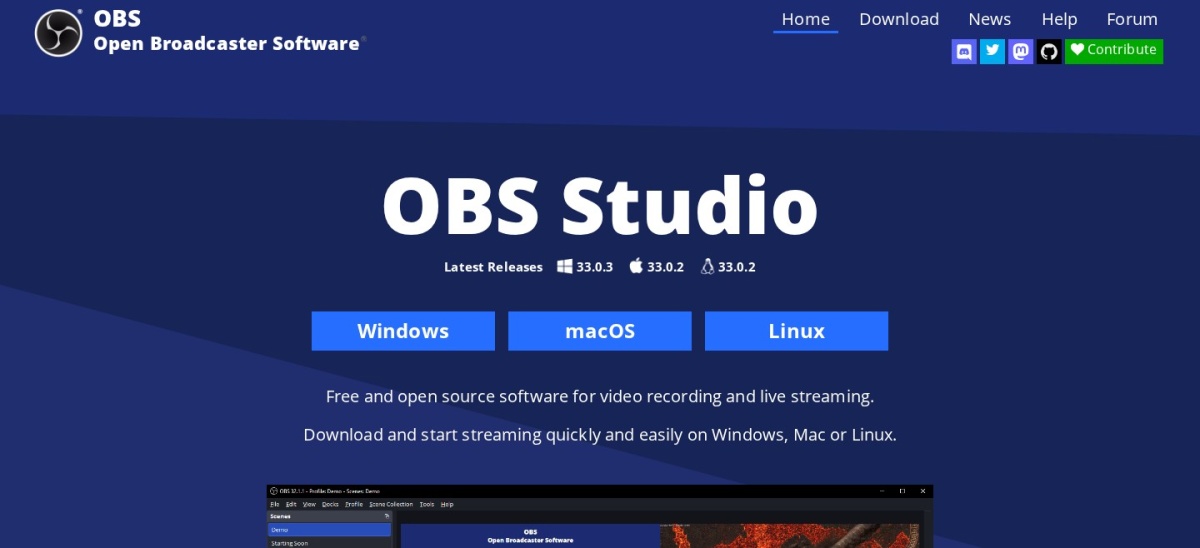
OBS Studio homepage, captured Nov 2026.
OBS Studio is a free, open-source recorder and live streamer for Windows, Mac and Linux. It records in up to 4K with hardware encoding, mixes multi-track audio, layers scenes and sources, and puts no watermark, time limit or account on your recordings.
The trade off is the learning curve. There is no built-in editor, so you cut and caption in another app, and the scene-based setup takes longer to learn than a one-click recorder. It suits creators on a zero budget who already edit elsewhere.
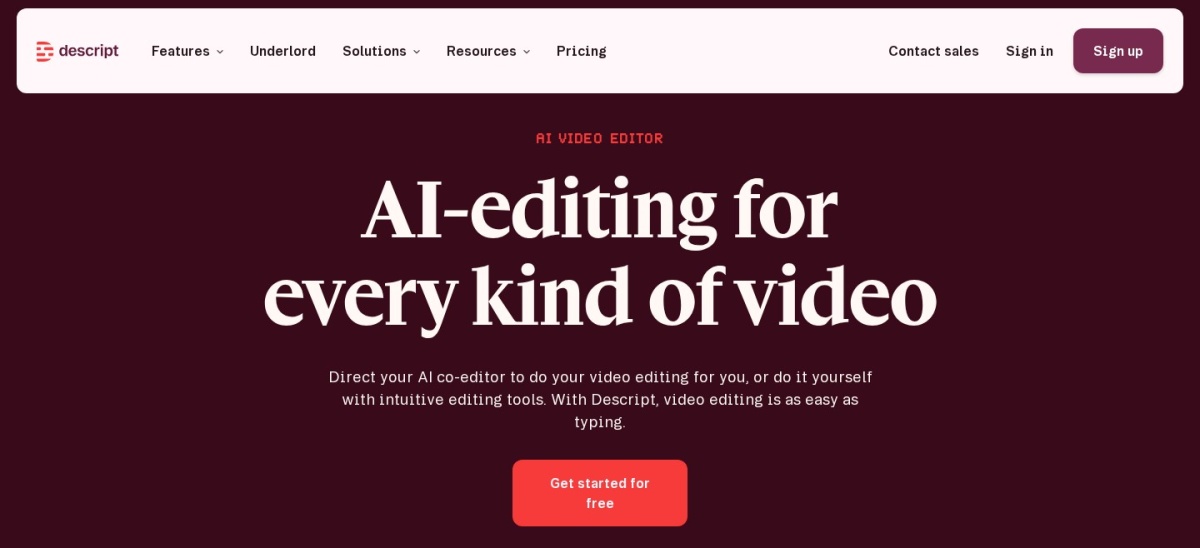
Descript is a video and audio editor that lets you cut a tutorial by deleting words from its transcript. It records the screen and camera, transcribes the audio, and removes filler words, with a free plan that covers 1 media hour a month.
The trade off is the meter. Hobbyist costs $16 a person a month billed yearly and covers 10 media hours and 400 AI credits a month, so long recording sessions can push you to Creator at $24. It suits creators who re-record lines often and hate timeline editing.
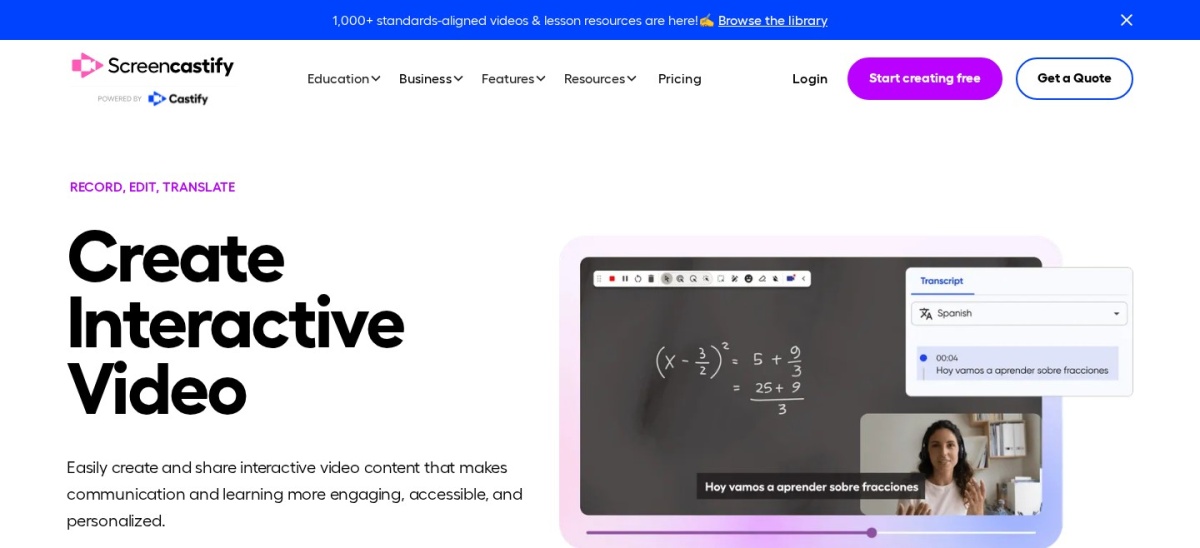
Screencastify is a Chrome recorder built for teachers, now part of Castify. The free plan covers 10 videos of up to 30 minutes each at up to 1080p, and it adds questions, polls and viewer analytics to lessons.
The trade off is length. Starter costs $7 a user a month billed yearly and lifts the cap to unlimited videos of up to 60 minutes, while 180-minute recordings and AI captions need Pro at $10. It suits teachers who record in Chrome and share with a class.
Snagit is TechSmith's capture app for screenshots and short videos, now called Camtasia Snagit. It records the screen and webcam, adds annotations, arrows and callouts, and turns captures into step-by-step guides.
The trade off is scope. Snagit costs $39 a user a year after a 15-day trial, and it is built for short clips, not long lessons, with no multitrack editor. It suits support teams and trainers who make quick how-to clips all day.
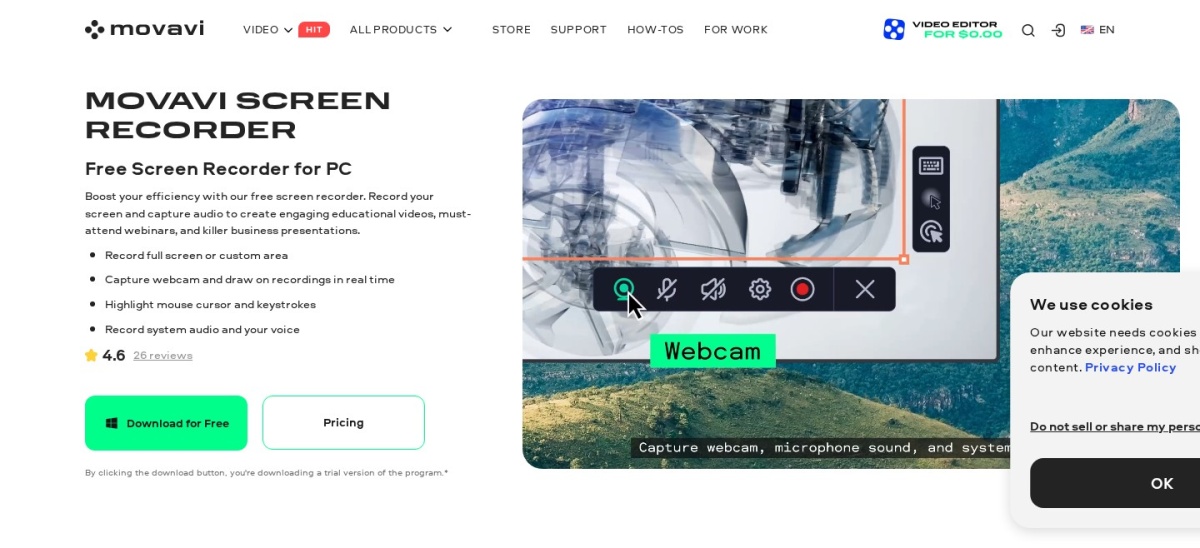
Movavi Screen Recorder homepage, captured Nov 2026.
Movavi Screen Recorder is a simple desktop recorder for Windows and Mac. It captures the full screen or a custom area in 1080p at 60fps, with webcam overlay, system audio, microphone input and drawing tools while you record.
The trade off is editing. The regular price is $64.95 a year, though the store showed $44.95 on sale until 29 November 2026, and the editor is basic trimming only. It suits beginners who want clean recordings fast without learning a full editor.
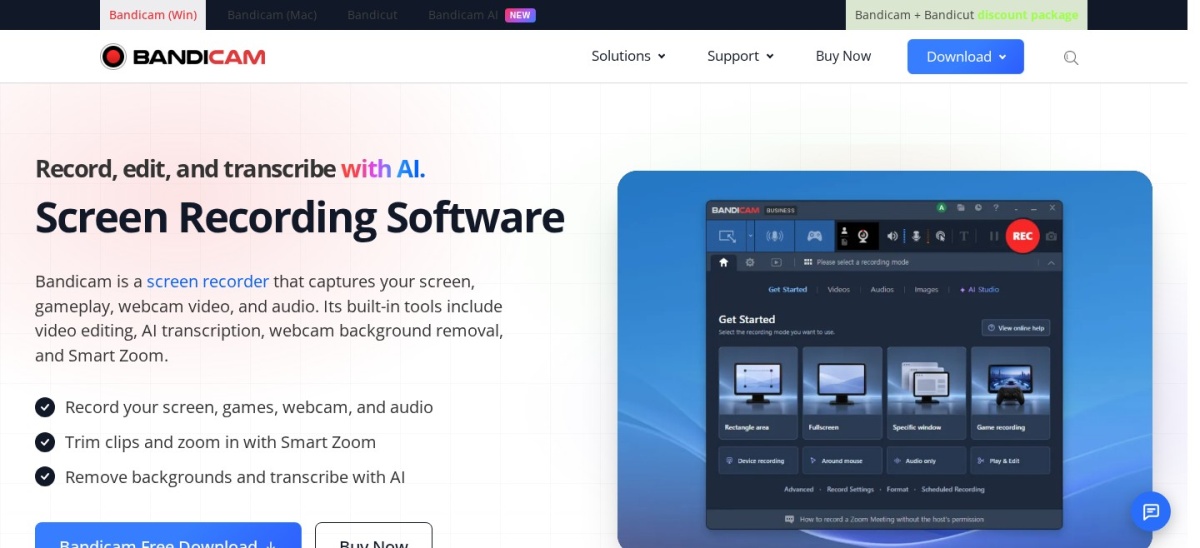
Bandicam is a lightweight Windows recorder for screen, game and device capture. The free version records up to 5 minutes per take, and the paid licence removes the limit and adds scheduled recording, real-time drawing and a webcam overlay.
The trade off is the licence fine print. The regular annual price is $36.95 for one PC, with the store showing $33.26 at 10% off, and the Personal licence covers non-commercial use only. It suits Windows users who want high-frame-rate capture on modest hardware.
Free plans cover short lessons well. OBS Studio is the exception: it is fully free with no time limit, while Loom, ScreenPal and Screencastify cap free recordings at 5, 15 and 30 minutes.
Paid plans mostly add length, editing and polish. You get longer recordings, no watermark, captions, quizzes and a real editor instead of trimming only.
If the tutorials are part of a paid course, the editor matters more than the recorder. Our guide to selling courses with WordPress covers the setup around the videos.
For a single course or a help centre, one year of Camtasia Essentials or ScreenPal Deluxe usually costs less than the editing time a bare recorder leaves behind.
How we chose
We started from the screen recorders most often recommended for tutorials and training, then kept the nine with a real recording product, a published price and a public rating.
Prices come from each vendor's pricing page, checked on 26 November 2026. Ratings and review counts come from G2 on the same day. Where a vendor shows a sale, the list shows the regular price.
We left out tools with only a thin public rating base and recorders built only for games or meetings. No vendor paid for a place, and we do not claim to have used these tools ourselves.
How to choose a screen recording software for tutorials
Start with how long your lessons run, then match the editor to how much cutting each lesson needs.
Decide how long each lesson runs. Free plans cap recordings at 5 to 30 minutes, so long lessons need a paid plan or OBS Studio.
Pick the editor before the recorder. If every lesson needs cuts, captions and zooms, Camtasia or Descript saves more time than a bare recorder.
Check captions and quizzes. Captions help every viewer, and quizzes matter if the tutorial is part of a course. See how to embed a video in WordPress once the lesson is ready.
Record one full lesson before you pay. A trial shows whether the recorder keeps up with your machine and whether its exports look right.
FAQ
What is the best screen recording software for tutorials?
Camtasia is the best pick for most tutorial makers. It records the screen, webcam and audio in up to 4K, then edits, captions and quizzes the lesson in the same app, and it is rated 4.6 out of 5 on G2.
What is the best free screen recorder for tutorials?
OBS Studio is the best free option. It is open source, records in up to 4K with no watermark, no time limit and no account, and it is rated 4.6 out of 5 on G2. You will need a separate editor for cutting and captions.
Can I record tutorials with Loom for free?
Yes, for short ones. Loom Starter is free for 25 videos of up to 5 minutes each at up to 720p. Longer lessons need Business at $15 a user a month billed yearly, which removes the video and length limits and adds up to 4K.
Do I need a separate video editor?
It depends on the tool. Camtasia, ScreenPal and Descript include a real editor, so most lessons never leave the app. OBS Studio, Loom and Bandicam record well but need another editor for serious cutting, captions or effects.
How long should a tutorial video be?
Keep one lesson to one task, and split longer topics into short parts. Short lessons are easier to re-record when a step changes, and viewers find the exact step they need without scrubbing through a long video.
Which screen recorder is best for teachers?
Screencastify and ScreenPal are the strongest classroom picks. Screencastify runs in Chrome with quizzes, polls and LMS grade sync, while ScreenPal adds storyboards, quizzes and a full editor for $4 a month billed yearly.
SaaS SEO and WordPress specialist with about 8 years of experience. Rakib compares WordPress plugins, themes, hosting and software using public pricing, documentation and user reviews. See how we rank.