MSI Afterburner is the best GPU monitoring software for most people: it is free, works with NVIDIA and AMD cards from any brand, and pairs temperature, clock and fan readings with an in-game overlay. Pick HWiNFO for the deepest sensor data and GPU-Z to verify a card before you buy it.
How we make this list: we compare pricing pages, product documentation and public user reviews, then re-check every price before each update. No product paid for a place. Disclosure.
MSI Afterburner is free and covers monitoring plus fan and clock control, with an in-game overlay through RivaTuner.
HWiNFO reports the most sensors, including GPU hotspot, memory junction temperature and per-chip VRAM temperatures on recent AMD cards.
GPU-Z is the fastest way to verify a graphics card, with a validation database of more than 2 million results.
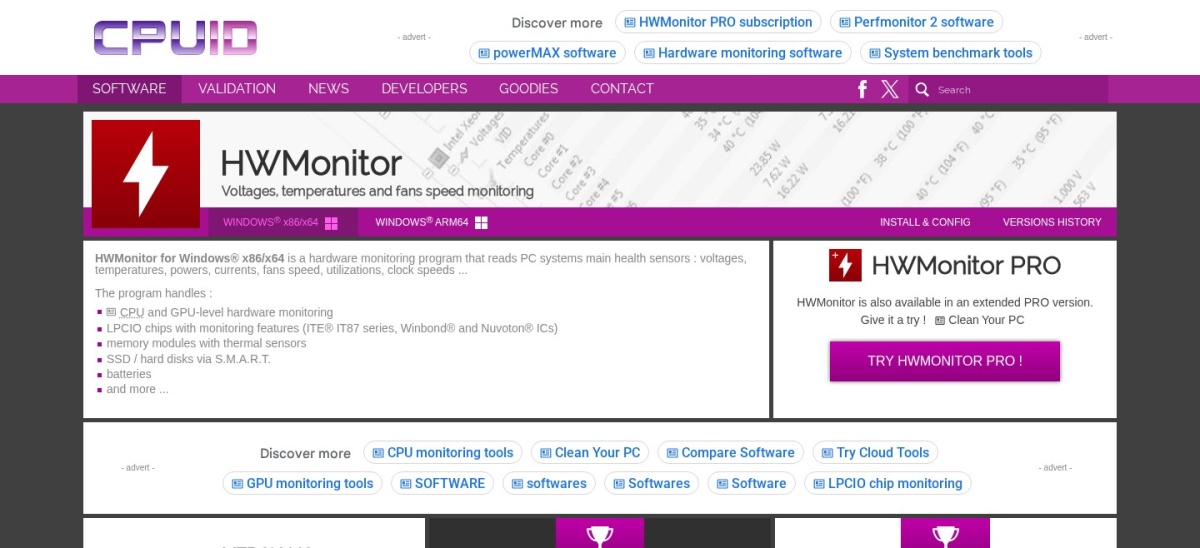
HWMonitor is the simplest pick: one tree view of temperatures, voltages, fan speeds and power, free.
Only 3 of the 9 tools have a paid plan. HWiNFO Pro starts at $29 a year and AIDA64 Extreme costs $65.95 for 3 PCs.
What GPU monitoring software should show you
A graphics card can run hot, throttle or crash long before anything looks wrong on screen. Monitoring software reads the sensors on the card and shows temperature, clock speed, load, fan speed and power draw while you play or render.
The readings that matter most are GPU temperature and hotspot temperature, clock speed under load, fan speed and power draw. If clocks drop as temperatures climb, the card is throttling to protect itself.
An in-game overlay is worth having if you play games. It shows the same numbers on top of the game, so you can spot a problem without alt-tabbing out. Our guide on fixing high CPU usage covers the same check-and-fix approach for processors.
Most of the tools here are free. Paid plans mostly add logging, remote monitoring or stress tests, not better temperature readings.
List prices in each vendor's currency, checked Nov 2026
AfterburnerFree
GPU-ZFree
NZXT CAMFree
GPU TweakFree
NVIDIA AppFree
Precision X1Free
HWMonitorFREE€20
HWiNFOFREE$29
AIDA64$66
The 9 best GPU monitoring software tools
01
MSI Afterburner
4.7/5on Gramfile (78 reviews, checked Nov 2026)
PriceFree
Best GPU monitoring software overall
In-game overlayYes, via RivaTuner
Fan curvesYes, custom
OverclockingYes, OC Scanner
Paid planNone, fully free
msi.com
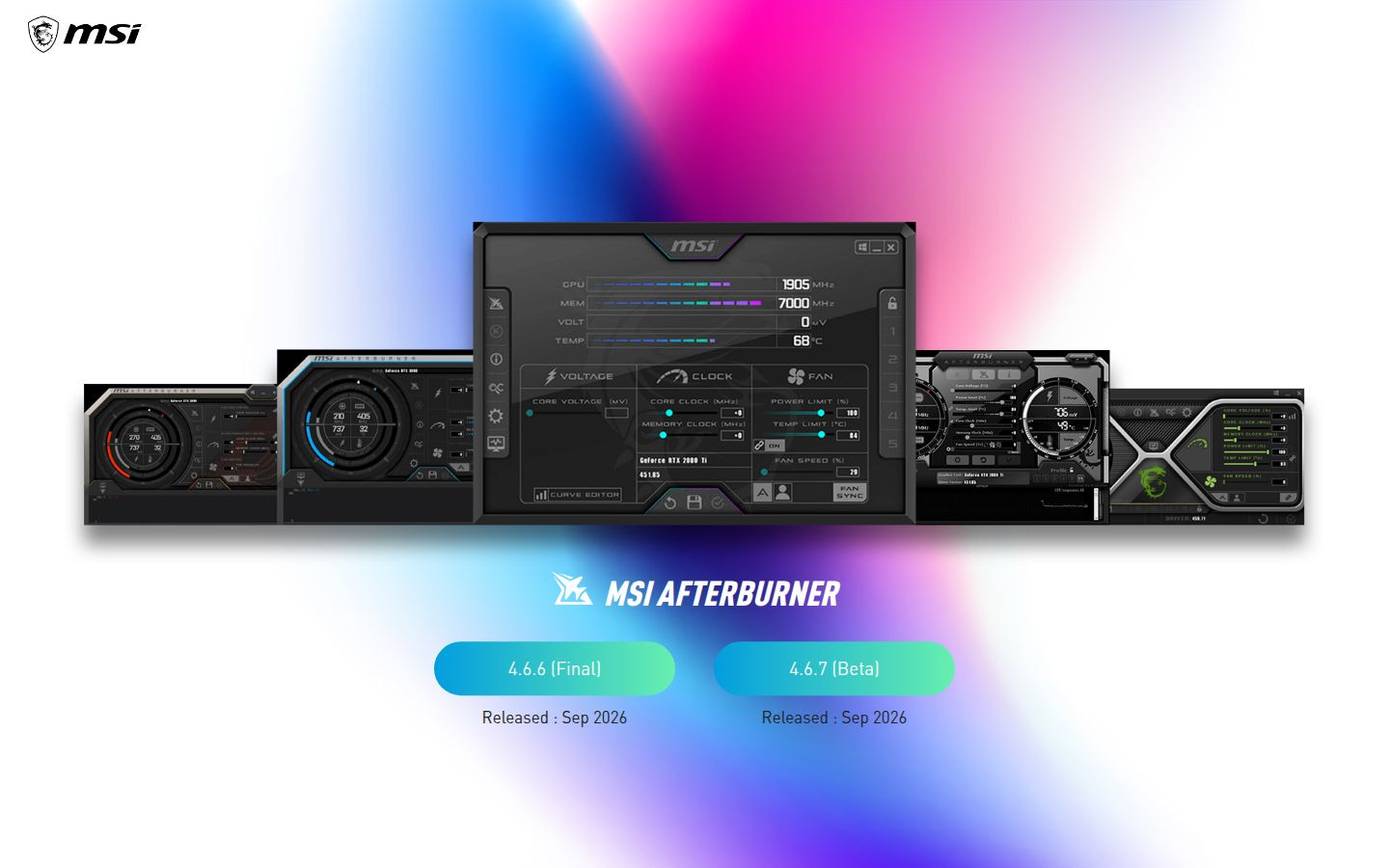
MSI Afterburner homepage, captured Nov 2026.
MSI Afterburner is a free graphics card utility that works with NVIDIA and AMD cards from any brand, not just MSI. It covers core clock, memory clock, voltage, power limit and custom fan curves, and the OC Scanner finds a stable overclock for you with one click. An on-screen display shows temperatures, usage and frame rates while you play.
The trade off is that Afterburner only touches the graphics card. Your processor and motherboard need a separate tool, such as HWiNFO from this list. It suits almost any desktop gamer who wants one free tool for GPU tuning and monitoring.
What we like
Works with graphics cards from every brand, not just MSI
Full control of clocks, voltage, power limit and fan curves
OC Scanner finds a stable overclock automatically
On-screen display and hardware monitor included
Watch out for
GPU-only, so it does nothing for your CPU
Interface looks dated and the settings take some learning
Fake download sites impersonate it, so only use msi.com or Guru3D
4.9/5on SourceForge (13 reviews, checked Nov 2026)
Paid from$29/yr
Best for the deepest sensor data
GPU hotspot tempYes
Sensor loggingYes, to file
Custom alertsYes
Paid planPro, $29/yr
hwinfo.com
HWiNFO homepage, captured Nov 2026.
HWiNFO is the most detailed hardware monitor on Windows, and it is free for personal use. It reads almost every sensor in a PC, from CPU cores and GPU hotspots to motherboard and drive temperatures, and on recent AMD cards it shows per-chip VRAM temperatures. Its sensor window logs data to a file and can trigger custom alerts.
The trade off is the sheer volume of readings. The sensor list runs to hundreds of rows, so first-time setup takes patience. It suits enthusiasts and technicians who want the full picture, not just one temperature.
What we like
Deepest sensor coverage of any tool here
Logging and custom alerts built in
Reports export to XML, CSV and HTML
Free for personal use
Watch out for
Sensor list can overwhelm new users
Free version turns off its shared-memory feed after 12 hours
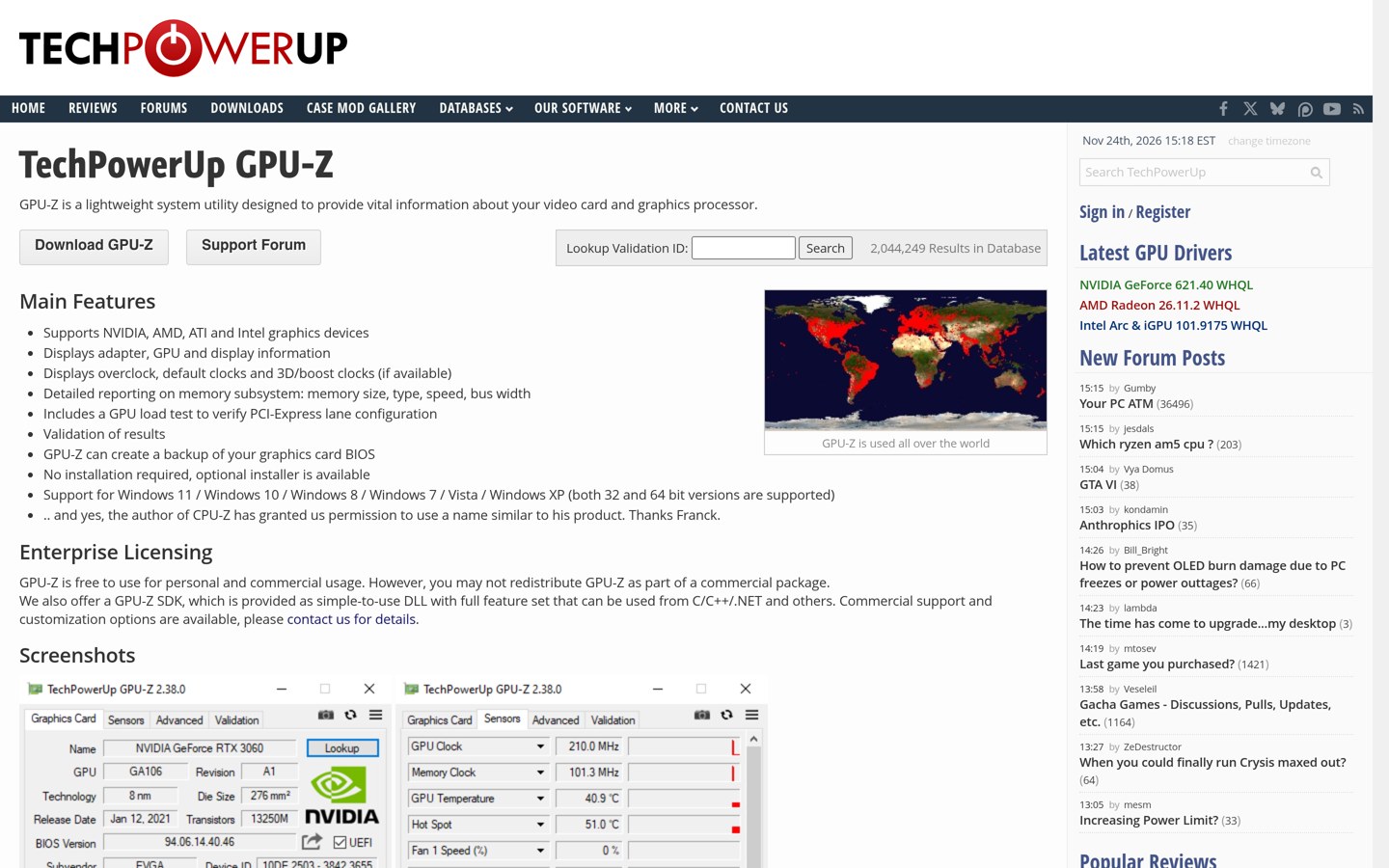
GPU-Z is a lightweight utility from TechPowerUp that reports exactly which graphics card you own. It reads the GPU, memory type and size, BIOS version, driver and bus interface directly from the card, then shows live sensor graphs for temperature, clocks, load and fan speed. A one-click validation upload proves the card is what the seller claims.
The trade off is that GPU-Z only watches and reports. It cannot change fan speeds or clock anything, and it shows no CPU temperatures. It suits secondhand buyers, builders and anyone who wants a quick, exact answer about their card.
What we like
Identifies the exact card, memory and BIOS
Validation upload with over 2 million results on file
HWMonitor is a free hardware monitor from CPUID that shows your main sensors in one simple tree. It lists CPU and GPU temperatures, voltages, fan speeds, power and clock speeds, and records the current, minimum and maximum value for each reading. Version 1.68 arrived in September 2026 with support for the newest GPUs.
The trade off is that the free version only shows the moment. It does not log data or draw graphs, so it is best for spot checks rather than long-term tracking. It suits anyone who wants an answer in ten seconds.
4.8/5on Download Zone (1,250 reviews, checked Nov 2026)
PriceFree
Best clean dashboard
Dashboard graphsYes
Mini mode overlayYes
Fan and RGB controlYes, NZXT hardware
Paid planNone, fully free
nzxt.com
NZXT CAM homepage, captured Nov 2026.
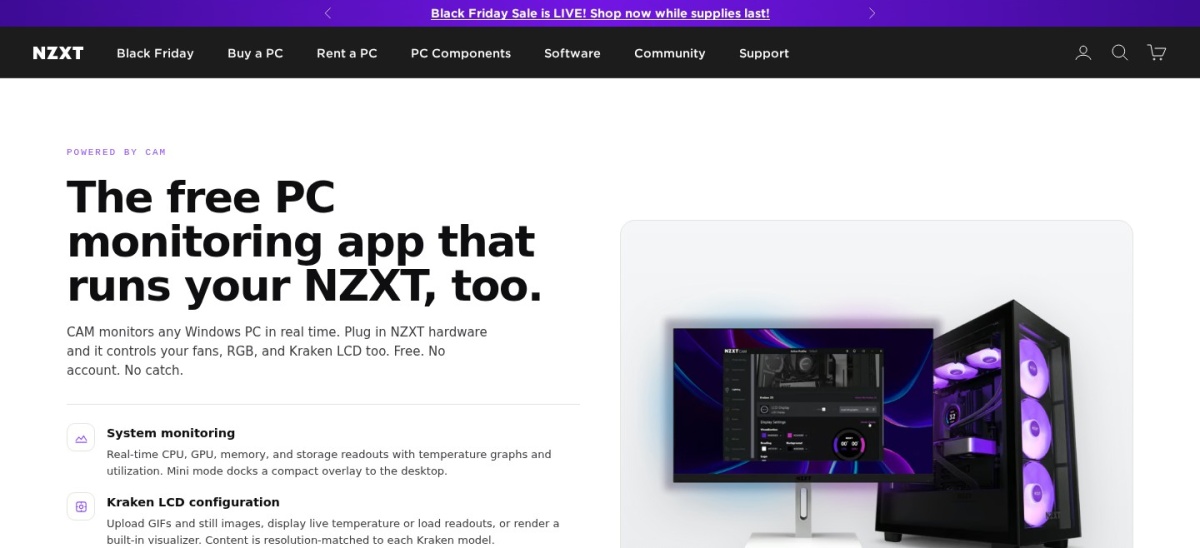
NZXT CAM is a free dashboard that shows CPU, GPU, memory and storage readings in a modern window with temperature graphs. It works on any Windows PC, not just NZXT builds, and a compact mini mode keeps key numbers on your desktop while you work or play. It needs no account to use.
The trade off is depth. CAM shows the headline numbers well but not the per-sensor detail of HWiNFO, and its fan and lighting controls only work with NZXT hardware. It suits beginners and gamers who want a clean dashboard with no learning curve.
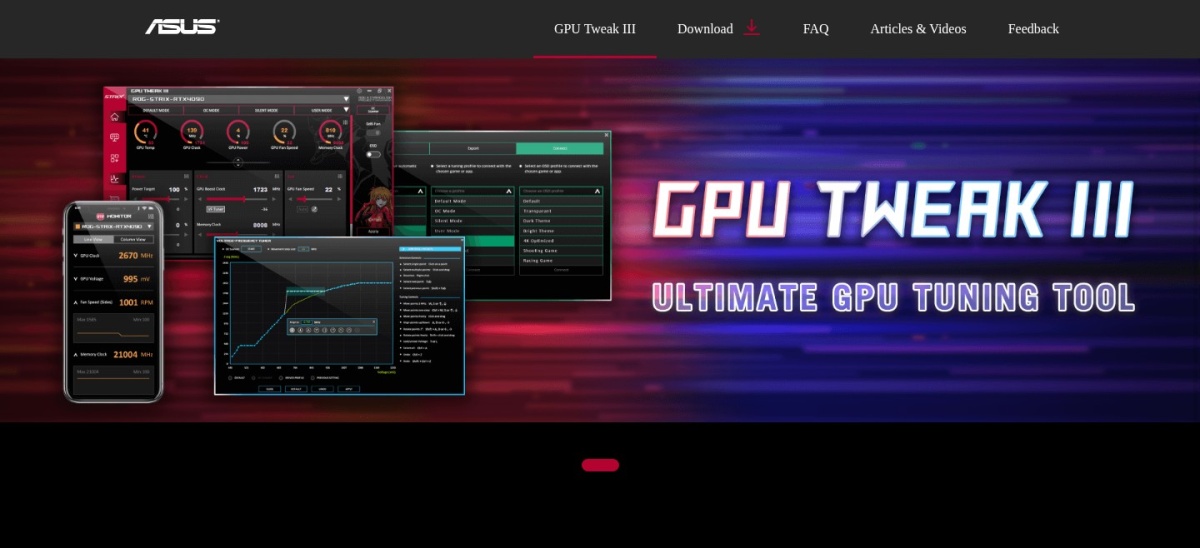
ASUS GPU Tweak III is a free tuning and monitoring tool that works on graphics cards from any brand, not just ASUS. Version 2.2.2.3 arrived in November 2026 with an OC Scanner for one-click overclocking, a VF Tuner for the voltage-frequency curve, a 0dB fan mode and an on-screen display. Game profiles switch settings per game.
The trade off is focus. It is a GPU tool first, so CPU and system-wide sensors are thinner than in HWiNFO or HWMonitor. It suits gamers who want tuning and monitoring in one modern window.
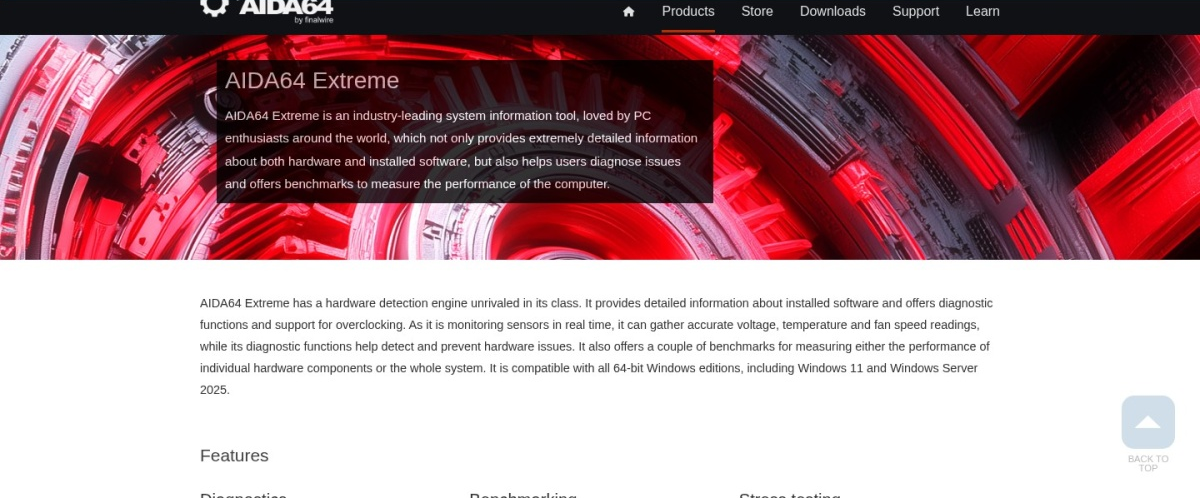
AIDA64 Extreme is a paid diagnostics suite from FinalWire that pairs sensor monitoring with benchmarks and stress tests. It tracks more than 250 sensor devices, shows readings in custom SensorPanel displays, and runs a System Stability Test while you watch temperatures. A licence costs $65.95 for 3 PCs with one year of maintenance.
The trade off is that it is the only paid-first tool here. There is a 30-day trial, but after that the program stops working until you buy a licence. It suits enthusiasts who want one paid tool for inventory, monitoring, benchmarks and stress testing.
What we like
Deepest all-in-one: info, monitoring, benchmarks, stress test
Custom SensorPanel displays with graphs and gauges
NVIDIA App is the free control centre for GeForce graphics cards, replacing GeForce Experience and the classic Control Panel. It handles driver updates, shows GPU temperature, clock and load in an in-game overlay, and records gameplay. Automatic Tuning under System, Performance scans for a stable overclock for you.
The trade off is that it only fits NVIDIA cards, and its tuning is lighter than Afterburner or GPU Tweak III. It suits GeForce owners who want drivers, monitoring and recording in one official app.
What we like
Official NVIDIA app, with driver updates built in
Automatic Tuning finds a stable overclock
Overlay and recording included
No login needed except for rewards
Watch out for
NVIDIA cards only
Lighter tuning than Afterburner
Lowest user rating in this list, from only 9 ratings
EVGA Precision X1 is a free tuning and monitoring tool for GeForce cards. It covers clock and voltage control, a voltage-frequency curve editor, custom fan curves, RGB LED control and an on-screen display, with up to 10 profiles on hotkeys. Real-time wattage monitoring shows how much power the card draws.
The trade off is age. EVGA left the graphics card business in 2022, so Precision X1 supports GeForce RTX, GTX 16 and GTX 10 series cards and nothing newer. It suits owners of older EVGA and GeForce cards who want a free tuner.
What we like
Full tuning: clocks, voltage curve, fan curves
Up to 10 profiles with hotkeys
Real-time wattage monitoring
Free, with no account needed
Watch out for
No support for graphics cards newer than the RTX 30 series
Six of the nine tools here are completely free, with no paid tier at all. For pure GPU temperature and clock readings, a free tool is all most people need.
The three paid plans add logging, remote monitoring and testing. HWiNFO Pro keeps its shared-memory feed running past 12 hours, HWMonitor PRO watches other PCs on your network, and AIDA64 Extreme adds benchmarks and stress tests.
If you only check temperatures while gaming, stay free. Pay when you need a record of readings over time, or when you look after more than one PC.
How we chose
We started from the tools PC builders and gamers actually run, then kept those that report real GPU sensors rather than estimating them, and are still maintained on current hardware.
Prices come from each vendor's pricing page, checked on 25 November 2026. Ratings and review counts come from TechSpot, SourceForge, Gramfile, FileCroco and Download Zone on the same day. Where a vendor shows a sale, the list shows the regular price.
We left out tools with no published user rating, and tools no longer maintained. No vendor paid for a place, and we do not claim hands-on testing for this list.
How to choose GPU monitoring software
Start with what you want to watch, then pick the simplest tool that shows it.
Decide if you only want to watch, or also to tune. For monitoring alone, HWiNFO, HWMonitor or GPU-Z are enough. For fan curves and overclocking, pick MSI Afterburner or ASUS GPU Tweak III.
Pick an overlay if you play games. MSI Afterburner, ASUS GPU Tweak III and NVIDIA App show temperatures and frame rates on top of your game. See how to monitor a WordPress site for the same always-visible idea on servers.
Match the tool to your card. NVIDIA App only works with GeForce cards, and EVGA Precision X1 only covers older GeForce cards. Afterburner, HWiNFO and GPU-Z work with NVIDIA, AMD and Intel cards.
Check the free plan first. Six tools here are fully free. Only pay for HWiNFO Pro, HWMonitor PRO or AIDA64 Extreme if you need logging, remote monitoring or stress tests.
FAQ
What is the best GPU monitoring software?
MSI Afterburner is the best pick for most people. It is free, works with NVIDIA and AMD cards from any brand, and pairs live temperature, clock and fan readings with an in-game overlay and fan control.
Is MSI Afterburner really free?
Yes. MSI Afterburner costs nothing and has no paid tier. It works with graphics cards from any brand, not just MSI, and the current line is version 4.6.6, with 4.6.7 in beta.
Which tool shows the most sensor data?
HWiNFO shows the most sensors of any tool here. It reports GPU temperature and hotspot, memory junction temperature, per-chip VRAM temperatures on recent AMD cards, plus CPU, motherboard and drive sensors.
How can I check if a used graphics card is genuine?
Use GPU-Z. It reads the exact GPU, memory type and size, BIOS version and driver from the card, and its one-click validation upload proves the card matches what the seller claims.
Do I need to pay for GPU monitoring software?
No, not for basic monitoring. Six of the nine tools here are fully free. Paid plans only add extras such as logging, remote monitoring, benchmarks and stress tests.
Does GPU monitoring software work on Mac?
Most tools here are Windows only. HWiNFO, GPU-Z, HWMonitor, MSI Afterburner and the rest of this list do not run on macOS, so Mac owners need a separate menu-bar monitor.
SaaS SEO and WordPress specialist with about 8 years of experience. Rakib compares WordPress plugins, themes, hosting and software using public pricing, documentation and user reviews. See how we rank.