Canva is the best free online image merger for most people, with collage layouts, text and filters on a free plan and a 4.7/5 G2 rating from more than 7,700 reviews. Pick Fotor for collages plus photo editing, or PhotoJoiner when you only need a fast side-by-side join with no signup.
How we make this list: we compare pricing pages, product documentation and public user reviews, then re-check every price before each update. No product paid for a place. Disclosure.
Canva leads with the widest collage layouts and templates, rated 4.7 out of 5 on G2 from 7,757 reviews.
Fotor pairs collages with built-in photo editing, and Pro costs $39.99 a year on annual billing.
Pixlr is the cheapest paid upgrade here: Plus starts at $1.99 a month billed yearly.
IMGonline and PhotoJoiner are free with no signup, but they only join images, with no templates or editing.
Adobe Express Premium costs $9.99 a month, and its free plan includes 100,000+ templates and 5 GB of storage.
What a free image merger should cover
Merging images means placing two or more photos side by side, stacked, or in a grid and saving them as one file. It is a common job for before-and-after photos, long screenshots, product comparisons and social posts.
The tools split into two kinds. Simple joiners take your images in order and output one file in seconds. Design tools take longer but add layouts, text, filters and templates, so the result looks finished.
Free plans differ in what they hold back. Some limit export size, some lock layouts behind a paid plan, and some show ads while you work. If you size photos first, our guide on cropping an image in WordPress covers the basics of sizing an image before you merge it.
Privacy matters too. Simple joiners upload your images to a server, so avoid merging screenshots with private details in them. Browser-based tools keep the files on your device, which is safer for sensitive images.
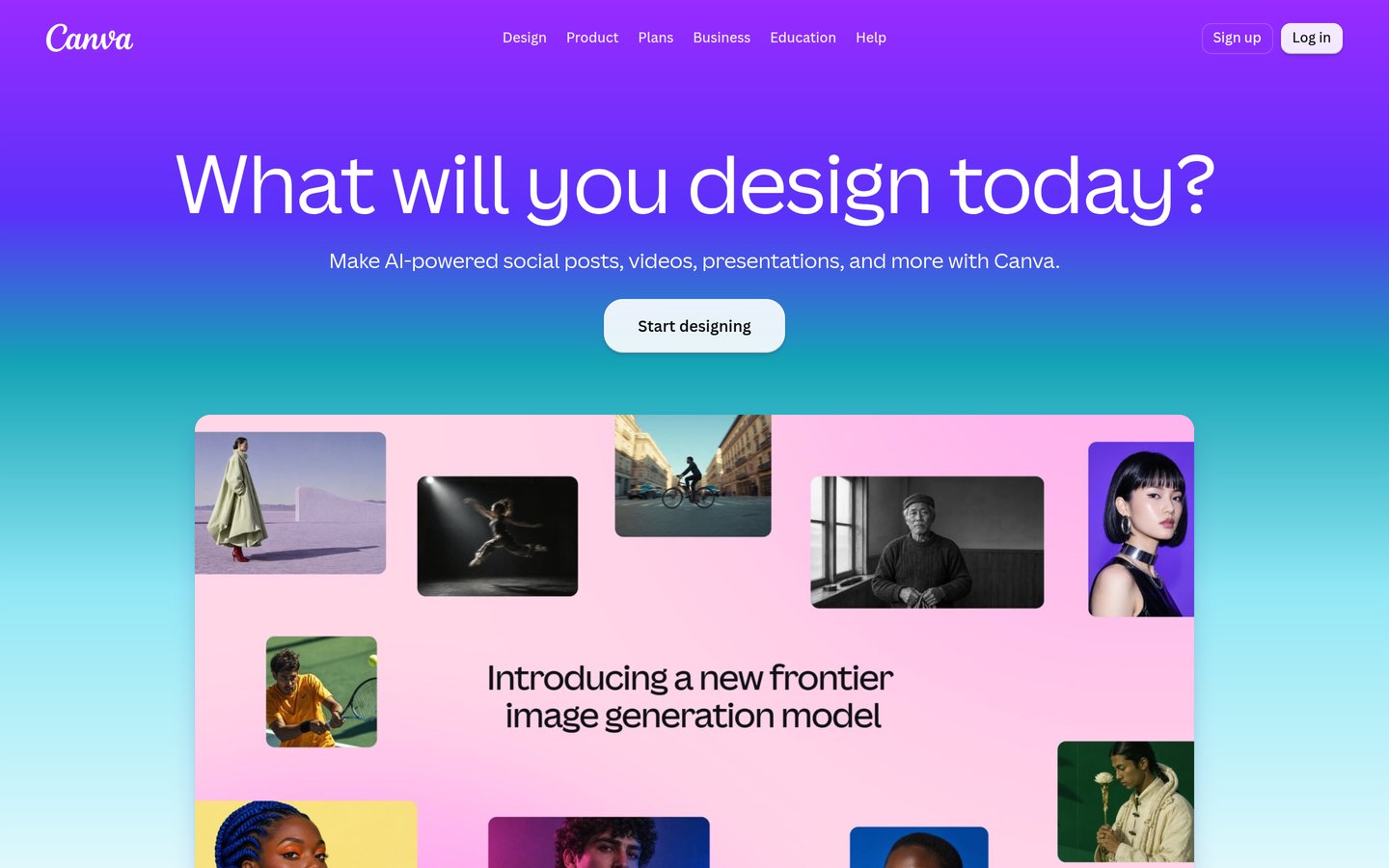
Canva is a browser design tool that turns merged photos into finished visuals. Pick a collage layout or a blank canvas, place images side by side or in a grid, then add text, borders and filters. The free plan includes 5 GB of storage and a large set of free templates, and it is rated 4.7 out of 5 on G2 from 7,757 reviews.
The trade off is that merging takes more steps than a one-click joiner, since you place each image by hand, and some layouts and elements need Pro at $144 a year. It suits creators, marketers and students who want a polished social post, not just two images stuck together.
What we like
Many collage layouts and templates
Text, shapes and filters included
Rated 4.7 out of 5 on G2 from 7,757 reviews
Easy sharing and download
Watch out for
Some layouts and elements need Pro
Merging is design-based, not a one-click join
Pro adds premium layouts, background removal and brand toolsVisit canva.com
02
Fotor
4.2/5on G2 (342 reviews, checked Nov 2026)
Paid from$39.99/yr
Best for photo collages and edits
Free planYes, collage and editing
Collage layoutsVertical, horizontal, grid
Photo editingBuilt in
Paid planPro, $39.99/yr
fotor.com
Fotor homepage, captured Nov 2026.
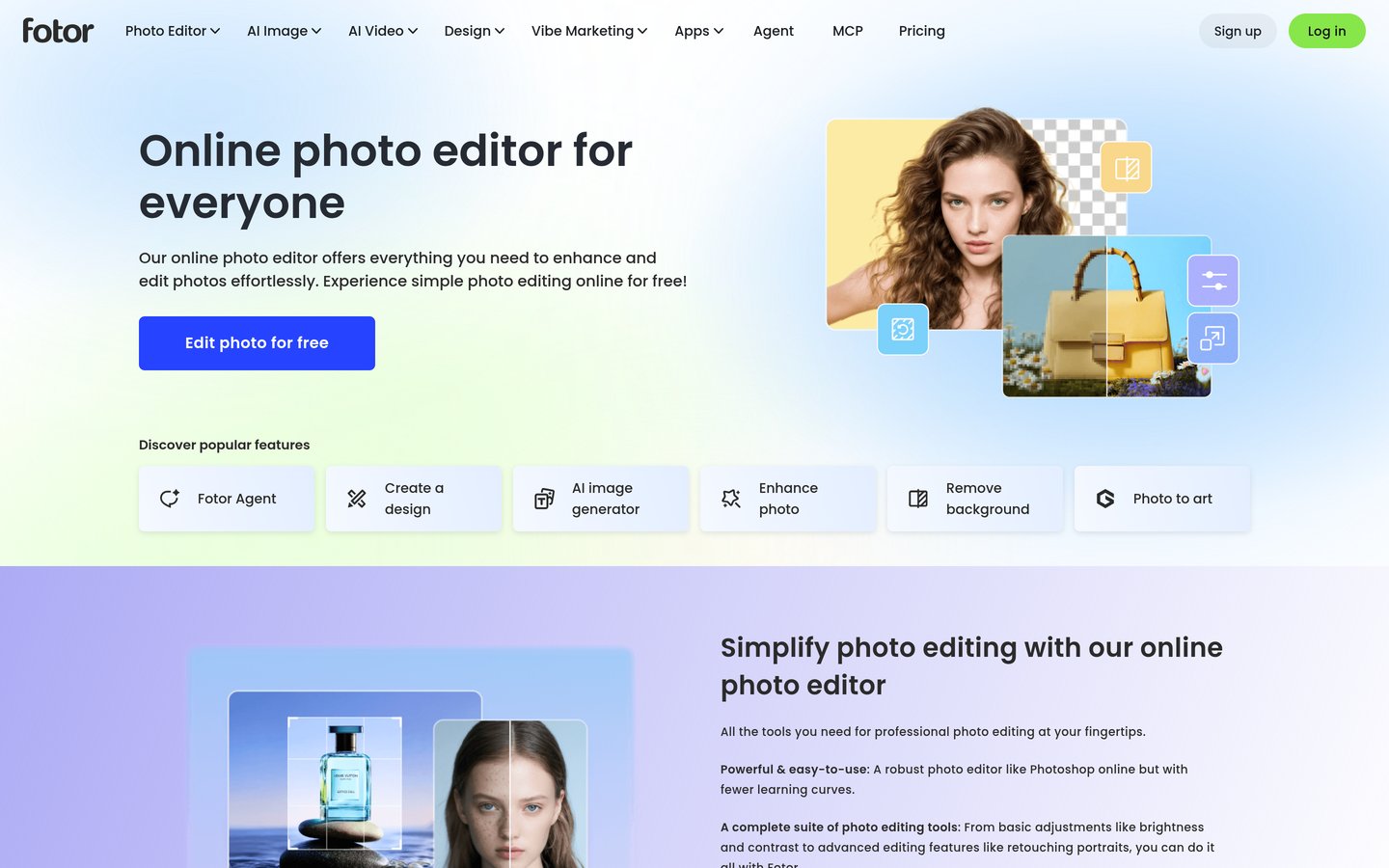
Fotor is a browser photo editor with a collage maker built in, so merged photos can also be fixed up in the same place. Choose a vertical, horizontal or grid layout, drag photos into place, adjust spacing and borders, then fix brightness and contrast without leaving the tool. It is rated 4.2 out of 5 on G2 from 342 reviews.
The trade off is that some templates and features need Pro, and free exports are limited in resolution for larger prints. Pro costs $39.99 a year on annual billing, or $8.99 a month. It suits users who want collages plus light editing in one free tool.
What we like
Vertical, horizontal and grid layouts
Built-in photo editing
Border and spacing controls
Watch out for
Some templates and features need Pro
Free exports may be limited in resolution
Pro adds more templates, HD exports and advanced editingVisit fotor.com
03
Pixlr
4.4/5on G2 (1,105 reviews, checked Nov 2026)
Paid from$1.99/mo
Best for merging inside an editor
Free planYes, with ads
LayersYes
Export formatsJPG, PNG, WebP
Paid planPlus, $1.99/mo billed yearly
pixlr.com
Pixlr homepage, captured Nov 2026.
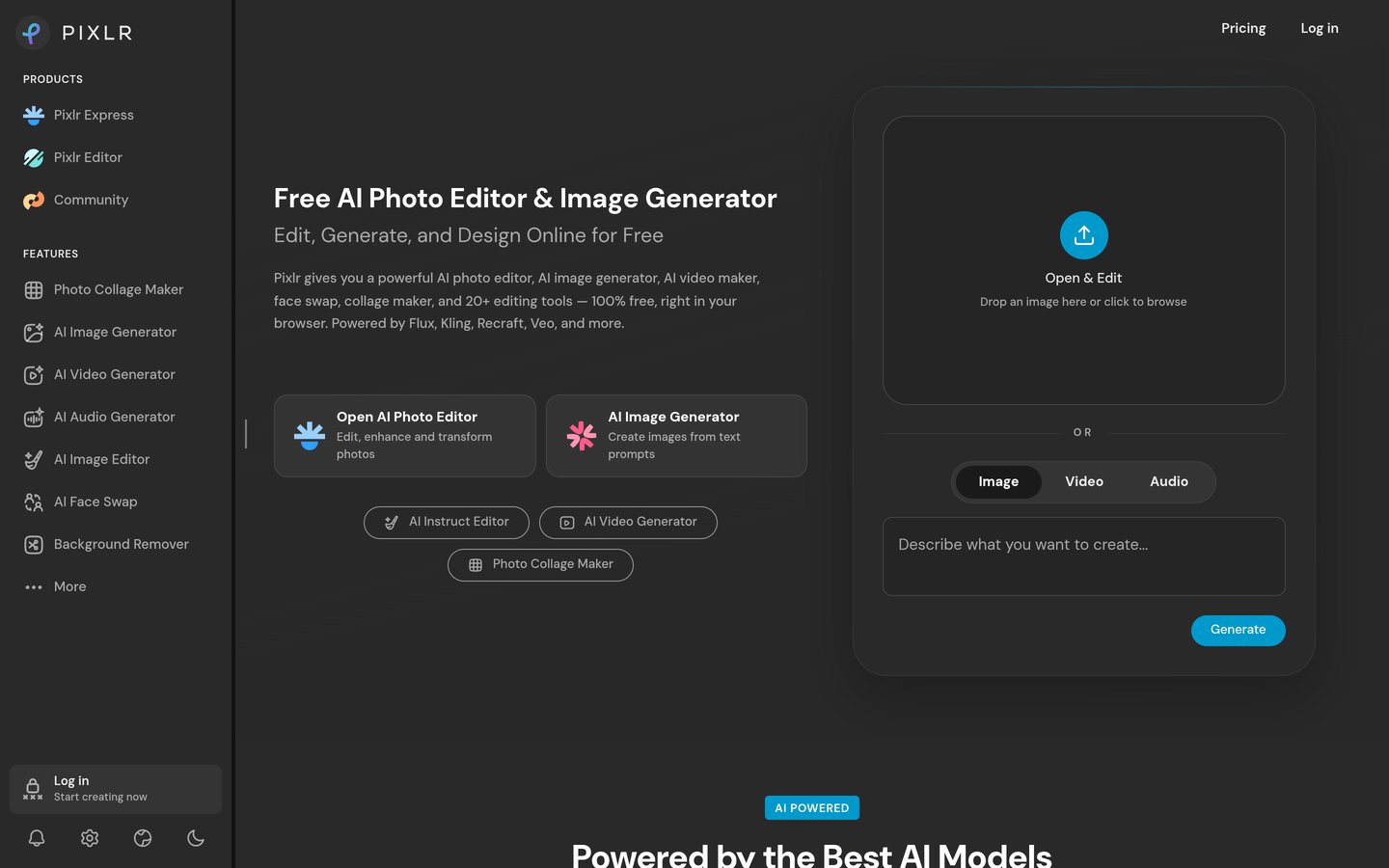
Pixlr is a browser photo editor that merges images as layers, which gives more control than a preset layout. Open images as layers, place them side by side or overlapped, adjust opacity, add text, and export as JPG, PNG or WebP. It is rated 4.4 out of 5 on G2 from 1,105 reviews.
The trade off is that the editor can overwhelm beginners, since it offers far more than a joiner, and the free version shows ads. Plus starts at $1.99 a month billed yearly and removes ads with unlimited saves. It suits users comfortable with an editor who want precise sizing and blending.
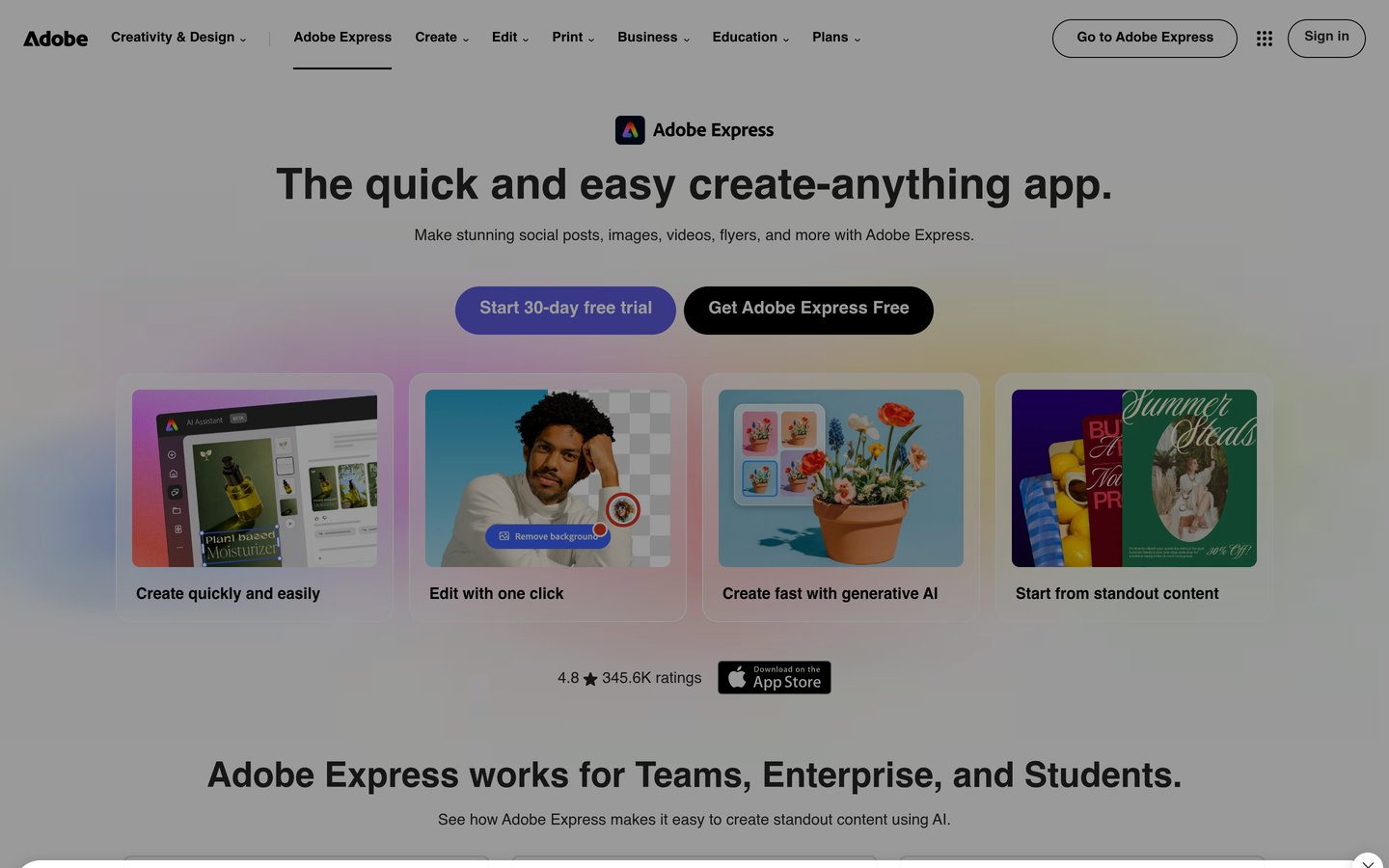
Adobe Express is a browser design tool that sits between a simple joiner and a full editor. Templates help you build a merged image for social media, a flyer or a presentation, and drag-and-drop tools make placement quick. The free plan includes 100,000+ templates, 1M+ stock assets and 5 GB of storage.
The trade off is that some premium templates and features need Premium at $9.99 a month, and a free Adobe account is needed for full use. It suits users who regularly create social and marketing visuals and want merges to match a consistent style.
What we like
Templates for social and marketing use
Simple drag-and-drop layout
Adobe fonts and design assets
Watch out for
Some premium templates need a paid plan
Account needed for full use
Premium adds more templates, assets and brand toolsVisit adobe.com
05
BeFunky
4.2/5on G2 (108 reviews, checked Nov 2026)
Paid from$6.99/mo
Best for collages with filters
Free planYes, no account needed
Collage layoutsYes
Filters and effectsYes
Paid planPlus, $6.99/mo billed yearly
befunky.com
BeFunky homepage, captured Nov 2026.
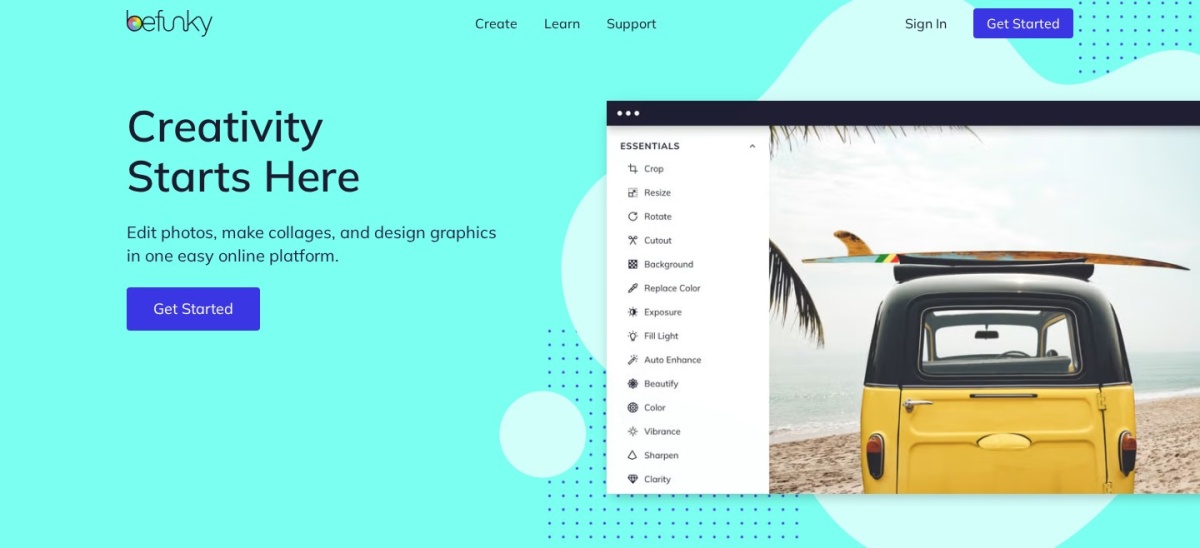
BeFunky is a browser creative platform with a collage maker, photo editor and graphic designer in one place. Pick a layout, add photos, adjust spacing and background colour, then apply filters to give the whole collage a consistent look. It is rated 4.2 out of 5 on G2 from 108 reviews.
The trade off is that some layouts and effects need Plus, and the free version includes ads. Plus costs $6.99 a month billed yearly, or $14.99 a month. It suits families, students and creators who want a quick, attractive collage without learning an editor.
VistaCreate is a browser design platform with collage and social templates for small businesses. Start from a template sized for your platform, drop in photos, add text and shapes, and export a finished graphic. It is rated 4.5 out of 5 on G2 from 171 reviews.
The trade off is that it is a design tool first, so a plain side-by-side join takes more steps than a dedicated joiner, and some templates need Pro at $10 a month billed yearly. It suits small sellers and marketers who merge product photos into listings and social posts.
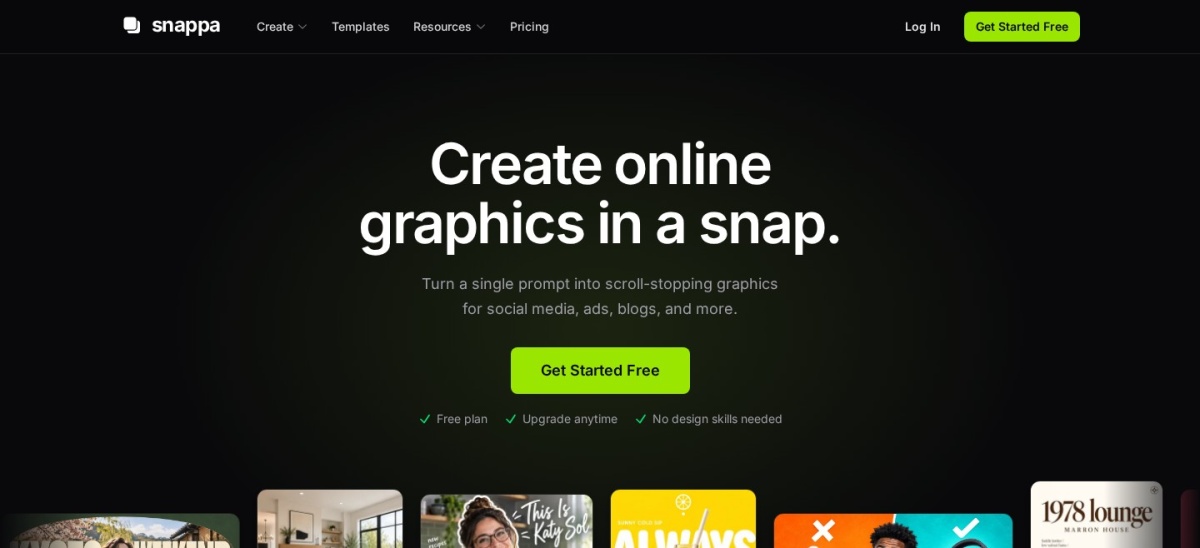
Snappa is a browser design tool for quick social graphics, thumbnails and ads. Start from a preset canvas size, drop in photos, add text and shapes, and export a finished graphic in minutes. It is rated 4.6 out of 5 on G2 from 41 reviews.
The trade off is that the free plan allows only three downloads a month, and it only exports JPG and PNG. Pro costs $10 a month billed yearly and adds unlimited downloads. It suits users who merge a few photos a month into social graphics and want the fastest route to a finished image.
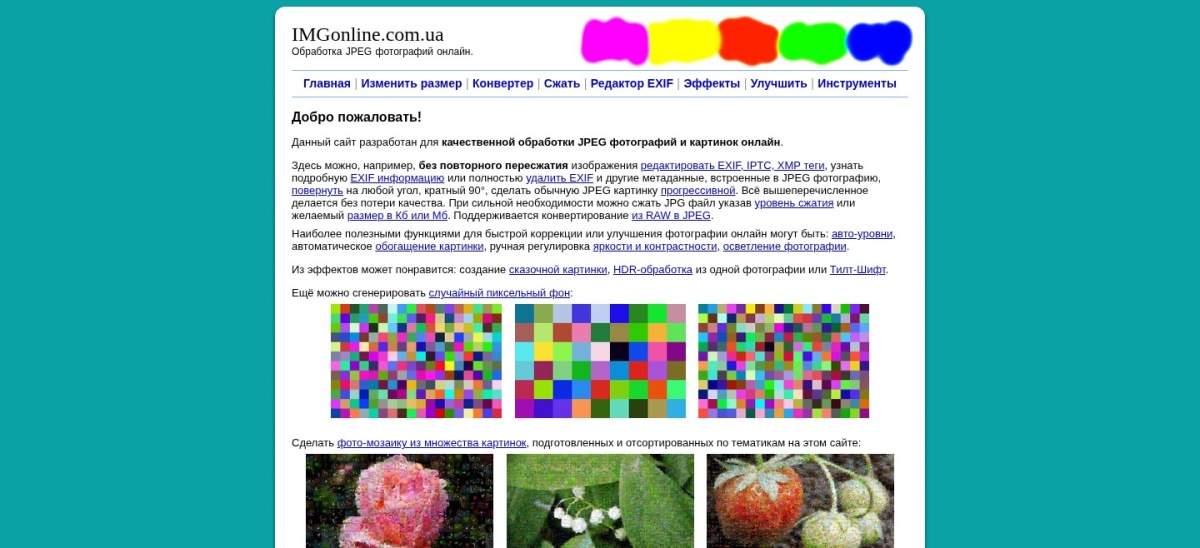
IMGonline is a simple web tool for combining JPG and PNG images, with options for layout and output format. It is useful when you need a quick merge without installing software or learning an editor. The site also offers resizing and conversion tools that can help before or after merging.
The trade off is that the interface is basic, and uploads go to a server for processing, so avoid images with private details. It is free only, with no paid plan. It suits users who want a direct joiner with minimal steps.
What we like
Straightforward merging for JPG and PNG
No signup for basic use
Extra tools for resizing and conversion
Watch out for
Interface is basic
Processing happens online, so avoid sensitive images
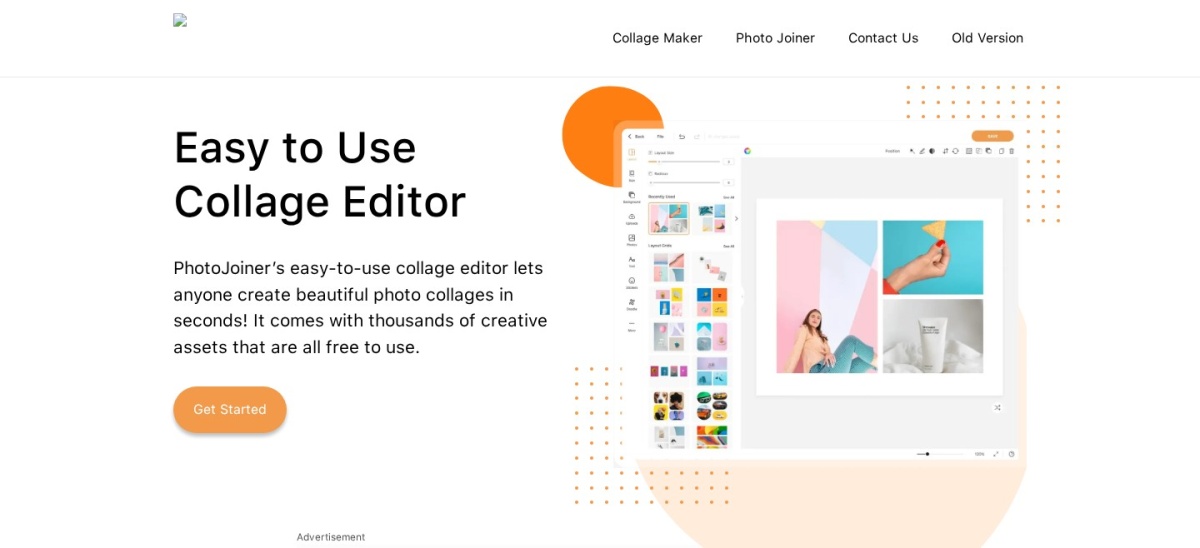
PhotoJoiner is an online tool that focuses on one job: putting photos together. Upload images, choose a layout direction, adjust basic settings, and download the combined image. The lack of extra features keeps the workflow short, which helps for a one-off merge.
The trade off is that it will not replace a design tool for styled collages, text overlays or filters. Output quality also depends on the source images. It suits users who need a fast, free join without an account or editor learning curve.
A joiner is best when the merge itself is the job. Two screenshots, a before-and-after pair, or a chat thread stacked into one image needs no template, text, or filter.
A collage maker is best when the merged image is the finished product. Social posts, mood boards, and product listings benefit from layouts, text, and a consistent style.
Start with the simplest tool that fits the job. A joiner takes seconds, while a design tool takes minutes, and a plain join often looks better than a template that fights the photos.
How we chose
We started from tools that merge images online for free in 2026, covering simple joiners, collage makers and browser editors, then kept those that are still available and genuinely free for basic merging.
Prices come from each vendor's pricing page, checked on 25 November 2026. Ratings come from G2 or Trustpilot on the same day. Where a vendor shows a sale, the list shows the regular price.
We left out tools with no free tier and tools that had closed or stopped working. No vendor paid for a place, and we do not claim hands-on testing for this list.
How to choose a free online image merger
Match the tool to the merged image you need, not to the longest feature list.
Decide join or collage. If you only need images side by side or stacked, a simple joiner is faster. If the result needs text, filters or a branded layout, pick a design tool.
Check the free export. Some free plans limit resolution or lock layouts behind a paid plan. Export one merged image first and open it before a large project.
Match the layout to the images. Horizontal suits comparisons, vertical suits screenshots and chat threads, and grids suit sets of photos. Mismatched sizes can leave uneven borders.
Think about privacy. Server-based joiners upload your photos, so avoid sensitive screenshots there. Pick a tool that works in the browser when images hold private details.
FAQ
How do I merge two images online for free?
Upload both images to a free joiner, choose a side-by-side or stacked layout, and download the result as JPG or PNG. PhotoJoiner and IMGonline do this without a paid plan. For a styled collage with text, use Canva or Fotor instead.
Can I merge images without losing quality?
You can preserve quality by exporting as PNG for screenshots and text, and by avoiding repeated JPG compression. Start with the highest-resolution source images you have, and do not upscale a small image onto a large canvas. Some free tools limit export resolution, so check the output size first.
Do free image mergers add watermarks?
Some do, especially on premium templates or advanced features, while simple free joiners usually export without a watermark. Canva and Fotor export free designs without a watermark on free elements. Always preview the downloaded file before sharing it.
Can I merge more than two images?
Yes. Most collage tools support many images in grid layouts, and PhotoJoiner lets you add many photos to one collage in a single go. For longer series, join images in batches, then join the results. Keep an eye on file size, since many high-resolution photos can create a large final image.
Is it safe to upload photos to an online merger?
For ordinary photos, yes, but avoid uploading sensitive screenshots, IDs, or private documents to server-based tools. Browser-based tools process basic joins locally, which keeps files on your device. Read the privacy policy if you merge personal or work images regularly.
What is the difference between merging and stitching images?
Merging places separate images side by side, stacked, or in a grid as one file. Stitching blends overlapping photos into a panorama by matching edges and content. For panoramas, use a stitching or panorama tool rather than a joiner, since a joiner will show a visible seam.
SaaS SEO and WordPress specialist with about 8 years of experience. Rakib compares WordPress plugins, themes, hosting and software using public pricing, documentation and user reviews. See how we rank.