TeraCopy is the best file copy software for most Windows users, with a free personal tier that replaces the Explorer copy dialog with pause, resume and checksum verification. Pick GoodSync for scheduled sync across devices and FreeFileSync for free folder compare and backup.
How we make this list: we compare pricing pages, product documentation and public user reviews, then re-check every price before each update. No product paid for a place. Disclosure.
TeraCopy is the best pick for most Windows users: free for personal use, with checksum verification and Pro at $34.95 once.
GoodSync is the only tool here with a yearly charge, $39.95 for Workstation, and the best choice for scheduled sync across devices.
FreeFileSync is the strongest free option for folder compare, rated 4.7/5 on Capterra from 47 reviews.
Beyond Compare costs $35 once and is the best compare-first tool, with three-way merge in Pro at $70.
Five of the nine tools are free, and the most expensive paid licence here is SyncBackPro at $59.95 once.
Carbon Copy Cloner is the only Mac-only pick, at $49.99 once for every Mac in a household.
What to look for in a file copy tool
Windows Explorer and Finder copy files without checking the result. A dedicated copy tool adds a queue, pause and resume, error handling and a check that the copy matches the original.
Verification matters most for large moves. Checksums catch a bad copy before you delete the original, and a tool that skips a problem file instead of stopping the whole job saves hours on big transfers.
Scheduling is the next split. Some tools in this list only copy when you start them, while others run jobs on a schedule or watch folders and copy new files as they appear. Our guide on how to back up a WordPress site makes the same point: a backup only helps if it runs without you remembering it.
Price models vary more here than in most software lists. Five tools are free, and the paid ones mostly charge once, from $15 to $59.95, rather than a yearly subscription. Only GoodSync charges every year, at $39.95 for a Workstation licence.
3.8/5on Softonic (1,448 reviews, checked Nov 2026)
Paid from$34.95/once
Best file copy software overall
PlatformsWindows, Mac
Verification17 checksum types
Free planYes, personal use
Paid planPro, $34.95 once
codesector.com
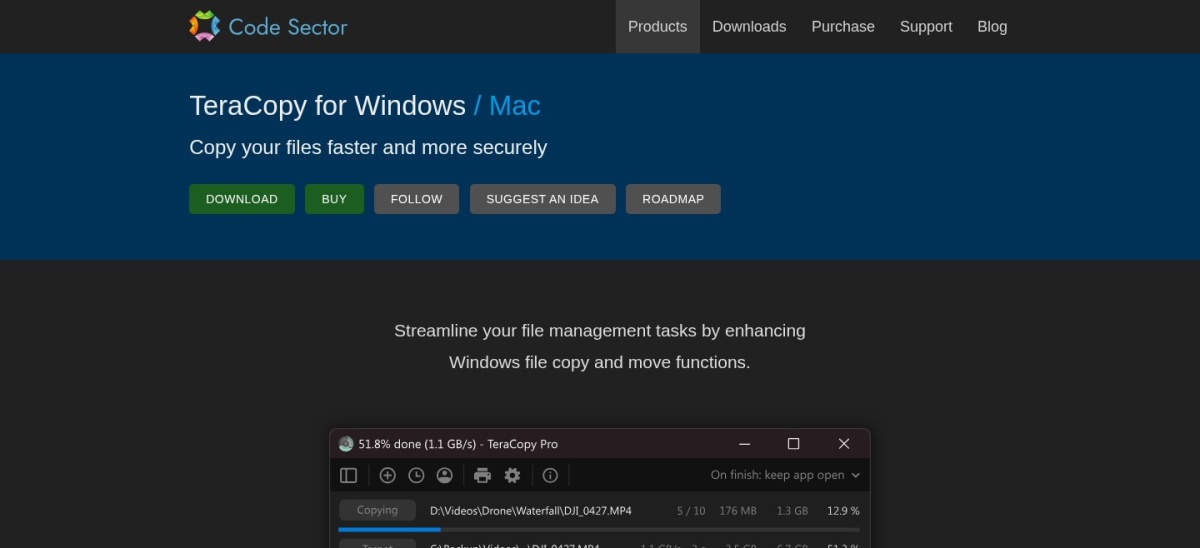
TeraCopy homepage, captured Nov 2026.
TeraCopy is a Windows copy and move tool that replaces the Explorer dialog with a queue, pause and resume, error recovery and file verification. It checks copies against the originals with 17 checksum algorithms, including SHA-256 and BLAKE3, and waits for a network drive to reconnect instead of failing the transfer.
The trade off is the free tier. It covers personal use, while Pro at $34.95 once adds favourite folders, editable file lists, reports and the right to use it at work. It suits Windows users who copy large folders often and want proof every file arrived intact.
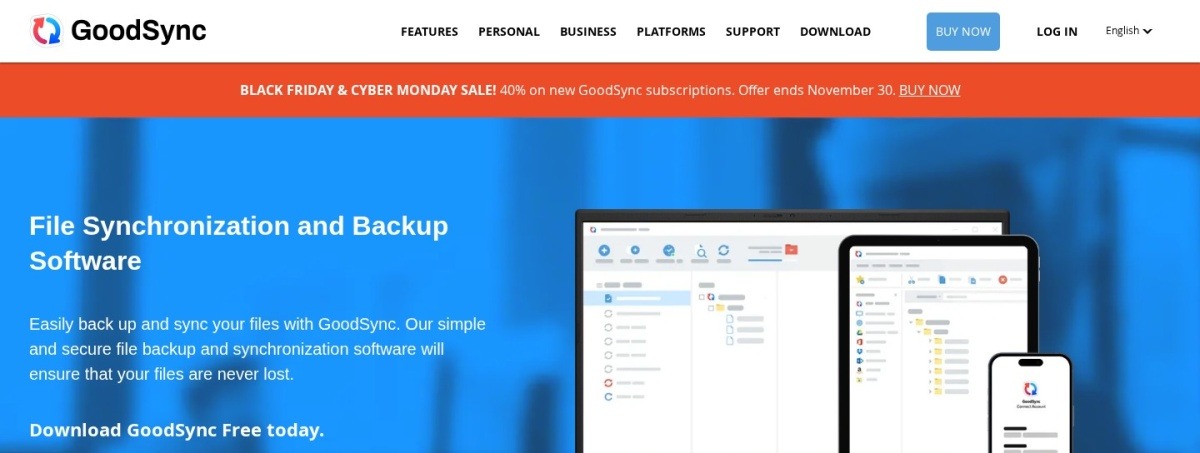
GoodSync is a backup and sync tool for Windows, Mac, Linux and NAS that runs one-way backup or two-way sync jobs on a schedule or in real time. It works with local drives, network shares and cloud services, and the Workstation licence costs $39.95 a year.
The trade off is the free tier. GoodSync Free is limited to 3 jobs and 100 files for home, non-commercial use, so larger setups need a paid licence. It suits people who want the same folders kept current across several computers and drives.
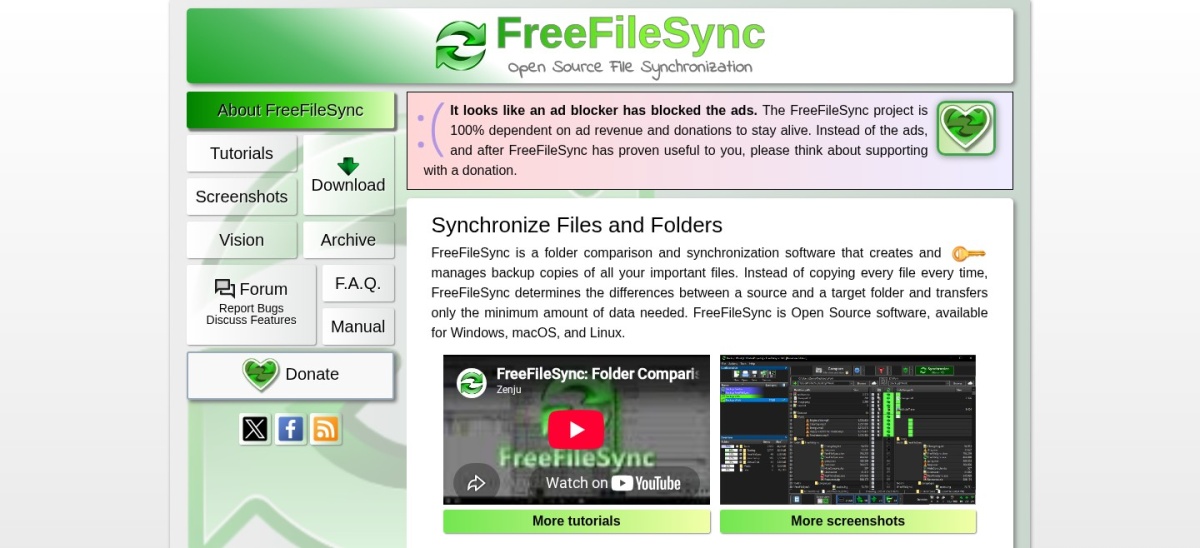
FreeFileSync is a free, open source tool that compares two folders and copies only the files that differ, one way or both ways. It shows every planned change before it acts, runs batch jobs on a schedule, and works with external drives, a NAS or a second computer.
The trade off is timing. Sync runs when you start it, not on its own, although the bundled RealTimeSync tool can rerun a job when files change. It suits anyone who copies folders to a backup drive and wants a preview before anything moves.
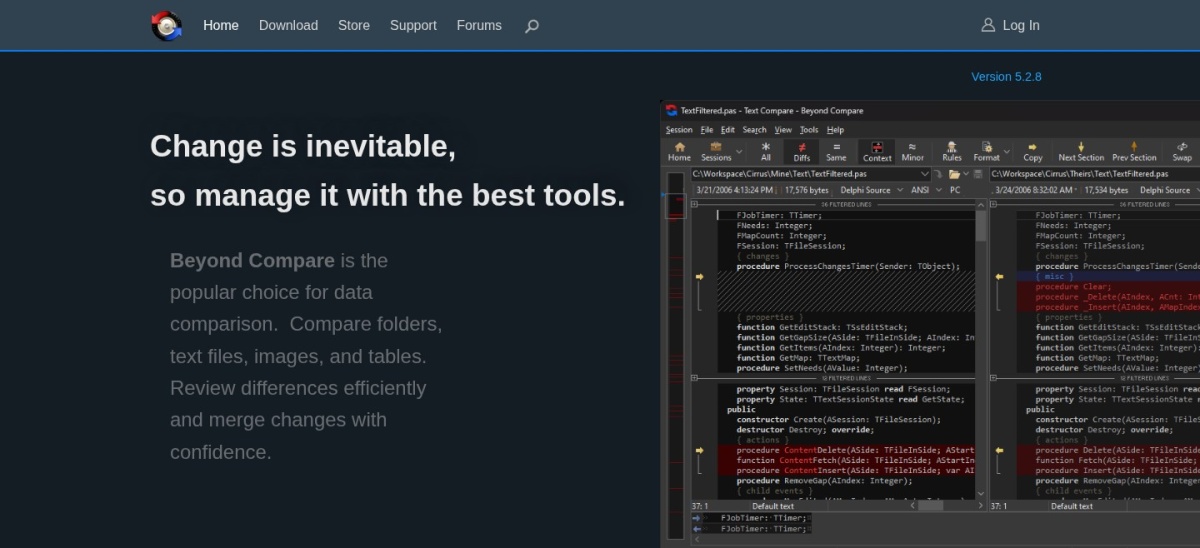
Beyond Compare is a compare and sync tool for Windows, Mac and Linux that shows folder and file differences side by side. It compares text, images, tables and binary files, merges changes, and syncs folders to disks, FTP servers and zip files.
The trade off is price and the lack of a free plan. There is a 30-day trial, then Standard costs $35 once per user, while three-way merge and scripting extras sit in Pro at $70. It suits developers and IT staff who compare code and folders every day.
SyncBackPro is a Windows backup and sync tool that runs scheduled profiles to local drives, network shares, FTP and SFTP servers, and cloud storage such as S3, Dropbox and Google Drive. It adds versioning, 256-bit AES encryption in Zip archives, scripting and ransomware protection.
The trade off is the learning curve and the one-time price. Pro costs $59.95 once per computer, and its many settings take time to set up well, while a free SyncBackFree edition covers basic backups. It suits people who want one tool to run many scheduled backup jobs.
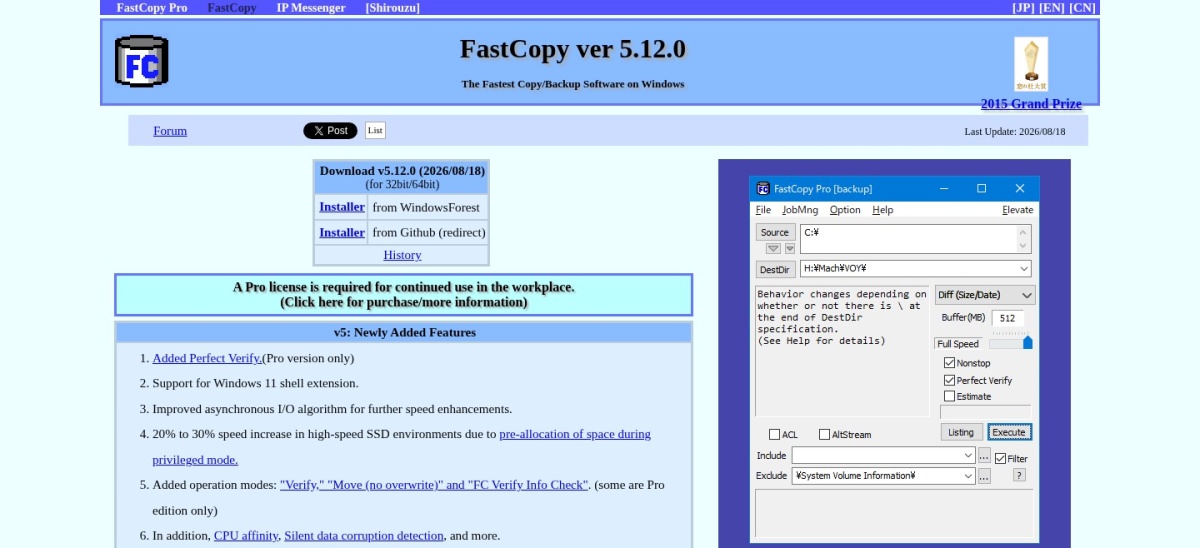
FastCopy is a free Windows tool built for fast copying, using multi-threaded read, write and verify to get the most speed from a drive. It handles long file paths over 260 characters and Unicode names, and a portable version runs without installing anything.
The trade off is the interface and the platform. It runs on Windows only, and its compact window packs many options into a small space that takes a while to learn. It suits Windows users who move very large files and want speed above all else.
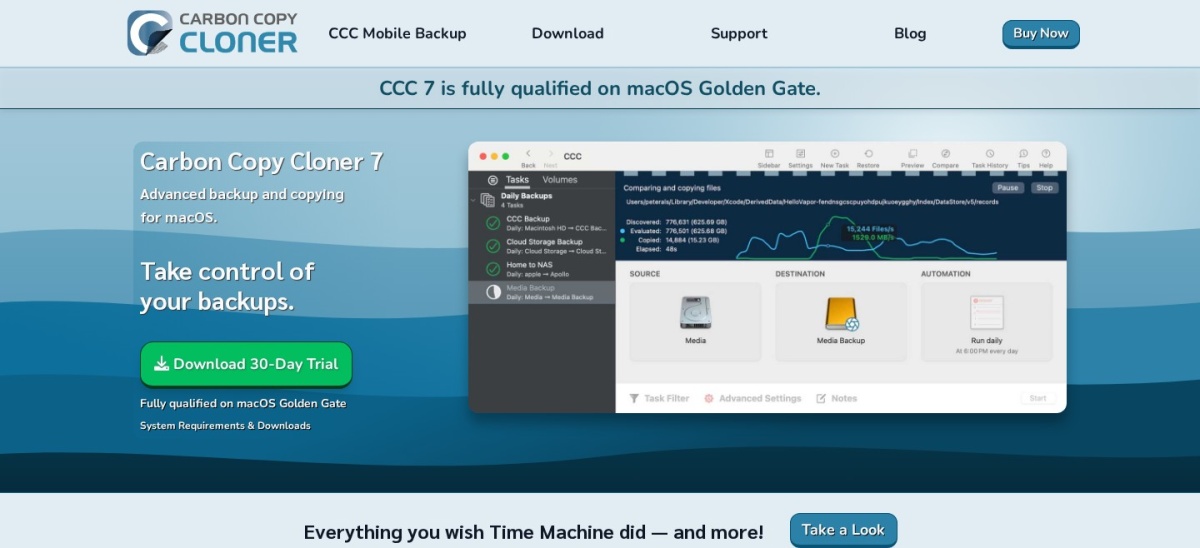
Carbon Copy Cloner is a Mac backup tool that copies whole drives and folders on a schedule, with APFS snapshots that let you recover a file as it was at an earlier time. It verifies copies, pauses and resumes tasks, and one household licence covers every Mac at home.
The trade off is that it is Mac only and paid. There is a 30-day trial, then the Personal and Household licence costs $49.99 once, and commercial use needs a separate licence. It suits Mac owners who want scheduled local backups they can browse in the Finder.
What we like
Snapshots for recovering older file versions
One licence covers every Mac at home
Verifies copies and checks backup health
Backups stay in a plain Finder-readable format
Watch out for
Mac only, no Windows version
No free plan, trial only
Next major version will be a paid upgrade
Household licence covers all Macs at home for personal useVisit bombich.com
08
UltraCopier
3.2/5on Software Informer (22 reviews, checked Nov 2026)
Paid from$15/once
Best open source copy queue
PlatformsWindows, Mac, Linux
Speed limitYes
LicenceGPL, open source
Paid planUltimate, $15 once
ultracopier.first-world.info
UltraCopier homepage, captured Nov 2026.
UltraCopier is a free, open source copy manager for Windows, Mac and Linux that replaces the standard copy dialog with a queue. It pauses and resumes transfers, limits copy speed so other work keeps running, and adds plugins and skins for extra control.
The trade off is polish. Settings run deep and the interface can confuse first-time users, and the free version leaves checksums and speed limits to the $15 Ultimate edition. It suits open source fans who want full control over long copy jobs.
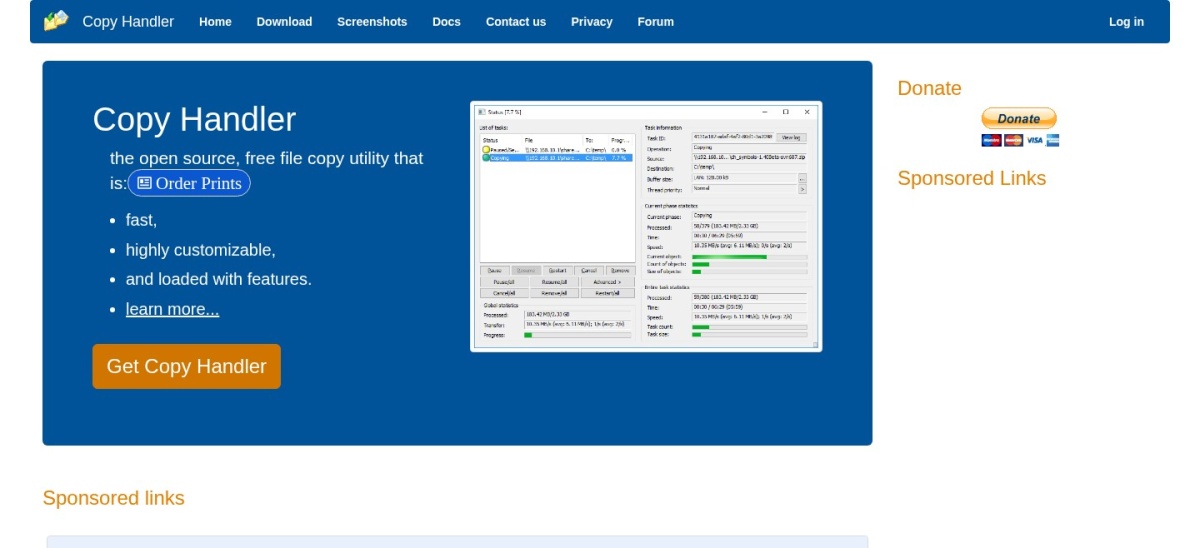
CopyHandler is a free, open source Windows tool that takes over copy and move jobs with a queue, pause and resume, and fine control over buffer sizes and task order. Interrupted copies pick up where they stopped instead of starting over.
The trade off is the project's pace. Development has gone quiet for long stretches, and the 1.45 release series arrived after years of inactivity, so new features are rare. It suits Windows users who run long overnight copies and need resume to work.
Free tools in this list cover the core job well. They copy, queue, pause and resume, and FreeFileSync and UltraCopier add folder compare without charging anything.
Paid licences mostly add convenience and work use. TeraCopy Pro adds favourite folders and reports, Beyond Compare Pro adds three-way merge, and SyncBackPro adds cloud targets and scripting.
Only GoodSync bills every year. The rest charge once, so the total cost stays low: the dearest licence here, SyncBackPro at $59.95, still costs less than two years of most cloud backup subscriptions. Our cPanel backup vs plugin backup guide covers the same trade-off for WordPress backups.
How we chose
We started from the file copy tools people actually recommend for Windows and Mac, then kept nine established tools with a free plan or a one-time licence.
Prices come from each vendor's pricing page, checked on 25 November 2026. Ratings come from G2, Capterra, Trustpilot and other public review sites on the same day, and the source is named for each tool. Where a vendor shows a sale, the list shows the regular price.
We left out tools that only copy through a paid subscription and tools with no established user base. No vendor paid for a place, and we do not claim hands-on testing for this list.
How to choose a file copy tool
Start with the systems you copy between, then check verification and scheduling.
Check which systems you copy between. Windows-only tools are the fastest here, but they are no use on a Mac. Pick a cross-platform tool if you move files between Windows, Mac and Linux.
Decide if copies must be verified. If you delete originals after copying, pick a tool with checksum verification, such as TeraCopy, FastCopy or Carbon Copy Cloner.
Choose scheduled or on-demand. For backups that must run by themselves, pick GoodSync, SyncBackPro or Carbon Copy Cloner. For one-off moves, a free tool such as FreeFileSync is enough. Our 3-2-1 backup rule guide explains why more than one copy matters.
Try the free tier before paying. All nine tools here have a free plan or a trial. Copy a large folder with it first and check the speed and the error handling before buying a licence.
FAQ
What is the best file copy software?
TeraCopy is the best pick for most Windows users. Its free personal tier replaces the Explorer copy dialog with pause, resume and checksum verification, and Pro costs $34.95 once.
Is there a completely free file copy tool?
Yes. FreeFileSync, FastCopy, UltraCopier and CopyHandler are free and open source with no paid tier gating core features. FreeFileSync is the strongest of the four for folder compare and scheduled batch jobs.
What is the cheapest paid file copy software?
UltraCopier Ultimate is the cheapest paid tier here at $15 once, adding checksums, pause and speed limits. TeraCopy Pro is next at $34.95 once, and Beyond Compare Standard costs $35 once.
Does file copy software work on Mac?
Yes. GoodSync, FreeFileSync, Beyond Compare and UltraCopier run on Mac, and Carbon Copy Cloner is Mac only. FastCopy, SyncBackPro and CopyHandler are Windows only for now.
Do I need paid file copy software?
Most people do not. The free tools copy, queue, pause and resume well, and FreeFileSync adds folder compare for free. Pay when you need scheduled sync, cloud targets, three-way merge or the right to use the tool at work.
Is TeraCopy Pro worth it?
For home use, the free tier is usually enough, since it includes verification, pause and resume. Pro is worth $34.95 once if you want favourite folders, editable file lists and reports, or you need a licence for work.
SaaS SEO and WordPress specialist with about 8 years of experience. Rakib compares WordPress plugins, themes, hosting and software using public pricing, documentation and user reviews. See how we rank.