Backblaze is the best backup software for most people, with unlimited backup for one computer at $99 a year and a 4.4 out of 5 rating on G2. Pick IDrive for several devices on one plan, or Acronis True Image if you want disk imaging with security built in.
How we make this list: we compare pricing pages, product documentation and public user reviews, then re-check every price before each update. No product paid for a place. Disclosure.
Backblaze gives unlimited backup for one computer at $99 a year, with no storage cap.
IDrive covers unlimited devices from one 5 TB plan at $79.50 a year.
Acronis, EaseUS, Macrium and AOMEI image whole disks from $39.95 a year.
Carbonite keeps only the 12 most recent versions of a file, the weakest versioning here.
Veeam Agent images one PC free, but you supply the storage.
Paid plans run $39.95 to $99 a year; Veeam Agent is free.
What to look for in backup software
Backup software falls into two kinds. Cloud backup sends your files to a vendor's servers, while disk imaging copies a whole drive to a local disk or network share.
The first question is how much you need to protect. A single laptop needs a different plan from a household with three computers and two phones.
Version history matters as much as storage. The 3-2-1 backup rule says to keep three copies of your files, on two kinds of storage, with one copy off site.
Price is usually per computer or per user, so count your machines before you compare plans. A cheap per-computer plan can cost more than a pooled plan once you add a second device.
Check the renewal price, not just the first year. Several tools in this list run sales that cut the first year, then renew at the full rate.
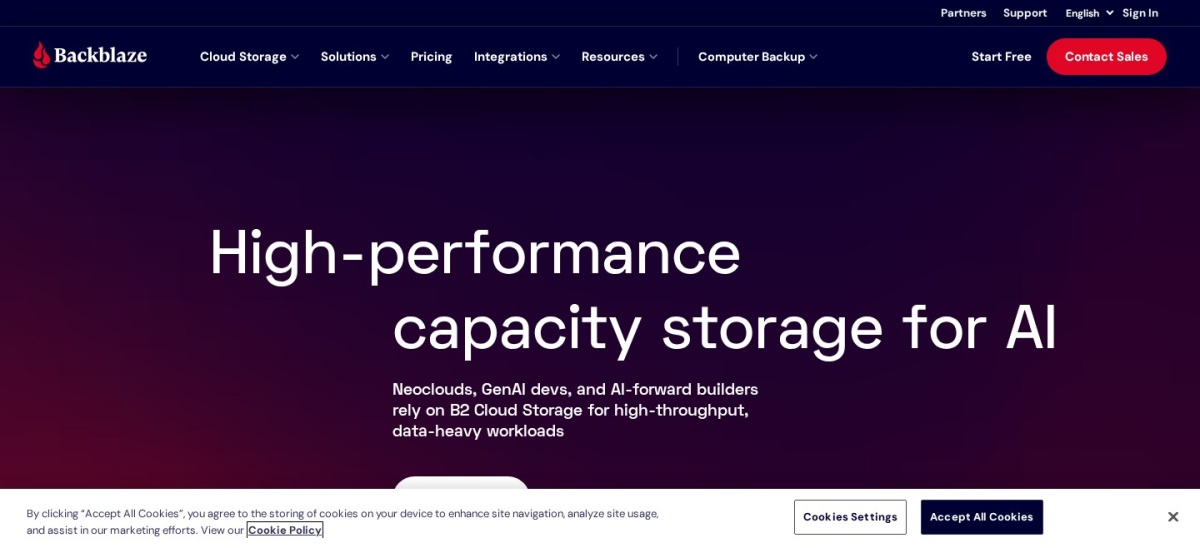
Backblaze is a cloud backup service that backs up every file on one Mac or PC, with no storage cap and no file-size limit. The $9 a month plan, $99 a year, covers the computer and its attached external drives, with encryption before files leave the machine and a 15-day free trial.
The trade off is the per-computer price. A second computer needs a second $99 a year licence, so households with several machines pay more than with a pooled plan. It suits one-computer owners who want unlimited backup without counting gigabytes.
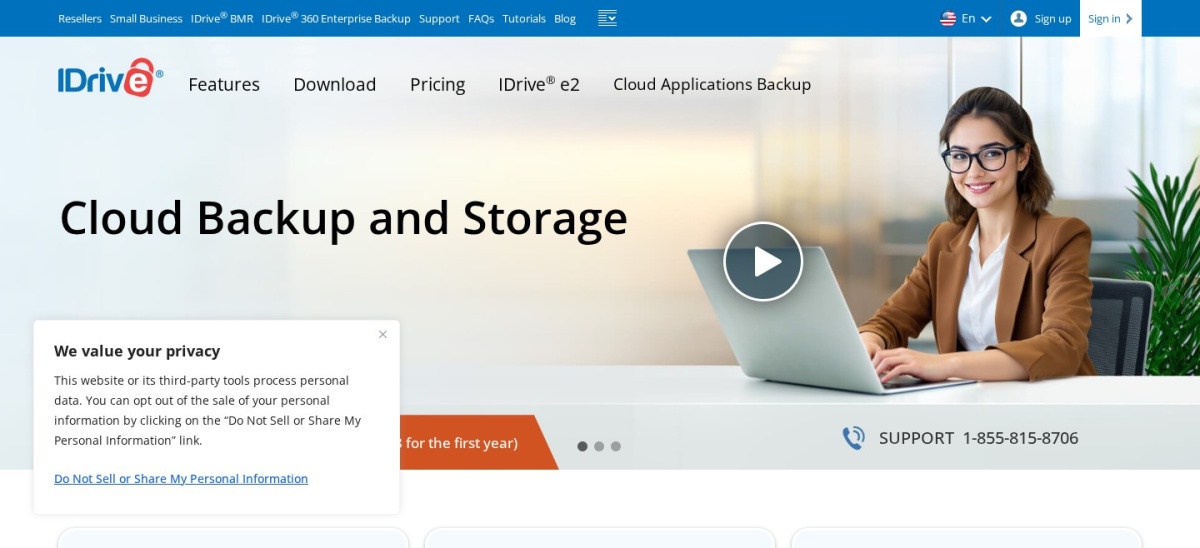
IDrive is a cloud backup service that covers every computer, phone and tablet on one account from a shared storage pool. The Personal plan gives 5 TB for $79.50 a year, with a 10 GB free plan, private-key encryption and backup for servers and NAS drives on higher plans.
The trade off is the first-year price. The list price is $79.50 a year, and the first year is often sold at a discount, so check the renewal terms before you buy. It suits households and small offices with several devices to protect under one plan.
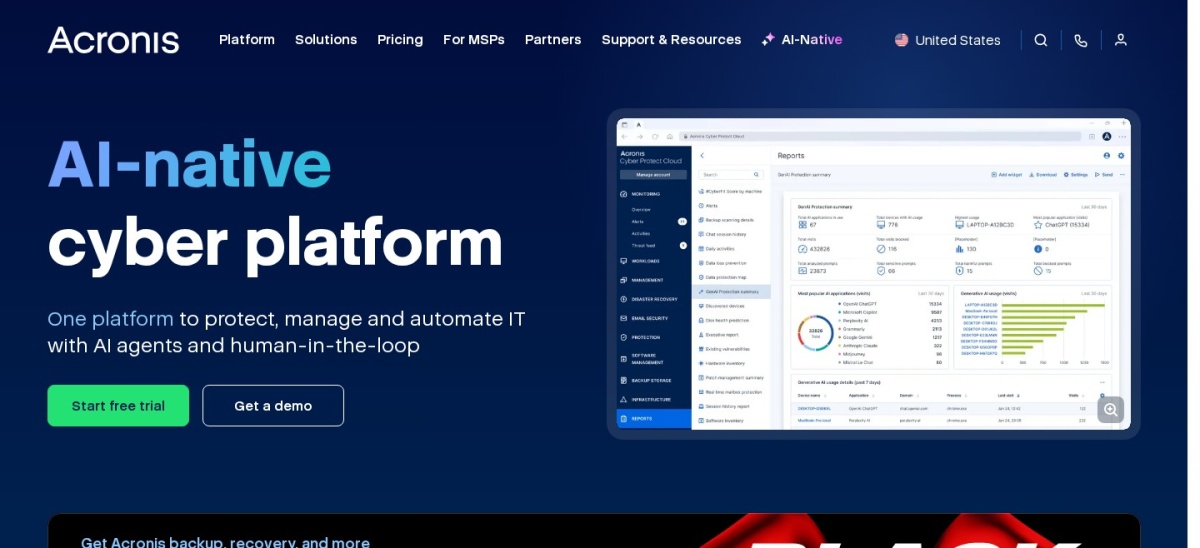
Acronis True Image is a backup and security suite for home users, formerly sold as Acronis Cyber Protect Home Office. The Essentials plan costs $49.99 a year for one computer and covers full disk imaging, cloning, file backup and ransomware protection for backup files.
The trade off is that cloud backup and antivirus start on the higher Advanced plan, so the entry plan is local backup only. It suits buyers who want imaging and security from one product and are happy to store backups on their own drive.
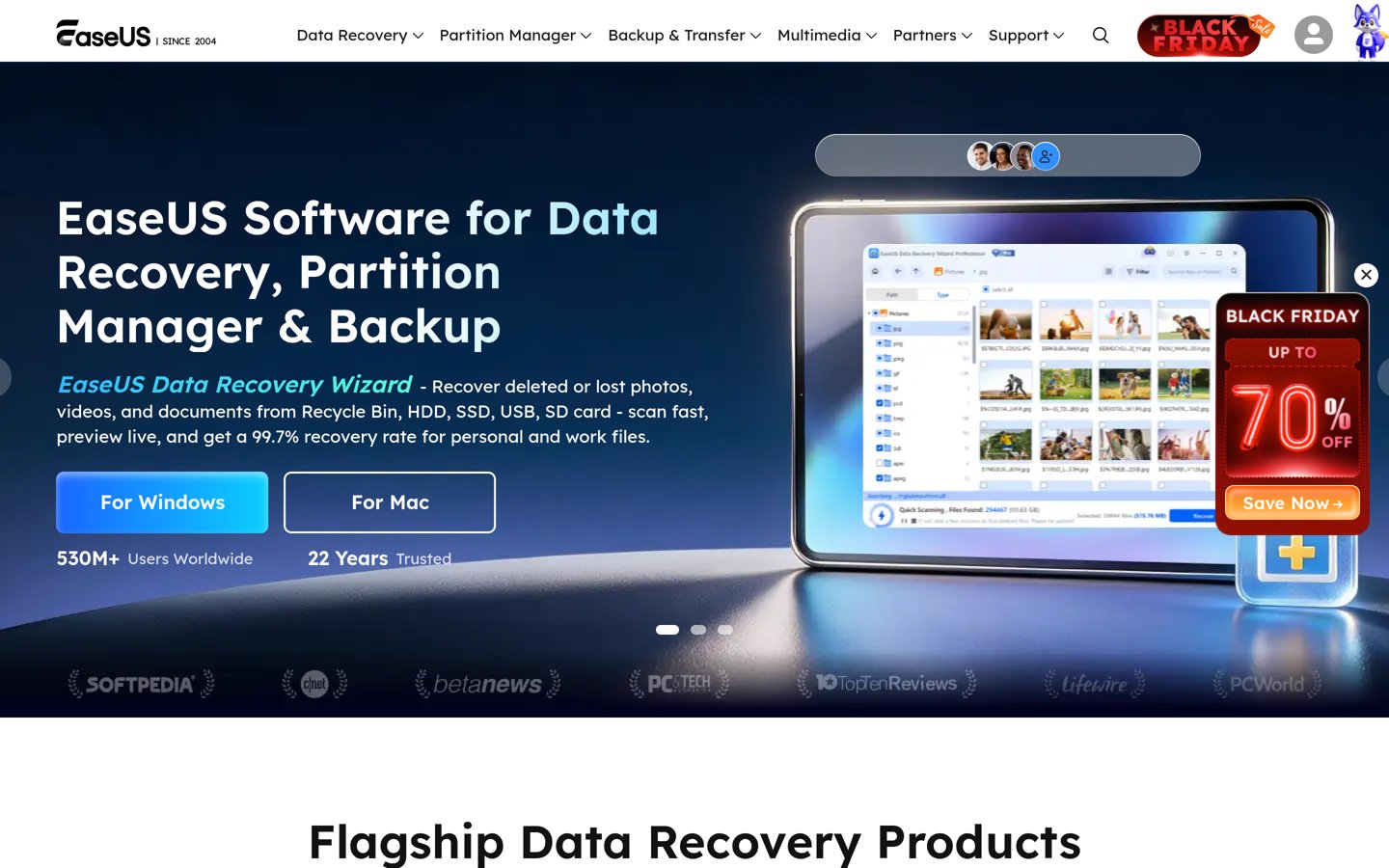
EaseUS Todo Backup is a Windows backup tool that covers system images, disk images, file backup and cloning in one program. The free edition handles system, file and disk backup, and the Home plan costs $39.95 a year for one PC, with a perpetual licence at $59.95.
The trade off is the cloud storage. Off-site backup is a separate option with 1 TB at $59.95 a year, so the cheapest plan keeps backups local. It suits Windows users who want capable imaging at the lowest price in this list.
What we like
Capable free edition with system backup
Perpetual licence for buyers who dislike subscriptions
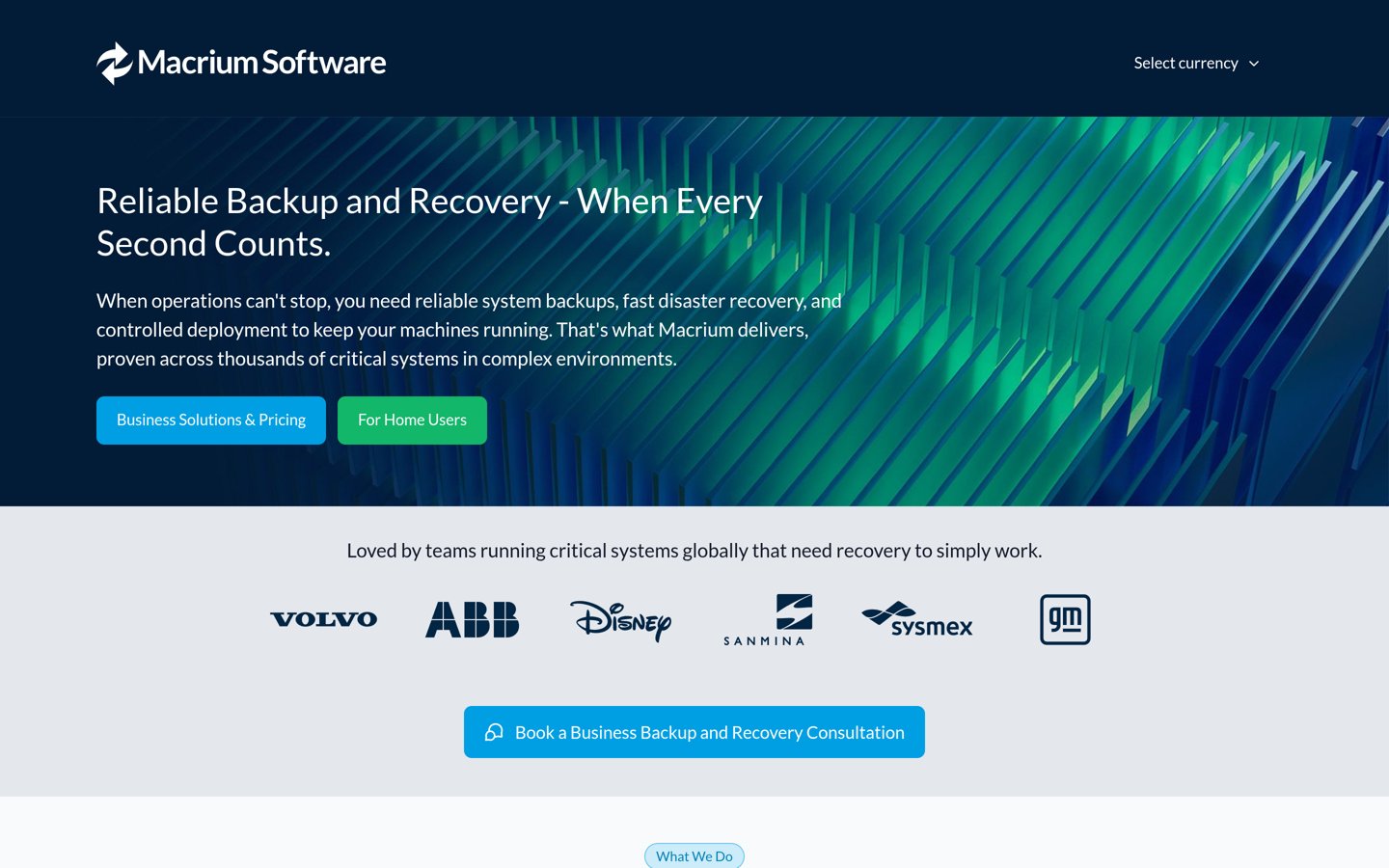
Macrium Reflect X is the imaging specialist in this list, making byte-for-byte copies of whole disks and updating them with incremental images. The Home licence costs $49.99 a year for one PC and includes Rapid Delta Restore, which restores only the blocks that changed, plus bootable rescue media.
The trade off is the subscription. The free edition ended with Reflect 8, so there is no no-cost way in, and a sale was running when we checked, with the regular price at $49.99 a year. It suits Windows users who want the fastest, most trusted imaging engine.
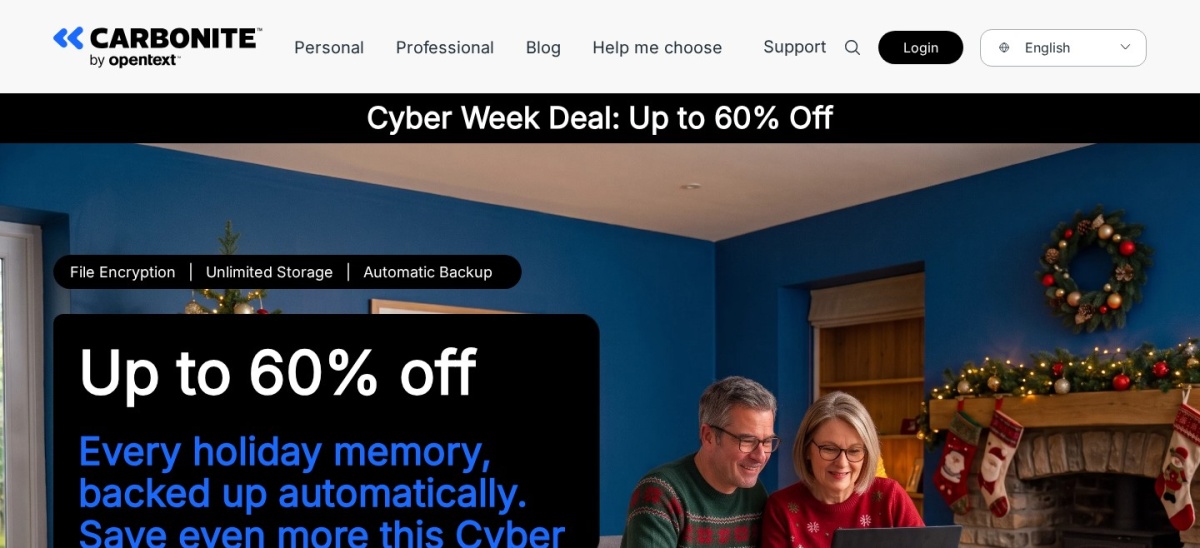
Carbonite Safe is a cloud backup service that backs up one computer automatically, with unlimited storage and no file-size limits. The Basic plan costs $95.99 a year, encrypts files in transit and at rest, and restores files after a virus or hardware failure.
The trade off is versioning. Carbonite keeps only the 12 most recent versions of a file, and a sale was running when we checked, with Basic listed at $57.59 for the first year. It suits buyers who want automatic backup with no storage maths.
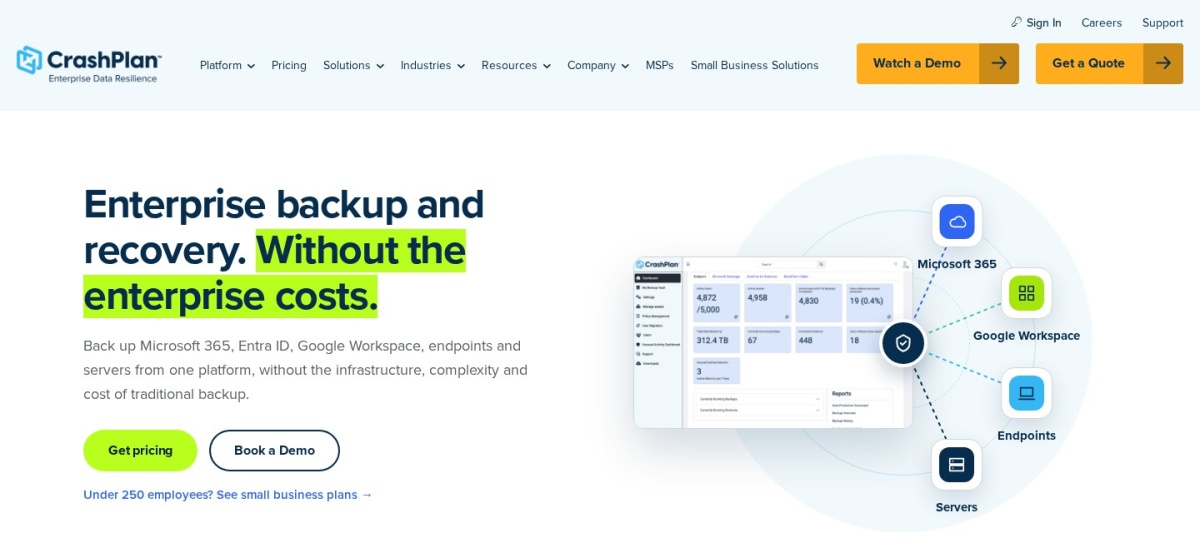
CrashPlan is a business backup service that protects laptops, desktops and servers from one admin console. The endpoint plan costs $88 per user a year, with unlimited storage, unlimited file versions and a 14-day free trial.
The trade off is the audience. CrashPlan no longer sells a personal plan, so home users pay the business rate, and the per-user price adds up across a team. It suits small businesses that need central control and unlimited version history.
AOMEI Backupper is a Windows backup tool that covers system images, disk images, file backup, sync and cloning. The free Standard edition handles basic backup, and the Professional plan costs $39.95 a year for one PC, with a $69.95 perpetual licence for buyers who dislike subscriptions.
The trade off is the review base. Its G2 rating of 4.3 out of 5 comes from only 18 reviews, the thinnest in this list, and support gets mixed reports. It suits Windows users who want a capable free edition and a one-time licence.
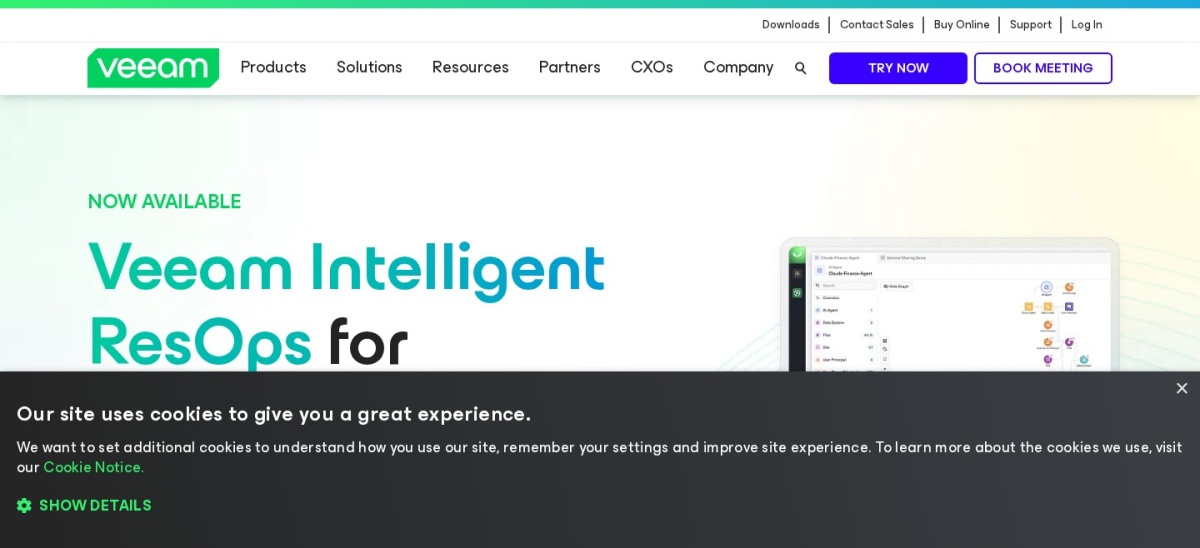
Veeam Agent for Windows homepage, captured Nov 2026.
Veeam Agent for Windows is a free tool that takes full-system images of one PC and restores them after a failure. It covers whole disks, volumes and files, with bare-metal restore to different hardware and scheduled backups, at no cost for a single machine.
The trade off is scope. There is no bundled cloud storage, so backups go to a local disk or network share, and paid editions are priced per workload by quote. It suits technical users who want a free, reliable imager and already have somewhere to store the image.
Cloud backup protects files when the computer itself is lost, stolen or damaged. The vendor stores the copy, and you restore from any browser.
Disk imaging protects the whole system, including Windows, apps and settings. A full image restores a dead drive to a working computer in one step.
Many people need both. Use a cloud service for daily file backup and an imager for a monthly full-system image, and learn the difference between full and incremental backups before you schedule them.
If you can only buy one, pick cloud backup for files you cannot replace, and imaging if you cannot afford downtime.
How we chose
We started from the best-known backup tools for home users and small businesses, covering cloud backup and disk imaging, then kept the nine with a current product and a public price.
Prices come from each vendor's pricing page, checked on 25 November 2026. Ratings and review counts come from G2 on the same day. Where a vendor shows a sale, the list shows the regular price.
We left out tools with no public price and tools aimed only at large enterprises. No vendor paid for a place, and we do not claim to have used these tools ourselves.
How to choose backup software
Start with how many computers you need to protect, then match the storage model to your files.
Count your computers and phones. A per-computer plan suits one machine. A pooled plan like IDrive costs less once you protect two or more devices.
Decide between cloud and local backup. Cloud backup protects files when the computer is lost. Local imaging restores a whole system fast, but the backup dies with the house if it stays on site.
Check version history and restore options. Look for how many old versions are kept and whether you can restore single files, whole folders or a full system image.
Read the renewal price before you pay. First-year discounts are common in this list. Confirm what year two costs, and check whether the plan covers external drives.
FAQ
What is the best backup software?
Backblaze is the best backup software for most people. Its $99 a year plan backs up one computer with unlimited storage, including attached external drives, and it is rated 4.4 out of 5 on G2 from 57 reviews. The setup is automatic, so backups run without a schedule to remember.
How much does backup software cost?
Most home backup plans cost $39.95 to $99 a year for one computer. IDrive charges $79.50 a year for 5 TB shared across unlimited devices, while Veeam Agent images one PC free. Business plans cost more, with CrashPlan at $88 per user a year.
Is free backup software enough?
It can be, for one Windows PC. Veeam Agent takes full-system images free, and IDrive gives 10 GB of free cloud storage. Free tools lack cloud storage or support, so pay for a plan if you need off-site backup or help when a restore fails.
Should I choose cloud backup or disk imaging?
Choose cloud backup if you want files protected when the computer is lost or stolen. Choose disk imaging if you need to restore Windows, apps and settings to a working computer fast. Many people run both: cloud backup daily and a full image once a month.
How often should I back up?
Back up files continuously or daily, so a lost afternoon of work is the most you can lose. Take a full-system image monthly, or before any big change such as a Windows update or a new drive. Then check that a restore works at least once.
Do I need backup if my files are already in the cloud?
Yes. Sync services such as Dropbox or OneDrive copy deletions and ransomware damage to every device, so they are not backups. A real backup keeps old versions and copies your files to storage that sync cannot touch.
SaaS SEO and WordPress specialist with about 8 years of experience. Rakib compares WordPress plugins, themes, hosting and software using public pricing, documentation and user reviews. See how we rank.