Macrium Reflect X is the best backup software for an external hard drive, with fast full-disk imaging and reliable restores at $49.99 a year. Pick EaseUS Todo Backup for the friendliest free edition, or Paragon Backup & Recovery if you want capable imaging at no cost.
How we make this list: we compare pricing pages, product documentation and public user reviews, then re-check every price before each update. No product paid for a place. Disclosure.
Macrium Reflect X leads on imaging speed and restore reliability, at $49.99 a year, rated 4.7/5 on G2.
EaseUS Todo Backup is the highest rated tool here at 4.8/5 on G2, with a free edition and Home at $39.95 a year.
Paragon Backup & Recovery Community Edition backs up a whole PC to a USB drive for free, with no account needed.
Acronis True Image adds antivirus and cloud backup to imaging, but Essentials at $49.99 a year has no cloud storage.
One-time licences are still available: R-Drive Image at $44.95, SyncBackPro at $59.95 and Iperius Backup from $32.
NovaBACKUP is the priciest pick at $149.95 a year, but it is the only one here that bundles 1TB of cloud storage.
What backup software for an external hard drive should do
An external hard drive is the simplest backup destination there is: plug it in, copy everything, unplug it. The drive holds a full copy of your PC that survives a failed internal disk, a bad update or ransomware that only reaches the live system.
Two kinds of tool do this job. Disk imagers copy the whole drive, Windows and apps included, so you can restore a dead PC in one go. File backup tools copy chosen folders instead, which is lighter and faster when only documents and photos matter.
Whatever you pick, keep a second copy somewhere else. Our guide to the 3-2-1 backup rule for websites explains why one copy is never enough, even when that copy sits on a drive in your drawer.
Price matters less than restore. A free tool with a rescue USB you have actually booted from beats an expensive suite whose restore you never tried. Check the restore before you need it.
The 9 best backup software tools for external hard drives
01
Macrium Reflect X
4.7/5on G2 (95 reviews, checked Nov 2026)
Starts at$49.99/yr
Best disk imaging overall
Full disk imagingYes
Incremental backupsYes
Rescue mediaBootable USB
Paid planReflect X Home
macrium.com
Macrium Reflect X homepage, captured Nov 2026.
Macrium Reflect X is the imaging specialist's pick for external-drive backup, making byte-for-byte copies of whole disks or partitions and updating them with incremental and differential backups. Its Reflect X engine images up to twice as fast as the previous version, and Rapid Delta Restore brings back only the blocks that changed. Image Guardian blocks ransomware from touching stored backups.
The trade off is the subscription. Reflect X Home costs $49.99 a year for one PC, with no free edition and no perpetual licence for home users, and the first term is currently discounted for Black Friday. It suits Windows users who want the fastest, most dependable imaging and are happy to pay yearly for it.
What we like
Fastest imaging engine in this list
Rapid Delta Restore restores only changed blocks
Image Guardian protects backups from ransomware
Bootable rescue media builder included
Watch out for
No free edition since Reflect 8
Subscription only; the licence stops if you stop paying
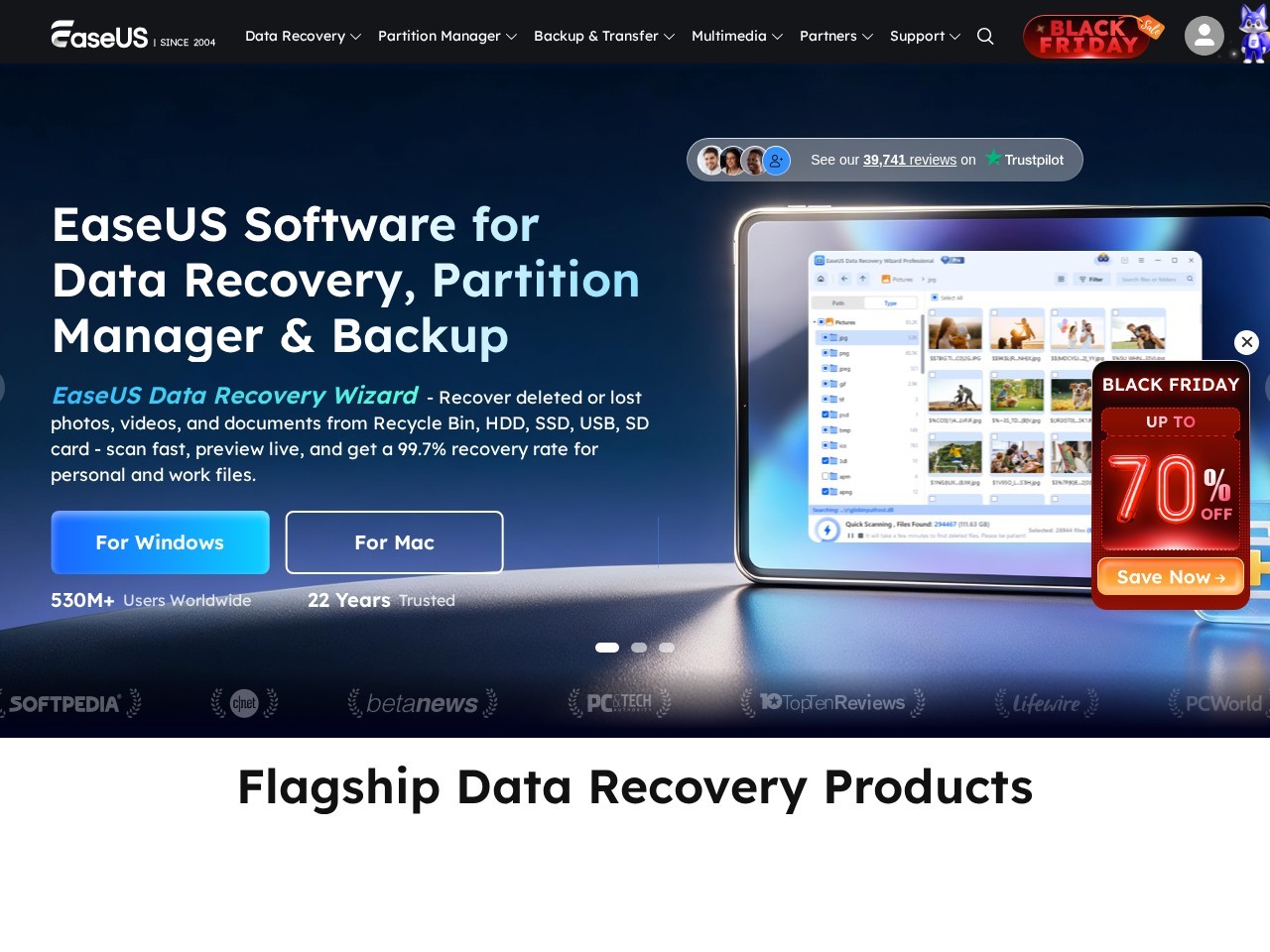
EaseUS Todo Backup is the easiest full backup suite to live with, covering system, disk, partition and file backup with scheduled full, incremental and differential runs to an external drive. The free edition includes bootable rescue media, and Home adds Outlook backup, event-based schedules and a Security Zone partition that ransomware cannot reach.
The trade off is polish. Home costs $39.95 a year, or $59.99 once for a perpetual licence without upgrades, and the interface can show small glitches during file backup and sync. It suits households that want guided setup, a real free edition and the choice to pay once instead of yearly.
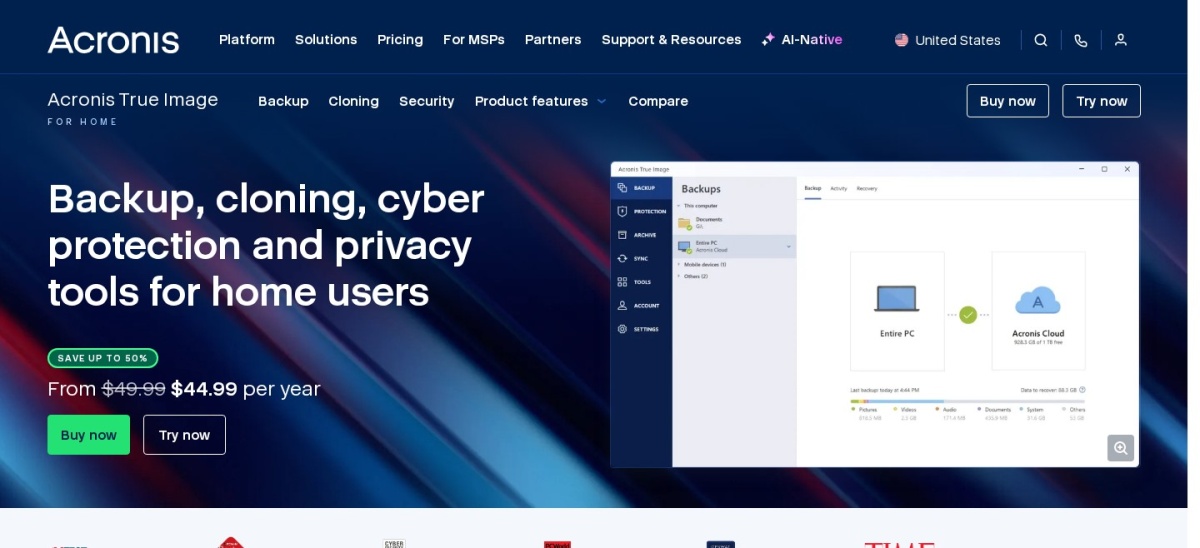
Acronis True Image is a backup and security suite in one, imaging a whole PC or chosen files to an external drive, a NAS or the Acronis cloud on a schedule. Essentials at $49.99 a year covers backup, disk cloning and universal restore, and a 30-day trial covers a full image and restore. More than 5.5 million users run it, according to Acronis.
The trade off is that the entry plan is local only. Cloud backup, Microsoft 365 backup and malware protection start with Advanced at $72.99 a year, and the first year is currently discounted for Black Friday. It suits buyers who want imaging, cloning and antivirus from one vendor and one bill.
AOMEI Backupper is a Windows backup, clone and sync tool that images the system, disks, partitions or files to an external drive, a NAS or the cloud. The free Standard edition covers system, disk and file backup with scheduling, and Professional at $39.95 a year adds cloning, differential backup and file sync. A lifetime licence costs $69.95 once.
The trade off is recovery media. Reviewers note the Windows PE boot media it creates is not always recognised as bootable, so confirm yours boots before you rely on it. It suits Windows users who want a capable free edition and a cheap path to cloning and sync.
What we like
Free Standard edition covers full imaging
Lifetime licence at $69.95, no subscription needed
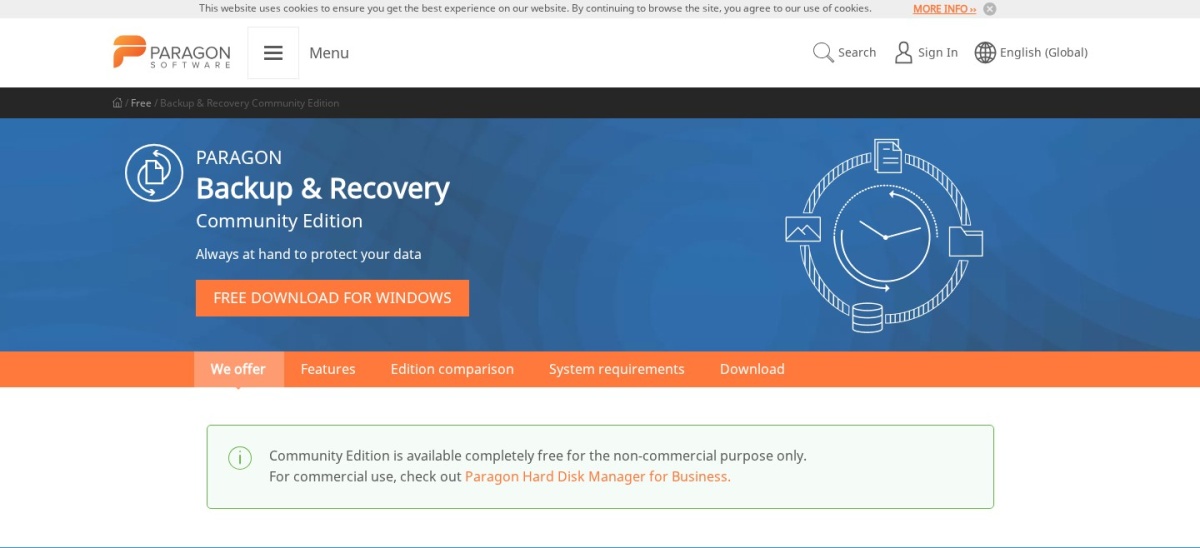
Paragon Backup & Recovery homepage, captured Nov 2026.
Paragon Backup & Recovery is a proper free Windows backup tool, not a trial: its Community Edition covers system and disk imaging, file backup, scheduling and WinPE recovery media, free for personal use with no expiry. It downloads without an account, and archives use standard formats, so backups are not locked into a proprietary container.
The trade off is depth. Disk-to-disk copy, email notifications and server support need the paid Hard Disk Manager, from $24.95 a year, and the G2 rating rests on only 3 reviews. It suits home users who want capable free imaging and do not need partition tools.
SyncBackPro is a file backup and sync tool rather than an imager: it copies chosen folders to an external drive, a NAS or cloud storage on a schedule, keeping older versions and copying only what changed. It supports delta-copy, 256-bit AES encryption, scripting and email reports, and the free SyncBackFree edition covers basic jobs. One licence costs $59.95 once, with no subscription.
The trade off is scope. SyncBackPro cannot image a whole system or build bootable rescue media, so a dead drive means reinstalling Windows first and then restoring files. It suits users who back up documents and photos to a USB drive and want deep control over exactly what copies where.
Iperius Backup is a lightweight Windows backup tool that creates drive images for bare-metal restore, plus file, database and virtual machine backup, all from one console. A free version covers the basics, and the Basic licence starts at €29 once — about $32 — with scheduled jobs, email alerts and FTP and cloud destinations. Backups can be encrypted and zipped.
The trade off is the interface. Reviewers call it powerful but not friendly, with configuration steps that are not always clear, and the vendor prices in euros. It suits IT-minded users who want a cheap perpetual licence and are comfortable setting jobs up themselves.
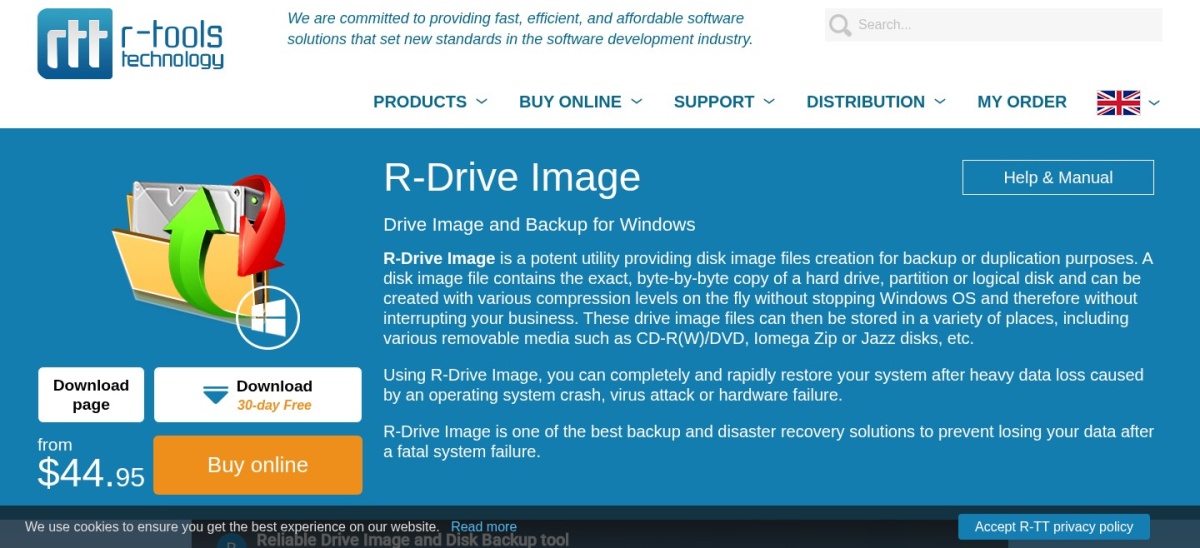
R-Drive Image is a focused disk imaging tool that creates compressed, byte-by-byte images of whole disks or partitions while Windows keeps running. It supports incremental and differential chains, scheduling and scripting, and its images mount as virtual drives so single files come back without a full restore. The Standalone licence costs $44.95 once.
The trade off is breadth. There is no free plan, only a 30-day trial, and no cloud backup or file sync — it images disks and restores them, nothing else. It suits buyers who want a one-time licence for imaging and a restore record that reviewers have trusted for years.
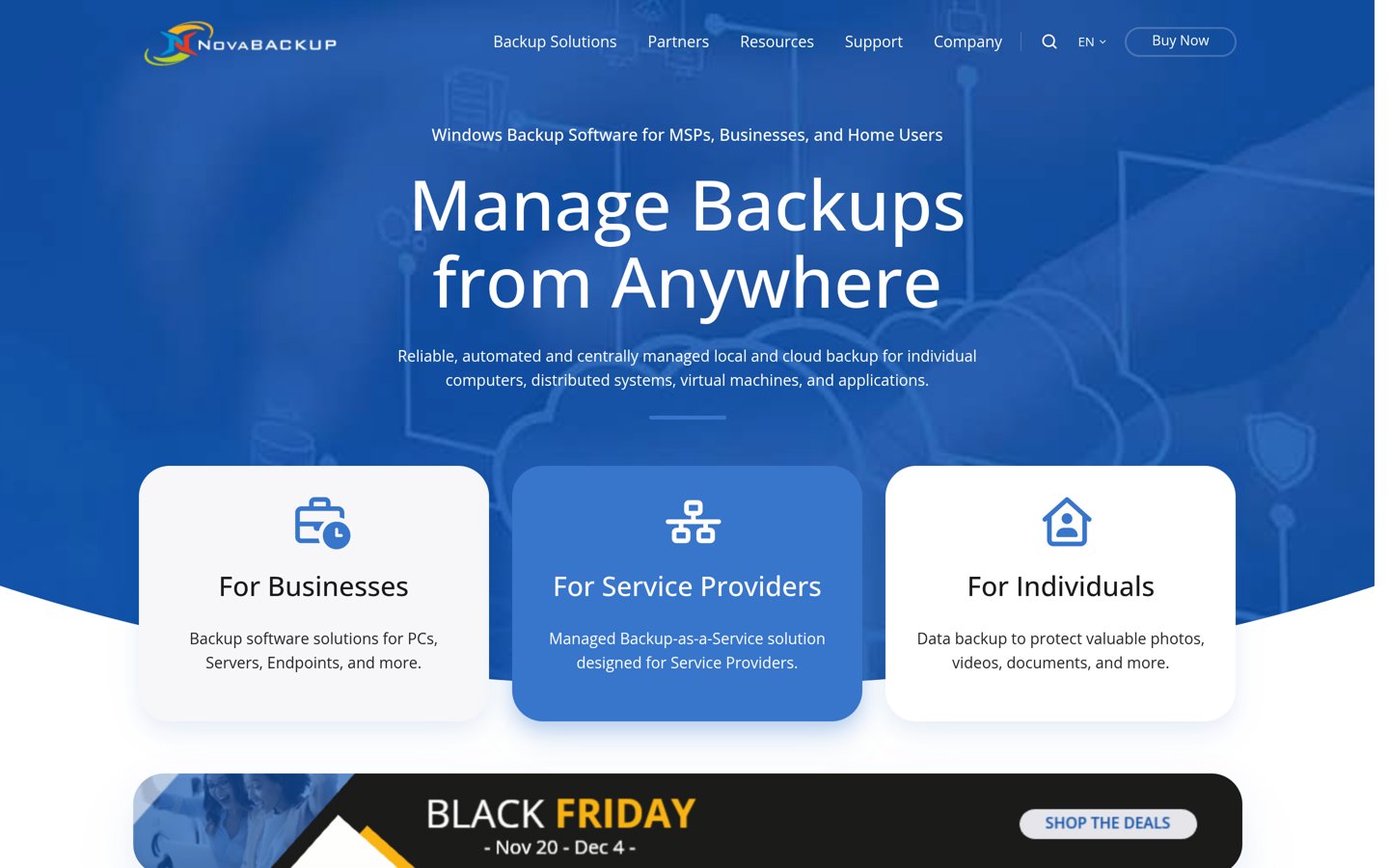
NovaBACKUP is a Windows backup tool whose PC Agent pairs local backup to an external drive or NAS with 1TB of cloud storage in one subscription at $149.95 a year. A single hybrid job writes the local copy and the off-site copy together, with file and image backup, AES encryption and disaster recovery to the same or different hardware. A 15-day trial is fully featured.
The trade off is price and focus. At $149.95 a year it is the most expensive pick here, it runs on Windows only, and reviewers call the interface dated. It suits small businesses that want the external-drive copy and the off-site copy from one vendor, with US-based support on call.
Image backup copies the whole drive, including Windows, apps and settings. If the drive dies, you restore the image to a new drive and carry on where you left off.
File backup copies only the folders you choose, such as documents and photos. It is faster and uses less space, but it cannot bring back Windows itself.
Most people should image the system drive once a week and back up files daily. Macrium, EaseUS, Acronis, AOMEI and Paragon all do both in one product; SyncBackPro only does files.
Whichever you choose, keep the external drive disconnected between backups. A drive that stays plugged in can be encrypted by the same ransomware that hits the PC.
How we chose
We started from the backup tools most often recommended for external drives, then kept nine established products that still sell a current version in 2026.
Prices come from each vendor's pricing page, checked on 25 November 2026. Ratings come from G2 or Capterra on the same day. Where a vendor shows a sale, the list shows the regular price.
We left out tools with no public rating on G2, Capterra or Trustpilot, including Veeam Agent and Duplicati. No vendor paid for a place, and we do not claim to have used these tools ourselves.
How to choose backup software for an external hard drive
Start with what you want to recover, then match the tool to that job.
Decide between a full image and file copies. An image restores Windows, apps and settings after a dead drive; file backup is enough if you only care about documents and photos.
Check the drive and the schedule. Plug in the external drive, set a weekly full image with daily incrementals, and keep the drive disconnected between runs. The 3-2-1 backup rule explains why a second copy matters.
Make rescue media before you need it. Most of these tools can build a bootable USB. Create it now and confirm the PC boots from it, so a failed drive does not leave you stuck.
Restore one file as a test. Pick a photo or document from the backup and restore it to a new folder. If that works, the backup is real; if it fails, find out now, not after a drive failure.
FAQ
What is the best backup software for an external hard drive?
Macrium Reflect X is the best pick for most users, with the fastest imaging engine in this list and dependable restores at $49.99 a year. EaseUS Todo Backup is the friendliest alternative, with a free edition and Home at $39.95 a year.
Is free backup software enough for an external hard drive?
Yes, for most home users. Paragon Backup & Recovery, AOMEI Backupper Standard and EaseUS Todo Backup Free all image a whole PC to a USB drive at no cost, with scheduling and rescue media. Pay only if you need cloning, cloud storage or support.
Should I use disk imaging or file backup?
Use disk imaging if you want to restore a dead PC in one go, with Windows and apps included. Use file backup if you only care about documents and photos and want faster, smaller backups. Many tools in this list do both, so you do not have to choose one forever.
How often should I back up to an external hard drive?
Image the system drive once a week and back up changed files daily, on a schedule that runs while the drive is plugged in. Keep the drive disconnected between runs so ransomware cannot reach it, and store a second copy off-site if the data matters.
Do I need to keep the external drive plugged in?
No. Plug it in for the backup, then unplug it and store it away from the PC. A drive that stays connected can be encrypted by the same ransomware that hits the computer, and it is also at risk from theft, fire or a power surge.
What size external drive do I need?
Buy a drive at least twice the size of the data you back up, so full images, incrementals and older versions all fit. A 1TB drive covers most laptops; a 2TB drive is safer if you keep photos and video, or several full images.
SaaS SEO and WordPress specialist with about 8 years of experience. Rakib compares WordPress plugins, themes, hosting and software using public pricing, documentation and user reviews. See how we rank.